
1. Introduction
This manual provides comprehensive instructions for the setup, operation, and maintenance of your APIO Smart Mini DLP Pocket Projector. Designed for portability and versatility, this projector delivers a large screen experience for home cinema, presentations, and outdoor entertainment. Please read this manual thoroughly before using the device to ensure optimal performance and safety.

Image 1.1: The APIO Smart Mini DLP Pocket Projector.
2. What's in the Box
Upon opening the package, please verify that all the following items are included:
- APIO Smart Mini DLP Pocket Projector
- HDMI Cable
- Micro USB Charging Cable
- Quick Start Guide
3. Product Features
The APIO Smart Mini DLP Pocket Projector offers a range of features designed for convenience and performance:
- Big Screen Experience: Supports 640x360 native resolution, with 1080P input compatibility for home cinema, presentations, or outdoor entertainment. Delivers 20 lumens of brightness for vivid images in dark environments.
- Stereo Sound: Equipped with two 1W speakers for integrated audio. Can be connected to external sound systems for enhanced audio.
- Compact Design: Small size (3.46 x 3.46 x 1.69 inches) and lightweight (13.4 ounces) for easy portability.
- Built-in Battery: Features a 2600mAh rechargeable Li-polymer battery providing up to 2 hours of continuous projection time.
- Multiple Devices Connection: Compatible with Laptops, DVD Players, Tablets, Phones, TV Boxes, and Game Consoles.
- USB Power Bank Function: The USB port allows the projector to act as a battery backup for mobile and streaming devices.
- Touch Control: Intuitive touch controls for easy operation.

Image 3.1: Compact design, easily held in one hand.

Image 3.2: Portability allows it to fit into a pocket.

Image 3.3: Enjoying a big screen experience at home.
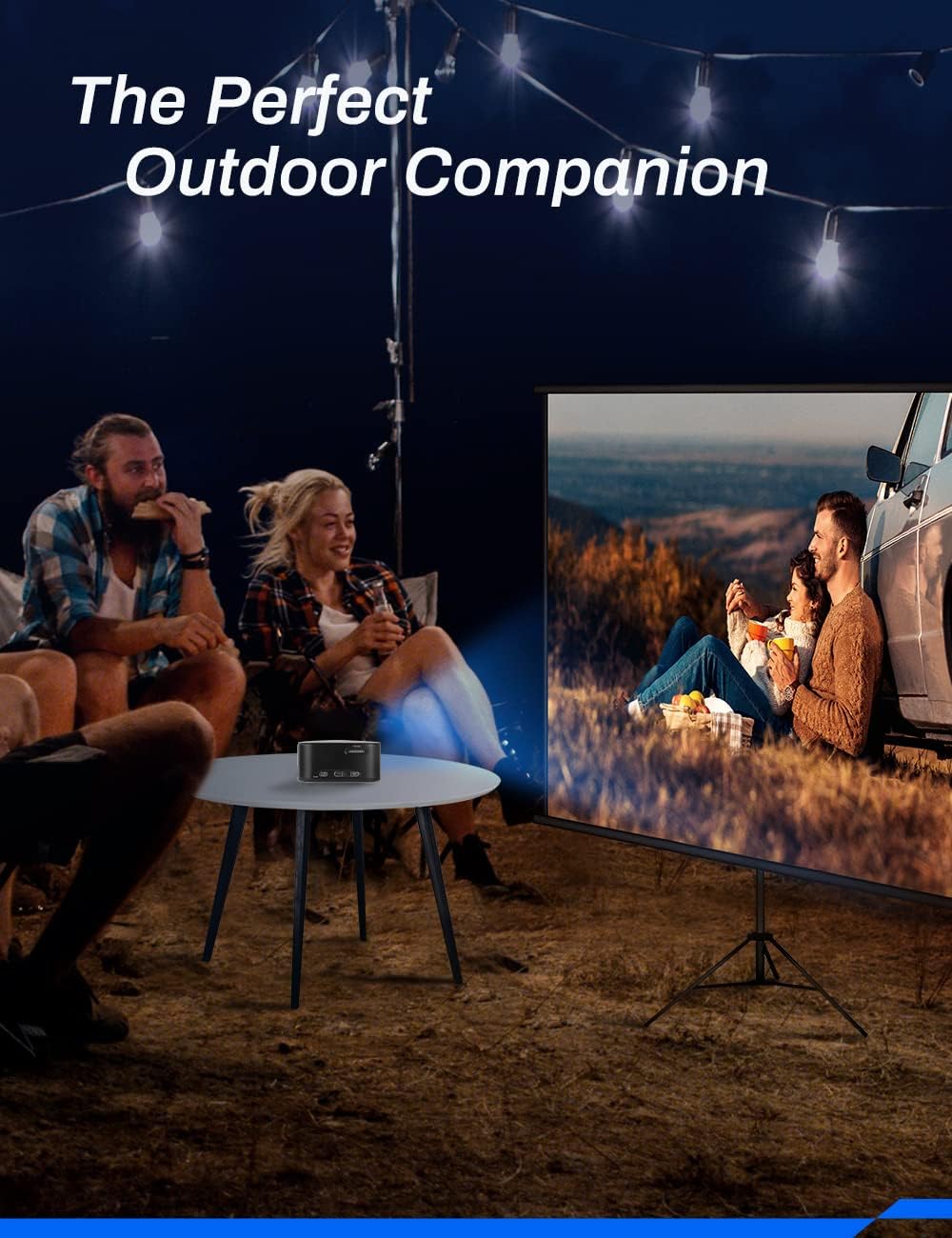
Image 3.4: Ideal for outdoor entertainment.
4. Setup
- Charging the Projector: Before first use, fully charge the projector using the provided Micro USB Charging Cable and a compatible USB power adapter (not included). The charging indicator light will show the charging status.
- Placement: Place the projector on a stable, flat surface. Ensure there are no obstructions in front of the lens or around the ventilation openings. For optimal image quality, project onto a smooth, light-colored wall or a projector screen.
- Power On: Press and hold the Power button (location may vary, refer to device diagram) for a few seconds until the projector powers on.
- Focus Adjustment: Locate the focus wheel (typically on the side or top of the projector). Rotate the wheel until the projected image appears clear and sharp.
5. Operating Instructions
5.1 Power On/Off
- To Power On: Press and hold the Power button until the indicator light illuminates and the projector starts.
- To Power Off: Press and hold the Power button until the projector shuts down. Always power off correctly to prevent damage.
5.2 Navigation and Control
The projector features intuitive touch controls on its surface. Use gentle taps and swipes to navigate menus and select options. Specific functions of each touch area are detailed in the Quick Start Guide.
5.3 Source Selection
After powering on, the projector will typically display its main interface. Use the touch controls to navigate to the input source selection. Select the appropriate input (e.g., HDMI) based on the device you wish to connect.
6. Connectivity
The APIO projector offers various connectivity options:
- HDMI Port: Connect external devices such as laptops, DVD players, TV boxes, or game consoles using an HDMI cable. Note: For Apple products, an Apple Digital AV adapter (sold separately) is required for HDMI connection.
- USB Port: This port serves two primary functions: it can be used to power the projector (if not running on battery) or to charge external mobile and streaming devices, acting as a power bank.
- 3.5mm Earphone Jack: Connect external headphones or speakers for private listening or enhanced audio output.

Image 6.1: The projector supports connection to multiple device types.
7. Maintenance
Proper maintenance ensures the longevity and optimal performance of your projector:
- Cleaning the Lens: Use a soft, lint-free cloth specifically designed for optical lenses to gently wipe the projector lens. Do not use abrasive cleaners or excessive force.
- Cleaning the Casing: Wipe the projector's exterior with a soft, dry cloth. For stubborn marks, a slightly damp cloth can be used, but ensure no liquid enters the device.
- Battery Care: To prolong battery life, avoid completely draining the battery frequently. Recharge the projector regularly, even if not in use for extended periods. Store in a cool, dry place.
- Ventilation: Ensure the projector's ventilation openings are not blocked during operation to prevent overheating.
- Storage: When not in use, store the projector in a protective case or a clean, dry environment away from direct sunlight, dust, and extreme temperatures.
8. Troubleshooting
If you encounter issues with your APIO projector, refer to the following common problems and solutions:
| Problem | Possible Cause | Solution |
|---|---|---|
| No image projected | Projector not powered on; Input source not selected; Cable not connected properly. | Ensure projector is on; Select correct input source; Check HDMI/USB cable connections. |
| Image is blurry | Focus not adjusted; Projector too far/close to screen. | Adjust the focus wheel; Reposition the projector for optimal distance. |
| No sound | Volume too low; External speakers not connected properly; Source device volume low. | Increase projector volume; Check external speaker connection; Increase volume on source device. |
| Projector not charging | Charging cable faulty; USB power adapter insufficient. | Try a different Micro USB cable; Use a certified USB power adapter (e.g., 5V/2A). |
| Projector overheats | Ventilation blocked. | Ensure ventilation openings are clear and unobstructed. |
If the problem persists after trying these solutions, please contact customer support.
9. Specifications
Key technical specifications for the APIO Smart Mini DLP Pocket Projector:
| Feature | Specification |
|---|---|
| Brand | APIO |
| Model Number | AP106 |
| Display Resolution | 640 x 360 (Native) |
| Supported Resolution | Up to 1080P |
| Item Weight | 12.8 ounces |
| Product Dimensions | 3.46 x 3.46 x 1.69 inches |
| Battery Type | Lithium Ion (2600mAh) |
| Battery Life | Up to 2 hours |
| Speaker Type | Built-In (2 x 1W) |
| Connectivity Technology | HDMI, USB |
| Special Feature | Lightweight, Portable |
| Recommended Uses | Home Cinema, Presentations, Outdoor Entertainment |
10. Warranty and Support
For information regarding product warranty, please refer to the warranty card included with your purchase or visit the official APIO website. Keep your purchase receipt as proof of purchase for any warranty claims.
If you require further assistance, technical support, or have questions not covered in this manual, please contact APIO customer service through the contact information provided on the product packaging or the official website.