
1. Introduction
Thank you for purchasing the MYPIN VG0111 4K HDMI Capture Board. This device allows you to capture and stream high-quality video and audio from various HDMI sources. Please read this manual carefully to ensure proper setup and operation.
2. Safety Information
- Keep the device away from water, fire, and high temperatures.
- Do not attempt to disassemble or modify the device.
- Use only the provided or recommended power supply and cables.
- Ensure proper ventilation to prevent overheating.
- This product is PSE certified by a TUV registered inspection body.
3. Package Contents
- MYPIN VG0111 4K HDMI Capture Board
- 1X User Guide
- 1X Type-C to USB cable
4. Product Overview
The MYPIN VG0111 is a versatile HDMI capture board designed for recording and live streaming. It supports 4K@60Hz passthrough and 1080P@60Hz video capture. It features multiple input/output ports and two distinct recording modes.

Image: MYPIN VG0111 4K HDMI Capture Board connected to a laptop, monitor, and PlayStation 5, illustrating 4K 60Hz passthrough and 1080P 60Hz video capture.
Ports and Indicators

Image: Close-up view of the MYPIN VG0111 capture board showing HDMI In, HDMI Out, Mic In, Line Out, USB Host, and LAN ports.
- HDMI IN: Connect your video source (e.g., game console, camera).
- HDMI OUT: Connect to a display for zero-latency passthrough.
- MIC IN (3.5mm): Connect an external microphone for commentary.
- LINE OUT (3.5mm): Connect headphones or speakers for audio monitoring.
- USB HOST: Insert a USB flash drive or external HDD for PC-free recording.
- TYPE-C/USB: Connect to a PC for PC mode capture or power.
- LAN: For network connectivity (if applicable for streaming features).
- REC Button: Initiates/pauses recording.
- STREAM Button: Initiates/pauses streaming.
5. Setup
Basic Connection Diagram

Image: Diagram illustrating the two primary recording modes: PC-free mode for direct USB storage and PC mode for capturing video to a computer.
Step-by-Step Setup
- Connect Video Source: Use an HDMI cable to connect your video source (e.g., game console, digital camera) to the HDMI IN port on the capture board.
- Connect Display (Optional but Recommended): Use another HDMI cable to connect your display (e.g., TV, monitor) to the HDMI OUT port on the capture board. This enables zero-latency passthrough.
- Connect Power/PC:
- For PC-Free Recording: Connect the provided Type-C to USB cable to a power adapter (not included) or a USB port for power.
- For PC Mode Recording/Streaming: Connect the provided Type-C to USB cable to your PC.
- Connect Storage (PC-Free Mode Only): Insert a USB flash drive (up to 128GB) or an external HDD into the USB HOST port. Ensure the storage device is formatted to FAT32 (for single files up to 4GB) or exFAT (for continuous recording).
- Connect Audio (Optional):
- For microphone input, connect a 3.5mm microphone to the MIC IN port.
- For audio monitoring, connect headphones or speakers to the LINE OUT port.
6. Operating Instructions
6.1 Recording Modes
The MYPIN VG0111 supports two main recording methods:
PC-Free Recording
This mode allows you to record directly to a USB storage device without needing a computer.
- Ensure a USB flash drive or HDD is connected to the USB HOST port.
- Connect your HDMI source and power the device as described in the Setup section.
- Press the REC button once to start recording. The indicator light will change to show recording is active.
- Press the REC button again to pause or stop recording.
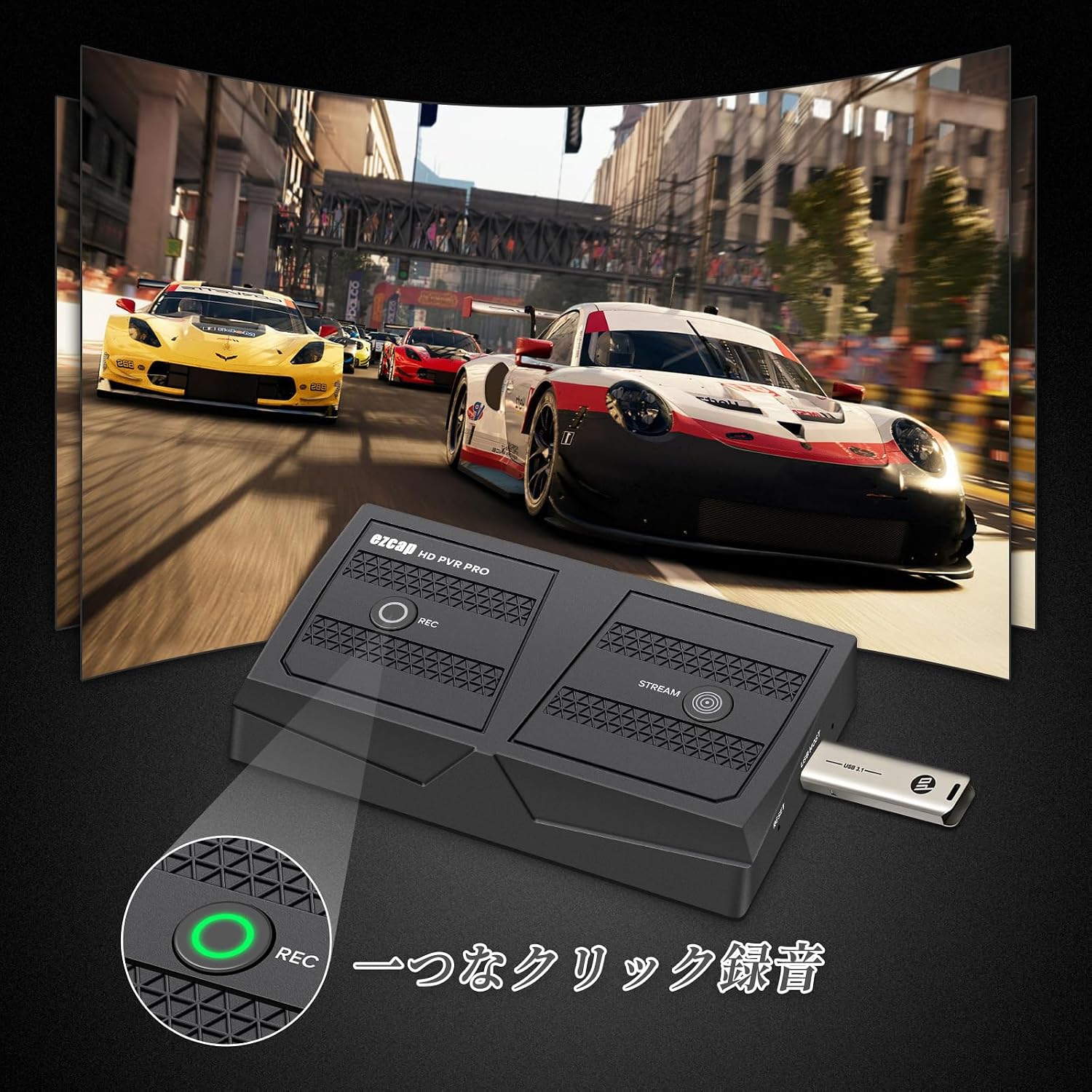
Image: The REC button on the capture board, highlighting its one-click recording feature.

Image: The USB HOST port with a USB flash drive, demonstrating support for up to 128GB storage for PC-free recording.
PC Mode Recording/Streaming
This mode allows you to capture video to your computer using compatible software.
- Connect the capture board to your PC via the Type-C to USB cable.
- Your PC should recognize the device as a webcam or video input source.
- Open your preferred capture/streaming software (e.g., OBS Studio, XSplit, VLC).
- Select the MYPIN VG0111 as your video input device within the software.
- Configure your recording or streaming settings within the software.
- Start recording or streaming from your software interface.
6.2 Audio Recording
The device allows you to record commentary audio along with your video.
- Connect a 3.5mm microphone to the MIC IN port.
- When recording in PC-free mode, the microphone audio will be automatically mixed with the video.
- In PC mode, ensure your capture software is configured to use the microphone input from the capture board.
- For game recordings (e.g., PS4, Xbox One), the device can also capture party chat audio from your friends if connected correctly.

Image: Setup demonstrating how to record live commentary using a 3.5mm TRS microphone or headset connected to the capture board.
6.3 Live Streaming
The MYPIN VG0111 is equipped for live streaming to various platforms.
- Connect the capture board to your PC.
- Open your streaming software (e.g., OBS Studio, XSplit).
- Select the MYPIN VG0111 as your video source.
- Configure your streaming platform settings (e.g., YouTube, Facebook, Twitch) within your software.
- Press the STREAM button on the device or initiate streaming from your software.

Image: The capture board facilitating live streaming and recording, shown with a camera input and laptop output.

Image: Illustrates streaming live video to YouTube using RTMP, with the capture board connected to a laptop and camera.
7. Maintenance
- Clean the device with a soft, dry cloth. Do not use liquid cleaners.
- Store the device in a cool, dry place when not in use.
- Avoid dropping or subjecting the device to strong impacts.
8. Troubleshooting
No Video Output/Capture
- Check all HDMI cable connections. Ensure they are securely plugged in.
- Verify that your video source is powered on and outputting a signal.
- Ensure your display is set to the correct HDMI input.
- In PC mode, confirm that the capture board is selected as the video input in your software.
- Try a different HDMI cable or port.
No Audio
- Check audio cable connections (MIC IN, LINE OUT).
- Ensure your microphone is working and properly connected.
- In PC mode, verify audio input settings in your capture software.
- Adjust volume levels on your source, display, and capture software.
Recording Issues (PC-Free Mode)
- Ensure your USB storage device has sufficient free space.
- Check the format of your USB storage device (FAT32 for files up to 4GB, exFAT for continuous recording).
- Try a different USB storage device.
- Ensure the device is receiving stable power.
Latency Issues
- The HDMI passthrough offers zero-latency viewing on your connected display.
- Latency in PC mode is dependent on your computer's specifications and the capture software used. Ensure your PC meets the minimum system requirements.
9. Specifications
| Model | VG0111 |
| Brand | MYPIN |
| Input Resolution | Up to 4K (3840x2160) @ 60Hz |
| Recording Resolution | Up to Full HD (1920x1080) @ 60Hz |
| Passthrough | 4K @ 60Hz, Zero Latency |
| Input Interfaces | HDMI, 3.5mm Mic In |
| Output Interfaces | HDMI, 3.5mm Line Out, USB (Type-C) |
| Storage Support (PC-Free) | USB Flash Drive/HDD up to 128GB (FAT32/exFAT) |
| Compatible Operating Systems | Windows 8 (32/64 bit), Windows 7 (32/64 bit), Windows Vista (32/64 bit) or later |
| Compatible Devices | Digital Cameras, Video Cameras, Game Consoles (PS4, Xbox One, PSP), Apple TV, iPod, iPhone, iPod Touch (Lightning Digital AV adapter required for Apple devices), Laptops, PCs |
| Features | Low Latency, One-Click Recording, Hardware Encoder, Live Streaming (YouTube, Facebook, Twitter) |
10. Warranty and Support
This product has undergone PSE certification by a TUV registered inspection body, ensuring compliance with safety standards.
For technical support, troubleshooting assistance, or warranty inquiries, please contact MYPIN customer service through the retailer where you purchased the product or visit the official MYPIN website.