
Anderic RRCM7500
Anderic RRCM7500 Remote Control Instruction Manual
Model: RRCM7500
Introduction
The Anderic RRCM7500 remote control is designed as a direct replacement for the Channel Master CM7500XRC2 Digital TV Tuner DVR Converter Remote Control. This remote offers 100% compatibility and functions identically to the original Channel Master remote, providing a seamless user experience.
Key features include backlit keys for improved visibility in low light conditions, and comprehensive programmability to control various devices. It is pre-programmed for Channel Master DVRs and Samsung TVs, and supports programming for secondary devices like other TVs and audio equipment.

Image: Comparison of the Anderic RRCM7500 remote (right) and the original Channel Master remote (left), highlighting the similar layout and design.
Setup and Initial Use
1. Battery Installation
The Anderic RRCM7500 remote requires two (2) AAA batteries (not included). To install the batteries:
- Locate the battery compartment on the back of the remote control.
- Slide the battery cover downwards to open.
- Insert two AAA batteries, ensuring the positive (+) and negative (-) terminals align correctly with the indicators inside the compartment.
- Slide the battery cover back into place until it clicks securely.
For added security and to prevent battery theft or loss of the battery cover in high-traffic environments, an optional security cable attachment (PN: CBL01, sold separately) can be used with the provided screw.

Image: The battery compartment of the Anderic RRCM7500, illustrating the placement of AAA batteries and the screw for the optional security cable.
2. Initial Programming (for non-Channel Master devices)
While the RRCM7500 is pre-programmed for Channel Master DVRs and Samsung TVs, it can be programmed to control other televisions and audio equipment. A complete database of codes and detailed instructions are included with the product for various programming methods, including code search and quick code entry.
For simple 3-step modification:
- Turn on the device (e.g., TV) manually.
- Press and hold the SETUP key on the remote for 3 seconds until the light remains on; then release the key.
- Enter the specific code provided in the code book for your device.
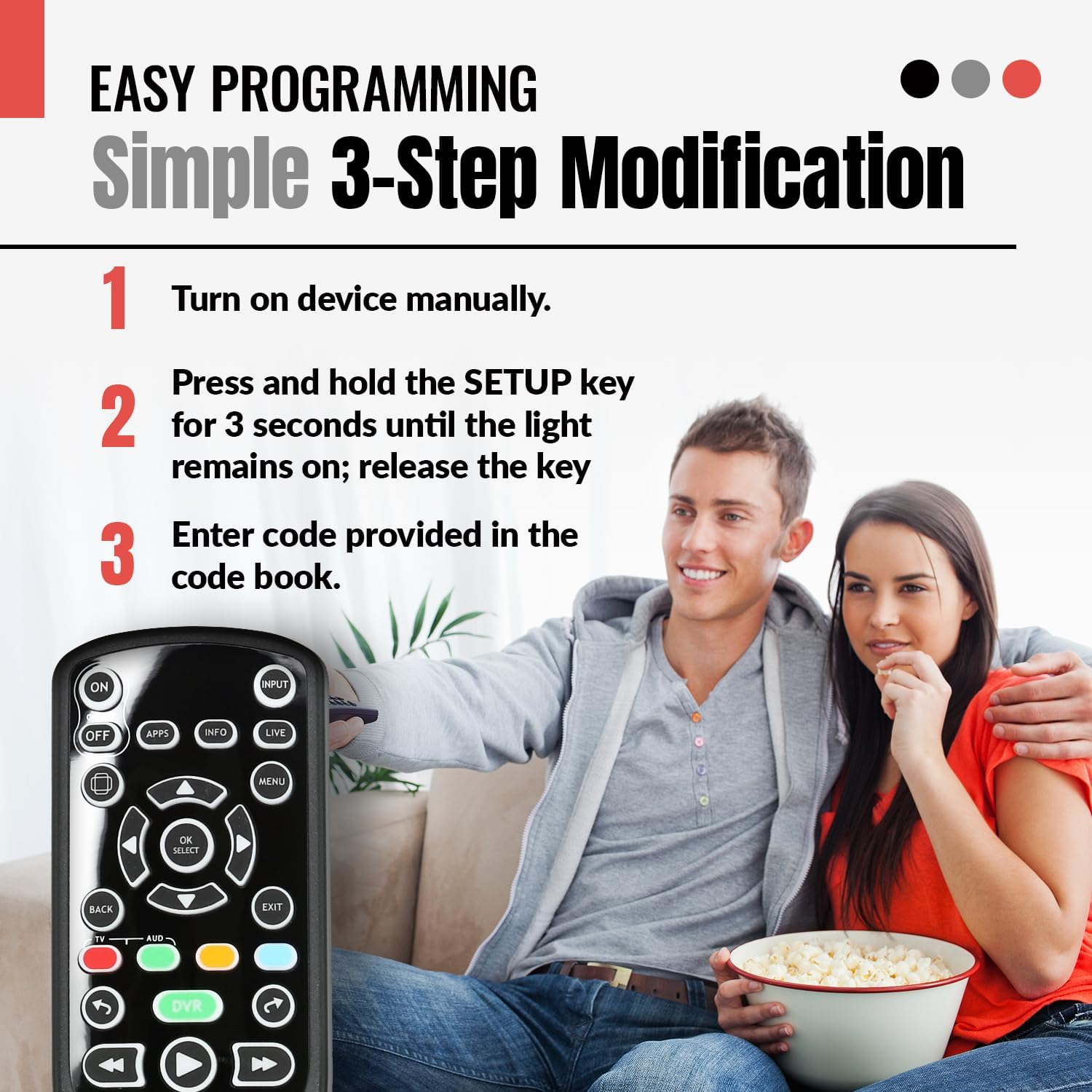
Image: Visual guide to the simple 3-step programming process for the remote, demonstrating how to set it up for other devices.
Operating Instructions
The Anderic RRCM7500 remote is designed with a simplified layout for ease of use, replicating the functionality of the original Channel Master CM7500XRC2 remote. It offers intuitive control over your Channel Master DVR and connected television.
Key Functions:
- Power (ON/OFF): Controls the power of your Channel Master device and programmed TV.
- Input: Switches video inputs on your television.
- APPS, INFO, LIVE, MENU: Accesses specific functions and menus on your Channel Master DVR.
- Navigation Pad (OK/SELECT, UP/DOWN/LEFT/RIGHT): Used for menu navigation and selection.
- BACK, EXIT: Returns to the previous screen or exits a menu.
- DVR Controls (Record, Play, Pause, Stop, Fast Forward, Rewind, Skip): Standard controls for DVR playback and recording.
- VOL+/-, MUTE: Adjusts television volume and mutes audio.
- CH PAGE+/-, Number Pad (0-9): Changes channels and allows direct channel entry.
- Backlit Keys: All keys are backlit, making it easy to operate the remote in dark environments.

Image: The remote's backlit keys glowing green, illustrating its ease of use in low-light conditions.
The remote is designed to auto-toggle between TV and set-top box control, and is pre-configured to work immediately with Channel Master boxes, simplifying your entertainment setup.

Image: Illustration of the remote's ability to control both a TV and a Channel Master box seamlessly.
Maintenance
Battery Replacement:
When the remote's performance degrades or it stops responding, it is likely time to replace the batteries. Follow the battery installation steps outlined in the "Setup and Initial Use" section. Always replace both AAA batteries simultaneously with new ones.
Cleaning:
To clean the remote control, use a soft, dry cloth. For stubborn dirt, a slightly damp cloth can be used, but ensure no moisture enters the remote. Avoid using harsh chemicals or abrasive cleaners, as these can damage the remote's surface or internal components.
Troubleshooting
| Problem | Possible Cause | Solution |
|---|---|---|
| Remote not responding. | Dead or incorrectly installed batteries. Obstruction between remote and device. Device not powered on. | Replace batteries, ensuring correct polarity. Remove any obstructions. Ensure device is powered on. |
| Certain buttons do not work. | Remote not programmed correctly for the specific device function. | Refer to the included programming instructions to re-program the remote for the specific device or function. Ensure the correct code is used. |
| Backlight not working. | Low battery power. | Replace batteries. |
| Remote does not control TV/Audio device. | Incorrect programming code or programming not completed. | Re-attempt programming using the 3-step method or code search. Try alternative codes for your TV/Audio device from the code database. |
If you encounter persistent issues or require further assistance, please contact Anderic customer support.
Specifications
- Model Number: RRCM7500
- Product Dimensions: 7.75 x 2 x 1 inches (Length x Width x Thickness)
- Item Weight: 4.5 ounces
- Batteries Required: 2 x AAA (sold separately)
- Special Features: Ergonomic design, Backlit keys
- Max Number of Supported Devices: 2 (Channel Master DVR + 1 other device like TV/Audio)
- Compatible Devices: Channel Master DVRs (CM7001, CM7004, CM7500GB16, CM7500TB1, CM7500XRC2), Cable, Converter Box, Antenna, various TVs.

Image: Dimensions of the Anderic RRCM7500 remote control and a visual representation of the required AAA batteries.
Warranty and Support
Anderic is committed to providing high-quality products and outstanding customer support. For any inquiries, technical assistance, or warranty information, please contact Anderic customer support directly.
You can reach Anderic support by calling 1-855-ANDERIC.
Anderic is a registered trademark of Dan's Electronics Etc., Inc. Anderic and Dan's Electronics Etc., Inc. are not affiliated with any other brands. All rights reserved.
Related documentsRRCM7500

Ask a question about this manual
Ask about setup, troubleshooting, compatibility, parts, safety, or missing instructions. Manuals+ will review the question and use this page’s manual context to help answer it.