
1. Introduction
Thank you for choosing the BALDERIA Power Cube PPS1000. This portable power station is designed to provide reliable and versatile power for various applications, from outdoor adventures to emergency backup. Featuring a powerful lithium-ion battery, multiple output ports, and an active Battery Management System (BMS), the PPS1000 ensures safe and efficient energy delivery. Please read this manual thoroughly before operating the device to ensure proper use and maximize its lifespan.
2. Safety Instructions
Always observe the following safety precautions to prevent injury or damage to the device:
- Do not expose the power station to water, rain, or moisture.
- Do not use or store the device near heat sources, open flames, or in direct sunlight for extended periods.
- Do not disassemble, repair, or modify the unit. Contact qualified service personnel for any repairs.
- Keep out of reach of children and pets.
- Ensure proper ventilation during use and charging. Do not block ventilation openings.
- Use only the provided charging cables and accessories.
- Avoid dropping or subjecting the unit to strong impacts.
- In case of leakage from the battery, avoid contact with skin and eyes. Rinse with plenty of water and seek medical attention.
- Dispose of the product according to local regulations for electronic waste.
3. Package Contents
Please check the package for the following items:
- BALDERIA Power Cube PPS1000 Portable Power Station
- AC Charging Cable (for household socket)
- Car Charging Cable
- User Manual (this document)
4. Product Overview

Figure 4.1: Front view of the BALDERIA Power Cube PPS1000, showing the display, AC outlets, DC port, USB ports, and power button.

Figure 4.2: Rear/side view of the BALDERIA Power Cube PPS1000, showing the handle, wireless charging pad, and technical specifications label.
4.1. Components and Controls
- LCD Display: Shows battery level, input/output wattage, remaining charge/discharge time, and warning indicators.
- Power Button: Turns the unit on/off.
- AC Outlets (2x 230V): For powering AC devices up to 1000W (2000W peak).
- DC Output (1x 12V Car Socket): For 12V DC devices.
- USB-A Ports (3x): For charging USB-compatible devices.
- USB-C Port (1x): For charging USB-C compatible devices.
- Wireless Charging Pad: For wirelessly charging compatible smartphones and devices.
- DC Input (12-28V): For charging the power station via AC adapter, car charger, or solar panel.
- Flashlight/LED Reading Lamp: Integrated light source with SOS mode.
- ECO Button: Activates/deactivates ECO mode for automatic shutdown when power consumption is low.
5. Setup
5.1. Initial Charging
It is recommended to fully charge the BALDERIA Power Cube PPS1000 before first use to optimize battery performance and lifespan. The unit comes with a partial charge for safety during transport.
5.2. Connecting Charging Cables
Connect the appropriate charging cable (AC adapter, car charger, or solar panel cable) to the DC Input port on the power station.
6. Operating Instructions
6.1. Charging the Power Station
The Power Cube PPS1000 can be charged using three methods:
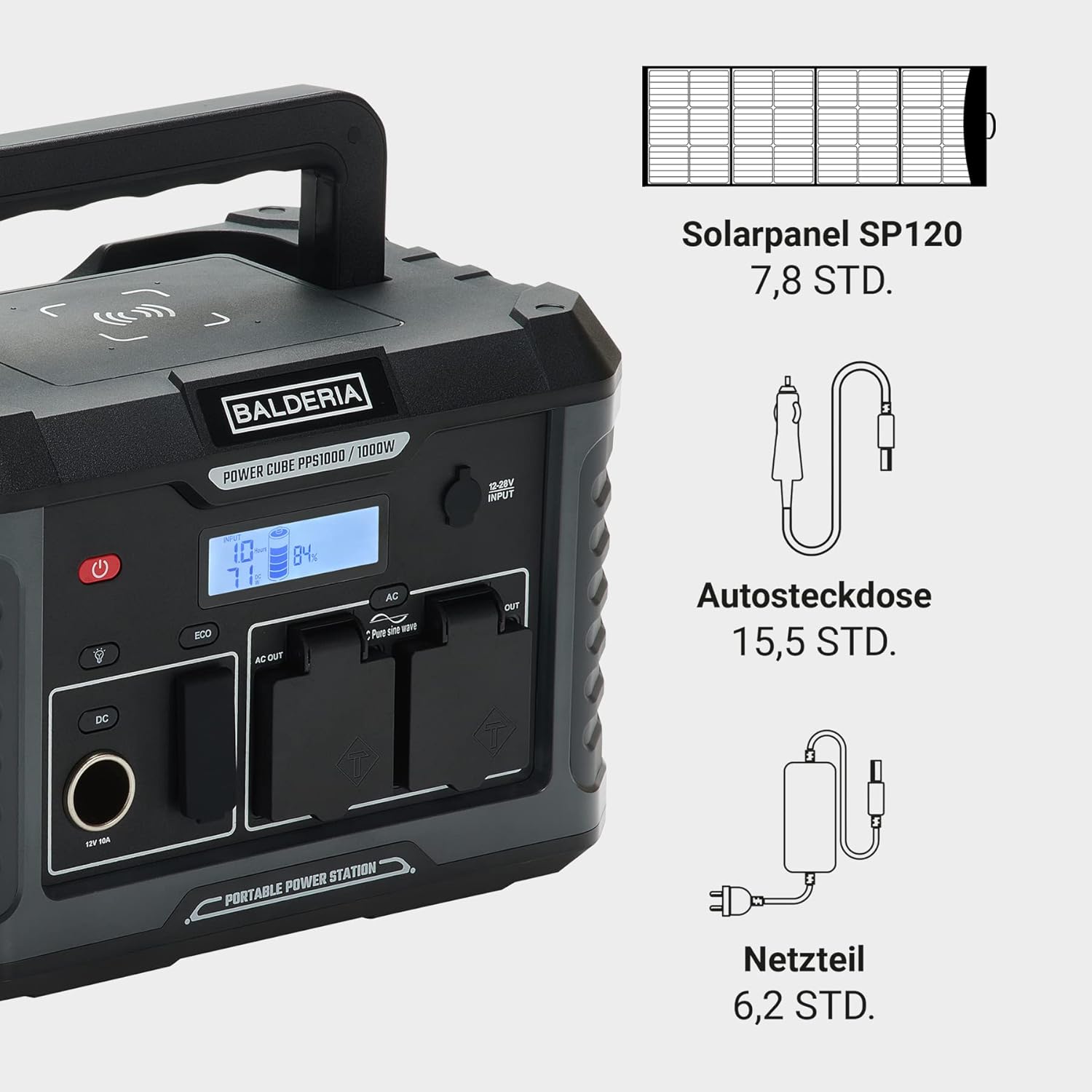
Figure 6.1: Diagram illustrating the three charging methods for the Power Cube: Solar panel (approx. 7.8 hrs), Car socket (approx. 15.5 hrs), and AC adapter (approx. 6.2 hrs).

Figure 6.2: The BALDERIA Power Cube PPS1000 being charged or used outdoors, demonstrating its portability and ease of connection.
- AC Wall Outlet: Connect the provided AC charging cable to the DC Input port and then to a standard wall outlet. The LCD display will show the charging status.
- Car Charger: Connect the provided car charging cable to the DC Input port and then to your vehicle's 12V cigarette lighter socket.
- Solar Panel: Connect a compatible solar panel (not included) to the DC Input port. Ensure the solar panel is positioned to receive maximum sunlight. The LCD display will indicate solar charging.

Figure 6.3: A diagram illustrating how to connect a solar panel to the Power Station, showing power flow to various devices like a tablet, mobile phone, and power bank.

Figure 6.4: The BALDERIA Power Cube PPS1000 connected to a solar panel on a car hood, with a person using a laptop, illustrating various applications like powering a drill, electric oven, or drone.
6.2. Using the Outputs
Press the main power button to turn on the unit. Then, activate the specific output section you wish to use (AC, DC, or USB) by pressing its dedicated button if available.
- AC Output: Plug your AC devices into the 230V outlets. Ensure the total wattage does not exceed 1000W (or 2000W peak).
- DC Output: Plug your 12V DC devices into the car socket.
- USB Output: Connect your USB devices to the USB-A or USB-C ports for charging.
- Wireless Charging: Place your Qi-compatible device on the wireless charging pad. Ensure it is centered for optimal charging.
6.3. Special Features
- Flashlight & SOS Mode: Press the flashlight button to turn on the integrated light. Press again to cycle through brightness levels or activate SOS flashing mode.
- LED Reading Lamp: The unit also features an LED reading lamp for ambient lighting.
- ECO Mode: Press the ECO button to enable or disable ECO mode. In ECO mode, the power station will automatically shut down if the power consumption is very low for a certain period, conserving battery life.

Figure 6.5: A person carrying the BALDERIA Power Cube PPS1000, with icons indicating features like flashlight, splash resistance, and LCD display. The flashlight is illuminated.

Figure 6.6: The BALDERIA Power Cube PPS1000 providing power at a campsite, demonstrating its utility for outdoor activities.
7. Maintenance
7.1. Cleaning
Wipe the exterior of the power station with a dry, soft cloth. Do not use abrasive cleaners or solvents. Ensure all ports are free of dust and debris.
7.2. Storage
If storing the power station for an extended period, ensure it is charged to approximately 50-80% capacity. Store it in a cool, dry place, away from direct sunlight and extreme temperatures. Recharge the unit every 3-6 months to maintain battery health.
8. Troubleshooting
If you encounter issues with your BALDERIA Power Cube PPS1000, please refer to the following common problems and solutions:
| Problem | Possible Cause | Solution |
|---|---|---|
| Unit does not turn on | Battery is completely discharged. | Charge the power station using the AC adapter. |
| No output from AC/DC/USB ports | Output port not activated; Device power exceeds limit; Overload protection triggered. | Ensure the specific output button is pressed; Check device wattage; Disconnect device and restart the power station. |
| Charging is slow or not working | Incorrect charger; Poor connection; Solar panel not receiving enough sunlight. | Use original charger; Check all cable connections; Reposition solar panel. |
| LCD display not working | Unit off; Software glitch. | Turn on the unit; Restart the unit by holding the power button. |
If the problem persists after trying these solutions, please contact BALDERIA customer support.
9. Specifications

Figure 9.1: Diagram illustrating the dimensions of the BALDERIA Power Cube PPS1000 (Length 290mm, Width 201mm, Height 200mm).
| Feature | Detail |
|---|---|
| Model Number | PPS1000 |
| Battery Type | Lithium-ion |
| Capacity | 933 Wh |
| AC Output | 2x 230V, 1000W (2000W Peak) |
| DC Output | 1x 12V Car Socket |
| USB-A Output | 3x USB-A Ports |
| USB-C Output | 1x USB-C Port |
| Wireless Charging | Yes |
| Input Voltage | 12-28V (for AC adapter, car charger, solar) |
| Dimensions (W x D x H) | 290 x 201 x 200 mm |
| Weight | 8.6 kg |
| Special Features | Overload Protection, Portable, USB Port, Flashlight, ECO Mode, BMS |
10. Warranty and Support
For warranty information and customer support, please refer to the documentation included with your purchase or visit the official BALDERIA website. Keep your proof of purchase for warranty claims.


