
PNBLAECE 1-1
PNBLAECE Wireless CarPlay Adapter User Manual
Model: 1-1
Product Overview
The PNBLAECE Wireless CarPlay Adapter converts your car's existing wired CarPlay system into a wireless one, allowing for a seamless and convenient connection to your iPhone. This adapter maintains all original CarPlay functionalities, including navigation, music playback, Siri assistant, and phone calls, utilizing your car's built-in controls such as touch screen, OEM knob, and steering wheel controls.

Image: The compact PNBLAECE Wireless CarPlay Adapter with its USB-A connector.
Key features include:
- Wireless CarPlay Functionality: Eliminates the need for wired connections, providing a clutter-free experience.
- Automatic Connection: Once initially paired, the adapter automatically connects to your iPhone when the car starts.
- Original Control Method Support: Compatible with touch screen, OEM knob, and steering wheel controls.
- Compact Design: Sleek and small, designed for discreet placement in your vehicle.
- Plug and Play: Simple setup process for quick use.
Setup Guide
Follow these simple steps to connect your PNBLAECE Wireless CarPlay Adapter:
Step 1: Insert the Adapter
Insert the Wireless CarPlay Adapter into your car's USB-C or standard USB port. The indicator light on the adapter will illuminate upon successful power connection.

Image: Illustration showing the adapter being plugged into a car's USB port, with the indicator light on.
Step 2: Enable Wi-Fi and Bluetooth on Your iPhone
On your iPhone, ensure both Wi-Fi and Bluetooth are turned on. Verify that these functions are not currently occupied by other devices. You do not need to pair Wi-Fi or enter a Wi-Fi password; only Bluetooth pairing is required.

Image: Screenshots illustrating how to enable Wi-Fi and Bluetooth in iPhone settings, and the Bluetooth pairing process.
Step 3: Pair Bluetooth and Use CarPlay
After enabling Wi-Fi and Bluetooth, pair your iPhone with the adapter via Bluetooth. Look for a device named "smartDongle-XXXX" (where XXXX is a unique identifier). Once paired, wait a few seconds for a prompt to appear on your car's display asking to "Use CarPlay." Click this prompt to initiate the wireless CarPlay connection.
Image: A visual guide showing the Bluetooth pairing screen on an iPhone and the "Use CarPlay" prompt on the car's display.
Operating Instructions
The PNBLAECE Wireless CarPlay Adapter is designed for seamless integration and ease of use.
Wireless CarPlay Experience
Once connected, you can enjoy all the features of Apple CarPlay wirelessly. This includes navigation, playing music, making calls, sending messages, and using Siri, all displayed on your car's screen.

Image: Icons representing Siri, Navigation, Communication, and Entertainment, highlighting the core functions of wireless CarPlay.

Image: Multiple car screen displays showing various CarPlay applications like navigation, phone calls, music, and other apps, demonstrating full wireless functionality.
Maintaining Original Car Controls
The adapter is designed to work seamlessly with your car's existing control methods. You can continue to use the touch screen, OEM knob, and steering wheel controls to navigate CarPlay.

Image: A driver interacting with car controls, illustrating the use of touch screen, steering wheel controls, and OEM knob for CarPlay operation.
Automatic Reconnection
After the initial successful pairing, the adapter will automatically connect to your iPhone every time you start your car, provided your iPhone's Bluetooth and Wi-Fi are enabled.
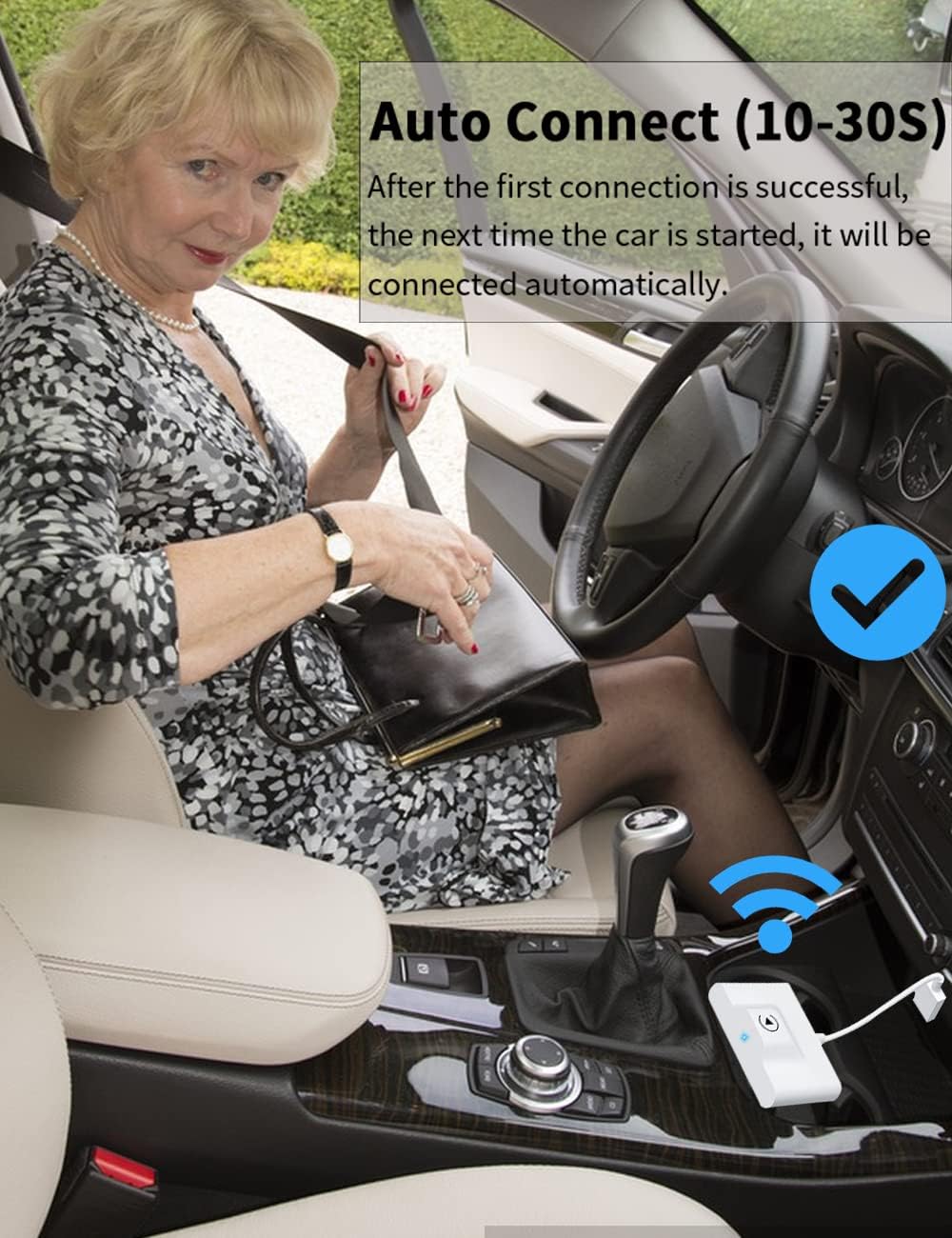
Image: A woman in a car, with a visual indicator of automatic Wi-Fi connection, demonstrating the auto-connect feature.
Before and After Wireless CarPlay
The adapter eliminates the need for messy cables, providing a cleaner and more organized car interior while still delivering full CarPlay functionality.

Image: A comparison showing a car console cluttered with cables ("Before") versus a clean console with the compact wireless adapter ("After").
Maintenance
The PNBLAECE Wireless CarPlay Adapter requires minimal maintenance. To ensure optimal performance and longevity:
- Keep the adapter clean and free from dust and debris. Use a soft, dry cloth for cleaning.
- Avoid exposing the adapter to extreme temperatures, direct sunlight, or moisture.
- Do not attempt to disassemble or repair the adapter yourself. This may void the warranty and cause damage.
Troubleshooting
If you encounter issues with your Wireless CarPlay Adapter, refer to the following common problems and solutions:
Cannot Find Wi-Fi & Bluetooth
- Ensure the adapter is powered on and its indicator light is illuminated.
- Try testing with another iPhone if available.
- If the issue is specific to one iPhone, reset its network and Bluetooth settings, then restart the device.
- If the problem persists across multiple iPhones, the device may be defective. Contact customer support.
Wi-Fi Connection Notes
- Wi-Fi only needs to be turned on; no pairing or password entry is required for the adapter's operation.
Persistent Disconnection
- Disconnections are often caused by Wi-Fi interference. Check for other Wi-Fi devices in your car (e.g., Wi-Fi enabled car cameras). If present, try ignoring other Wi-Fi networks while using the adapter.
- Reset your mobile Wi-Fi network settings.
- Consider updating the adapter's firmware. Contact customer support with your car model for assistance with firmware updates.
Cannot Connect Automatically
- On some cars, you may need to select "Auto-connect" in your iPhone's CarPlay settings.
- Ensure your phone's Bluetooth and Wi-Fi are on and not occupied by other devices when entering the car.
- Clear existing pairing records, restart your phone, and re-pair the adapter.
- Upgrade the adapter's firmware if available.
Black Screen Issue
- Verify that your iPhone's Bluetooth and Wi-Fi are turned on and not in use by other devices.
- Confirm that CarPlay is enabled in your iPhone settings (Settings > General > CarPlay).
- If the problem persists, provide your car model to customer support for potential firmware updates.
Pre-purchase and Compatibility Notes
This adapter is only compatible with cars that have built-in wired CarPlay. If you experience issues or compatibility problems, please contact support for firmware updates or solutions.
Specifications
| Feature | Detail |
|---|---|
| Brand | PNBLAECE |
| Model Number | 1-1 |
| Package Dimensions | 5.83 x 2.8 x 0.67 inches |
| Item Weight | 1.13 ounces |
| Operating System | iOS |
| Connectivity Technologies | Bluetooth, Wi-Fi |
| Special Features | Compact |
| Hardware Interface | Bluetooth, USB, USB Type C |
| Compatible Devices | Smartphone (with wired CarPlay) |
| Data Link Protocol | Bluetooth, USB |
| Color | 04-Wireless CarPlay |
| What's in the Box | 1*Wireless CarPlay Adapter, 1*USB Interface, 1*Type C Interface, 1*Manual |
| Date First Available | August 22, 2022 |
Warranty and Support
PNBLAECE is committed to providing high-quality products and excellent customer service.
- Technical Support: We offer lifetime technical support for our Wireless CarPlay Adapter. If you encounter any issues or have questions, please do not hesitate to contact us.
- Replacement Policy: We provide replacement services for defective units.
- Response Time: We aim to respond to all messages and inquiries within 24 hours.
- User Guide: For more detailed information and troubleshooting, please refer to the official User Guide PDF: Download User Guide (PDF).
When contacting support, please provide your product model (1-1) and a detailed description of the issue, including your car's make and model if relevant.
Related documents1-1


Ask a question about this manual
Ask about setup, troubleshooting, compatibility, parts, safety, or missing instructions. Manuals+ will review the question and use this page’s manual context to help answer it.