
1. Introduction
This manual provides detailed instructions for the BINNUNE BG02 Wired Gaming Headset. Please read this manual thoroughly before using the product to ensure proper operation and to maximize your gaming experience. This headset is designed for immersive audio and clear communication across multiple gaming platforms.
2. Package Contents
Verify that all items listed below are included in your package:
- BINNUNE BG02 Wired Gaming Headset
- 3.5mm Audio Cable with In-line Controls
- PC Splitter Cable (for separate audio/mic ports)
- Quick Start Guide

Image: The BINNUNE BG02 headset, its braided cable with in-line controls, a PC splitter cable, and a quick start guide, laid out on a dark background.
3. Product Features
- Immersive Audio: High-precision 50mm drivers with titanium-coated diaphragms deliver clear audio and enhanced acoustics for an immersive gaming experience.
- Clear Communication: Unidirectional boom microphone with noise-cancellation technology ensures effective communication with teammates by suppressing background noise.
- Broad Compatibility: Compatible with PC, PS4, PS5, Xbox One, Xbox Series X|S, Nintendo Switch, laptops, tablets, and smartphones via a 3.5mm interface.
- Comfortable Design: Features memory foam ear cushions and a soft headband for extended comfort during long gaming sessions.
- Convenient Controls: In-line audio controls on the braided cable include a volume slider and a microphone mute button for quick adjustments.
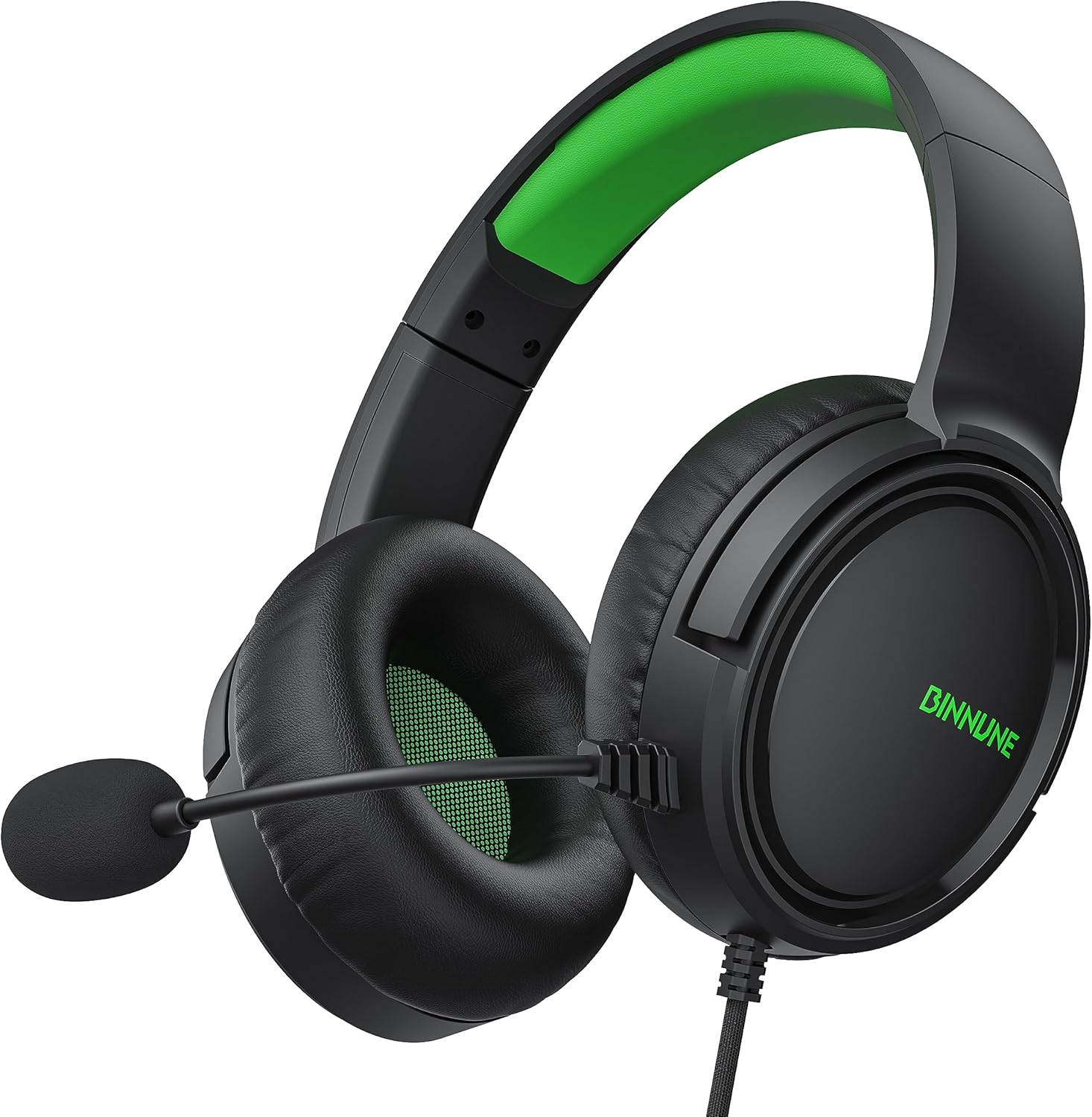
Image: A close-up view of the BINNUNE BG02 Wired Gaming Headset, showcasing its black and green design, earcups, and adjustable microphone.
4. Setup Instructions
4.1 Connecting to Gaming Consoles (PS4, PS5, Xbox One, Xbox Series X|S, Nintendo Switch)
- Locate the 3.5mm audio jack on your console's controller (or console itself for some Switch setups).
- Plug the 3.5mm connector from the headset's braided cable directly into the audio jack.
- Adjust audio settings on your console as needed to ensure the headset is recognized and audio output/input levels are correct.

Image: The BINNUNE BG02 headset connected to an Xbox Series X controller, with an Xbox Series X console in the background, illustrating console compatibility.
4.2 Connecting to PC/Laptops with Separate Audio/Mic Ports
- Connect the headset's 3.5mm connector to the female end of the included PC splitter cable.
- Plug the green-colored male connector of the splitter cable into your PC's audio output (headphone) jack.
- Plug the pink-colored male connector of the splitter cable into your PC's microphone input jack.
- Ensure your PC's sound settings are configured to use the connected headset for both playback and recording.
4.3 Connecting to Laptops/Tablets/Smartphones with a Single 3.5mm Port
- Plug the headset's 3.5mm connector directly into the device's combined audio/mic jack.
- The device should automatically detect the headset for both audio output and microphone input.

Image: The BINNUNE BG02 headset positioned among various compatible devices including a Nintendo Switch, PlayStation 5, Xbox console, laptop, and smartphone, demonstrating cross-platform compatibility.
5. Operating Instructions
5.1 Microphone Usage
- The microphone is flexible and can be adjusted to your preferred position for optimal voice pickup.
- Ensure the microphone is positioned close to your mouth for clear communication.

Image: A person wearing the BINNUNE BG02 headset, with the flexible unidirectional boom microphone positioned near their mouth, highlighting its voice capture capabilities.
5.2 In-line Audio Controls
The braided cable features an in-line control unit for quick adjustments:
- Volume Slider: Slide up or down to increase or decrease the headset's audio volume.
- Microphone Mute Button: Press the button to mute or unmute the microphone. An indicator (if present) will show the microphone status.

Image: A close-up of the in-line audio control unit on the headset's braided cable, showing the volume slider and microphone mute button, along with the 3.5mm jack.
6. Maintenance and Care
- Cleaning: Use a soft, dry cloth to clean the headset. Do not use liquid cleaners or abrasive materials.
- Storage: Store the headset in a cool, dry place away from direct sunlight and extreme temperatures.
- Cable Care: Avoid sharp bends or excessive pulling on the cable to prevent damage.
- Ear Cushions: Periodically check ear cushions for wear and tear. Replacement cushions may be available from the manufacturer.
7. Troubleshooting
| Problem | Possible Cause | Solution |
|---|---|---|
| No sound from headset. |
|
|
| Microphone not working. |
|
|
| Sound quality is poor. |
|
|
8. Specifications
| Model Name | BG02 |
| Connectivity Technology | Wired (3.5 mm Jack) |
| Audio Driver Size | 50 Millimeters |
| Frequency Range | 20 Hz - 20,000 Hz |
| Sensitivity | 97 dB |
| Impedance | 32 Ohm |
| Noise Control | Sound Isolation |
| Microphone | Unidirectional, Noise-Cancellation |
| Controls | In-line Volume Control, Microphone Mute Button |
| Cable Feature | Braided Cable |
| Compatible Devices | PC, PS4, PS5, Xbox One, Xbox Series X|S, NS, Laptops, Tablets, Smartphones |
| Material | Plastic |
| Product Dimensions | 7.48 x 7.87 x 3.94 inches |
| Item Weight | 9 Ounces |

Image: An exploded diagram showing the internal components of the headset's earcup, highlighting the 50mm titanium-coated audio drivers.
9. Warranty and Support
BINNUNE products are designed for reliability and performance. For warranty information, technical support, or customer service inquiries, please refer to the contact information provided in your product packaging or visit the official BINNUNE website.
Please retain your proof of purchase for warranty claims.


