
MISIRUN P8GT
MISIRUN Smart Watch P8GT User Manual
Model: P8GT
1. Introduction
Thank you for choosing the MISIRUN Smart Watch P8GT. This manual provides detailed instructions on how to set up, operate, and maintain your new smartwatch. Please read this manual thoroughly to ensure optimal performance and longevity of your device.

Image: The MISIRUN Smart Watch P8GT, showcasing its sleek design and vibrant display.
2. What's in the Box
- 1* Smartwatch
- 1* Charging Cable (without charge plug)
- 1* User Manual
3. Product Overview
The MISIRUN Smart Watch P8GT features a 1.7-inch HD display with a resolution of 280x240, offering clear visuals and a responsive full touchscreen experience. It is designed for both men and women, providing a range of functionalities to support a healthy and connected lifestyle.

Image: An overview of the smartwatch's key features, including its display and various functions.
Key Features:
- Bluetooth Calling: Built-in speaker and dialer for making and receiving calls directly from the watch.
- Custom Watch Faces: Personalize your watch face with various designs or your own photos.
- Multi-Sport Modes: Tracks various activities including cycling, tennis, running, and more.
- Health Monitoring: Accurate monitoring of heart rate, blood pressure, blood oxygen, and sleep status.
- Music Player: Control music playback from your wrist.
- Notifications: Receives message pushes, weather information, and other alerts.
Video: A general demonstration of the MISIRUN Smart Watch P8GT's features and interface.
4. Setup
4.1 Charging the Smart Watch
Before first use, fully charge your smartwatch. Connect the provided charging cable to the charging port on the back of the watch and plug the USB end into a compatible power adapter (not included) or a computer USB port. The watch display will indicate charging status.
4.2 App Download and Installation
To unlock the full potential of your smartwatch, download the "HD Fit Pro" app on your smartphone. You can find it by searching in your device's app store (App Store for iOS, Google Play Store for Android) or by scanning the QR code provided in the physical user manual.
4.3 Pairing the Smart Watch with Your Phone
The smartwatch requires two Bluetooth connections for full functionality: one for data synchronization via the app and another for the call function.
A: First Bluetooth Connection (App's Bluetooth)
- Ensure Bluetooth is enabled on your smartphone.
- Open the "HD Fit Pro" app.
- Navigate to the "Equipment" or "Device" section within the app.
- Tap "Add Device" or "Bind Device" and select "P8GT" from the list of available devices.
- Follow the on-screen prompts to complete the pairing process. Allow all requested permissions for full functionality.
Video: Instructions on setting up audio play settings for the smartwatch via the app.
B: Second Bluetooth Connection (Call Function)
After successfully connecting the watch to the app, you need to establish a separate Bluetooth connection for the call function.
- On your smartwatch, swipe left to access the call function interface and tap "Turn on" if prompted.
- On your smartphone, go to your phone's Bluetooth settings.
- Search for "P8GT_Phone" in the list of available devices and tap to connect.
- Once connected, you will be able to make and receive calls directly from your smartwatch.
Video: A guide on how to enable and use the call function on the smartwatch.
5. Operating Instructions
5.1 Basic Navigation
The smartwatch features a full touchscreen for intuitive navigation. Swipe left, right, up, or down to access different menus and functions. The side button typically serves as a power button or a return-to-home screen button.
Video: A comprehensive guide on how to use the smartwatch's various features and navigation.
5.2 Changing Watch Faces
Personalize your smartwatch by changing the watch face. You can do this directly on the watch or through the "HD Fit Pro" app.
- On Watch: Gently press and hold the screen for 2-3 seconds, then swipe left or right to browse available watch faces. Tap to select.
- Via App: Open the "HD Fit Pro" app, go to "Face Gallery" to explore and install new watch faces. You can also customize a watch face using your own photos.
Video: Detailed instructions on how to change and customize watch faces on your smartwatch.
5.3 Making and Receiving Calls
With its built-in speaker and Bluetooth connectivity, the P8GT allows you to manage calls directly from your wrist.
- Making Calls: Swipe left on the watch face to access the call interface. You can dial numbers directly or select from your synced contacts.
- Receiving Calls: When a call comes in, the watch will vibrate and display the caller ID. You can answer or reject the call from the watch screen.

Image: A man demonstrating the call-making feature on the smartwatch.
5.4 Music Playback Control
Control your smartphone's music playback directly from your smartwatch. This feature allows you to play, pause, skip tracks, and adjust volume without taking out your phone.
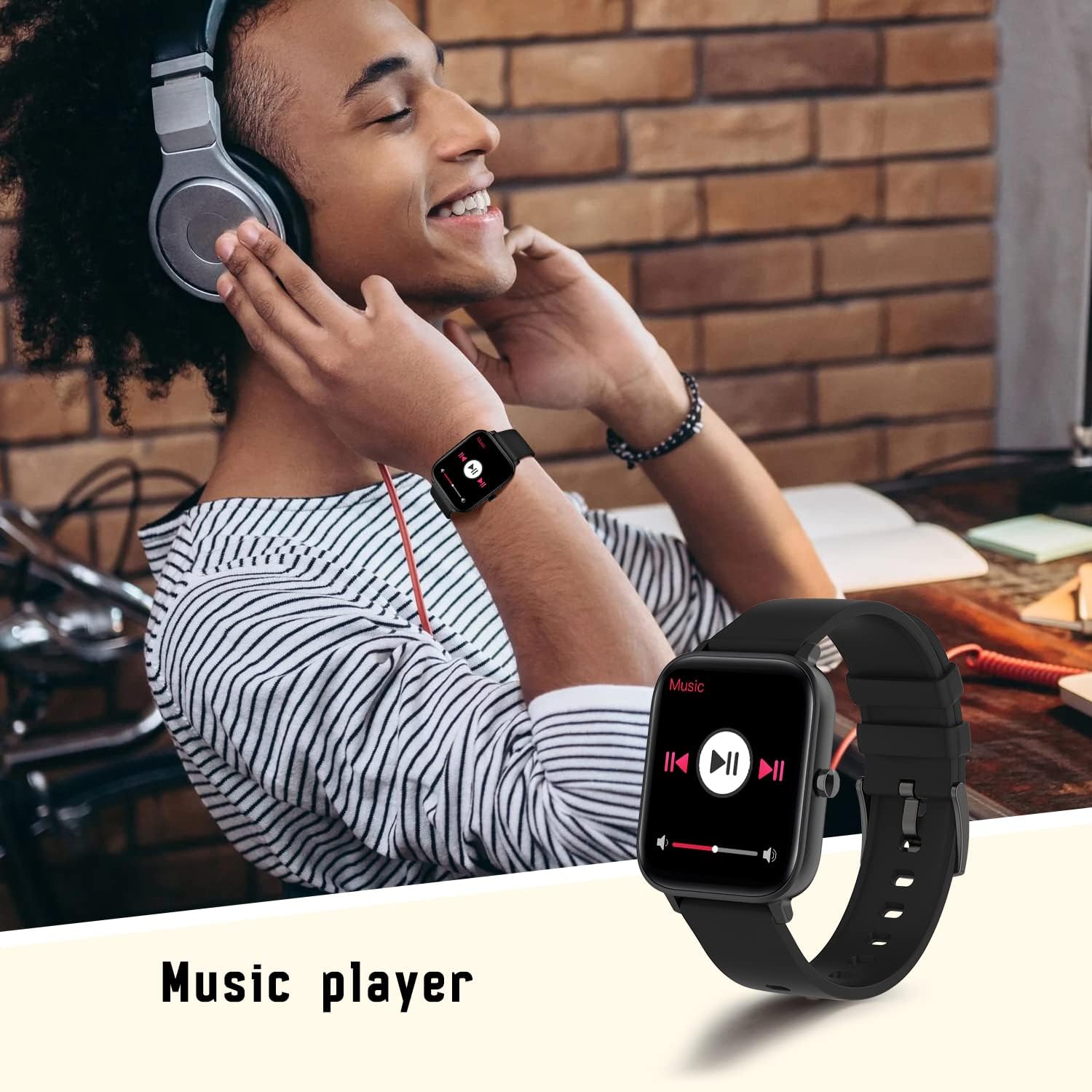
Image: A person using the smartwatch to control music playback.
5.5 Health Monitoring
The smartwatch is equipped with advanced sensors to monitor your health metrics.
- Heart Rate Monitor: Provides accurate heart rate readings throughout the day.
- Sleep Monitor: Automatically tracks your sleep stages and provides insights into your sleep quality.
- Blood Oxygen (SpO2) & Blood Pressure: Measures your blood oxygen levels and blood pressure.

Image: The smartwatch displaying real-time heart rate data.

Image: The smartwatch displaying sleep tracking information.
5.6 Multi-Sport Modes
Track your workouts with precision. The smartwatch supports various sports modes, including walking, running, cycling, and more. It records steps, distance, and calories burned.

Image: The smartwatch showing data from a multi-motion mode, such as steps and calories.
5.7 Notifications
Receive notifications from your smartphone directly on your wrist. This includes message pushes, social media alerts, and more, ensuring you don't miss important updates.

Image: The smartwatch displaying a message push notification.
5.8 Other Functions
The smartwatch offers additional convenient features:
- Camera Control: Remotely control your phone's camera.
- Weather Information: Get real-time weather updates on your wrist.
- Find Bracelet: Locate your watch if misplaced.

Image: The smartwatch displaying current weather information.
6. Maintenance
To ensure the longevity and proper functioning of your MISIRUN Smart Watch P8GT, follow these maintenance guidelines:
- Cleaning: Regularly wipe the watch screen and strap with a soft, dry cloth. If necessary, use a slightly damp cloth, then dry thoroughly. Avoid harsh chemicals or abrasive materials.
- Water Resistance: While the watch may have some water resistance, avoid prolonged exposure to water, hot water, or steam. Do not wear it while swimming or showering unless explicitly stated in the product specifications.
- Storage: Store the watch in a cool, dry place when not in use. Avoid extreme temperatures.
- Charging: Use only the provided charging cable. Do not attempt to force the charger into the port.
7. Troubleshooting
If you encounter issues with your smartwatch, try the following common solutions:
- Watch not turning on: Ensure the watch is fully charged. Connect it to the charger for at least 30 minutes.
- Bluetooth connection issues: Ensure Bluetooth is enabled on both your phone and watch. Try restarting both devices. If issues persist, unbind the device from the app and clear the Bluetooth connection record in your phone's settings before attempting to re-pair.
- Inaccurate health data: Ensure the watch is worn snugly on your wrist, not too tight or too loose. Keep the sensor clean.
- Notifications not received: Check app permissions on your phone to ensure notifications are allowed for the "HD Fit Pro" app and specific applications.
Resetting the Smart Watch
If your smartwatch is unresponsive or experiencing persistent issues, a factory reset may resolve the problem. This will erase all data on the watch.
Video: A step-by-step guide on how to reset the smartwatch and re-pair it with your phone.
8. Specifications
| Feature | Detail |
|---|---|
| Product Dimensions | 1.71 x 1.42 x 0.43 inches |
| Item Weight | 5 ounces |
| Batteries | 1 Lithium Polymer batteries required (included) |
| Standing Screen Display Size | 1.7 Inches |
| Operating System | Android (Compatible with iOS 10.0+ and Android 5.1+) |
| Connectivity Technology | Bluetooth |
| Special Features | Breath Monitor, Smart Watch with Calls, Notifications, Heart Rate Monitor, Music Player |
| Shape | Square |
9. Warranty and Support
Your MISIRUN Smart Watch P8GT comes with a standard manufacturer's warranty. Please refer to the warranty card included in your product packaging for specific terms and conditions. For technical support, troubleshooting assistance, or warranty claims, please contact MISIRUN customer service through the contact information provided in your purchase documentation or on the official MISIRUN website.
Related documentsP8GT


Ask a question about this manual
Ask about setup, troubleshooting, compatibility, parts, safety, or missing instructions. Manuals+ will review the question and use this page’s manual context to help answer it.