
Introduction
Thank you for purchasing the DIGIBLUSKY Wireless Bluetooth Keyboard with Touchpad. This ultra-thin, rechargeable keyboard is designed for versatile use across multiple operating systems, including PC, Windows, Mac, Android, and iOS devices. Its integrated touchpad and media control keys enhance productivity and convenience.

Figure 1: DIGIBLUSKY Wireless Bluetooth Keyboard with Touchpad
Features
- Smart Touchpad: Integrated touchpad for easy cursor navigation and multi-touch gestures, eliminating the need for a separate mouse.
- Bluetooth Connection: Connects wirelessly to a wide range of Bluetooth-enabled devices.
- Multi-System Compatibility: Supports Mac, iOS, Windows, and Android operating systems.
- Rechargeable Design: Built-in rechargeable lithium-ion battery with included USB charging cable, offering up to 30 days of standby time.
- Ultra-Thin and Portable: Compact size (24.3 x 17 x 0.7 cm) and lightweight (218g) for easy transport.
- Ergonomic Design: Keys are evenly stressed for comfortable typing with quick rebound and low sound.
- Magnetic Backplate: Designed to attach to magnetic cases for tablets.
Setup
1. Powering On/Charging
The keyboard features a built-in rechargeable lithium-ion battery. Before first use, ensure the keyboard is fully charged.
- Locate the charging port on the keyboard (typically on the side or back).
- Connect the included USB charging cable to the keyboard and to a USB power source (e.g., computer USB port, USB wall adapter).
- The charging indicator light will illuminate during charging and turn off when fully charged.
- To power on the keyboard, locate the ON/OFF switch (usually on the back or side) and slide it to the 'ON' position.

Figure 2: USB Charging Port
2. Bluetooth Pairing
The keyboard supports connecting to multiple devices via Bluetooth.
- Ensure the keyboard is powered on.
- Press the Fn key simultaneously with one of the Bluetooth channel keys (BT1 or BT2) for 3-5 seconds until the corresponding indicator light flashes, indicating pairing mode.
- On your device (iPad, PC, Mac, Android tablet/phone), go to Bluetooth settings.
- Search for available devices and select "DIGIBLUSKY Keyboard" (or similar name) from the list.
- Follow any on-screen prompts to complete the pairing process. The indicator light on the keyboard will stop flashing once successfully paired.
3. USB Receiver Connection (if applicable)
Some versions of this keyboard may include a USB receiver for 2.4G wireless connection. If your keyboard has this feature, the receiver is typically stored in a compartment on the back of the keyboard.
- Locate the USB receiver compartment on the back of the keyboard.
- Remove the USB receiver.
- Insert the USB receiver into an available USB port on your computer.
- Press the Fn key simultaneously with the USB channel key (often labeled with a USB icon) to switch to 2.4G mode. The keyboard should connect automatically.

Figure 3: USB Receiver Storage (Model KD3616)
4. Switching Between Devices
Once multiple devices are paired, you can easily switch between them:
- Press Fn + USB to switch to the device connected via the 2.4G USB receiver.
- Press Fn + BT1 to switch to the first Bluetooth-paired device.
- Press Fn + BT2 to switch to the second Bluetooth-paired device.
Operating Instructions
1. Keyboard Layout and Multimedia Keys
The keyboard features a standard QWERTY layout with additional function keys for media control and system-specific shortcuts.
- Fn Key: Used in combination with other keys to access secondary functions (e.g., F1-F12, media controls).
- Media Control Keys: Dedicated keys or Fn combinations for volume up/down, mute, play/pause, previous/next track.
- System-Specific Keys: Keys may have different functions depending on the operating system (Windows, Mac, iOS, Android). Refer to your device's settings for specific key mappings.
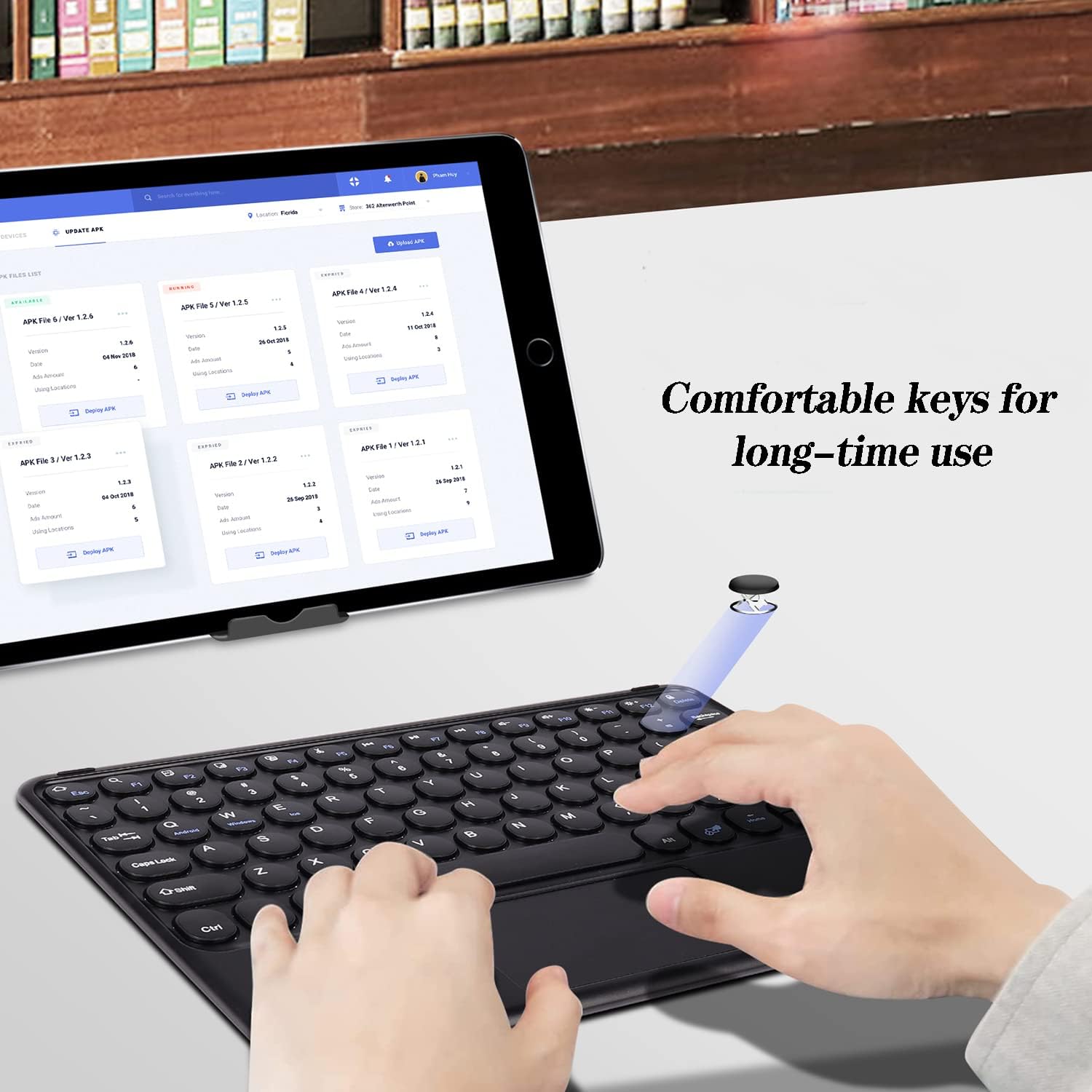
Figure 4: Comfortable keys for extended use
2. Touchpad Gestures
The integrated touchpad supports various gestures for efficient navigation:
- Single Finger Tap: Left-click.
- Two Finger Tap: Right-click.
- Two Finger Scroll: Scroll up or down.
- Pinch to Zoom: Zoom in or out (supported on compatible devices/applications).
- Other Gestures: Refer to your device's operating system settings for additional supported touchpad gestures.
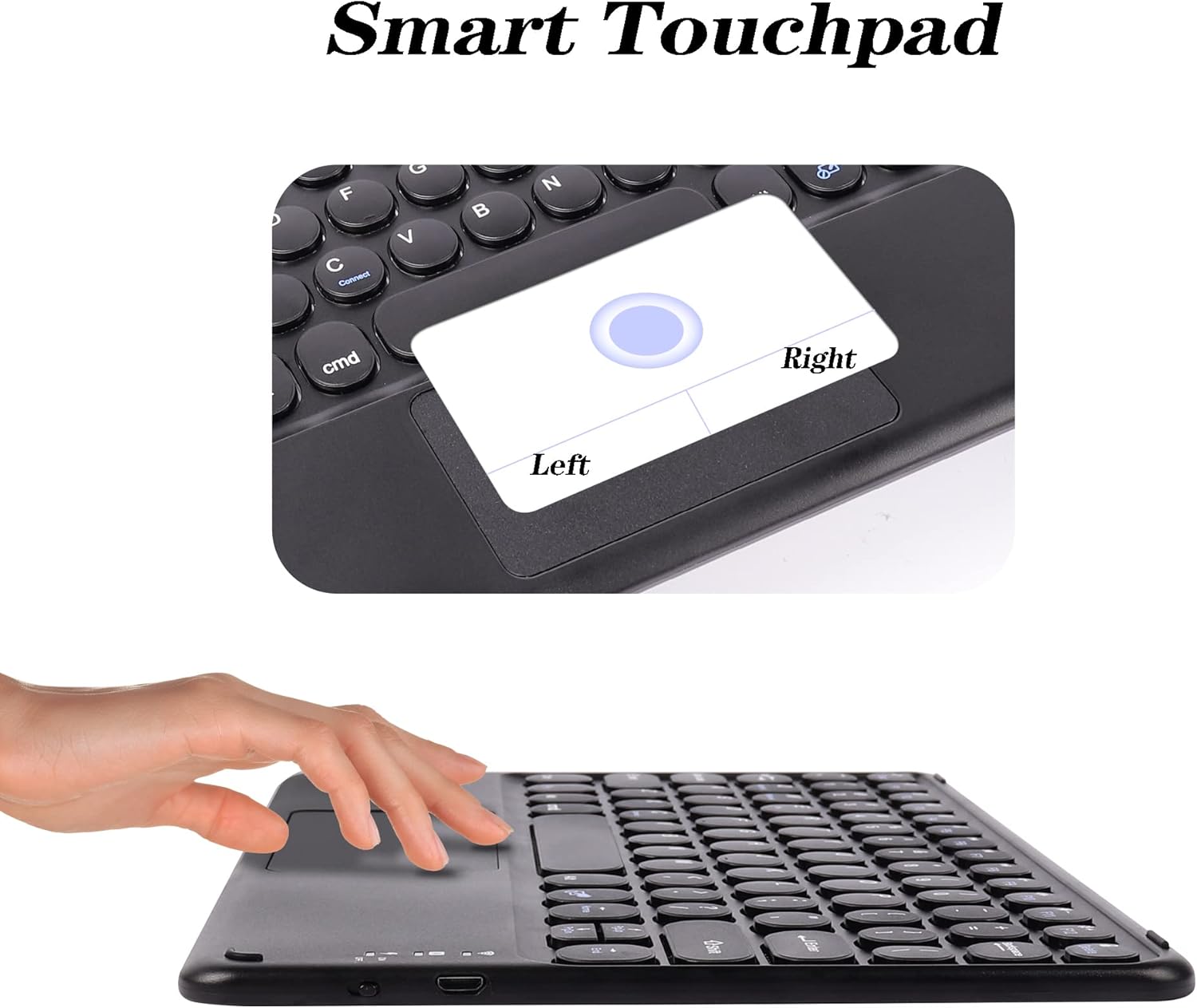
Figure 5: Smart Touchpad functionality
3. System Compatibility
To optimize keyboard functionality for your specific operating system, use the following key combinations:
- Fn + Q: For iOS / Mac OS
- Fn + W: For Android OS
- Fn + E: For Windows OS

Figure 6: Multi-system compatibility
Maintenance
1. Cleaning
To maintain the keyboard's performance and appearance:
- Turn off the keyboard before cleaning.
- Use a soft, lint-free cloth slightly dampened with water or a mild cleaning solution.
- Avoid excessive moisture and harsh chemicals.
- Use compressed air to remove debris from between keys.
2. Battery Care
To prolong battery life:
- Charge the keyboard regularly, especially if not used for extended periods.
- Avoid fully discharging the battery frequently.
- Do not expose the keyboard to extreme temperatures.
3. Storage
When not in use, store the keyboard in a cool, dry place away from direct sunlight and extreme temperatures.
Troubleshooting
- Keyboard not connecting: Ensure the keyboard is powered on and fully charged. Verify Bluetooth is enabled on your device and the correct channel (BT1, BT2, or USB) is selected on the keyboard. Try re-pairing the keyboard.
- Keys not responding: Check battery level. Ensure the keyboard is connected to the correct device. Clean any debris from under the keys.
- Touchpad not working: Ensure the touchpad is enabled (if there's a dedicated toggle). Check for system-specific settings that might disable or alter touchpad behavior.
- Intermittent connection: Move the keyboard closer to your device. Ensure there are no strong interference sources (e.g., other wireless devices, large metal objects).
Specifications
| Feature | Detail |
|---|---|
| Product Dimensions | 9.57 x 6.69 x 0.29 inches (24.3 x 17 x 0.7 cm) |
| Item Weight | 7.7 ounces (218g) |
| Connectivity Technology | Bluetooth |
| Compatible Devices | PC, Mac, Android, iOS (Tablets, Laptops, Smartphones) |
| Battery | 1 Lithium Ion battery (included) |
| Special Feature | Integrated Trackpad |
| Color | Black |
| Material | Plastic |

Figure 7: Ultra-thin design
Warranty and Support
For warranty information or technical support, please refer to the documentation included with your product or contact DIGIBLUSKY customer service. Keep your purchase receipt for warranty claims.