
1. Introduction
This manual provides detailed instructions for the TQQ Keyboard Case designed for the iPad 10th Generation (10.9-inch, 2022). Please read this guide thoroughly before using the product to ensure proper setup and operation. Keep this manual for future reference.
2. Compatibility
This keyboard case is specifically designed for the new iPad 10th Generation 10.9-inch (2022 release). Compatible model numbers include A2757 and A2777. To verify your iPad model, check the back of your device. This product is not compatible with any other iPad models.
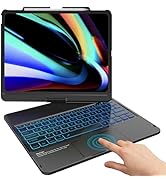
Image: Compatibility overview for TQQ Keyboard Case, showing supported iPad models.
3. Package Contents
Upon opening the package, please ensure all the following items are present:
- 1 x TQQ Keyboard Case for iPad 10th Generation
- 1 x Detachable Bluetooth Keyboard
- 1 x Transparent Keyboard Protector
- 1 x USB Charging Cable
- 1 x User Guide (this manual)
4. Features
- Magnetic Detachable Keyboard: The keyboard can be easily attached or removed from the case, offering flexibility for typing or tablet-only use.
- Long-Life Battery: Equipped with a premium Li-ion battery, providing approximately 80 hours of working time and 130 days of standby time on a 2-3 hour full charge.
- Precise Cutouts: Ensures full access to all ports, buttons, and features of your iPad without removing the case.
- Full Body Protection: The case features a honeycomb grid pattern design for improved heat dissipation and anti-skid properties, protecting your iPad from scratches and damage.
- Multiple Viewing Angles: The case allows for adjustment to various comfortable viewing angles, suitable for typing, watching videos, or drawing.
- Built-in Pencil Holder: A dedicated slot is included to securely store your Apple Pencil, preventing loss.
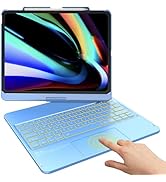
Image: Precise cutouts for easy access to iPad features.
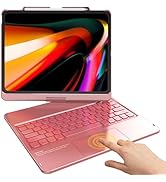
Image: Multiple viewing angles supported by the case.
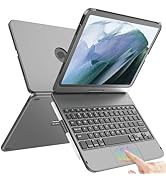
Image: Built-in Apple Pencil holder for secure storage.
5. Setup: Keyboard Pairing
Follow these steps to connect your Bluetooth keyboard to your iPad:
- Ensure your iPad's Bluetooth is turned on. Go to Settings > Bluetooth and toggle it to the 'On' position.
- On the keyboard, slide the ON/OFF switch to 'ON'. The power indicator light will illuminate.
- Press the CONNECT button on the keyboard. The Bluetooth indicator light will start flashing, indicating it is in pairing mode.
- On your iPad, under the Bluetooth devices list, locate and tap on 'Bluetooth Keyboard'.
- Once connected, the Bluetooth indicator light on the keyboard will stop flashing and remain solid for a moment, then turn off to save power. Your keyboard is now ready for use.
Video: Demonstrates the installation of the iPad into the case and the Bluetooth pairing process for the keyboard.
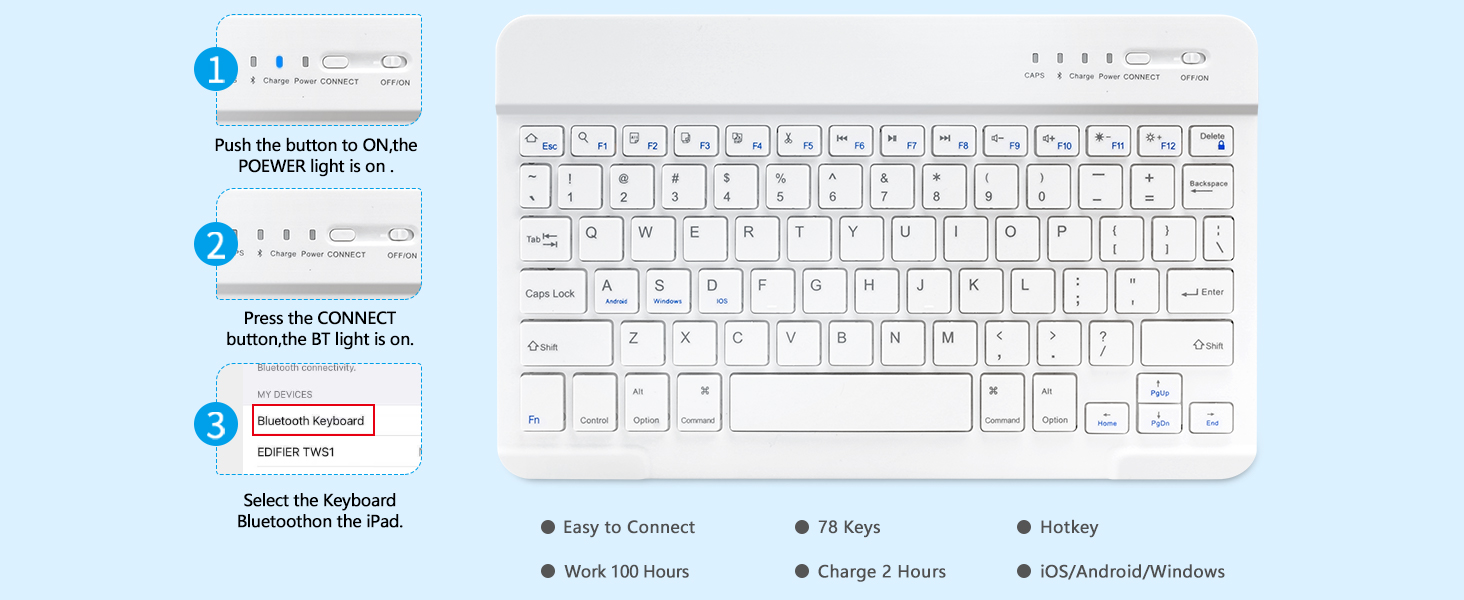
Image: Step-by-step guide for Bluetooth keyboard connection.
6. Operation
6.1 Installing the iPad into the Case
Gently align your iPad with the case and press it into place, ensuring all edges are securely fitted. The precise cutouts will align with your iPad's ports and buttons.
6.2 Using the Detachable Keyboard
The keyboard is magnetically attached to the case. You can easily detach it for flexible positioning or remove it entirely if not needed. To attach, simply place the keyboard onto the magnetic strip within the case.

Image: Magnetic detachable keyboard feature.
6.3 Adjusting Viewing Angles
The case features multiple grooves that allow you to prop up your iPad at different angles for comfortable viewing and typing. Simply fold the cover into the desired stand position.
6.4 Automatic Sleep/Wake Function
The case supports the iPad's automatic sleep/wake feature. Closing the cover will put your iPad to sleep, and opening it will wake it up, conserving battery life.

Image: Automatic sleep/wake function.
7. Maintenance
7.1 Cleaning the Case
Wipe the case with a soft, damp cloth. Avoid using harsh chemicals or abrasive cleaners, as these may damage the material.
7.2 Keyboard Battery Care
To prolong battery life, charge the keyboard when the power indicator flashes red. Use the provided USB charging cable. Avoid exposing the keyboard to extreme temperatures or moisture.

Image: Charging port for the keyboard.
7.3 Heat Dissipation
The case features a honeycomb grid pattern on the interior to aid in heat dissipation, helping to keep your iPad cool during extended use.

Image: Honeycomb grid design for heat release.
8. Troubleshooting
- Keyboard not connecting: Ensure the keyboard is charged, turned on, and in pairing mode. Check that Bluetooth is enabled on your iPad and try re-pairing the device.
- Keyboard not typing: Verify the keyboard is connected via Bluetooth. If connected, try restarting both the keyboard and your iPad.
- iPad not sleeping/waking automatically: Ensure the case is properly aligned and the magnetic sensors are not obstructed. Check iPad settings for Smart Cover functionality.
- Charging issues: Use the provided USB cable and a compatible power adapter. Ensure the charging port is clean and free of debris.
9. Specifications
| Product Dimensions | 10.2 x 8.07 x 0.59 inches |
| Item Weight | 1.92 pounds |
| Brand | TQQ |
| Compatible Devices | iPad 10th Generation 10.9 inch 2022 (Models A2757 / A2777) |
| Connectivity Technology | Bluetooth |
| Keyboard Description | Wireless, Bluetooth, Detachable, Multi Functional |
| Battery Type | 1 Lithium Ion battery (included) |
| Battery Life (Working) | Approx. 80 hours |
| Battery Life (Standby) | Approx. 130 days |
10. Warranty and Support
For any questions regarding your TQQ Keyboard Case, please refer to the seller's contact information provided at the point of purchase. This product typically comes with a standard manufacturer's warranty. Please retain your proof of purchase for warranty claims.