
1. Introduction
Thank you for choosing the ELISWEEN Wireless Switch Controller. This manual provides detailed instructions for setting up, operating, and maintaining your controller to ensure optimal performance and an enhanced gaming experience across Nintendo Switch, PC, iOS, and Android devices. Please read this manual thoroughly before use.
2. Key Features
- Wide Compatibility: Supports Nintendo Switch, Switch Lite, Switch OLED, PC (Windows 7 and above), iOS (13.0 and above), and Android devices.
- Programmable Back Buttons: Two advanced gaming buttons (M1/M2) can be mapped to 16 basic buttons (A, B, X, Y, ZR, ZL, R, L, D-Pad) for customized control.
- Adjustable Turbo Function: Features 3 adjustable turbo speeds (5, 12, 20 shots/s) for enhanced gameplay.
- 4-Level Vibration: Adjustable vibration intensity (None, Weak, Moderate, Strong) via back vibration adjustment keys.
- 6-Axis Gyro Sensor: Built-in sensor for precise direction and view control.
- Innovative LED Lighting: 9 different LED colors and 4 LED modes (Breathing, Fixed, Flickering) with 4 levels of brightness, controllable via the LED control button.
- Long Battery Life: 1000 mAh battery provides up to 16 hours of play time on a 3-hour charge.
- Responsive Controls: Features 360° 3D joysticks, responsive triggers, and a precise D-Pad.
- One-Click Screenshot: Dedicated button for capturing in-game moments.
3. Setup
3.1. Connecting to Nintendo Switch/Lite/OLED
To connect the controller to your Nintendo Switch, Switch Lite, or Switch OLED console:
- On your Nintendo Switch, navigate to the "Controllers" menu.
- Select "Change Grip/Order" or "Pair new controllers."
- Press and hold the "Y" button + "HOME" button on the ELISWEEN controller simultaneously until the LED indicators start flashing rapidly.
- Once connected, the LED indicators will remain solid, and the controller will be ready for use.

Image: Instructions for connecting the controller to Nintendo Switch, showing the "Y" + "HOME" button combination.
3.2. Connecting to PC (Windows 7/above)
To connect the controller to your Windows PC:
- Connect the controller to your PC using the provided USB cable.
- The PC should automatically detect and install the necessary drivers.
- The controller is ready for wired gameplay.

Image: Visual guide for connecting the controller to a PC using a USB cable.
3.3. Connecting to iOS (13.0/above) and Android Devices
To connect the controller wirelessly to your iOS or Android device:
- For iOS (13.0 and above): Press and hold the "X" button + "HOME" button until the LED indicators flash. Then, go to your device's Bluetooth settings and select the controller to pair.
- For Android: Press and hold the "B" button + "HOME" button until the LED indicators flash. Then, go to your device's Bluetooth settings and select the controller to pair.
Image: Connection methods for iOS and Android devices, showing the respective button combinations.
4. Operating Instructions
4.1. Button Layout
The controller features a standard layout with additional programmable back buttons. Familiarize yourself with the button placement for optimal control.
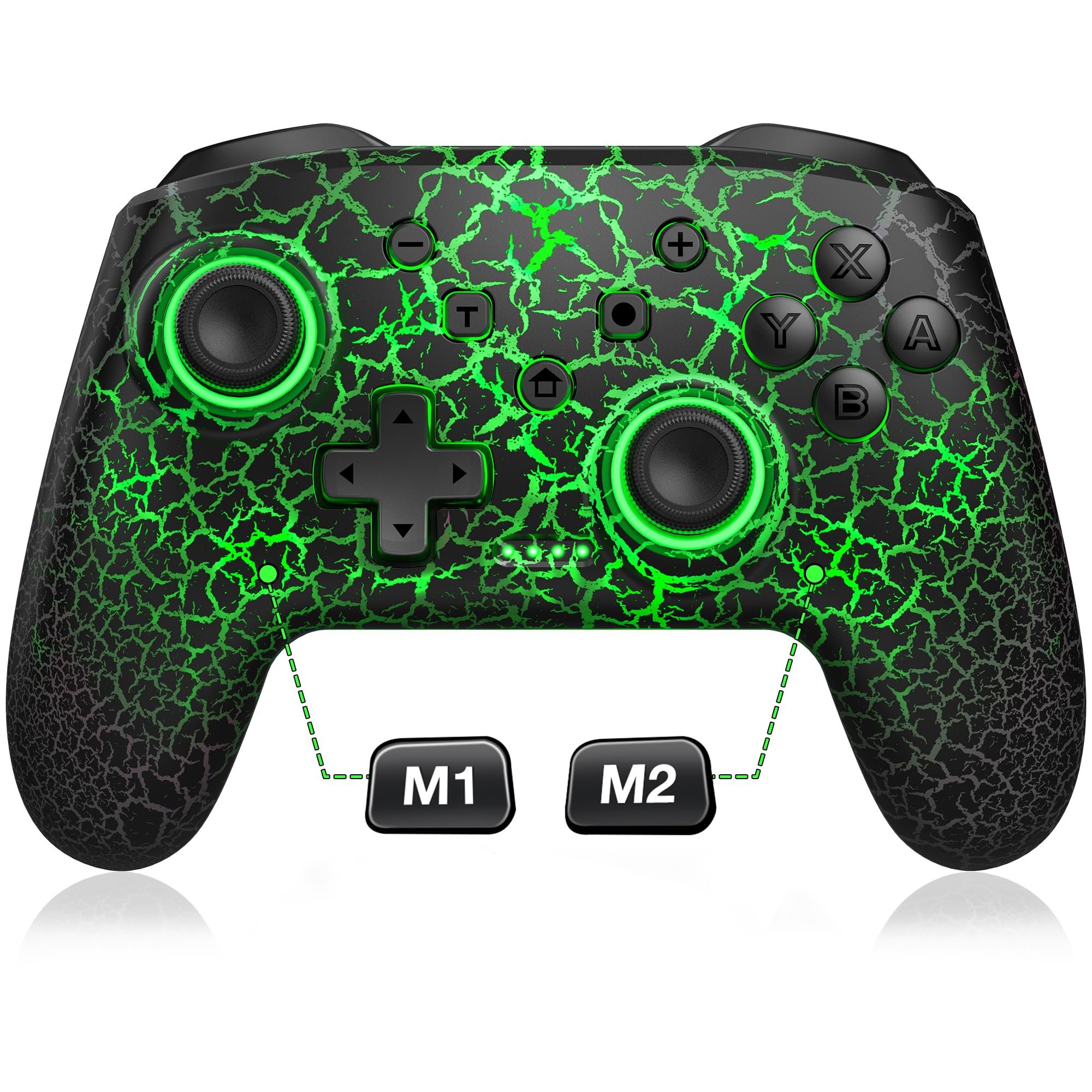
Image: Front view of the ELISWEEN Wireless Switch Controller, highlighting the main buttons and joysticks.

Image: Back view of the controller, showing the M1 and M2 programmable buttons, LED control key, SYNC key, and Vibration Adjust key.
4.2. LED Lighting Modes
The controller features 9 different LED colors and 4 adjustable LED light effect modes (Breathing, Fixed, Flickering) with 4 levels of brightness. Use the dedicated LED Control Key on the back of the controller to cycle through colors and modes.

Image: Demonstrates the various LED lighting colors and modes available on the controller.
Image: Shows the LED control button and different light modes like Breathing, Fixed, and Flickering.
4.3. Vibration Adjustment
The controller offers 4 levels of vibration intensity: None, Weak, Moderate, and Strong. Adjust the vibration using the Vibration Adjust Key located on the back of the controller to suit your preference.
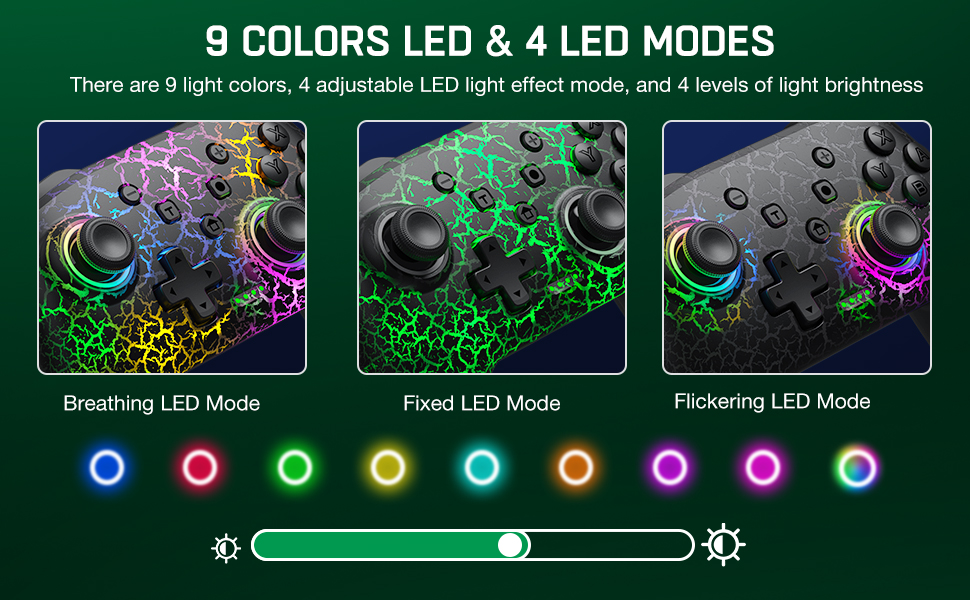
Image: Illustrates the 4 levels of vibration intensity and the vibration adjustment key.
4.4. Programmable Back Buttons (M1/M2)
The M1 and M2 buttons on the back of the controller can be programmed to mimic any of the 16 basic buttons (A, B, X, Y, ZR, ZL, R, L, D-Pad directions). This allows for quick access to frequently used commands, enhancing your gameplay efficiency.
Image: Detailed view of the M1 and M2 programmable buttons and their mapping capabilities.
4.5. Turbo Function
Activate the Turbo function for rapid, continuous input of a button. The controller supports 3 adjustable turbo speeds: 5 shots/s, 12 shots/s, and 20 shots/s. Refer to the controller's specific instructions for activating and adjusting turbo speeds.
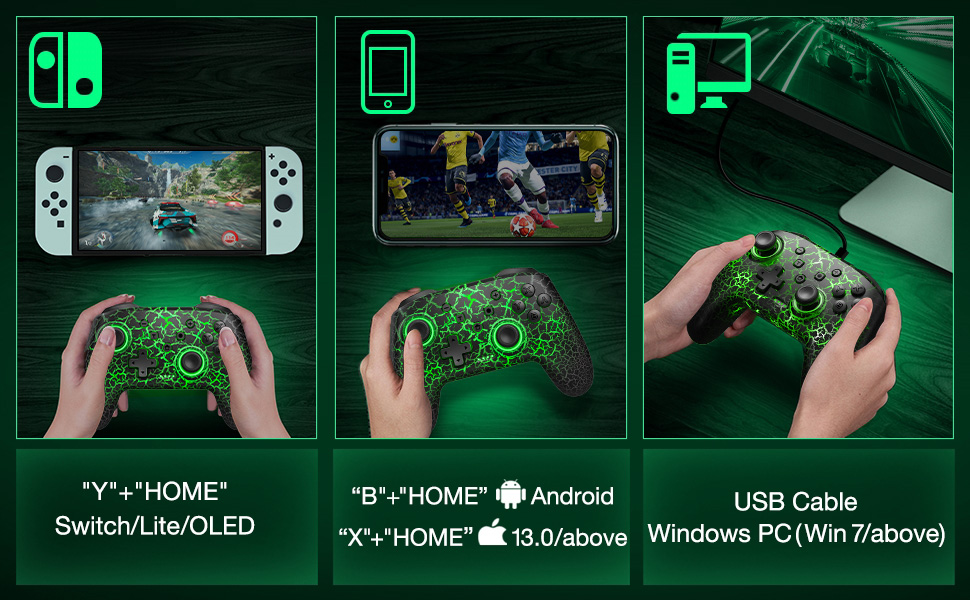
Image: Explains the Auto & Manual Turbo function with three speed settings.
4.6. 6-Axis Gyro Sensor
The built-in 6-axis gyro sensor allows for precise motion control, enhancing gameplay in titles that support motion sensing. This feature provides immersive and intuitive control for compatible games.
Image: Highlights the 6-axis gyro sensor for precise direction and view control.
4.7. One-Click Screenshot
Capture your favorite in-game moments instantly with the dedicated one-click screenshot button. This feature allows you to easily save and share your gameplay highlights.
Image: Shows the one-click screenshot button on the controller.
5. Charging and Battery
The controller is equipped with a 1000 mAh battery, providing extended gameplay sessions.
- Charging: Connect the controller to a power source (e.g., console, PC, USB wall adapter) using the provided USB-C cable. The charging time is approximately 3 hours.
- Battery Life: A full charge provides up to 16 hours of continuous play time.
- Battery Indicator: The LED indicators on the controller will show the charging status and remaining battery level.
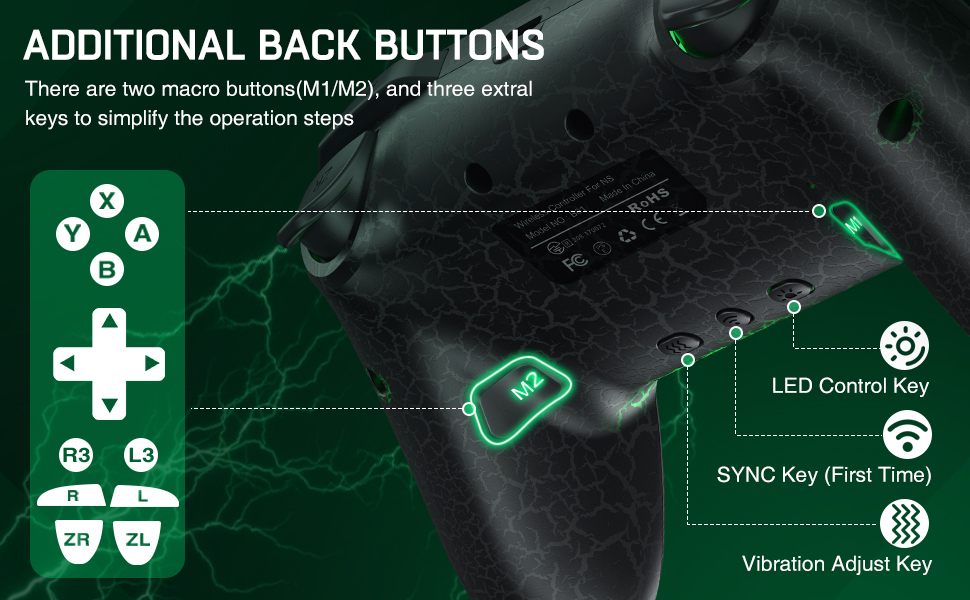
Image: Details the 16 hours of play time, 3 hours of charge time, and 1000 mAh large capacity battery.
6. Maintenance
- Cleaning: Use a soft, dry cloth to clean the controller. Avoid using harsh chemicals or abrasive materials.
- Storage: Store the controller in a cool, dry place away from direct sunlight and extreme temperatures.
- Handling: Avoid dropping the controller or exposing it to excessive force, which can damage internal components.
- Charging: Do not overcharge the battery. Disconnect the charger once the battery is full.
7. Troubleshooting
7.1. Controller Not Connecting/Pairing
- Ensure the controller is sufficiently charged.
- Verify you are using the correct button combination for your device (Y+HOME for Switch, X+HOME for iOS, B+HOME for Android).
- Make sure your device's Bluetooth is enabled and in pairing mode.
- Try restarting both the controller and your device.
- If connecting to Switch, ensure the "Pro Controller Wired Communication" setting is enabled in the Switch System Settings (if using wired connection).
7.2. Buttons Not Responding or Stick Drift
- Recalibrate the joysticks and motion controls through your console's system settings.
- Ensure the controller's firmware is up to date (check the manufacturer's website for updates).
- Clean around the buttons and joysticks to remove any debris.
7.3. Controller Auto-Powers Off Too Quickly
- This is often a power-saving feature. Ensure the controller is actively being used. Some controllers have a fixed auto-off timer that cannot be configured.
8. Specifications
| Feature | Detail |
|---|---|
| Model Number | B01 |
| Connectivity | Wireless (Bluetooth), Wired (USB-C) |
| Compatibility | Nintendo Switch/Lite/OLED, PC (Windows 7+), iOS (13.0+), Android |
| Battery Capacity | 1000 mAh |
| Charging Time | Approx. 3 hours |
| Play Time | Up to 16 hours |
| Vibration Levels | 4 (None, Weak, Moderate, Strong) |
| Turbo Speeds | 3 (5, 12, 20 shots/s) |
| Motion Sensor | 6-Axis Gyro |
| LED Lighting | 9 Colors, 4 Modes, 4 Brightness Levels |
| Programmable Buttons | M1/M2 (mappable to 16 basic buttons) |
| Dimensions | 6.18 x 4.57 x 2.52 inches |
| Weight | 10.5 ounces |
| Manufacturer | Qixun Tech |
9. Warranty and Support
For warranty information, technical support, or customer service inquiries, please refer to the contact information provided with your product packaging or visit the official ELISWEEN website. Keep your purchase receipt for warranty claims.
10. Product Videos
ELISWEEN Wireless Switch Controller Review
Video: A detailed review of the ELISWEEN Wireless Switch Controller, showcasing its features and functionality, including the LED lighting and programmable buttons.
Affordable Switch Controller Overview
Video: An overview of the ELISWEEN Wireless Switch Controller, highlighting its affordability and compatibility with Nintendo Switch accessories.
Testing the Wireless Switch Controller
Video: A demonstration of the ELISWEEN Wireless Switch Controller in use, showcasing its responsiveness and overall performance during gameplay.
