
TP-Link Deco X25(3-pack)
TP-Link Deco X25 AX1800 Whole-Home Mesh Wi-Fi 6 System User Manual
Your guide to seamless whole-home Wi-Fi.
1. Introduction
Welcome to the user manual for your TP-Link Deco X25 AX1800 Whole-Home Mesh Wi-Fi 6 System. This system is designed to provide robust and seamless Wi-Fi coverage throughout your entire home, eliminating dead zones and ensuring a stable connection for all your devices. By following the instructions in this manual, you will be able to set up, operate, and maintain your Deco system effectively.
Package Contents:
- 3 x Deco X25 Units
- 1 x RJ45 Ethernet Cable
- 3 x Power Adapters
2. Product Overview
The TP-Link Deco X25 units are compact, cylindrical devices designed to blend seamlessly into your home environment while providing powerful Wi-Fi coverage.


3. Setup Guide
Setting up your Deco X25 system is a straightforward process using the Deco app. Follow these steps for a quick and easy installation:
- Connect the Main Deco: Connect one of the Deco X25 units to your cable modem or existing router using the provided Ethernet cable. Plug in the power adapter to this Deco unit and power it on. This unit will serve as your main Deco.
- Download the Deco App: Download the TP-Link Deco app from the App Store (for iOS) or Google Play Store (for Android).
- Launch and Follow In-App Instructions: Open the Deco app and sign in or create a TP-Link ID. The app will guide you through the initial setup of your main Deco unit.
- Add Additional Deco Units: Once the main Deco is set up, the app will prompt you to add additional Deco units. Simply power on the next Deco unit, and it will automatically join the network. Place these units strategically around your home to maximize coverage.

4. Operating Your Deco System
The Deco X25 system creates a unified Wi-Fi network, ensuring a seamless experience as you move throughout your home.
Seamless Roaming:
With TP-Link Mesh technology, your devices automatically connect to the Deco unit with the strongest signal as you move, ensuring uninterrupted streaming, gaming, and browsing.
Connecting Devices:
Connect your devices to the Deco Wi-Fi network using the network name (SSID) and password you set during the setup process. The Deco X25 system is capable of handling over 150 devices simultaneously, providing robust connections for various activities.

Wi-Fi Dead Zone Elimination:
The multi-unit Deco system works together to blanket your home with Wi-Fi, effectively eliminating dead zones and providing coverage up to 5,800 sq. ft. (for a 3-pack system).
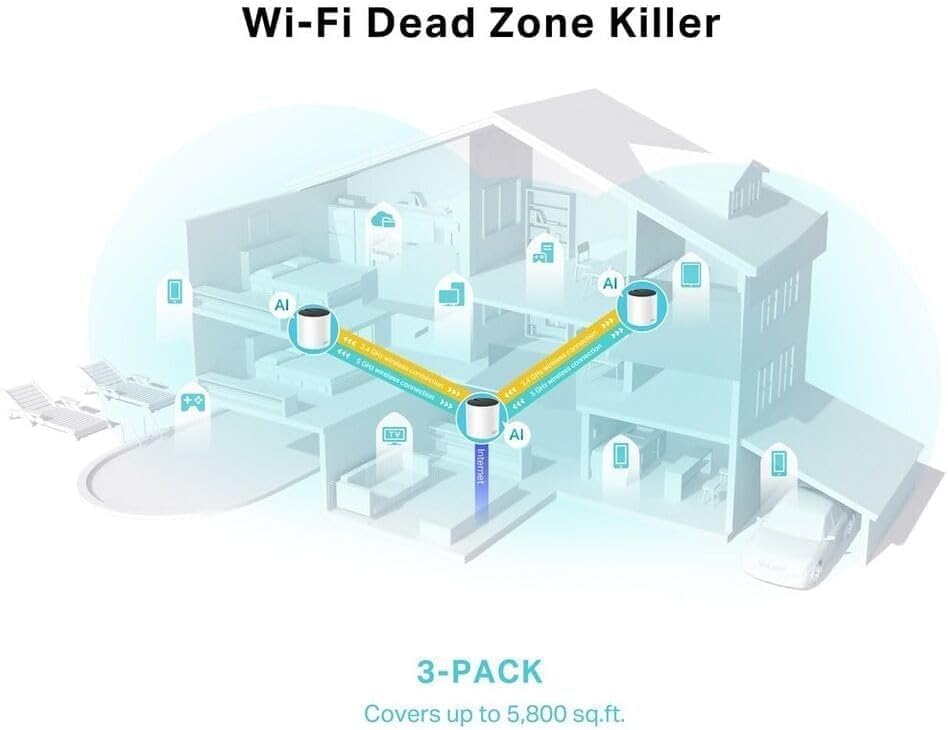
AI-Driven Mesh:
The Deco X25 features AI-Driven Mesh technology, which intelligently learns your network environment and optimizes Wi-Fi performance for your specific home layout and usage patterns.

Security and Parental Controls (HomeCare):
The Deco X25 system includes TP-Link HomeCare, which provides a suite of personalized features:
- Parental Controls: Manage, limit, and monitor internet use for family members with customizable profiles.
- Antivirus: Protect your network and connected devices from online threats.
- Quality of Service (QoS): Prioritize network traffic for specific devices or applications to ensure optimal performance.
The system also supports WPA3 encryption for enhanced network security.
5. Maintenance
To ensure optimal performance and security of your Deco X25 system, regular maintenance is recommended:
- Firmware Updates: Regularly check for and install firmware updates via the Deco app. Updates often include performance improvements, new features, and security patches.
- Cleaning: Keep your Deco units clean by gently wiping them with a soft, dry cloth. Avoid using liquid cleaners or abrasive materials. Ensure ventilation openings are not blocked.
- Placement: Periodically review the placement of your Deco units to ensure they are in optimal locations for coverage, especially if your home layout changes.
6. Troubleshooting
If you encounter issues with your Deco X25 system, try the following troubleshooting steps:
No Internet Connection:
- Ensure the main Deco unit is properly connected to your modem/router and powered on.
- Verify that your modem/router is working correctly and has an active internet connection.
- Restart your modem/router, then restart your main Deco unit.
- Important Note: One Deco unit must always be plugged into your modem for the system to function as intended. Additional Deco units do not need to be directly connected to the modem.
Weak Signal or Dead Zones:
- Relocate Deco units closer to each other or to the areas with weak signals.
- Ensure there are no major obstructions (thick walls, large appliances) between Deco units.
- Check the signal strength between Deco units in the Deco app.
Deco Unit Not Connecting:
- Ensure the Deco unit is powered on and within range of another Deco unit.
- Try moving the unit closer to an already connected Deco.
- Perform a factory reset on the problematic Deco unit (refer to the Deco app for instructions) and try adding it again.
App Issues:
- Ensure your Deco app is updated to the latest version.
- Clear the app's cache or reinstall the app if issues persist.
7. Specifications
| Feature | Description |
|---|---|
| Product Dimensions | 13 x 5 x 12 inches |
| Item Weight | 5.8 pounds |
| Item Model Number | Deco X25(3-pack) |
| Brand | TP-Link |
| Model Name | Deco X25 |
| Frequency Band Class | Dual-Band |
| Wireless Communication Standard | 802.11ax (Wi-Fi 6) |
| Connectivity Technology | Ethernet, Wi-Fi |
| Color | White |
| Manufacturer | TP LINK USA |
| First Available Date | August 17, 2022 |
8. Warranty Information
TP-Link products come with a limited warranty. For detailed warranty terms and conditions, please refer to the warranty card included with your product or visit the official TP-Link website. Keep your purchase receipt as proof of purchase for warranty claims.
9. Support
For further assistance, technical support, or to access the latest drivers and firmware, please visit the official TP-Link support website:
You can also find FAQs and community forums on the support page to help resolve common issues.
Related documentsDeco X25(3-pack)


Ask a question about this manual
Ask about setup, troubleshooting, compatibility, parts, safety, or missing instructions. Manuals+ will review the question and use this page’s manual context to help answer it.