
1. Introduction
Thank you for choosing the cimetech K268 Wireless Numeric Keypad. This manual provides detailed instructions for setting up, operating, and maintaining your device. Please read this manual carefully before use to ensure optimal performance and longevity of your keypad.
The cimetech K268 is an 18-key wireless numeric keypad designed to enhance data entry efficiency for laptops and PCs. It features a 2.4G USB receiver for stable wireless connectivity and an ergonomic design for comfortable use.
2. Package Contents
- 1 x cimetech K268 Wireless Numeric Keypad (Black)
- 1 x 2.4G USB Receiver (stored in the battery compartment)
- 1 x User Manual

Image: The cimetech K268 Wireless Numeric Keypad shown with its accompanying 2.4G USB receiver.
3. Product Overview
The cimetech K268 numeric keypad is designed for comfort and efficiency. Key features include:
- 18-Key Layout: Standard numeric keypad layout for efficient data entry.
- Ergonomic 15° Tilt: Provides a comfortable typing angle to reduce wrist strain.
- Non-Slip Base: Four anti-slip pads on the base ensure stability during use.
- Ultra-thin and Portable: Compact dimensions make it easy to carry.
- Quiet Click Keys: Designed for a silent typing experience.

Image: Side profile of the keypad illustrating its 15-degree ergonomic tilt for comfortable typing.
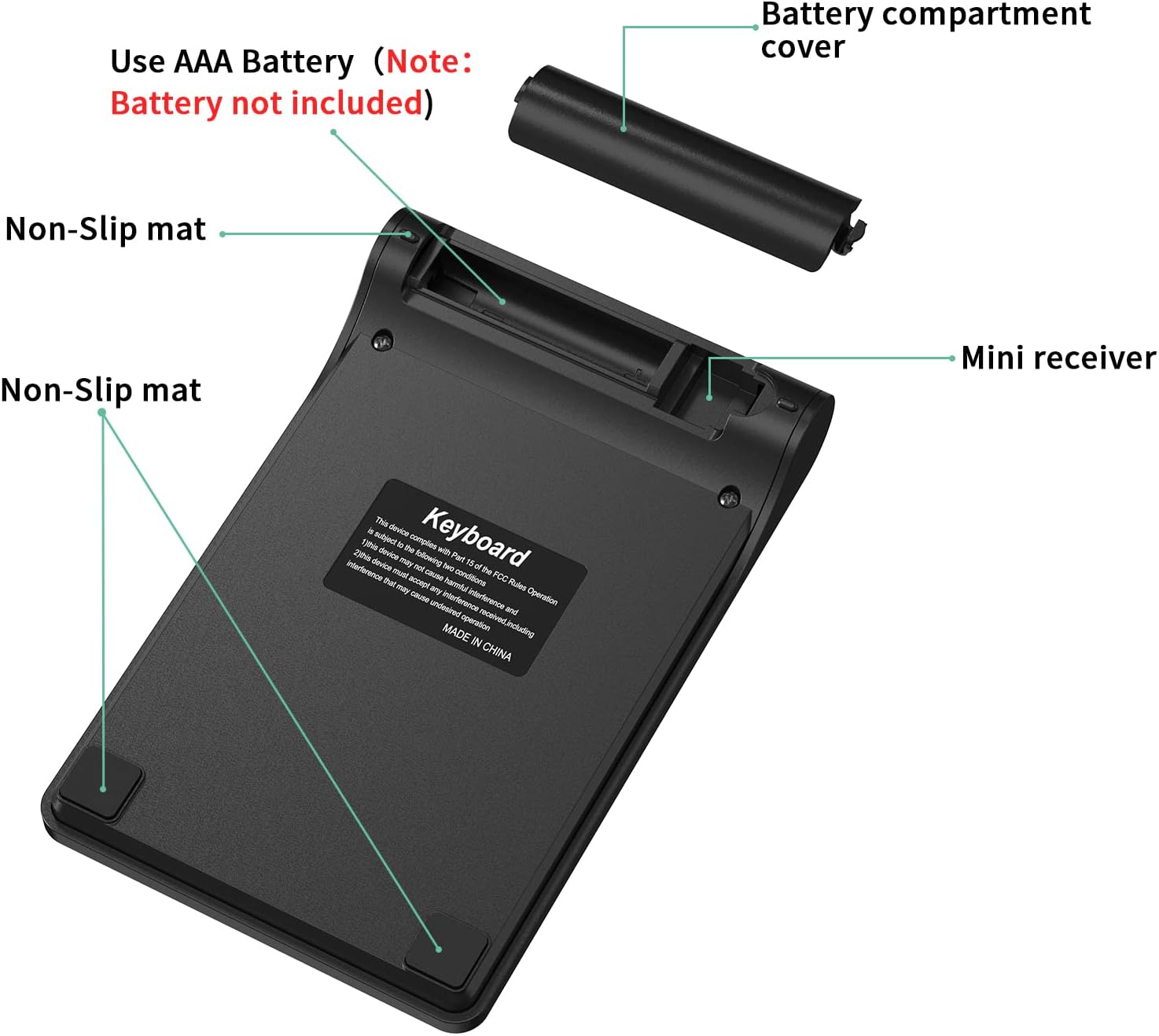
Image: The underside of the keypad, highlighting the battery compartment, the storage slot for the mini USB receiver, and the non-slip rubber feet.

Image: Diagram showing the dimensions of the cimetech K268 Wireless Numeric Keypad: 133mm (5.24in) length, 86mm (3.39in) width, and varying thickness from 9mm (0.39in) to 20mm (0.79in).
4. Setup Instructions
Follow these steps to set up your cimetech K268 Wireless Numeric Keypad:
- Install Battery: Open the battery compartment cover on the back of the keypad. Insert one AAA battery (not included), ensuring correct polarity. Close the battery cover.
- Retrieve USB Receiver: The 2.4G USB receiver is stored inside the battery compartment for convenience. Carefully remove it.
- Connect Receiver: Plug the 2.4G USB receiver into an available USB port on your computer (laptop or PC).
- Power On: The keypad does not have a separate power switch. Once the battery is installed and the receiver is plugged in, the keypad is ready for use. A green indicator light may flash briefly.
- Plug and Play: No drivers are required. Your computer should automatically detect and install the necessary software.

Image: Visual guide for setting up the keypad, showing battery installation, USB receiver connection, indicator light, and immediate use.
5. Operating Instructions
Once set up, the cimetech K268 functions as a standard 18-key numeric keypad. It is ideal for:
- Data entry in spreadsheets (e.g., Microsoft Excel, Google Sheets).
- Financial calculations.
- Accounting tasks.
- Any application requiring frequent numerical input.
Key Functions:
- Num Lock: Toggles the numeric keypad function. When Num Lock is active, the keys function as numbers. When inactive, some keys may perform navigation functions (Home, End, PgUp, PgDn).
- / , * , - , + : Standard arithmetic operators.
- Enter: Confirms input.
- Backspace: Deletes the previous character.
- Del (Delete): Deletes the character at the cursor position.
- Ins (Insert): Toggles insert mode.

Image: The numeric keypad being used in different professional environments, demonstrating its versatility for tasks in banking, accounting, and general business operations.
6. Compatibility
The cimetech K268 Wireless Numeric Keypad offers wide compatibility with various operating systems:
- Windows: Fully compatible with Windows 7, 8, 10, 11, Vista, and XP.
- Linux: Compatible with most Linux distributions.
- macOS: Partially compatible. Some specific key functions may not operate identically to a native macOS keypad.
- Android: Compatible with devices supporting USB input.

Image: The keypad displayed alongside icons representing Windows, Linux, and macOS, indicating its broad operating system compatibility.
7. Maintenance
To ensure the longevity and optimal performance of your keypad, follow these maintenance guidelines:
- Cleaning: Use a soft, dry cloth to clean the keypad. For stubborn dirt, a slightly damp cloth can be used, but ensure no liquid enters the device. Avoid harsh chemicals or abrasive cleaners.
- Battery Replacement: Replace the AAA battery when the keypad's performance degrades or it stops responding. Always use a fresh, high-quality battery.
- Storage: When not in use for extended periods, remove the battery to prevent leakage. Store the keypad in a cool, dry place.
- Spill-Resistant Design: While the keypad features a spill-resistant design, it is not waterproof. Avoid exposing it to excessive liquids. If spills occur, immediately disconnect the device, remove the battery, and allow it to dry completely before reuse.
8. Troubleshooting
If you encounter issues with your cimetech K268 Wireless Numeric Keypad, refer to the following common solutions:
- Keypad not responding:
- Ensure the AAA battery is correctly installed and not depleted. Replace if necessary.
- Verify the 2.4G USB receiver is securely plugged into a working USB port on your computer. Try a different USB port.
- Move the keypad closer to the USB receiver to rule out interference or range issues.
- Restart your computer.
- Keys typing incorrect characters or not working:
- Check if the "Num Lock" key is activated. Press it to toggle its state.
- Ensure there are no physical obstructions under the keys.
- Intermittent connection:
- Reduce the distance between the keypad and the USB receiver.
- Avoid placing the receiver near other wireless devices (e.g., Wi-Fi routers, Bluetooth devices) that might cause interference.
- Ensure the battery has sufficient power.
If the problem persists after trying these steps, please contact customer support.
9. Specifications
| Feature | Detail |
|---|---|
| Brand | cimetech |
| Model | K268 |
| Color | Black |
| Connectivity Technology | 2.4G Wireless (USB Receiver) |
| Number of Keys | 18 |
| Compatible Devices | Laptop, PC |
| Operating System Compatibility | Windows 7/8/10/11/Vista/XP, Linux, macOS (partial), Android |
| Special Features | Ergonomic 15° tilt, Spill-resistant design, Quiet click, Portable |
| Power Source | 1 x AAA Battery (not included) |
| Product Dimensions (L x W x H) | 13.3 cm x 8.6 cm x 1 cm (approx. 5.24 x 3.39 x 0.39 inches) |
10. Warranty and Support
cimetech products are designed for reliability and performance. For warranty information and customer support, please refer to the documentation included with your purchase or visit the official cimetech website.
If you have any questions or require assistance, please contact our customer support team. Details can typically be found on the product packaging or the manufacturer's website.