
1. Introduction
This user manual provides detailed instructions for the MMK iPad A16 Case with Wireless Detachable Keyboard. It covers compatibility, setup, operation, maintenance, and specifications to ensure optimal use of your product.
1.1 Compatibility
This keyboard case is designed for the following iPad models:
- iPad 11th Gen 11 inch (A16, 2025 models: A3354/A3355/A3356)
- iPad 10.9 inch (2022 models: A2757/A2777/A2696/A3162)
To verify your iPad model number, check the back of your device.

Image 1.1: MMK iPad Case with Wireless Detachable Keyboard and iPad.
2. Package Contents
Please check the package for the following items:
- 1 x Keyboard Case for iPad 10/11
- 1 x Wireless Bluetooth Keyboard
- 1 x USB Charging Cable
- 1 x Transparent Keyboard Cover
- 1 x User Guide
3. Setup Instructions
3.1 Installing the iPad into the Case
- Gently align your iPad with the case's edges.
- Press the iPad firmly into the case, ensuring all corners are securely fitted.
- Verify that all ports, buttons, and the camera cutout are correctly aligned and accessible.

Image 3.1: Overview of the case features including magnetic design and pencil holder.
3.2 Charging the Wireless Keyboard
Before first use, fully charge the keyboard. Use the provided USB charging cable.
- Connect the small end of the USB charging cable to the Type-C charging port on the keyboard.
- Connect the other end of the USB charging cable to a USB power adapter (not included) or a computer's USB port.
- The charging indicator light will illuminate during charging and turn off when fully charged.
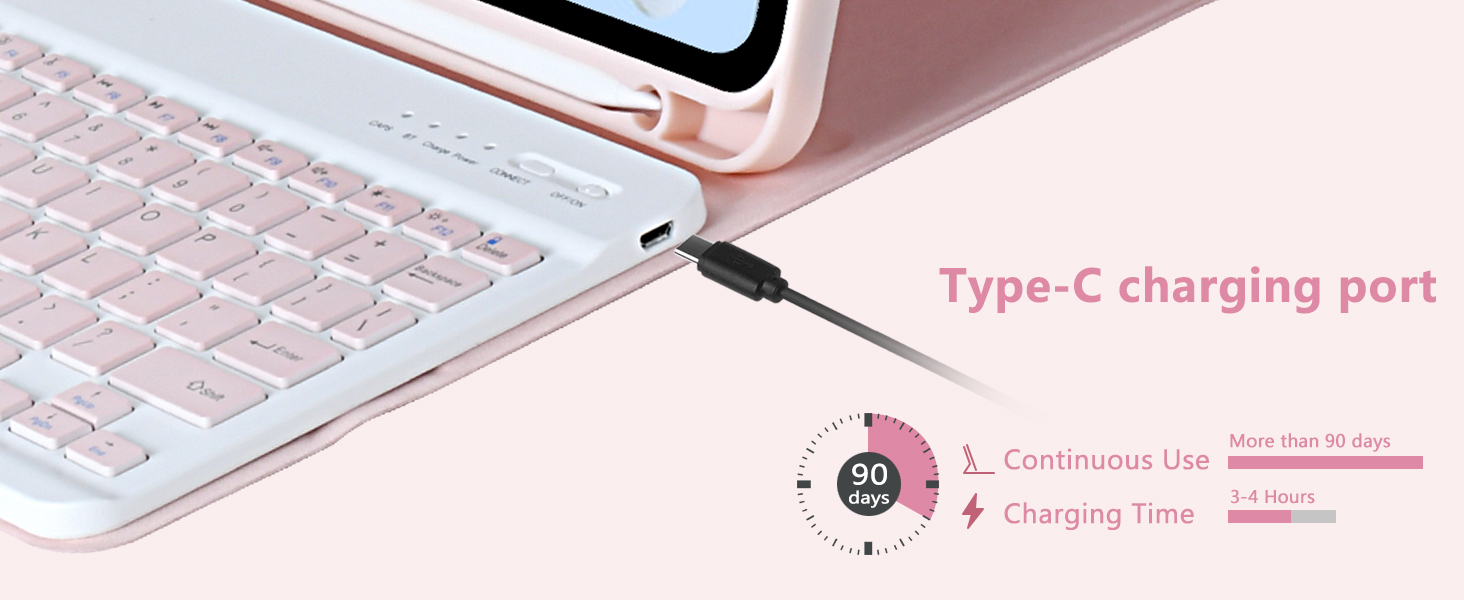
Image 3.2: Keyboard Type-C charging port and estimated charging duration.
3.3 Pairing the Bluetooth Keyboard
Follow these steps to connect your wireless keyboard to your iPad via Bluetooth:
- Ensure the keyboard is charged.
- Slide the power switch on the keyboard to the 'ON' position. The power indicator light will turn on.
- Press the 'CONNECT' button on the keyboard. The Bluetooth indicator light will start blinking, indicating it is in pairing mode.
- On your iPad, go to Settings > Bluetooth.
- Turn on Bluetooth. Your iPad will search for available devices.
- Select 'Bluetooth Keyboard' from the list of devices.
- Once connected, the Bluetooth indicator light on the keyboard will stop blinking.
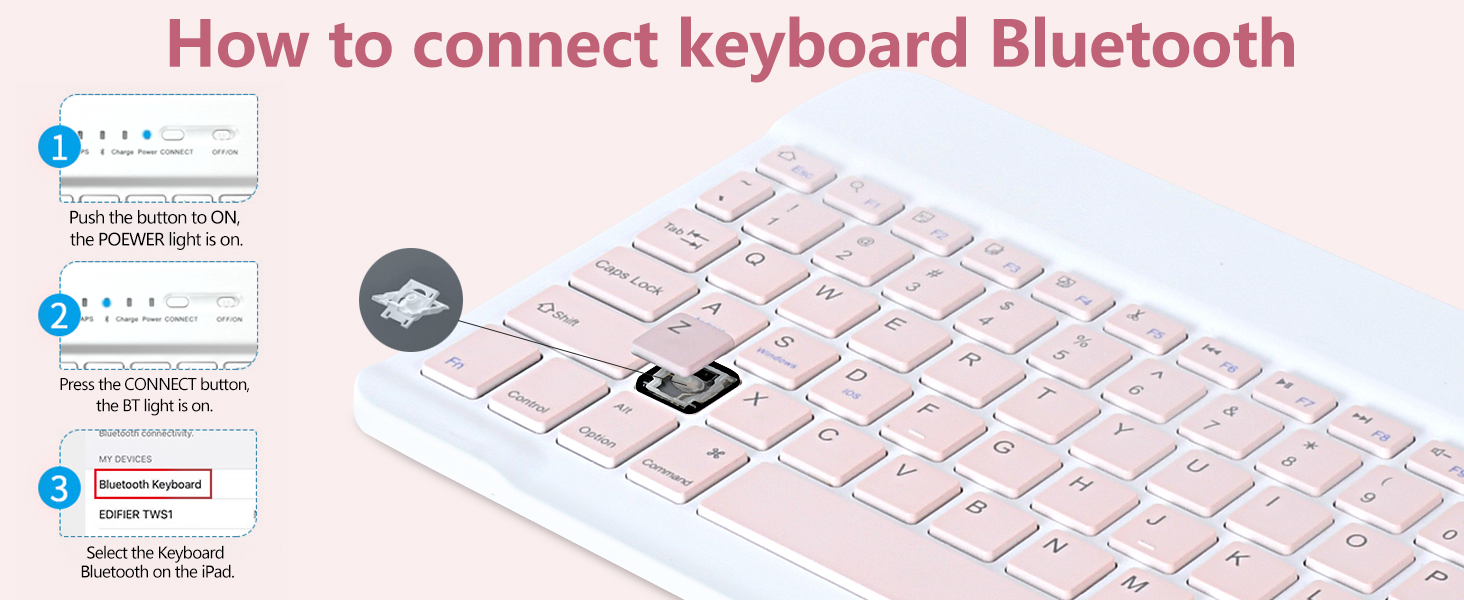
Image 3.3: Visual guide for Bluetooth keyboard connection.
4. Operating Instructions
4.1 Adjustable Viewing Positions
The case features multiple grooves to provide adjustable viewing angles for your iPad. Simply position the iPad in the desired groove to achieve angles of 100°, 110°, or 120°.
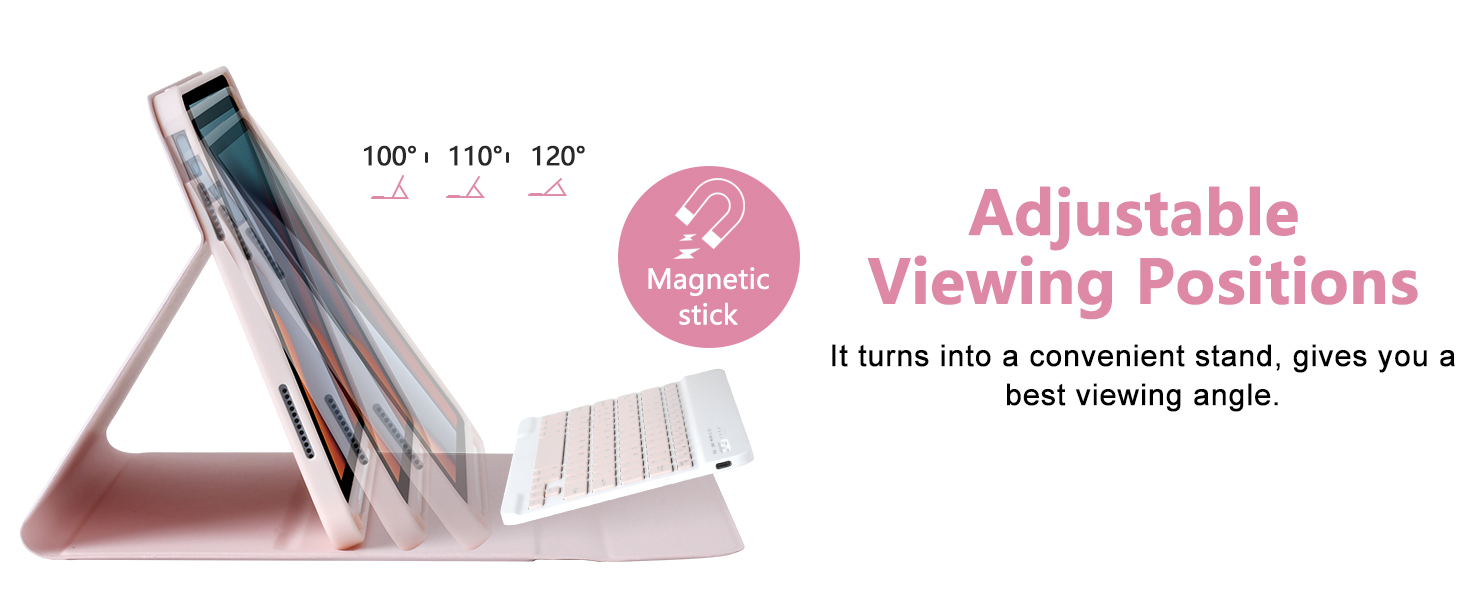
Image 4.1: Illustration of the adjustable viewing angles.
4.2 Keyboard Functions and Shortcuts
The keyboard includes a full set of function keys and is compatible with various operating systems. Use the 'Fn' key in combination with other keys for specific shortcuts.
- Fn+D: Apple iOS compatibility
- Fn+S: Windows compatibility
- Fn+A: Android compatibility
Refer to the keyboard layout for specific multimedia and system control keys (e.g., volume, brightness, search).
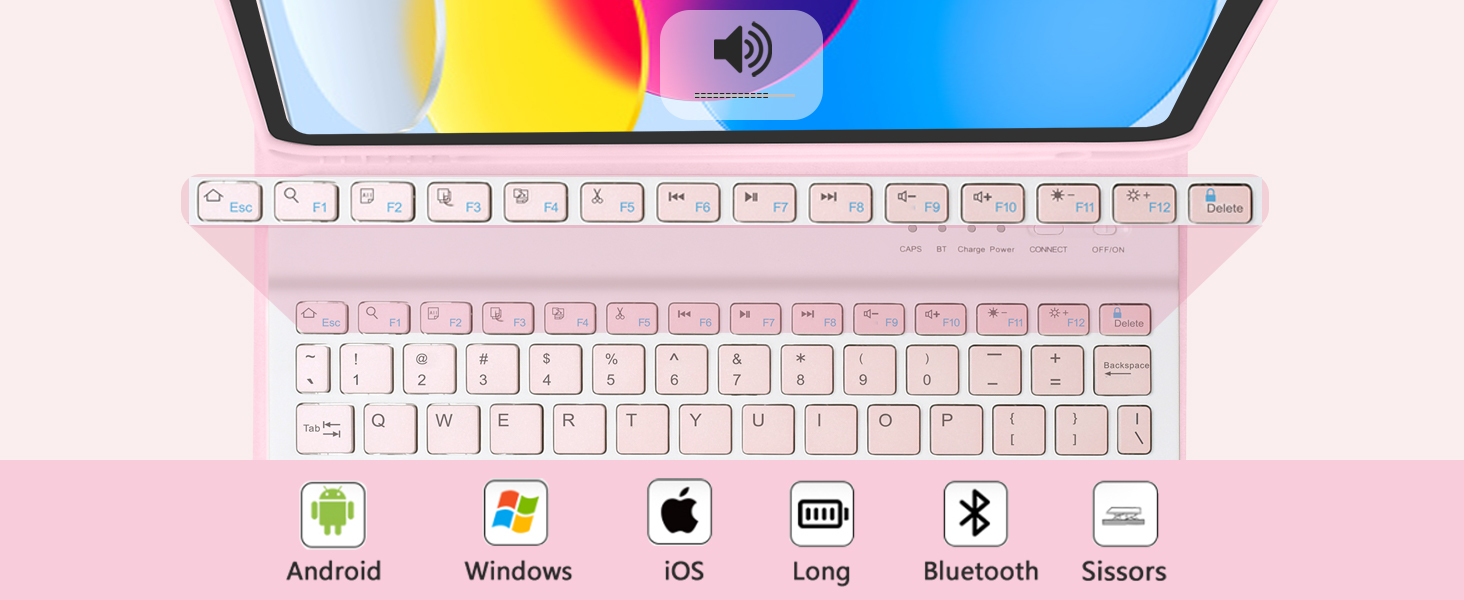
Image 4.2: Keyboard function keys and operating system compatibility.
4.3 Pencil Holder
The case features an integrated pencil holder to securely store your stylus. This ensures your pencil is always accessible and protected.
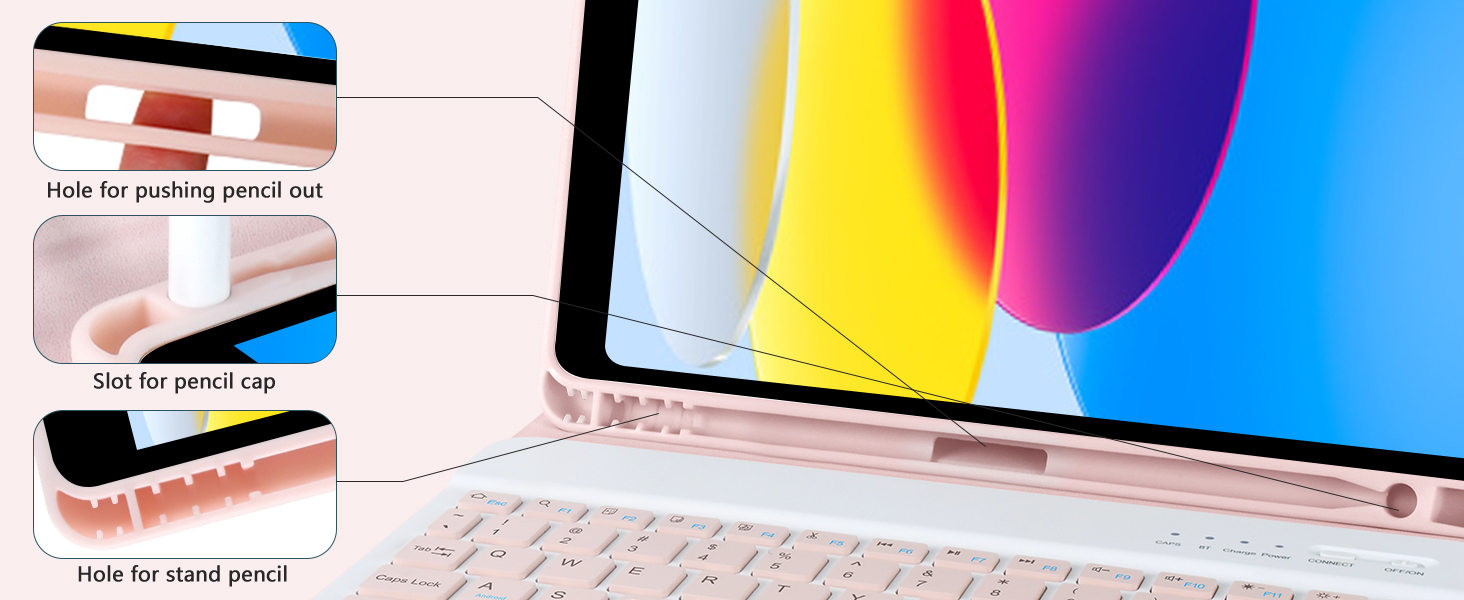
Image 4.3: Details of the integrated pencil holder.
4.4 Usage Modes
The case supports various modes for different activities:
- Type Mode: Position the iPad in the stand with the keyboard attached for comfortable typing.
- Stand Mode: Detach the keyboard and use the case as a stand for viewing content.
- Read Mode: Fold the case back to hold the iPad comfortably for reading.
- Protect Mode: Close the case to fully protect your iPad during transport.
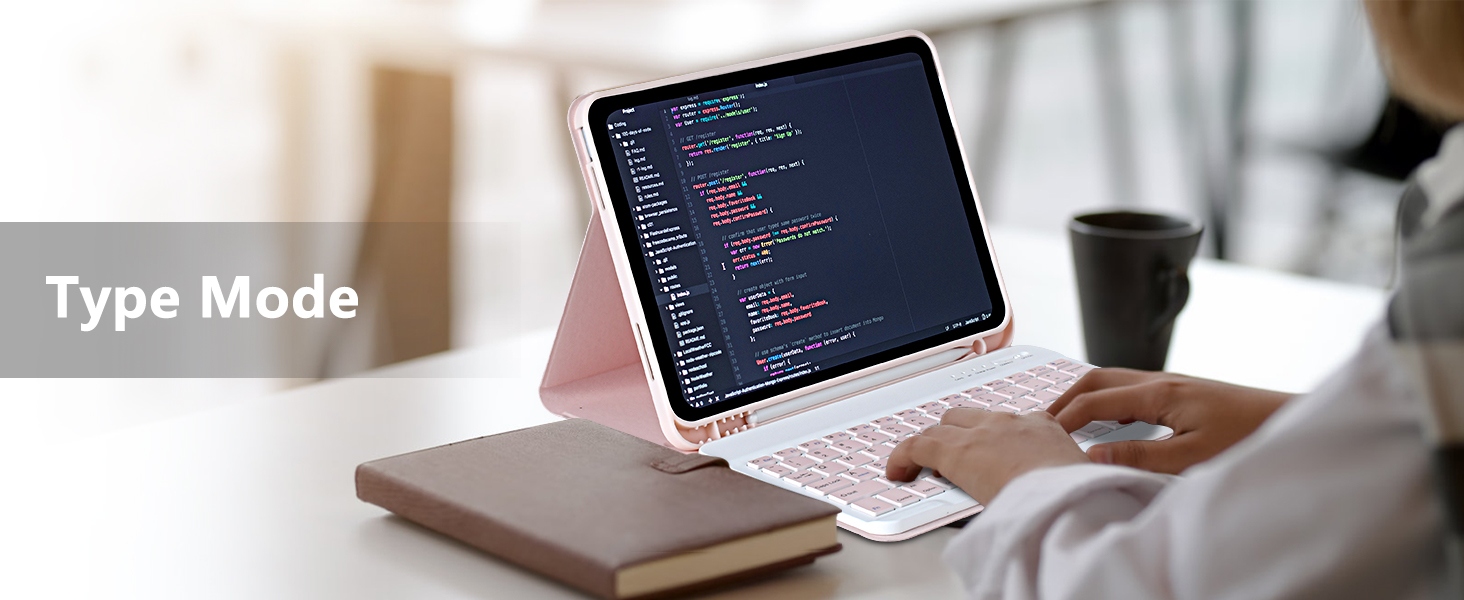
Image 4.4: iPad in Type Mode for productivity.

Image 4.5: iPad in Stand Mode for viewing.

Image 4.6: iPad in Read Mode for comfortable reading.
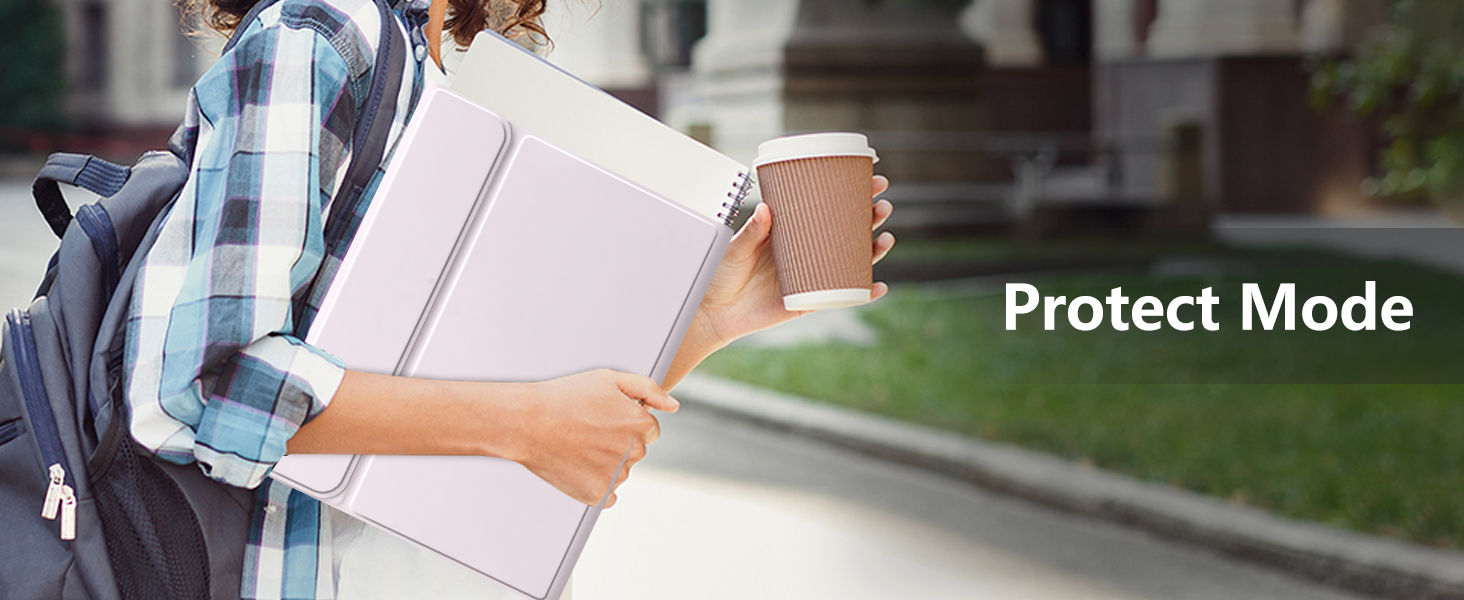
Image 4.7: iPad in Protect Mode for secure transport.
5. Maintenance
5.1 Cleaning the Case and Keyboard
To maintain the appearance and functionality of your MMK iPad case and keyboard:
- Wipe the case with a soft, damp cloth. Avoid harsh chemicals or abrasive cleaners.
- For the keyboard, use a dry, soft cloth. Do not spray cleaners directly onto the keyboard.
- Ensure the keyboard is powered off before cleaning.
5.2 Protection Features
The case is designed with features to protect your iPad:
- Full 360° Protection: Provides comprehensive coverage for your device.
- Drop Protection: Designed to absorb impacts from accidental drops.
- Camera Protection: Raised edges around the camera cutout help prevent scratches.


Image 5.1: Visual representation of drop and camera protection features.
6. Troubleshooting
6.1 Keyboard Not Connecting
- Check Power: Ensure the keyboard is powered on and has sufficient battery charge.
- Re-pair: Turn off Bluetooth on your iPad, then turn it back on. Put the keyboard back into pairing mode by pressing the 'CONNECT' button and try pairing again.
- Restart Devices: Restart both your iPad and the keyboard.
6.2 Keyboard Not Charging
- Check Cable: Ensure the USB charging cable is securely connected to both the keyboard and the power source.
- Power Source: Try a different USB power adapter or computer USB port.
- Cable Integrity: Inspect the charging cable for any damage. Try a different compatible USB-C cable if available.
6.3 Keys Not Responding
- Battery Level: The keyboard battery might be low. Charge the keyboard fully.
- Bluetooth Connection: Ensure the keyboard is properly connected via Bluetooth. If not, follow the re-pairing steps.
- Restart: Power off and then power on the keyboard.
7. Specifications
| Feature | Detail |
|---|---|
| Brand | MMK |
| Item Model Number | A2757 |
| Compatible Devices | iPad 11th Gen 11 inch (A16, 2025), iPad 10.9 inch (2022) |
| Color | Pink |
| Form Factor | Case |
| Shell Type | Soft |
| Item Weight | 1.96 pounds |
| Package Dimensions | 11.22 x 8.23 x 1.14 inches |
| Batteries | 1 Lithium Ion battery (included) |
8. Warranty and Support
For warranty information or technical support, please refer to the contact details provided with your purchase or visit the official MMK website. Keep your purchase receipt for warranty claims.
