
BLU G0571WW
BLU G71+ Smartphone User Manual
Model: G0571WW
1. Introduction
Welcome to the user manual for your new BLU G71+ smartphone. This guide provides essential information on setting up, operating, maintaining, and troubleshooting your device. The BLU G71+ is designed for a seamless user experience, featuring a 6.5-inch HD+ display, a powerful 4,900mAh battery, and a 13-megapixel AI triple camera system.
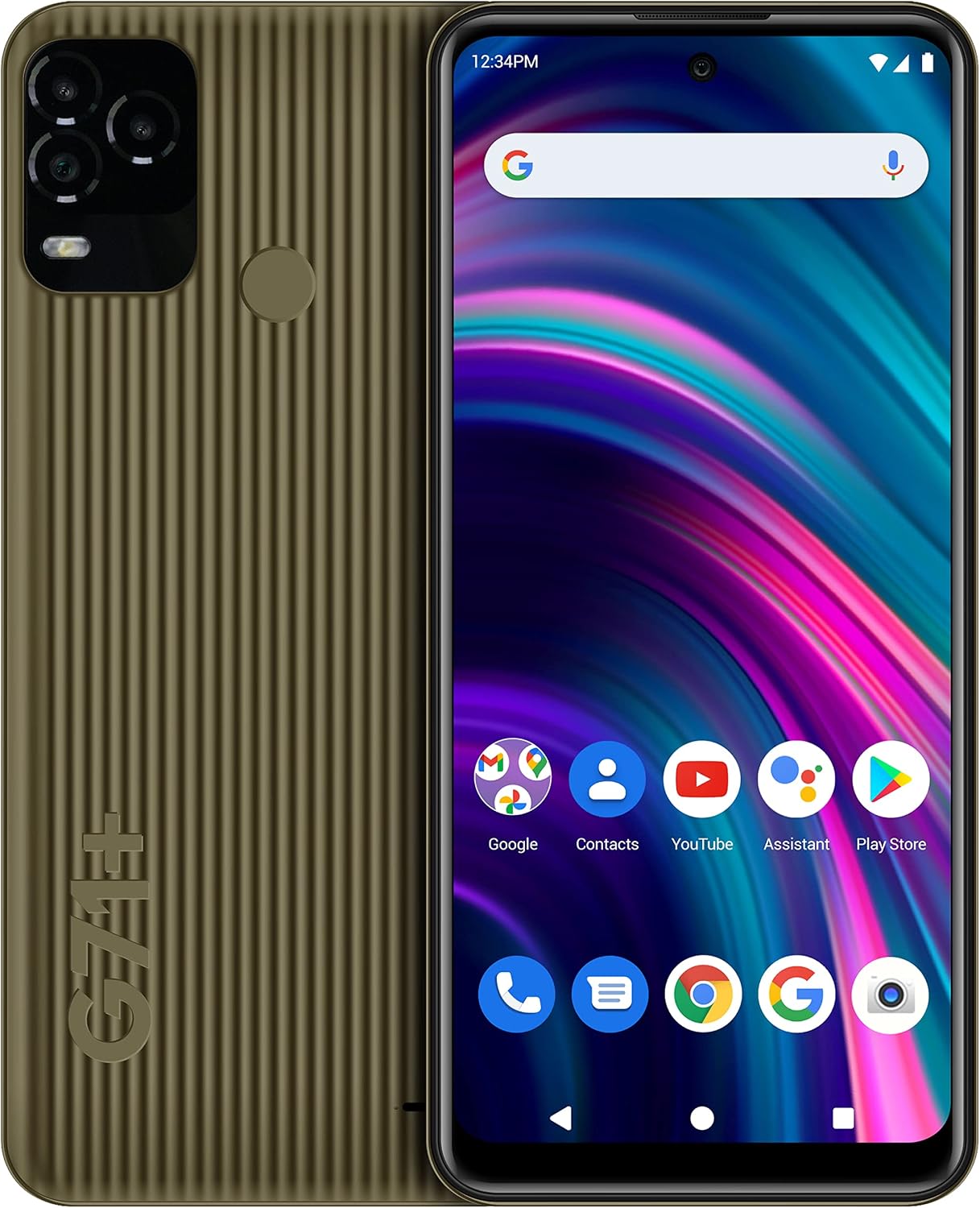
Image: Front and back view of the BLU G71+ smartphone in bronze color, showcasing its design and camera module.
2. Setup
2.1. What's in the Box
Your BLU G71+ package includes the following items:
- BLU G71+ Device
- Charger
- Type-C Cable
- Quick Guide
- Screen Glass Shield with Screen Wipe
- Rugged Case
- Sticker

Image: All components included in the BLU G71+ retail box, laid out for clear viewing.
2.2. Inserting SIM Card and Powering On
The BLU G71+ supports dual SIM cards. To insert your SIM card(s) and power on the device:
- Locate the SIM tray on the side of the device.
- Use the provided SIM ejector tool to open the tray.
- Carefully place your Nano-SIM card(s) and microSD card (if applicable) into the designated slots on the tray. Ensure the gold contacts face downwards.
- Gently push the tray back into the device until it clicks into place.
- Press and hold the power button (located on the right side of the phone) until the BLU logo appears on the screen.
- Follow the on-screen instructions to complete the initial setup, including language selection, Wi-Fi connection, and Google account setup.

Image: Side view of the BLU G71+ highlighting the physical buttons and SIM tray location.
2.3. Charging the Device
Before first use, it is recommended to fully charge your BLU G71+. Connect the Type-C cable to the charging port at the bottom of the phone and the other end to the provided charger. Plug the charger into a power outlet. The battery indicator on the screen will show charging progress. A full charge provides up to three days of battery life under normal usage conditions.
3. Operating Your BLU G71+
3.1. Display and Navigation
The BLU G71+ features a 6.5-inch HD+ curved glass display (1600 x 720 resolution) for vibrant visuals. Navigation is primarily touch-based, with on-screen buttons for Home, Back, and Recent Apps. Swipe gestures can also be configured for navigation.

Image: A hand holding the BLU G71+ smartphone, emphasizing its large 6.5-inch display.
3.2. Camera Functions
Capture high-quality photos and videos with the triple AI 13-megapixel main camera. The front camera allows for clear selfies and video calls. Open the Camera application from your home screen or app drawer to access various modes, including Portrait, Panorama, and Night mode.
3.3. Storage and Performance
With 128GB of internal memory and 4GB of RAM, the BLU G71+ provides ample space for applications, photos, and videos, ensuring smooth multitasking and responsive performance. Storage can be expanded using a microSD card (sold separately).
4. Maintenance
4.1. General Care
To ensure the longevity of your BLU G71+, avoid exposing it to extreme temperatures, direct sunlight for prolonged periods, or liquids. Clean the screen and body with a soft, dry cloth. Do not use harsh chemicals or abrasive materials.
4.2. Battery Optimization
The 4,900mAh battery is designed for extended use. To optimize battery life, reduce screen brightness, close unused applications running in the background, and disable Wi-Fi, Bluetooth, or GPS when not in use. Avoid fully discharging the battery frequently.
4.3. Software Updates
Periodically check for system updates to ensure your device has the latest features, security patches, and performance improvements. Navigate to Settings > System > System update to check for and install available updates.
5. Troubleshooting
If you encounter issues with your BLU G71+, refer to the following common solutions:
- Device not powering on: Ensure the battery is charged. Connect the charger and wait a few minutes before attempting to power on again.
- Wi-Fi connectivity issues: If Wi-Fi frequently disconnects or requires re-entering the password, try restarting your phone and your Wi-Fi router. Ensure your phone's software is up to date.
- Poor call quality or text message issues: Check your network signal strength. Ensure your SIM card is properly inserted. If issues persist, contact your mobile carrier.
- Applications freezing or crashing: Close the problematic application and reopen it. If the issue continues, clear the app's cache (Settings > Apps & notifications > [App Name] > Storage & cache > Clear cache) or uninstall and reinstall the app.
- Device slow or unresponsive: Close background applications. Restart your device. Consider clearing unnecessary files or uninstalling rarely used apps to free up storage.
- Factory Reset: As a last resort for persistent software issues, you may perform a factory reset. Warning: This will erase all data on your phone. Back up important data before proceeding. Navigate to Settings > System > Reset options > Erase all data (factory reset).
6. Specifications
| Feature | Detail |
|---|---|
| Model Name | G71+ |
| Item Model Number | G0571WW |
| Display | 6.5 Inches HD+ (1600 x 720 Resolution) |
| Operating System | Android 11.0 |
| RAM | 4 GB |
| Internal Storage | 128 GB |
| Rear Camera | Triple AI 13 Megapixel |
| Battery Capacity | 4900 Milliamp Hours (mAh) |
| Dimensions | 6.31 x 0.35 x 3.02 inches |
| Item Weight | 1.01 pounds |
| Connectivity | Wi-Fi, Cellular (GSM Unlocked) |
| Audio Jack | No headphone jack |
7. Warranty and Support
7.1. US Warranty Information
The BLU G71+ comes with a US Warranty. For specific details regarding the warranty period, coverage, and terms, please refer to the warranty card included in your product packaging or visit the official BLU Products website. Retain your proof of purchase for warranty claims.
7.2. Customer Support
For technical assistance, product inquiries, or warranty service, please contact BLU Customer Support. Contact information can typically be found on the official BLU Products website or in the quick guide provided with your device.
You can also visit the BLU Store on Amazon for additional product information and resources.
Related documentsG0571WW


Ask a question about this manual
Ask about setup, troubleshooting, compatibility, parts, safety, or missing instructions. Manuals+ will review the question and use this page’s manual context to help answer it.