1. Product Overview
The Astrum TB160 is a universal tablet keyboard case designed to provide protection and enhanced functionality for 9-11 inch widescreen tablets. It features a magnetic adsorption foldable design, a detachable wireless keyboard with a touchpad, and a QWERTY layout. The case allows for adjustable viewing angles and is compatible with multiple operating systems.

Image 1.1: The Astrum TB160 Universal Tablet Keyboard Case shown open, featuring the tablet holder and detachable keyboard.
Package Contents:
- 1 x Astrum TB160 Universal Protective Touchpad Tablet Keyboard Case (Black)
- 1 x USB Charging Cable (for keyboard)
- User Manual (this document)
2. Setup Instructions
2.1 Inserting Your Tablet
- Open the Astrum TB160 case.
- Carefully place your 9-11 inch tablet into the stretchable silicon holder. Ensure all four corners of the tablet are securely held by the silicon straps. The soft inner layer of the case is designed to prevent scratches.
- Adjust the tablet's position to ensure it is centered and stable within the holder.

Image 2.1: A tablet securely placed within the case's stretchable silicon holder.
2.2 Charging the Keyboard
The keyboard has a built-in rechargeable Lithium Polymer battery. Before first use, or if the battery is low, charge the keyboard using the provided USB cable.
- Locate the charging port on the keyboard (typically on the side).
- Connect one end of the USB charging cable to the keyboard's charging port.
- Connect the other end of the USB cable to a standard USB power adapter (not included) or a computer's USB port.
- A charging indicator light will illuminate. The light will typically change color or turn off when charging is complete.
2.3 Connecting the Keyboard via Bluetooth
The keyboard connects wirelessly to your tablet via Bluetooth.
- Ensure the keyboard is charged.
- Turn on the keyboard by sliding the power switch (usually located on the side or back of the keyboard). A power indicator light may illuminate.
- Activate Bluetooth pairing mode on the keyboard. This is often done by pressing a dedicated Connect or Pair button, or a function key combination (e.g., Fn + C). Refer to the keyboard's specific markings for the correct pairing method. The Bluetooth indicator light will typically flash, indicating it is in pairing mode.
- On your tablet, go to Settings > Bluetooth and turn Bluetooth on.
- Your tablet will search for available Bluetooth devices. Look for "Astrum Keyboard" or a similar name in the list of devices.
- Tap on the keyboard's name to initiate the connection. Your tablet may display a pairing code. Type this code on the Astrum keyboard and press Enter.
- Once successfully paired, the Bluetooth indicator light on the keyboard will stop flashing and remain solid or turn off, and your tablet will show the keyboard as "Connected".
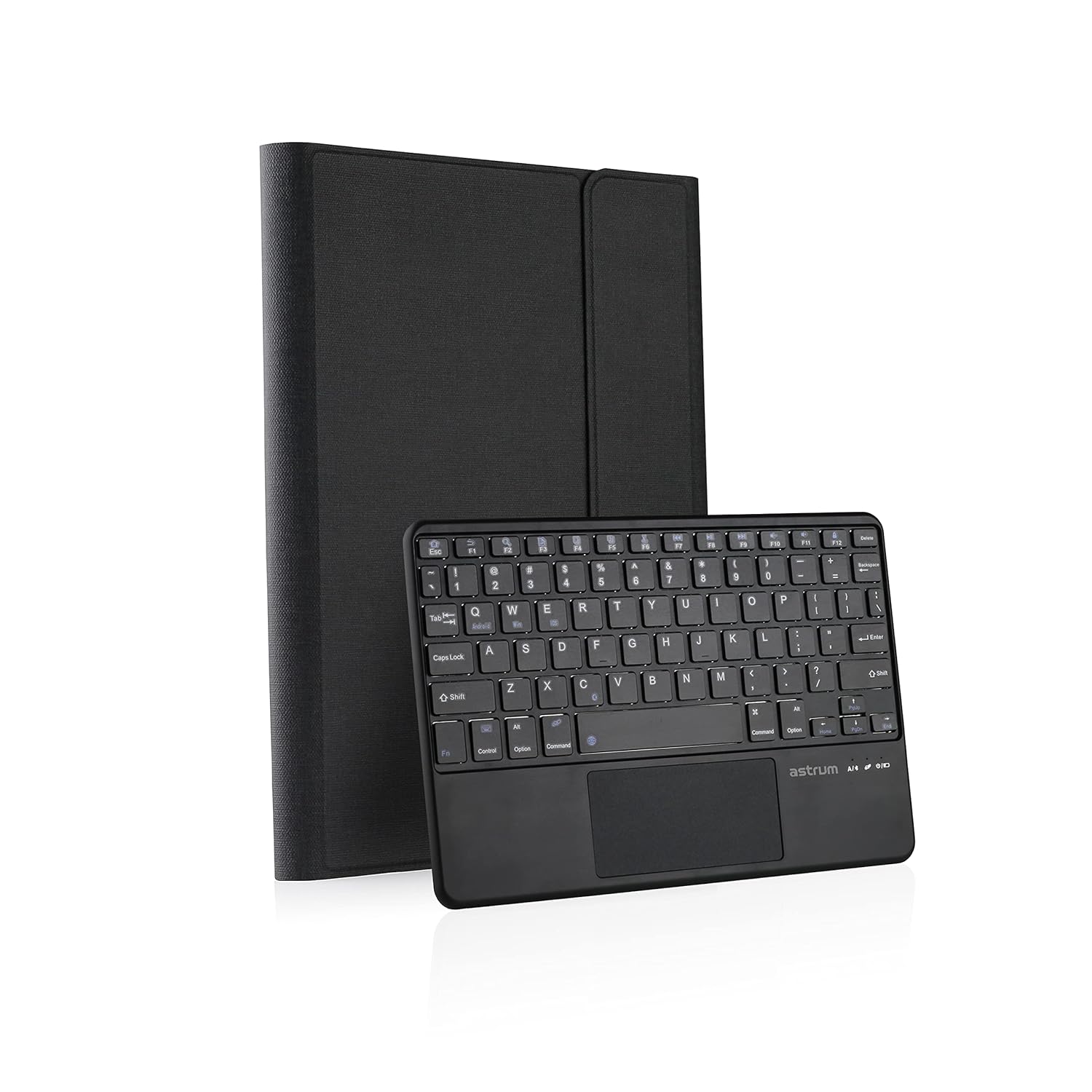
Image 2.2: The detachable wireless keyboard with integrated touchpad.
3. Operating Instructions
3.1 Using the Keyboard and Touchpad
- Typing: The keyboard features a standard QWERTY layout. Simply begin typing once connected.
- Touchpad: The integrated touchpad functions similarly to a laptop touchpad. Use it to navigate your tablet's interface, click, scroll, and perform multi-touch gestures supported by your tablet's operating system.
- Function Keys: The top row of keys includes function keys (F1-F12) which may have secondary functions (e.g., volume control, media playback, screen brightness) accessible by pressing the Fn key simultaneously.
3.2 Multi-OS Compatibility
The Astrum TB160 keyboard is designed to be compatible with various operating systems, including iOS, Android, and Windows. Some function keys or touchpad gestures may behave differently depending on your tablet's specific OS. For optimal performance, ensure your tablet's operating system is up to date.
3.3 Adjusting Viewing Angle
The case's foldable design allows for multiple viewing angles. Adjust the tablet's position within the case to find a comfortable angle for typing, viewing media, or video calls.
4. Maintenance
4.1 Cleaning the Case and Keyboard
- Case: Wipe the exterior of the case with a soft, damp cloth. Avoid using harsh chemicals or abrasive cleaners.
- Keyboard: Use a soft, dry cloth to clean the keyboard keys and touchpad. For stubborn dirt, a slightly damp cloth can be used, ensuring no moisture enters the keyboard. Compressed air can be used to remove debris from between keys.
4.2 Battery Care
- To prolong battery life, avoid fully discharging the keyboard battery frequently.
- Store the keyboard in a cool, dry place when not in use for extended periods.
- Use only the provided USB charging cable or a compatible alternative for charging.
5. Troubleshooting
If you encounter issues with your Astrum TB160, please refer to the following troubleshooting steps:
5.1 Keyboard Not Connecting via Bluetooth
- Check Power: Ensure the keyboard is turned on and has sufficient battery charge. Charge the keyboard if necessary.
- Re-pair Device:
- On your tablet, go to Bluetooth settings and "forget" or "unpair" the Astrum keyboard if it was previously connected.
- Turn off Bluetooth on your tablet, then turn it back on.
- Put the keyboard back into pairing mode (refer to Section 2.3).
- Attempt to connect the keyboard again from your tablet's Bluetooth settings.
- Proximity: Ensure the keyboard and tablet are within close range (typically within 10 meters) and there are no significant obstructions.
- Interference: Move away from other wireless devices that might cause interference.
- Restart Devices: Restart both your tablet and the keyboard, then attempt the pairing process again.
5.2 Keyboard or Touchpad Not Responding
- Check Connection: Verify that the keyboard is still connected via Bluetooth to your tablet. If not, re-establish the connection.
- Battery Level: Ensure the keyboard battery is not depleted. Charge the keyboard if needed.
- Restart: Turn the keyboard off and then on again.
- Tablet Responsiveness: Check if your tablet is responsive to touch input. If the tablet itself is frozen, restart it.
5.3 Keys Not Functioning Correctly
- Clean Keys: Check for any debris or obstructions under the keys and clean them if necessary (refer to Section 4.1).
- OS Compatibility: Some special function keys may behave differently across operating systems. Verify if the key's function is supported by your tablet's OS.
6. Specifications
| Model Number | TB160 (Part No: A52016-T) |
| Brand | ASTRUM |
| Compatible Tablet Size | 9 - 11 inch widescreen tablets |
| Connectivity Technology | Bluetooth |
| Keyboard Layout | QWERTY |
| Special Features | Detachable magnetic keyboard, Touchpad, Adjustable viewing angle, Ergonomic design |
| Battery Type | Lithium Polymer (rechargeable) |
| Power Source | Battery Powered |
| Material | Other (Protective case material) |
| Colour | Black |
| Package Dimensions | 29.9 x 20.1 x 3 cm |
| Item Weight | 720 g |
| Manufacturer | Astrum Peripherals Pty Ltd |
7. Warranty and Support
7.1 Warranty Information
The Astrum TB160 Universal Tablet Keyboard Case comes with a 1 Year Warranty from the date of purchase. This warranty covers manufacturing defects under normal use. It does not cover damage caused by misuse, accidents, unauthorized modifications, or normal wear and tear.
Please retain your proof of purchase for warranty claims.
7.2 Customer Support
For technical assistance, warranty claims, or further inquiries, please contact Astrum customer support through their official website or the retailer where the product was purchased.
For more information, visit the ASTRUM Store.


