
1. Overview
The Yale Assure Lock 2 is a Wi-Fi smart deadbolt designed for key-free access and enhanced home security. It offers multiple ways to unlock your door, including a keypad, smartphone app, and voice assistants. With built-in Wi-Fi, you can remotely monitor and control your lock, share access codes, and receive notifications. Advanced features like Auto-Lock with DoorSense ensure your door is always secured.

Image 1: The Yale Assure Lock 2 Deadbolt in Satin Nickel, featuring a keypad and traditional keyhole.
2. Product Features
- Key-Free Access: Unlock your door using the keypad, Yale Access App on your smartphone or Apple Watch, or voice assistant.
- Easy Installation: Replaces your existing deadbolt on most standard US entry doors with just a screwdriver. No professional locksmith required.
- Auto-Lock with DoorSense: Automatically locks your door when DoorSense detects it is closed, providing peace of mind.
- Remote Access: Manage your lock from anywhere using the Yale Access App. Lock/unlock, check status, share access, and receive notifications.
- Auto-Unlock: The door can automatically unlock as you approach, offering hands-free entry.
- Connectivity: Features built-in Wi-Fi and Bluetooth for seamless smart home integration.
- Voice Assistant Compatibility: Works with Amazon Alexa, Google Assistant, and Apple HomeKit.
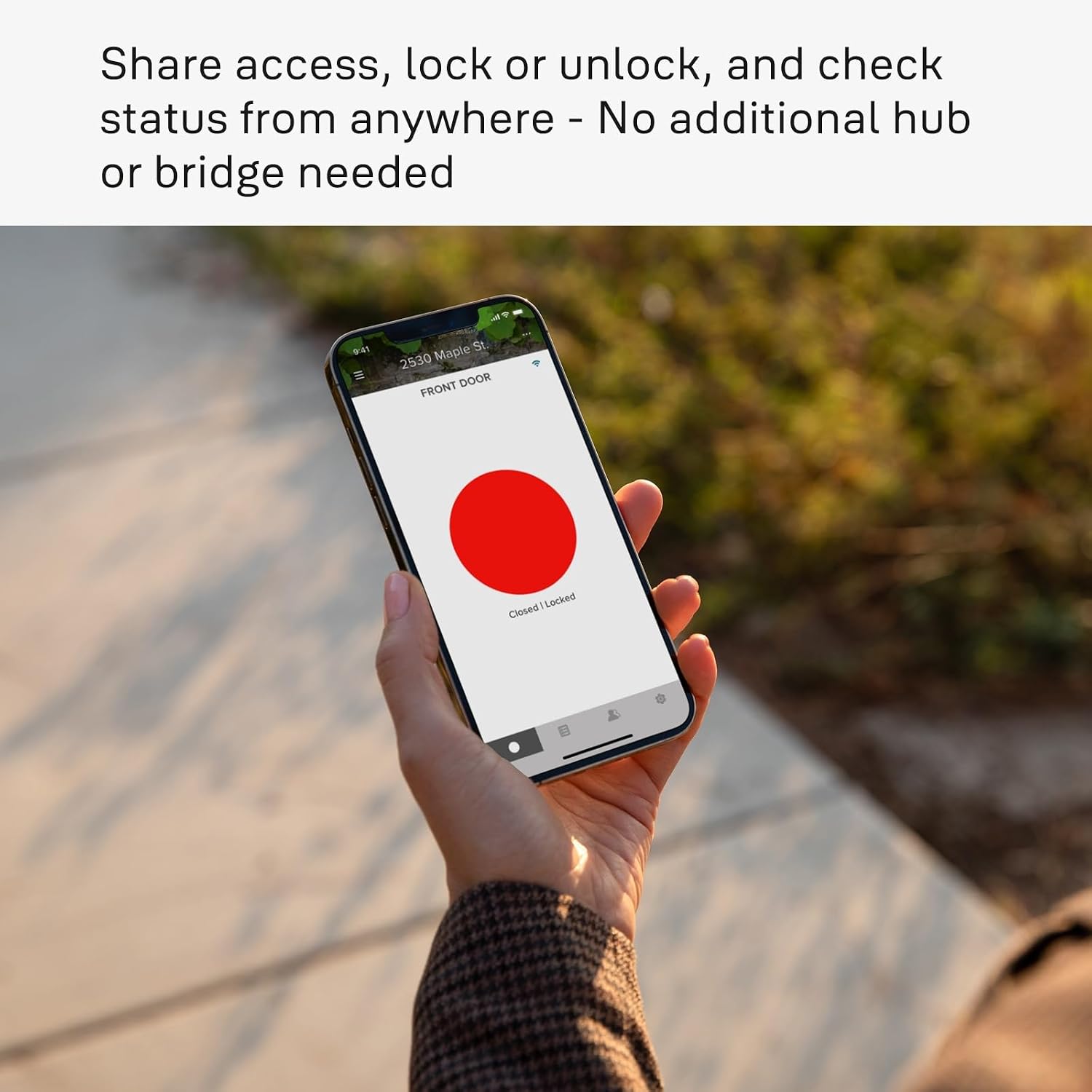
Image 2: Exterior view of a door featuring the Yale Assure Lock 2, highlighting its sleek design.

Image 3: The Yale Assure Lock 2 is compatible with popular smart home platforms including Google Home, Alexa, Apple Home, SmartThings, and Philips Hue.
3. Setup & Installation
The Yale Assure Lock 2 is designed for straightforward installation, typically requiring only a Phillips head screwdriver. Follow the steps below or refer to the installation video for a visual guide.
- Prepare Door: Remove your existing deadbolt. Ensure your door meets the thickness and bore hole requirements (1 3/8" - 2 1/4" thick, 2 1/8" or 1 1/2" face bore, 1" cross bore, 1" diameter and 1" deep strike pocket).
- Install Deadbolt Latch: Place the deadbolt latch in the retracted, unlocked position. Ensure the 'UP' side is facing up and secure it with the provided screws.
- Install Strike Plate: Install the strike plate into the door frame with the remaining two small screws.
- Install Keypad: Position the keypad on the front of the door, ensuring the tailpiece is horizontal and fits into the deadbolt latch. Route the cable under the deadbolt latch.
- Install Mounting Bracket: Install the mounting bracket on the inside of your door. Guide the keypad cable through the hole in the bracket.
- Secure Mounting Bracket: Use the long screws (silver, black, or blue, depending on your door thickness) to secure the mounting bracket. Ensure the keypad is flush against the door.
- Attach Cable: Connect the cable from the keypad to the connector on the inside of the lock. Route the wire under the wire guide without crimping it.
- Install Interior Lock: Hook the bottom of the interior lock to the latch on the mounting bracket. Screw in the two pre-installed screws inside the battery cover.
- Test Lock Operation: Move the thumbturn to ensure the latch moves smoothly to the extended (locked) and retracted (unlocked) positions.
- Install Yale Smart Module (Optional): If you have a Yale Smart Module, install it in the interior slot of the lock before installing batteries. Remove one battery if already installed, then insert the module.
- Install Batteries: Unlock the deadbolt. Pull up the ribbon to cover the battery terminals. Install the bottom back battery, followed by the top back battery, and finally the two front batteries. Slide the battery cover back in place.
Video 1: Detailed installation guide for the Yale Assure Lock 2 Keyed version. This video demonstrates each step of the physical installation process.
Image 4: All components included with the Yale Assure Lock 2, including the lock, Wi-Fi module, deadbolt, latch plates, mounting hardware, and key.
4. Operating Instructions
The Yale Assure Lock 2 offers multiple convenient ways to operate your smart lock.
4.1. Using the Keypad
- To Unlock: Enter your personalized entry code on the keypad. The lock will retract the deadbolt.
- To Lock: Press the Yale button on the keypad. The deadbolt will extend.

Image 5: A hand entering an access code on the illuminated keypad of the Yale Assure Lock 2.
4.2. Using the Yale Access App
- Remote Lock/Unlock: Open the Yale Access App on your smartphone. Tap the lock icon to lock or unlock your door from anywhere.
- Share Access: Easily create and manage entry codes for family, friends, or service providers directly from the app. You can set permanent, recurring, or temporary access.
- Activity Feed: View a history of who has entered and exited your home.
- Notifications: Receive real-time alerts when your door is locked, unlocked, or left ajar.
Video 2: A tutorial demonstrating how to set up and manage entry codes for guests using the Yale Access App.

Image 6: A user interacting with the Yale Access App on their smartphone to manage their smart lock.
4.3. Auto-Lock and Auto-Unlock
- Auto-Lock: Configure the Auto-Lock feature in the Yale Access App. The lock will automatically engage the deadbolt after a set period once DoorSense confirms the door is closed.
- Auto-Unlock: Enable Auto-Unlock in the app. Your door will automatically unlock as you approach your home, detected via your smartphone's location.

Image 7: A person approaching their front door, which is automatically unlocking thanks to the Yale Assure Lock 2's Auto-Unlock feature.
5. Maintenance
- Battery Replacement: The Yale Assure Lock 2 uses 4 AAA batteries. Battery life can vary but typically lasts several months. Replace batteries when the low battery indicator appears or when the lock's performance diminishes.
- Cleaning: Clean the keypad and exterior components with a soft, damp cloth. Avoid abrasive cleaners or solvents that could damage the finish.
- Firmware Updates: Regularly check the Yale Access App for firmware updates to ensure optimal performance and security.
6. Troubleshooting
- Lock Not Responding: Check battery levels. Replace batteries if low. Ensure the lock is properly installed and aligned with the door frame.
- Connectivity Issues: Verify your home Wi-Fi network is active and the lock is within range. Ensure the Yale Access App is updated to the latest version. Re-pair the lock with the app if necessary.
- Keypad Not Lighting Up: Tap the Yale logo to wake the keypad. If it still doesn't light up, check the batteries.
- Auto-Lock/Unlock Not Working: Ensure DoorSense is correctly installed and calibrated. Check location services settings for the Yale Access App on your smartphone.
Video 3: This video highlights the convenience of key-free access, emphasizing that lost keys are a thing of the past with the Yale Assure Lock 2.
7. Specifications
| Brand | Yale Security |
| Model Number | YRD410-WF1-619 |
| Lock Type | Deadbolt, Keypad |
| Material | Metal, Zinc |
| Finish Type | Brushed (Satin Nickel) |
| Item Dimensions (L x W x H) | 0.88 x 2.5 x 4.88 inches |
| Item Weight | 16 ounces |
| Connectivity Protocol | Bluetooth, Wi-Fi |
| Control Method | App, Voice |
| Controller Type | Amazon Alexa, Android, Apple HomeKit, Google Assistant, iOS |
| Power Source | 4 AAA Batteries |
8. Warranty & Support
The Yale Assure Lock 2 comes with a comprehensive warranty to ensure your peace of mind:
- Lifetime Limited Warranty: Applies to the finish and mechanical components of the lock.
- One-Year Warranty: Covers the electronic components of the lock.
For technical assistance, troubleshooting, or warranty claims, please contact Yale Security customer support. Yale offers 24/7 support to assist you with any questions or issues.
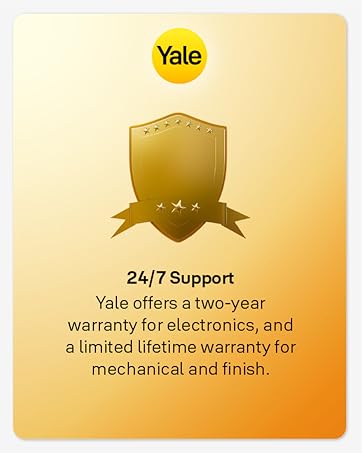
Image 8: Yale provides 24/7 customer support and offers a two-year warranty for electronics, and a limited lifetime warranty for mechanical and finish components.

