
1. Introduction
Overview
The Yale Assure Lock 2 Deadbolt offers a secure and convenient keyless entry solution for your home. This model features a digital touchscreen keypad and Bluetooth connectivity, allowing for multiple ways to unlock your door without a traditional key. It integrates seamlessly into your daily life, providing enhanced security and ease of access.
Key Features
- Key-free access: Unlock using the keypad, the Yale Access app on your smartphone or Apple Watch, or optional Auto-Unlock via Bluetooth.
- Auto-Unlock: The lock can automatically unlock as you approach your home.
- Custom Entry Codes: Share temporary or permanent entry codes with family, friends, or service providers.
- Auto-Lock: Automatically locks your door after a set period, ensuring your home is always secure.
- Enhanced Security: Features designed to protect your home and personal access information.
2. Safety Information
Please read all instructions carefully before installation and use. Failure to follow these instructions could result in product damage, property damage, or injury.
- Do not use harsh chemicals or abrasive cleaners on the lock's finish.
- Ensure correct battery type (AA) and orientation during installation.
- Keep the keypad clean and free from debris to ensure proper function.
- Avoid exposing the lock to extreme temperatures or direct water spray.
- Always test the lock's functionality after installation and any maintenance.
3. What's Included
Verify that all components are present before beginning installation.
- Yale Assure Lock 2 (Exterior Keypad and Interior Assembly)
- Yale DoorSense Sensor
- Deadbolt Latch
- Strike Plate
- Mounting Hardware (screws, bolts)
- Installation Manual
- 4 AA Batteries

Image: The Yale Assure Lock 2 Deadbolt, displaying both the exterior keypad and the interior assembly with the thumb turn.
4. Installation
Before You Begin
Ensure your door is prepared for a deadbolt installation. The Yale Assure Lock 2 is designed to fit standard door preparations. You will need a Phillips head screwdriver for installation.
- Check door thickness (typically 1 3/8" to 2 1/4").
- Verify backset (distance from door edge to center of bore hole) is 2 3/8" or 2 3/4".
- Ensure the door frame has a compatible strike plate location.
Installation Steps
Installation is designed to be straightforward, often requiring only a screwdriver.
- Remove Existing Hardware: If replacing an old lock, remove the existing deadbolt and strike plate.
- Install Deadbolt Latch: Insert the new deadbolt latch into the door edge. Ensure the 'UP' arrow is facing upwards.
- Install Exterior Keypad: Route the cable from the keypad through the door and align the keypad with the deadbolt.
- Install Interior Mounting Plate: Secure the interior mounting plate to the door using the provided screws, ensuring the cable passes through the plate.
- Connect Cable and Install Interior Assembly: Connect the cable from the keypad to the interior assembly. Then, attach the interior assembly to the mounting plate and secure it with screws.
- Install Strike Plate: Attach the new strike plate to the door frame, aligning it with the deadbolt latch.
- Install DoorSense Sensor: Follow the instructions for installing the DoorSense sensor on your door frame to enable door open/closed status detection.

Image: The Yale Assure Lock 2 being installed on a door, demonstrating that no locksmith is required.

Image: An installed Yale Assure Lock 2, showing the interior and exterior parts of the lock on a door.
For detailed, step-by-step instructions, please refer to the official Installation Manual (PDF).
5. Setup
Battery Installation
The lock requires four (4) AA batteries. Ensure they are inserted with the correct polarity.
- Remove the battery cover from the interior assembly.
- Insert four new AA batteries, matching the +/- indicators.
- Replace the battery cover.
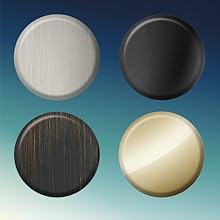
Image: A hand installing batteries into the Yale Assure Lock 2 interior unit.
Initial Lock Configuration
After battery installation, the lock will perform a self-calibration. You will then need to set up a Master Entry Code.
- Touch the keypad to wake it up.
- Press the gear icon (⚙) followed by the checkmark icon (✓).
- Enter a new 4-8 digit Master Entry Code, then press the checkmark icon (✓).
- Re-enter the same Master Entry Code, then press the checkmark icon (✓) to confirm.
The Master Entry Code is used to access programming features and should be kept confidential.
App Integration (Yale Access App)
To fully utilize the smart features of your Yale Assure Lock 2, download the Yale Access app.
- Download the Yale Access App from your smartphone's app store.
- Create an account or log in.
- Follow the in-app instructions to add your new lock. This typically involves scanning a QR code or entering a serial number and pairing via Bluetooth.

Image: A user interacting with the Yale Access app on a smartphone to manage their lock.
6. Operating the Lock
Unlocking with Keypad
To unlock your door using the keypad:
- Touch the keypad to activate it.
- Enter your 4-8 digit entry code.
- Press the checkmark icon (✓). The deadbolt will retract, and the door will unlock.

Image: A user entering a code on the Yale Assure Lock 2 keypad.
Locking with Keypad
To lock your door using the keypad:
- From the outside, simply press any key on the keypad or the checkmark icon (✓). The deadbolt will extend.
- From the inside, turn the thumb turn to the locked position.
Auto-Lock Feature
The Auto-Lock feature automatically locks your door after a specified delay (e.g., 30 seconds, 1 minute, 5 minutes). This feature can be configured through the Yale Access app.
- Enable/disable Auto-Lock in the Yale Access app settings for your lock.
- Adjust the delay time as needed.
Auto-Unlock Feature
With Auto-Unlock enabled, your door can automatically unlock as you approach your home, detected via your smartphone's location and Bluetooth.
- Enable Auto-Unlock in the Yale Access app settings.
- Ensure your phone's Bluetooth and location services are active.

Image: A person arriving home, and the Yale Assure Lock 2 automatically unlocking the door.
Using the Yale Access App
The Yale Access app provides comprehensive control over your lock:
- Remote Locking/Unlocking: Control your lock from anywhere within Bluetooth range.
- User Management: Add, delete, or modify entry codes for various users.
- Activity Feed: View a history of who entered and when.
- Notifications: Receive alerts for lock activity.

Image: A user operating the Yale Assure Lock 2 via the Yale Access app on their smartphone.
Bluetooth Connectivity
This model (YRD430-BLE-BSP) uses Bluetooth for connectivity to your smartphone. This allows for direct control when you are within Bluetooth range of the lock. For remote access from outside Bluetooth range, a separate Yale Wi-Fi Smart Module (sold separately) would be required.
7. Maintenance
Battery Replacement
The Yale Assure Lock 2 will provide a low battery warning through the app and on the keypad. Replace batteries promptly to ensure continuous operation.
- Remove the battery cover on the interior assembly.
- Remove the old AA batteries.
- Insert four new, high-quality AA alkaline batteries, ensuring correct polarity.
- Replace the battery cover.
Note: Using non-alkaline batteries may reduce battery life and performance.
Cleaning
To maintain the finish and functionality of your lock:
- Wipe the lock with a soft, damp cloth.
- Do not use abrasive cleaners, solvents, or chemical sprays, as these can damage the finish and electronic components.
8. Troubleshooting
If you encounter issues with your Yale Assure Lock 2, refer to the following common problems and solutions:
| Problem | Possible Cause | Solution |
|---|---|---|
| Keypad does not light up. | Dead batteries or keypad not activated. | Touch the keypad to wake it. Replace batteries if necessary. |
| Lock does not respond to entry code. | Incorrect code, low batteries, or lock calibration issue. | Verify entry code. Replace batteries. Perform a factory reset and re-calibrate if needed (refer to full manual). |
| Auto-Lock/Auto-Unlock not working. | Feature disabled, phone settings, or DoorSense issue. | Check settings in Yale Access app. Ensure phone's Bluetooth and location are on. Verify DoorSense sensor installation. |
| Lock is difficult to turn or operate manually. | Misalignment, binding, or incorrect installation. | Check door and frame alignment. Ensure deadbolt moves freely. Re-check installation steps. |
For further assistance, please visit the official Yale Security support website or consult the full installation manual.
9. Specifications
| Brand | Yale Security |
| Model Name | Assure Lock 2 |
| Item Model Number | YRD430-BLE-BSP |
| Lock Type | Keypad Deadbolt |
| Color | Black Suede |
| Material | Zinc |
| Product Dimensions | 2.5 x 3.7 x 2.3 inches |
| Item Weight | 1 Pound |
| Control Method | App, Touch |
| Connectivity Protocol | Bluetooth |
| Power Source | 4 AA batteries (included) |
| Special Features | Auto-Lock, Auto-Unlock, Back-Lit Keypad, Battery Indicator, Keyless |
| Recommended Uses | Entry Door, Front Door |
10. Warranty and Support
Warranty Information
Yale Security provides a limited lifetime warranty on the finish and mechanical components of the Assure Lock 2. Electronic components are covered by a one-year warranty. Please retain your proof of purchase for warranty claims.
Customer Support
For technical support, warranty service, or additional product information, please visit the official Yale Security website or contact their customer service department. You can often find FAQs, troubleshooting guides, and contact details on their support pages.
Online Resources: Yale Home Official Website


