
1. Introduction
This manual provides comprehensive instructions for the PJYUBVOR Smart Watch, Model T45S. This device is designed to enhance your daily life with features such as Bluetooth calling, health monitoring, and fitness tracking. Please read this manual thoroughly before using the device to ensure proper operation and maintenance.
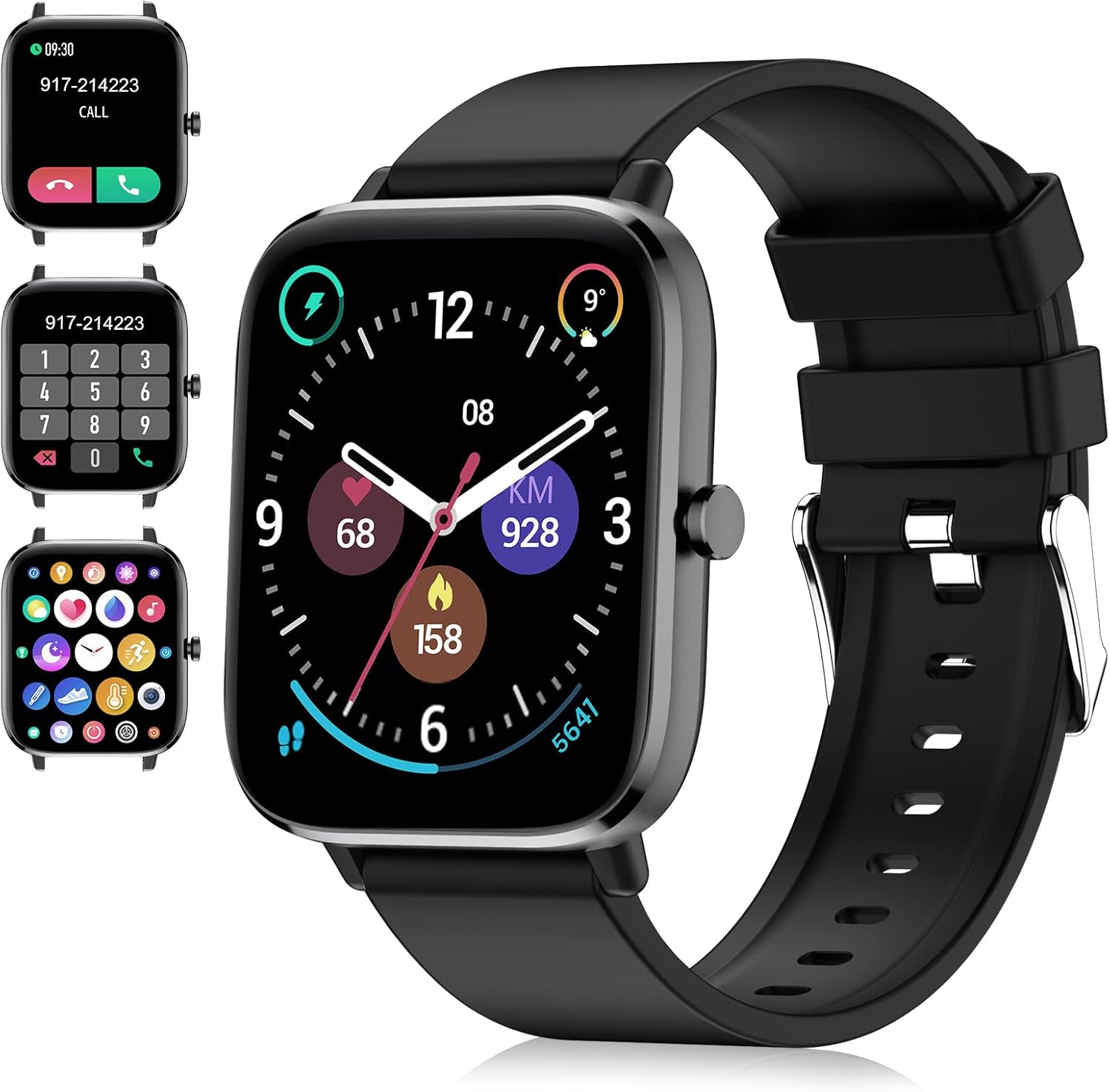
Image: The PJYUBVOR Smart Watch displaying time, activity data, and call interface options.
2. What's in the Box
- Smart Watch
- User Manual
- Charging Cable
3. Specifications
| Feature | Detail |
|---|---|
| Model Number | T45S |
| Screen Size | 1.83" HD Full Touch Color Screen |
| Battery Capacity | 235-290 Milliamp Hours (typical) |
| Charging Time | Approx. 2 hours |
| Normal Use Time | 5-7 days |
| Standby Time | Up to 30 days |
| Waterproof Rating | IP68 |
| Connectivity | Bluetooth |
| Compatibility | Android 5.0+ / iOS 9.0+ |
| Features | Bluetooth Call, Heart Rate Monitor, Blood Oxygen Monitor, Sleep Monitor, 100+ Sports Modes, Notifications, Custom Dials, Music Control, Camera Control, Sedentary Reminder, Alarm Clock, Stopwatch, Timer, Weather Forecast, Female Cycle Tracking |
4. Setup Guide
4.1 Charging the Smart Watch
Before first use, fully charge your smart watch. Connect the magnetic charging cable to the charging points on the back of the watch and plug the USB end into a power adapter (not included) or a computer's USB port. A full charge typically takes about 2 hours.

Image: The back of the smart watch showing the magnetic charging connection.
4.2 App Installation and Pairing
- Scan the QR code in the manual or search for "Da Fit" in your phone's app store (Google Play Store for Android, Apple App Store for iOS) to download and install the application.
- Ensure Bluetooth is enabled on your smartphone.
- Open the "Da Fit" app, register an account if prompted, and complete your personal profile.
- In the app, navigate to the "Device" or "Add Device" section. The app will search for available devices.
- Select "T45S" or the corresponding device name from the list to initiate pairing. Confirm the pairing request on both your phone and the watch if prompted.
- For Bluetooth call functionality, go to your phone's Bluetooth settings and pair with "T45S_CALL" or a similar name once the main connection is established.
5. Operating Instructions
5.1 Basic Navigation
- Touch Screen: Swipe left/right, up/down to navigate through menus and features. Tap to select.
- Side Button: Press to wake the screen, return to the main dial, or access the app list.
5.2 Call Functionality
After successfully pairing the watch for calls (T45S_CALL), you can make and answer calls directly from your wrist using the built-in HD speaker and microphone.
- Making Calls: Access the dial pad on the watch or select a contact from your synced phonebook.
- Answering Calls: When a call comes in, tap the green answer icon on the watch screen.
- Viewing Call History: Check recent calls directly on the watch.

Image: The smart watch showing its Bluetooth call capabilities, including call receive/dial, call records, and built-in speaker.
5.3 Message Notifications
Receive notifications from various apps (e.g., Facebook, WhatsApp, Instagram, Twitter, SMS) directly on your watch. Ensure app notifications are enabled in the "Da Fit" app settings on your phone.

Image: The smart watch showing message reminder function with various social media icons.
5.4 Health Monitoring
The watch continuously monitors your health metrics. View real-time data on the watch or detailed historical data in the "Da Fit" app.
- Heart Rate: 24-hour continuous heart rate monitoring.
- Blood Oxygen (SpO2): Measures blood oxygen saturation levels.
- Sleep Monitor: Tracks sleep stages (deep, light, wakeful) and provides sleep quality analysis.

Image: Visual representation of the smart watch's blood oxygen, heart rate, and sleep monitoring features.
5.5 Sports Modes & Activity Tracking
The watch supports over 100 sports modes, recording data such as steps, distance, calories burned, and heart rate during exercise.
- Available Modes: Running, hiking, cycling, skipping, walking, basketball, yoga, football, and more.
- Data Recording: View real-time exercise data on the watch and detailed summaries in the app.

Image: Icons representing various sports modes supported by the smart watch, including running, basketball, skipping rope, badminton, football, swimming, cycling, and walking.
5.6 Customizing Watch Dials
Personalize your watch by choosing from over 100 watch faces available in the "Da Fit" app, or upload your own photos as a custom background.

Image: A smartphone screen showing options to customize the smart watch face with personal photos.
5.7 Other Functions
The PJYUBVOR Smart Watch includes several additional useful features:
- Music Control: Control music playback on your phone (play, pause, skip tracks).
- Camera Control: Use the watch as a remote shutter for your phone's camera.
- Sedentary Reminder: Get alerts to move after periods of inactivity.
- Alarm Clock: Set alarms directly from the watch or app.
- Stopwatch & Timer: Basic timekeeping functions.
- Weather Forecast: View current weather conditions.
- Find Your Phone: Locate your paired smartphone.
- Female Cycle Tracking: Monitor menstrual cycles.
- Brightness Adjustment: Adjust screen brightness for optimal viewing.
- Do Not Disturb Mode: Silence notifications during specific times.

Image: A visual representation of the smart watch's additional features, including sedentary reminder, drink reminder, alarm clock, stopwatch, timer, torch, brightness adjustment, theatre mode, and do not disturb mode.
6. Maintenance and Care
- Water Resistance: The watch has an IP68 waterproof rating, suitable for daily use like hand washing or rain. It is not recommended for use in hot water, seawater, swimming, diving, or bathing, as steam or corrosive liquids may damage the device.
- Cleaning: Wipe the watch and strap regularly with a soft, dry cloth. Avoid using harsh chemicals or abrasive materials.
- Storage: Store the watch in a cool, dry place when not in use. Avoid extreme temperatures.
- Charging: Use only the provided charging cable. Ensure charging contacts are clean and dry before charging.
7. Troubleshooting
| Problem | Solution |
|---|---|
| Watch not turning on | Ensure the watch is fully charged. Press and hold the side button for several seconds. |
| Cannot pair with phone | Ensure Bluetooth is on for both devices. Restart both the watch and phone. Make sure the "Da Fit" app is installed and running. Forget previous Bluetooth connections for the watch on your phone and try pairing again. |
| Call function not working | Ensure "T45S_CALL" (or similar) is connected in your phone's Bluetooth settings, in addition to the main watch connection. Check app permissions for calls. |
| Notifications not received | Check notification permissions for the "Da Fit" app in your phone's settings. Ensure notifications are enabled for specific apps within the "Da Fit" app. Keep the app running in the background. |
| Inaccurate health data | Ensure the watch is worn snugly on your wrist, not too loose or too tight. Keep the sensor clean. Note that this device is not a medical device and data is for reference only. |
8. Warranty and Support
For warranty information and technical support, please refer to the warranty card included with your product or contact PJYUBVOR customer service through the contact information provided on the product packaging or the official PJYUBVOR website. Please have your model number (T45S) and purchase details ready when contacting support.
9. Important Safety Information
- Do not attempt to disassemble or modify the watch.
- Keep the watch away from extreme heat or cold.
- Avoid strong impacts or dropping the device.
- Keep out of reach of children.
- Consult a doctor before starting any new exercise regimen, especially if you have pre-existing health conditions.
10. Official Product Videos
Below are official product videos from the seller demonstrating key features of the PJYUBVOR Smart Watch.
No official seller videos are available for embedding at this time.