
1. Product Overview
The InnoView 15.6-inch 1080P Portable Monitor (Model INVPM001-03B) is designed to extend your display capabilities for various devices. It features a reliable IPS A+ screen with a 178° viewing angle, delivering a 1920x1080 resolution and a high contrast ratio of 1200:1. The monitor supports HDR technology for enhanced color rendering. Its ultra-slim and lightweight design, combined with a built-in 90° adjustable stand and a custom protective sleeve, makes it ideal for portability and versatile use.
Connectivity options include two full-featured Type-C ports and one standard HDMI port, ensuring broad compatibility with laptops, smartphones, tablets, PCs, gaming consoles (PS, Xbox, Nintendo Switch), and mini hosts. The monitor also features a four-button quick access setting for easy navigation of the On-Screen Display (OSD) menu.
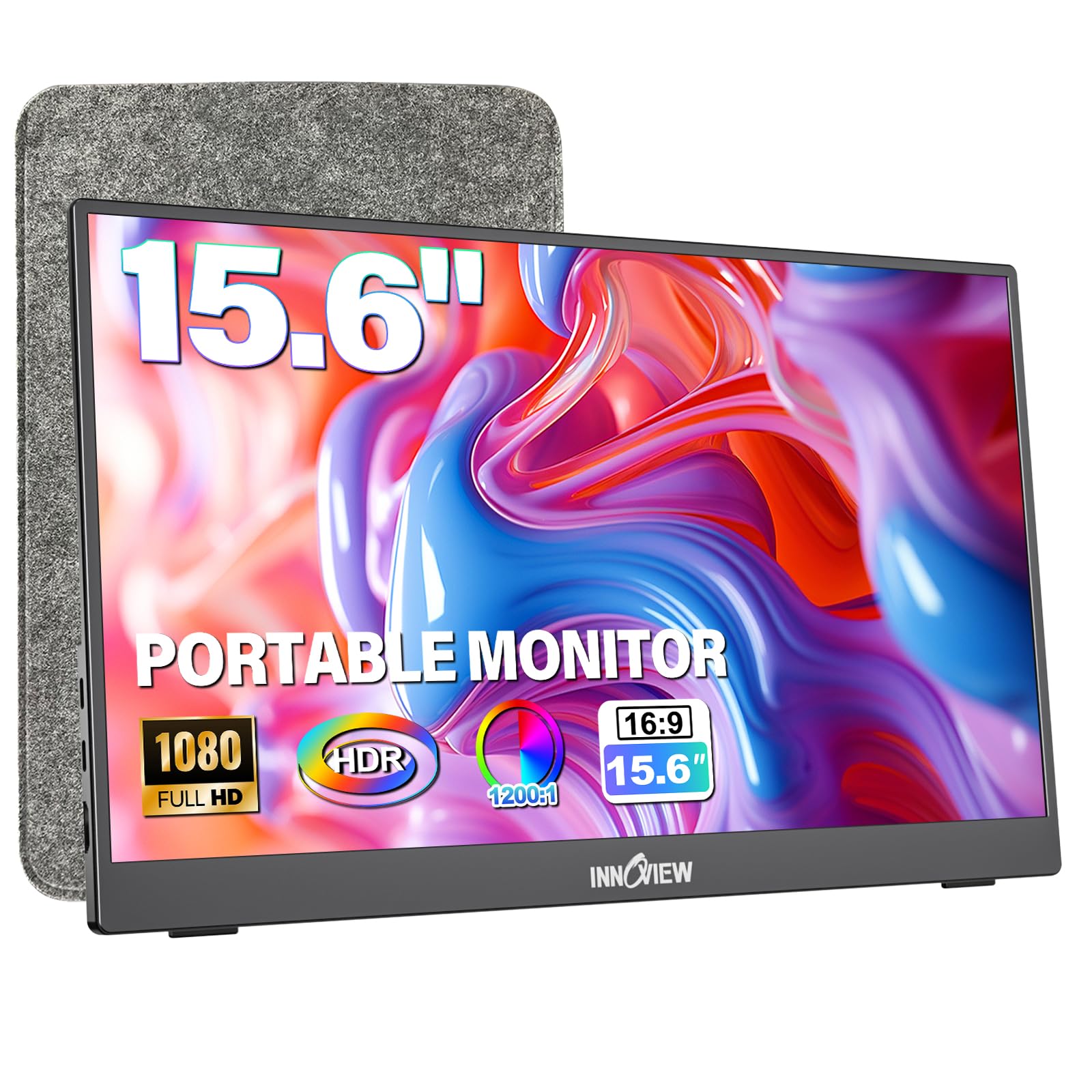
Figure 1: InnoView 15.6" Portable Monitor with its protective sleeve.
2. Setup and Connections
Before using your InnoView portable monitor, ensure all necessary cables are connected correctly. The monitor supports both USB-C and HDMI connections.
2.1 Package Contents

Figure 2: Included accessories: Portable monitor, storage bag, Type-C cable, HDMI cable, and user manual. A power adapter is not included.
2.2 Port Identification

Figure 3: Monitor dimensions and port layout. A: Audio port, B: Menu button, C: Up/Down button, D: Power button, E: Type-C 3.1 port, F: Type-C 3.1 port, G: Standard HDMI 1.4 port.
2.3 Connection Options
The monitor offers flexible connection methods depending on your device's capabilities.
- USB Type-C & Power Connection: If your device has a full-featured USB-C port (supporting power and video signal), you can connect the monitor using a single USB-C cable.
- HDMI & Power Cable: If your device does not have a full-featured USB-C port, connect via HDMI for video signal and use a separate power cable (not included) for power.

Figure 4: Illustration of Type-C 3.1 port (supports power & video) and Standard HDMI port (supports video only, requires separate power).
2.4 USB-C Port Compatibility Check
To ensure proper functionality with a single USB-C cable, verify that your laptop's USB-C port supports Thunderbolt, Data + Video Output, or Data + DisplayPort Alt Mode. Refer to the symbols next to your laptop's USB-C port.

Figure 5: Guide to identifying compatible and incompatible USB-C port functionalities on your laptop.
3. Operation
This section details how to use your InnoView portable monitor with various devices and adjust its settings.
3.1 Adjustable Stand
The monitor features a built-in stand that allows for 0-90° adjustment of the tilt angle. This helps in finding a comfortable viewing position and reducing strain on your neck, back, and eyes.
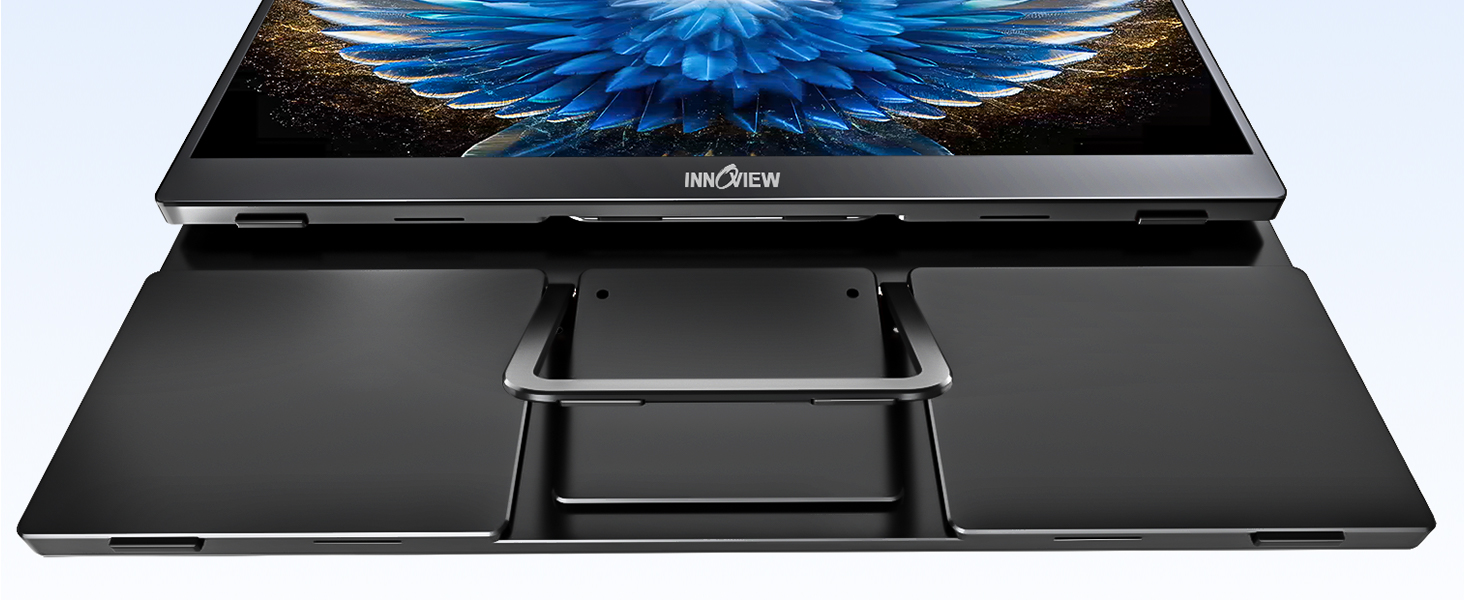
Figure 6: The integrated stand provides stability and adjustable viewing angles from 0-90 degrees.
3.2 Display Modes
The monitor supports various display modes when connected to a laptop or PC:
- Duplicated Mode: Displays the same content on both your primary device and the portable monitor.
- Extended Mode: Extends your desktop across both screens, providing more workspace.
- Portrait Mode: Allows the monitor to be used in a vertical orientation, useful for coding or document viewing.

Figure 7: Examples of Duplicated, Extended, and Portrait display modes for enhanced productivity.
3.3 Connecting to Devices
The InnoView portable monitor is compatible with a wide range of devices.
- Laptops/PCs: Connect using a single USB-C cable (if compatible) or an HDMI cable with a separate power source.
- Smartphones:
- USB-C 3.0 (or higher) compatible phones: Use a single USB-C cable for video and power.
- iPhone 15 Pro/Plus/Pro Max: Connect directly via USB-C.
- Earlier iPhone models (before iPhone 15 Pro): Requires a Lightning to HDMI adapter (not included) and a separate power supply (15W or more) to avoid flickering or to increase brightness/volume.
- Gaming Consoles (PS, Xbox, Nintendo Switch): Connect via HDMI. The monitor will require a separate power cable for power.
- Mini Hosts (Mac mini, mini PC): Connect via HDMI or compatible USB-C to turn your mini host into a mobile workstation.

Figure 8: Connecting iPhone 15 Pro/Plus/Pro Max directly via USB-C, and earlier iPhone models via a Lightning to HDMI adapter.

Figure 9: Connecting a Nintendo Switch dock to the monitor using an HDMI cable. A separate power cable is required for the monitor.

Figure 10: Connecting a PlayStation 5 to the portable monitor for an enhanced gaming experience.

Figure 11: Connecting a Mac mini or mini PC to the portable monitor to create a mobile workstation.
3.4 On-Screen Display (OSD) Menu
The monitor features a four-button quick access setting for navigating the OSD menu. Use the Menu, Up/Down, and Power buttons (refer to Figure 3 for locations) to adjust display settings such as brightness, contrast, color modes, and input sources.
4. Maintenance
Proper care and maintenance will extend the lifespan of your portable monitor.
- Cleaning the Screen: Use a soft, lint-free cloth slightly dampened with water or a screen-cleaning solution. Avoid harsh chemicals or abrasive materials.
- Cleaning the Body: Wipe the monitor's metal body with a soft, dry cloth.
- Storage: When not in use, store the monitor in its protective sleeve to prevent scratches and dust accumulation.
- Handling: Avoid dropping the monitor or subjecting it to strong impacts.
- Temperature and Humidity: Operate and store the monitor within recommended temperature and humidity ranges to prevent damage.

Figure 12: The InnoView monitor features a durable metal body for better heat dissipation and longevity compared to plastic alternatives.
5. Troubleshooting
If you encounter issues with your InnoView portable monitor, refer to the following common solutions.
- Screen Flickering: If the screen flickers, it may be due to insufficient power. Please use an additional charger (not included) with a power output greater than 15W to power the monitor.
- No Signal:
- Ensure all cables (USB-C or HDMI + power) are securely connected.
- Verify that your device's USB-C port supports video output (refer to Section 2.4).
- Try a different cable or port on your source device.
- Ensure the monitor is powered on.
- No Sound:
- Check the volume settings on both the monitor and your connected device.
- Ensure the audio cable (if used) is properly connected to the audio port (A in Figure 3).
- Display Not Bright Enough: Adjust the brightness settings through the OSD menu. If using a single USB-C connection, ensure your device provides sufficient power or connect an external power adapter.

Figure 13: If the screen flickers, connect an external power adapter greater than 15W.
For further assistance, please contact customer support (refer to Section 7).
6. Specifications
| Feature | Detail |
|---|---|
| Model Number | INVPM001-03B |
| Screen Size | 15.6 inches |
| Resolution | FHD 1080p (1920 x 1080 pixels) |
| Display Type | LCD, IPS A+ screen |
| Aspect Ratio | 16:9 |
| Contrast Ratio | 1200:1 |
| Refresh Rate | 60 Hz |
| Response Time | 3 milliseconds |
| Viewing Angle | 178 degrees |
| Brightness | 250 cd/m² |
| Screen Finish | Matte |
| Color Gamut | 80% |
| Picture Quality Enhancement | HDR |
| Connectivity | 2x USB Type-C 3.1, 1x Standard HDMI 1.4 |
| Audio | Built-In Speakers, Audio Port |
| Dimensions (D x W x H) | 0.64 x 35.5 x 22.06 cm |
| Weight | 0.7 kg (1.5 pounds) |
| Additional Features | Flicker-Free Eye Care, Protective Sleeve, Built-in 90° Adjustable Stand, FreeSync |
| Compatible Devices | Gaming Console, Laptop, Smartphone, Tablet |
7. Warranty Information
The InnoView portable monitor comes with a 1-year warranty from the date of purchase, excluding external force damage. Additionally, InnoView offers a 30-day return policy and 60-day free returns and exchanges.
Please retain your proof of purchase for warranty claims.
8. Customer Support
For any questions, concerns, or technical assistance regarding your InnoView portable monitor, please contact our customer support team. You can find contact information on the back of your monitor or refer to the official InnoView website.
InnoView is committed to providing 24-hour after-sales service to ensure your satisfaction.
For more information, visit the InnoView Store on Amazon.


