
1. Introduction
This manual provides essential information for the safe and efficient use of your Westinghouse 27-inch Full HD Monitor (Model: Wes-Wh27fx9222-B). Please read this manual thoroughly before operating the monitor and retain it for future reference.
The Westinghouse Wes-Wh27fx9222-B monitor features a 27-inch Full HD (1920x1080) display with a 75Hz refresh rate and 3ms response time, designed for clear visuals and smooth performance. It includes Adaptive Sync technology to reduce screen tearing and stuttering, and EyeRest Technology for enhanced viewing comfort by minimizing eye strain.
2. Safety Information
Observe the following safety precautions to prevent damage to the monitor and ensure personal safety:
- Do not expose the monitor to rain, moisture, or extreme temperatures.
- Ensure the monitor is placed on a stable, level surface to prevent it from falling.
- Use only the power adapter supplied with the monitor.
- Do not block ventilation openings.
- Avoid placing heavy objects on the power cord.
- Disconnect the power plug from the outlet if the monitor will not be used for an extended period.
- Do not attempt to service the monitor yourself. Refer all servicing to qualified personnel.
3. Package Contents
Verify that all items are present in your package:
- Westinghouse 27-inch Full HD Monitor
- Monitor Stand (Base and Neck)
- Power Adapter
- HDMI Cable
- User Manual
4. Setup
4.1 Assembling the Monitor Stand
- Carefully remove the monitor from its packaging, keeping the screen protected.
- Attach the stand neck to the monitor panel.
- Secure the stand base to the stand neck.
- Place the assembled monitor on a stable, flat surface.
The monitor offers a flexible tilt screen, allowing adjustment from -5° to +15° for optimal viewing comfort.

Image: The monitor can be tilted from -5 degrees to +15 degrees for ergonomic viewing. It also features a wide 178-degree viewing angle.
4.2 Connecting the Monitor
The monitor supports HDMI and VGA connections. Ensure your computer's output matches one of these inputs.
- Power Connection: Connect the power adapter to the monitor's DC input port, then plug the adapter into a power outlet (110 Volts).
- Video Connection (HDMI): Connect one end of the HDMI cable to the HDMI port on your computer's graphics card and the other end to the HDMI input port on the monitor.
- Video Connection (VGA): Connect one end of the VGA cable to the VGA port on your computer's graphics card and the other end to the VGA input port on the monitor.
- Audio Connection (Optional): If desired, connect headphones or external speakers to the headphone output port on the monitor.

Image: Rear view of the monitor showing the available input ports: HDMI, VGA, Audio Out, and DC power input. The monitor also supports VESA wall mounting.
5. Operating the Monitor
5.1 Power On/Off
Press the power button located on the monitor to turn it on or off. The power indicator light will illuminate when the monitor is active.
5.2 On-Screen Display (OSD) Menu
Use the control buttons on the monitor to navigate and adjust settings within the OSD menu. Common settings include:
- Brightness/Contrast: Adjust the display's luminance and contrast levels.
- Color Settings: Modify color temperature, hue, and saturation. The monitor features a wider color gamut, covering 98% sRGB and 83% NTSC, displaying over 16.7 million colors for accurate image reproduction.
- Input Select: Manually switch between HDMI and VGA input sources.
- Picture Mode: Select from various preset display modes (e.g., Standard, Game, Movie).
- EyeRest Technology: Access settings for flicker-free operation, anti-glare, low blue light modes, and warm/cool viewing options to reduce eye strain.
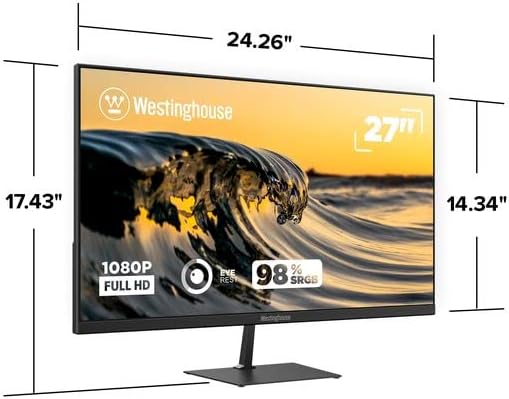
Image: Illustration of the monitor's wider color gamut, indicating 98% sRGB and 83% NTSC coverage for outstanding color accuracy and 16.7 million colors.

Image: Depiction of Innovative EyeRest Technology, which reduces digital eye strain and fatigue through flicker-free, anti-glare, low blue light settings, and warm & cool mode viewing.
5.3 Adaptive Sync
The monitor supports Adaptive Sync technology, which synchronizes the monitor's refresh rate with your graphics card's frame rate. This feature helps eliminate motion blur, screen tearing, and stuttering during fast-paced video playback or gaming. Ensure Adaptive Sync is enabled in your graphics card settings and on the monitor's OSD menu for optimal performance.

Image: Visual representation of Adaptive-Sync technology and 75Hz refresh rate, which work together to eliminate motion blur, tearing, or stuttering during video playback or competitive gameplay.
6. Maintenance
6.1 Cleaning the Monitor
- Always unplug the monitor from the power outlet before cleaning.
- Use a soft, lint-free cloth lightly dampened with water or a mild, non-abrasive screen cleaner.
- Do not spray cleaner directly onto the screen.
- Avoid using harsh chemicals, solvents, or abrasive materials, as these can damage the screen or casing.
7. Troubleshooting
| Problem | Possible Cause | Solution |
|---|---|---|
| No image on screen |
|
|
| Image is blurry or distorted |
|
|
| Screen flickering or tearing |
|
|
| No audio from headphone jack |
|
|
8. Specifications

Image: Front view of the Westinghouse 27-inch Full HD Monitor, showing its physical dimensions: approximately 24.26 inches wide, 17.43 inches high (with stand), and 2.48 inches deep.
| Model Number | Wes-Wh27fx9222-B |
| Screen Size | 27 Inches |
| Resolution | Full HD (1920 x 1080 Pixels) |
| Aspect Ratio | 16:9 |
| Refresh Rate | 75 Hz |
| Response Time | 3 Milliseconds |
| Panel Type | LCD with LED Technology |
| Viewing Angle | 178 Degrees |
| Color Gamut | 98% sRGB, 83% NTSC, 16.7 Million Colors |
| Connectivity | HDMI, VGA |
| Audio Output | 1x Headphone Jack |
| Mounting Type | Wall Mount (VESA Compatible) |
| Tilt Adjustment | -5° to +15° |
| Power Input | 110 Volts |
| Dimensions (W x H x D) | Approx. 24.26" x 17.43" x 2.48" (with stand) |
| Weight | 3.8 Kilograms |
| Color | Black |
9. Warranty and Support
9.1 Warranty Information
This Westinghouse monitor comes with a 3-month limited warranty from the date of purchase. This warranty covers manufacturing defects and malfunctions under normal use. It does not cover damage caused by misuse, accidents, unauthorized modifications, or external factors.
Please retain your proof of purchase for warranty claims.
9.2 Customer Support
For technical assistance, troubleshooting, or warranty inquiries, please contact Westinghouse customer support. Refer to the contact information provided on the Westinghouse official website or your product registration card.


