
1. Introduction
The PHOVOLT WiFi Hygrometer Thermometer Sensor provides real-time monitoring of temperature and humidity in your environment. Designed for both indoor and outdoor use, this wireless sensor connects to your 2.4 GHz WiFi network, allowing remote access and smart automation through the Tuya or Smart Life applications. It is compatible with voice assistants like Amazon Alexa and Google Assistant, offering convenient control and data retrieval.
2. Product Overview
2.1 Key Features
- Remote Monitoring: View real-time temperature and humidity data from anywhere via the Tuya or Smart Life app.
- App Alerts: Receive instant notifications on your smartphone if temperature or humidity levels exceed predefined ranges.
- Historical Data: Access and analyze temperature and humidity graphs and records over time.
- Versatile Placement: Compact design allows placement in various locations such as homes, greenhouses, cigar humidors, and reptile vivariums.
- Voice Control: Integrate with Amazon Alexa and Google Assistant for hands-free inquiries about environmental conditions.
- Smart Automation: Create automated routines to control other smart devices based on sensor readings (e.g., turn on a humidifier).
- Low-Battery Reminder: Receive alerts when battery levels are low, ensuring continuous operation.
2.2 What's in the Box
- PHOVOLT WiFi Hygrometer Thermometer Sensor
- 2 x AAA Batteries
- Mounting Adhesive/Bracket
- Reset Pin
- User Manual
3. Setup Instructions
3.1 Battery Installation
- Gently slide open the back cover of the sensor.
- Insert the two AAA batteries, ensuring correct polarity (+/-).
- Close the back cover securely.

Figure 1: Battery installation for the PHOVOLT sensor.
3.2 App Download and Installation
- Scan the QR code in the manual or search for 'Tuya Smart' or 'Smart Life' in your mobile app store (App Store for iOS, Google Play for Android).
- Download and install the chosen application.
- Register or log in to your account.

Figure 2: Tuya Smart and Smart Life app icons for download.
3.3 Device Pairing
- Ensure your mobile device is connected to a 2.4 GHz WiFi network. The sensor does not support 5 GHz WiFi.
- Open the Tuya Smart or Smart Life app.
- Press and hold the reset button on the sensor (located in a small pinhole, use the provided reset pin) until the indicator light blinks rapidly. This indicates pairing mode.
- In the app, tap 'Add Device' or the '+' icon, then select 'Temperature & Humidity Sensor' from the list.
- Follow the on-screen prompts to connect the sensor to your WiFi network.
Video 1: Official product video demonstrating the setup and features of the PHOVOLT WiFi Hygrometer Thermometer Sensor, including battery installation and app pairing.
4. Operating Instructions
4.1 Remote Monitoring
Once paired, open the Tuya Smart or Smart Life app to view the current temperature and humidity readings from your sensor. The app displays real-time data, allowing you to monitor your environment from anywhere.

Figure 3: The PHOVOLT sensor displaying real-time data on a smartphone.
4.2 App Notification Alerts
Configure custom temperature and humidity ranges within the app. If the sensor detects values outside these ranges, you will receive an immediate push notification on your smartphone. You can also enable low-battery reminders.
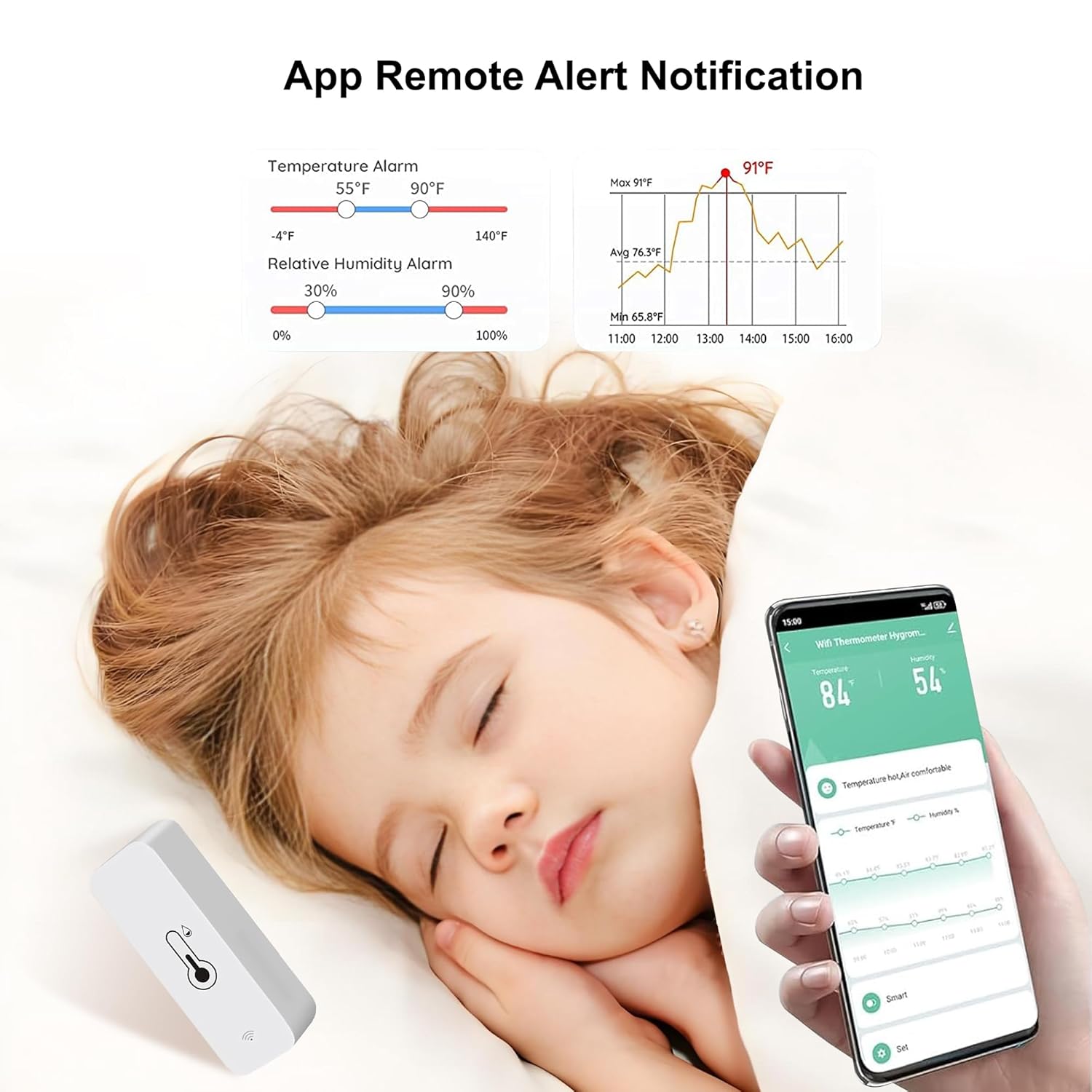
Figure 4: Smartphone displaying an app notification alert from the sensor.
4.3 Historical Data
The app stores historical temperature and humidity data, which can be viewed in graphical format (daily, monthly, yearly). This allows for tracking environmental trends and making informed adjustments.

Figure 5: Historical temperature and humidity data displayed on a smartphone.
4.4 Smart Automation and Voice Control
Utilize the app's automation features to create rules based on sensor readings. For example, you can set up an automation to turn on a smart air conditioner if the temperature rises above a certain threshold, or activate a smart humidifier if the humidity drops too low. The sensor also supports voice commands through Amazon Alexa and Google Assistant for quick status updates.

Figure 6: Example of smart automation with the sensor controlling an air conditioner and humidifier.

Figure 7: User configuring automation rules in the app.
5. Maintenance
5.1 Battery Replacement
The sensor operates on two AAA batteries, which can last up to two years depending on usage and environmental conditions. When the low-battery alert is received, replace the batteries by following the steps in Section 3.1.

Figure 8: The sensor offers up to 2 years of battery life.
6. Troubleshooting
- Device not connecting to WiFi: Ensure your WiFi network is 2.4 GHz. Check that the sensor is in pairing mode (blinking indicator light). Verify your WiFi password.
- Inaccurate readings: Ensure the sensor is placed in a location with good air circulation, away from direct sunlight, heat sources, or extreme drafts. Allow a few minutes for readings to stabilize after placement or battery change.
- App notifications not received: Check your phone's notification settings for the Tuya Smart/Smart Life app to ensure they are enabled. Verify that alert thresholds are correctly set within the app.
- Short battery life: Ensure you are using fresh, high-quality AAA batteries. Frequent data reporting or extreme temperatures can reduce battery life.
7. Specifications
| Specification | Detail |
|---|---|
| Model Number | PH-TH01 |
| Product Dimensions | 0.96"W x 2.72"H |
| Item Weight | 0.05 Kilograms |
| Power Source | 2 x AAA Batteries (included) |
| Connectivity | 2.4 GHz WiFi (IEEE 802.11b/g/n) |
| App Compatibility | Tuya Smart, Smart Life |
| Voice Assistant Support | Amazon Alexa, Google Assistant |
8. Warranty and Support
PHOVOLT products are designed for reliability and performance. For warranty information, technical support, or any inquiries regarding your PHOVOLT WiFi Hygrometer Thermometer Sensor, please refer to the contact details provided on the product packaging or visit the official PHOVOLT website. Please retain your proof of purchase for warranty claims.