
Introduction
This manual provides detailed instructions for the setup, operation, and maintenance of your cimetech QWERTY 2.4G Wireless Keyboard. Please read this manual thoroughly before using the product to ensure proper function and longevity. This keyboard features a full-size UK layout, 2.4G wireless connectivity, and an ergonomic design for comfortable use.
1. Setup Instructions
1.1 Package Contents
- cimetech 2.4G Wireless Keyboard
- USB Nano Receiver
- User Manual
1.2 Battery Installation
The keyboard requires one AAA battery (not included) for operation. Locate the battery compartment on the underside of the keyboard. Open the compartment cover, insert the AAA battery according to the polarity indicators (+/-), and close the cover securely.

Image: Underside of the keyboard indicating the AAA battery slot and automatic power saving function.
1.3 Connecting the Keyboard
- Insert the USB Nano Receiver into an available USB port on your computer, laptop, Smart TV, or other compatible device.
- The operating system will automatically detect and install the necessary drivers. This is a plug-and-play device, requiring no additional software installation.
- Once the receiver is recognized, the keyboard is ready for use. The 2.4G wireless connection provides a stable operating range of up to 10 meters (33 feet).
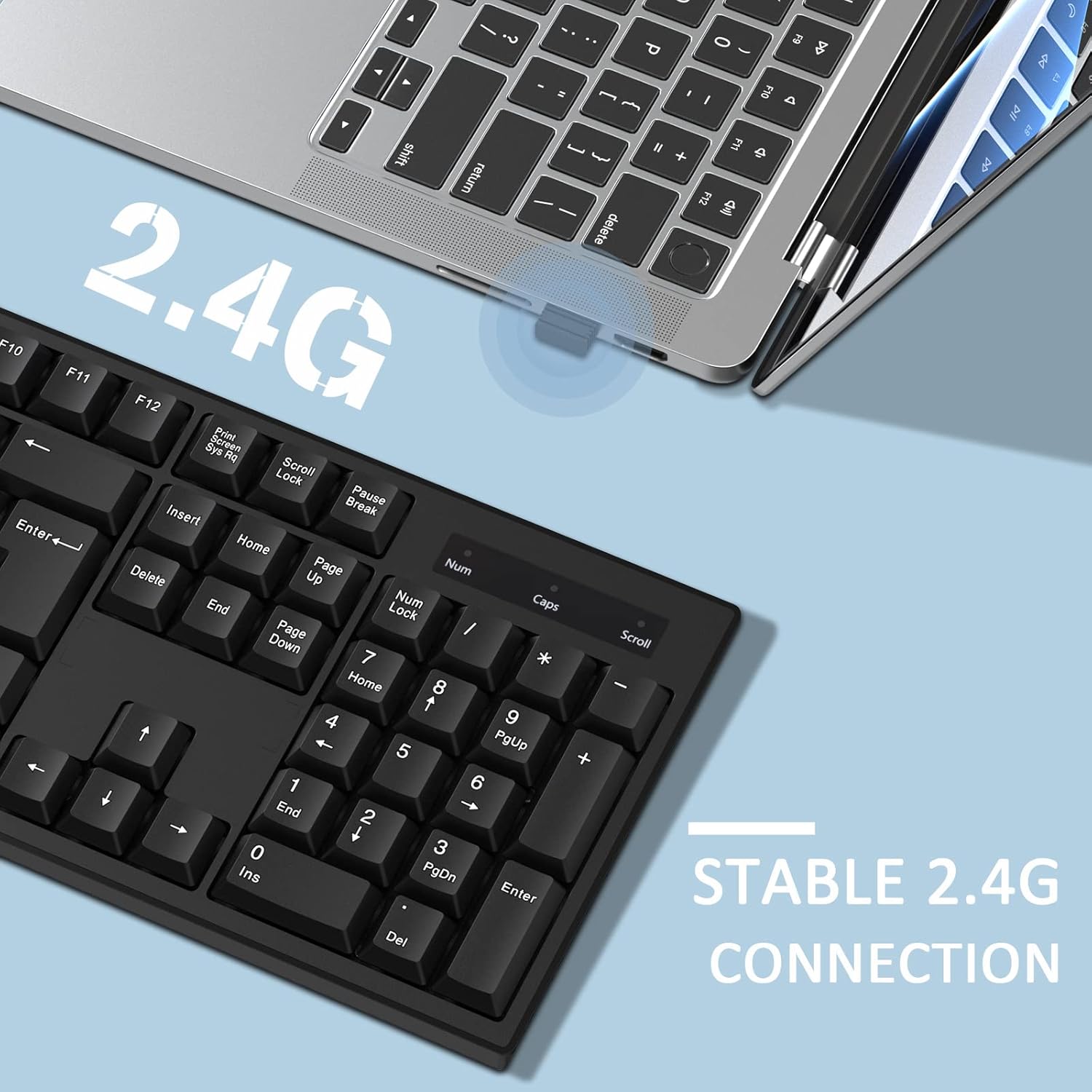
Image: A close-up of the USB Nano Receiver being inserted into a laptop, illustrating the easy setup and 10-meter wireless range.
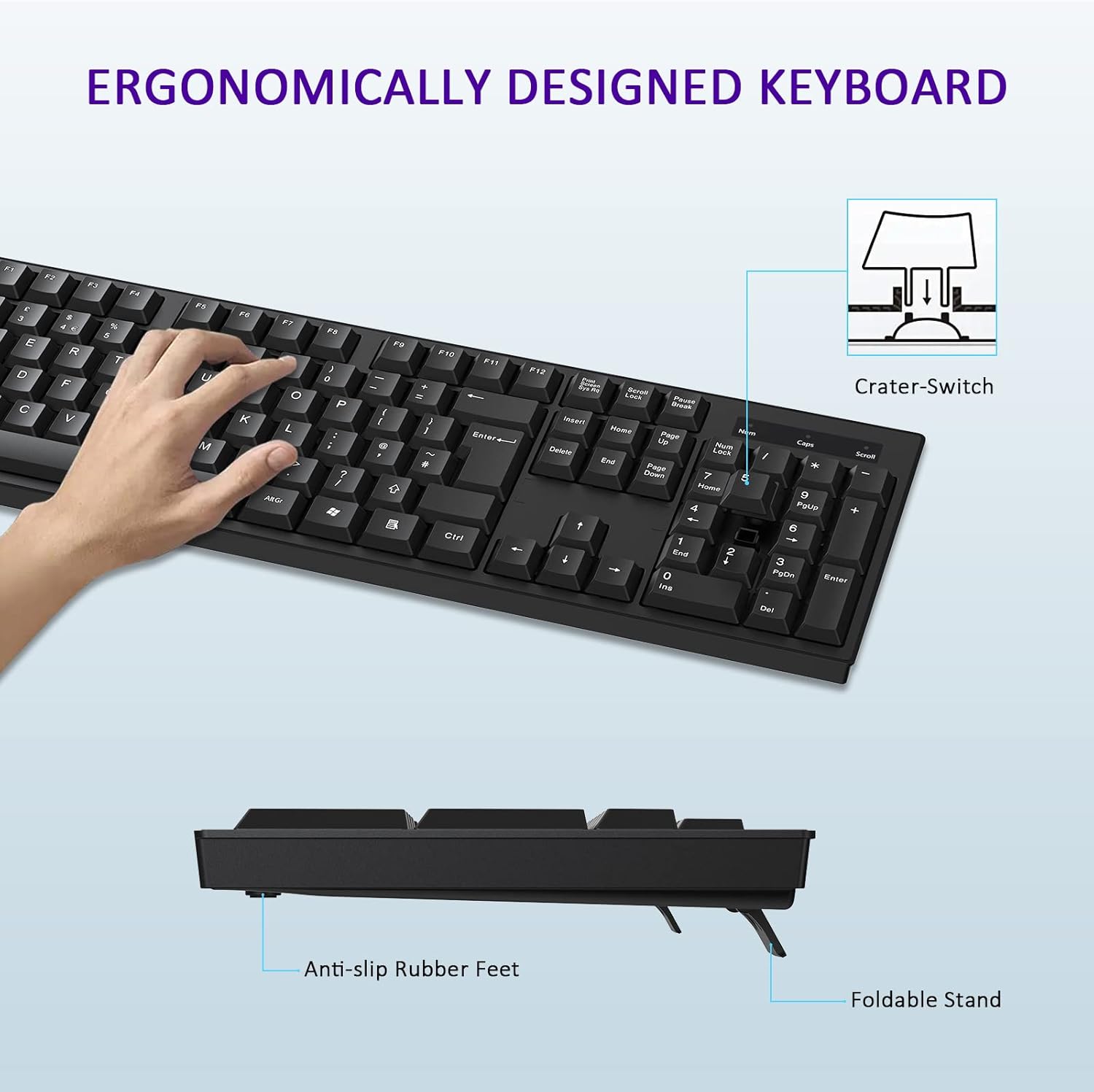
Image: The keyboard positioned next to a laptop, demonstrating the stable 2.4G wireless connection.
2. Operating Instructions
2.1 Basic Keyboard Functions
The cimetech keyboard features a full-size UK QWERTY layout, including a dedicated numeric keypad for enhanced productivity. All standard keys function as expected with compatible operating systems.

Image: The cimetech keyboard in use with a desktop monitor, showcasing its full functionality.
2.2 Ergonomic Design Features
The keyboard is designed with low-profile keys and foldable feet to provide an ergonomic typing experience. Adjust the foldable feet on the underside of the keyboard to achieve your preferred typing angle for optimal comfort.
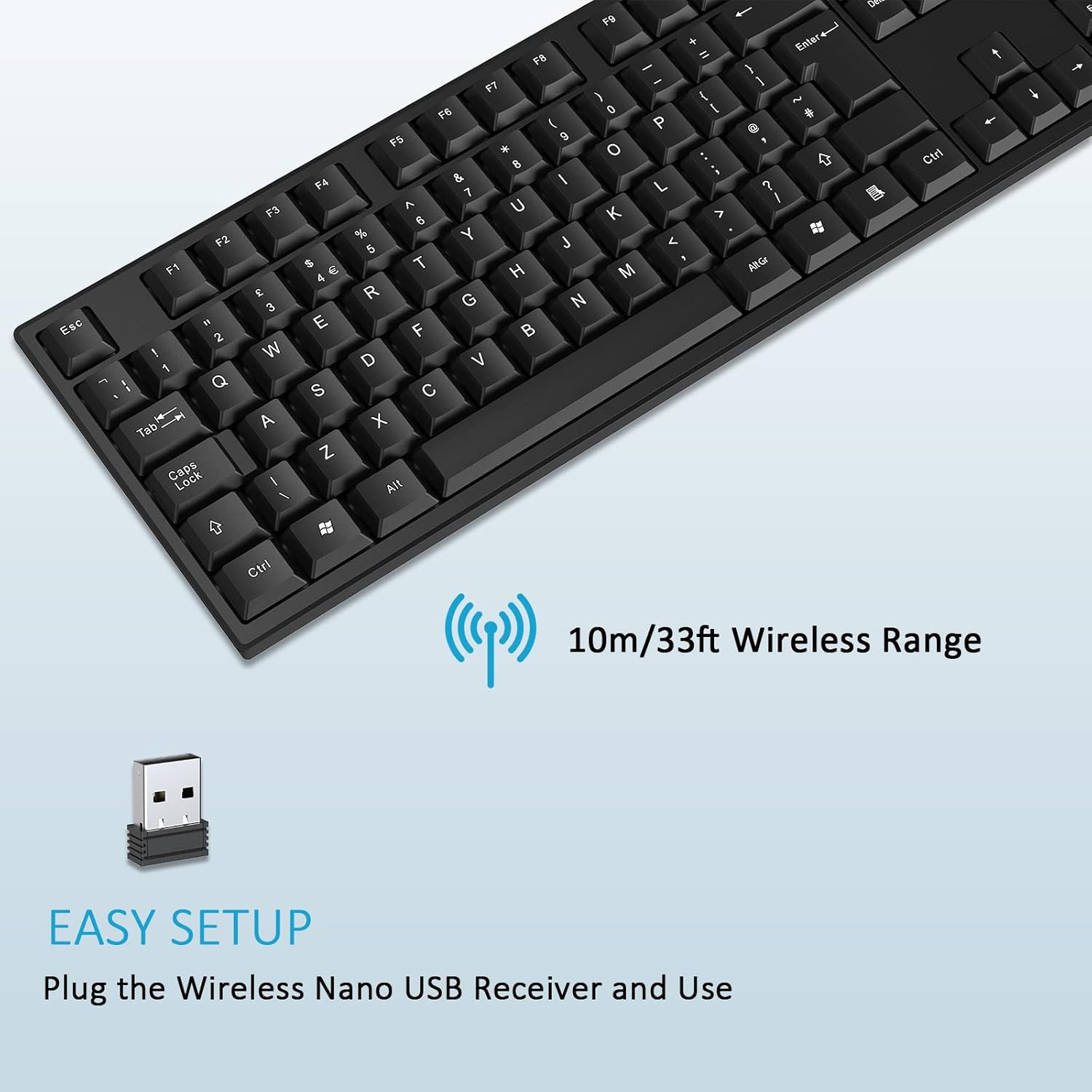
Image: A hand typing on the keyboard, highlighting its ergonomic design, foldable stand, and anti-slip rubber feet.
2.3 Power Saving Mode
To conserve battery life, the keyboard features an automatic power-saving function. After approximately 10 seconds of inactivity, the keyboard will enter sleep mode. To reactivate the keyboard, simply press any key.
Image: The keyboard illustrating its automatic power saving feature, showing it enters sleep mode after 10 seconds and requires pressing any key to activate.
3. Maintenance
3.1 Cleaning
To clean your keyboard, ensure it is disconnected from power (remove battery if possible). Use a soft, lint-free cloth lightly dampened with water or a mild cleaning solution. Avoid excessive moisture and do not spray cleaners directly onto the keyboard. For stubborn dirt between keys, use compressed air.
3.2 Battery Replacement
When the keyboard's performance diminishes or it stops responding, it may be time to replace the AAA battery. Follow the instructions in Section 1.2 to replace the battery. Dispose of old batteries responsibly according to local regulations.
4. Troubleshooting
4.1 Keyboard Not Responding
- Check Battery: Ensure the AAA battery is correctly installed and has sufficient charge. Replace if necessary.
- Check USB Receiver: Make sure the USB Nano Receiver is securely plugged into a working USB port on your device. Try a different USB port.
- Distance: Ensure the keyboard is within the 10-meter operating range of the USB receiver.
- Interference: Move the keyboard away from other wireless devices or large metal objects that might cause interference.
- Re-establish Connection: Unplug the USB receiver, wait a few seconds, and then plug it back in.
4.2 Specific Keys Not Working
- Clean Keys: Check for any debris or foreign objects lodged under the non-functioning keys. Use compressed air to clear any obstructions.
- Test on Another Device: If possible, test the keyboard on another computer or device to determine if the issue is with the keyboard or the original device's software/settings.
5. Product Specifications
| Feature | Specification |
|---|---|
| Brand | cimetech |
| Model | B0B9BGW1GP |
| Connectivity Technology | 2.4G Wireless (USB Receiver) |
| Wireless Range | Up to 10 meters (33 feet) |
| Keyboard Layout | Full-size UK QWERTY with Numpad |
| Number of Keys | 104 |
| Key Type | Clicky (Crater-Switch) |
| Special Feature | Ergonomic Design, Foldable Feet, Automatic Power Saving |
| Compatible Devices | Laptop, PC, Smart TV (Windows, macOS, Chrome OS, Linux) |
| Color | Black |
| Dimensions (L x W) | 43.5 cm x 13 cm (17.12 in x 5.12 in) |
| Height (Min/Max) | 1.8 cm / 2.8 cm (0.7 in / 1.1 in) |

Image: Top and side views of the keyboard with detailed dimensions.
6. Warranty and Support
Specific warranty information for this product is not provided within this manual. For details regarding warranty coverage, returns, or technical support, please refer to the product packaging, the retailer where the product was purchased, or contact cimetech customer service directly through their official website or contact channels.