
1. Introduction
The hohem iSteady Pro 4 is a 3-axis gimbal stabilizer designed for action cameras, providing smooth and stable footage. It is compatible with various action cameras including GoPro Hero 11/10/9/8/7/6/5/4/3, DJI OSMO Action, Insta360 ONE R, Sony RX0, SJCAM, and YI cam. This manual provides detailed instructions for setup, operation, and maintenance to ensure optimal performance of your device.

Image 1.1: The hohem iSteady Pro 4 Gimbal Stabilizer and its included carrying case, showcasing the compact design and portability.
2. What's in the Box
Upon unboxing your hohem iSteady Pro 4, please verify that all the following items are included:
- hohem iSteady Pro 4 Gimbal Stabilizer
- Mini Tripod Stand
- USB-C Charging Cable
- Action Camera Control Cables (various types for compatibility)
- Carrying Case
- User Manual

Image 2.1: All components included in the hohem iSteady Pro 4 package, including the gimbal, tripod, cables, and case.
3. Product Features
- 3-Axis Stabilization: Equipped with iSteady 5.0 anti-shake system for smooth video recording.
- Wide Compatibility: Supports GoPro Hero series (11/10/9/8/7/6/5/4/3), DJI OSMO Action, Insta360 ONE R, Sony RX0, SJCAM, and YI cam. Maximum camera weight 150g, height 51mm, thickness 31mm. (Note: GoPro Hero 7 White and Silver models are not supported for pairing).
- IPX4 Water Resistant: Protects the motor from splashing water from any direction, suitable for outdoor use.
- Long Battery Life: Up to 14 hours of operation on a single charge, with reverse charging capability for action cameras.
- App Control & Modes: Utilize the Hohem Gimbal application for remote control, parameter adjustments, and access to various operating modes including 600° 3D Inception mode, Sports mode, and Time-lapse.
- Quick Release Clip: Features a newly designed quick release clip with a spring buckle for easy and secure camera mounting without tightening screws.

Image 3.1: The iSteady Pro 4 utilizing its 5.0 anti-shake technology to stabilize footage during dynamic activities like cycling.

Image 3.2: The gimbal being used near water, demonstrating its IPX4 splash-proof design for various environments.
4. Component Overview
Familiarize yourself with the main components of the iSteady Pro 4:
- Handle: Ergonomic grip for comfortable holding.
- Control Panel: Features a joystick, mode button, power button, and shutter button.
- Quick Release Clip: For secure and fast camera mounting.
- Motor Arms: Three axes (Pan, Tilt, Roll) for stabilization.
- Charging Ports: USB-C for charging the gimbal, USB-A for reverse charging action cameras.
- Battery Indicator: LED lights to show remaining battery level.
- Mounting Screw: Standard 1/4-inch screw hole at the bottom for tripod attachment.

Image 4.1: Close-up of the gimbal's control panel and a smartphone screen displaying the Hohem Gimbal app interface for remote control.
5. Setup
5.1 Charging the Gimbal
- Connect the USB-C charging cable to the gimbal's charging port.
- Connect the other end of the cable to a USB power adapter (not included).
- The LED indicators will show the charging status. All LEDs lit indicate a full charge.
5.2 Mounting Your Action Camera
The iSteady Pro 4 features a quick-release clip for easy camera installation.
- Open the quick-release clip on the gimbal.
- Carefully insert your action camera into the mount, ensuring it is centered and secure.
- Close the quick-release clip to lock the camera in place.
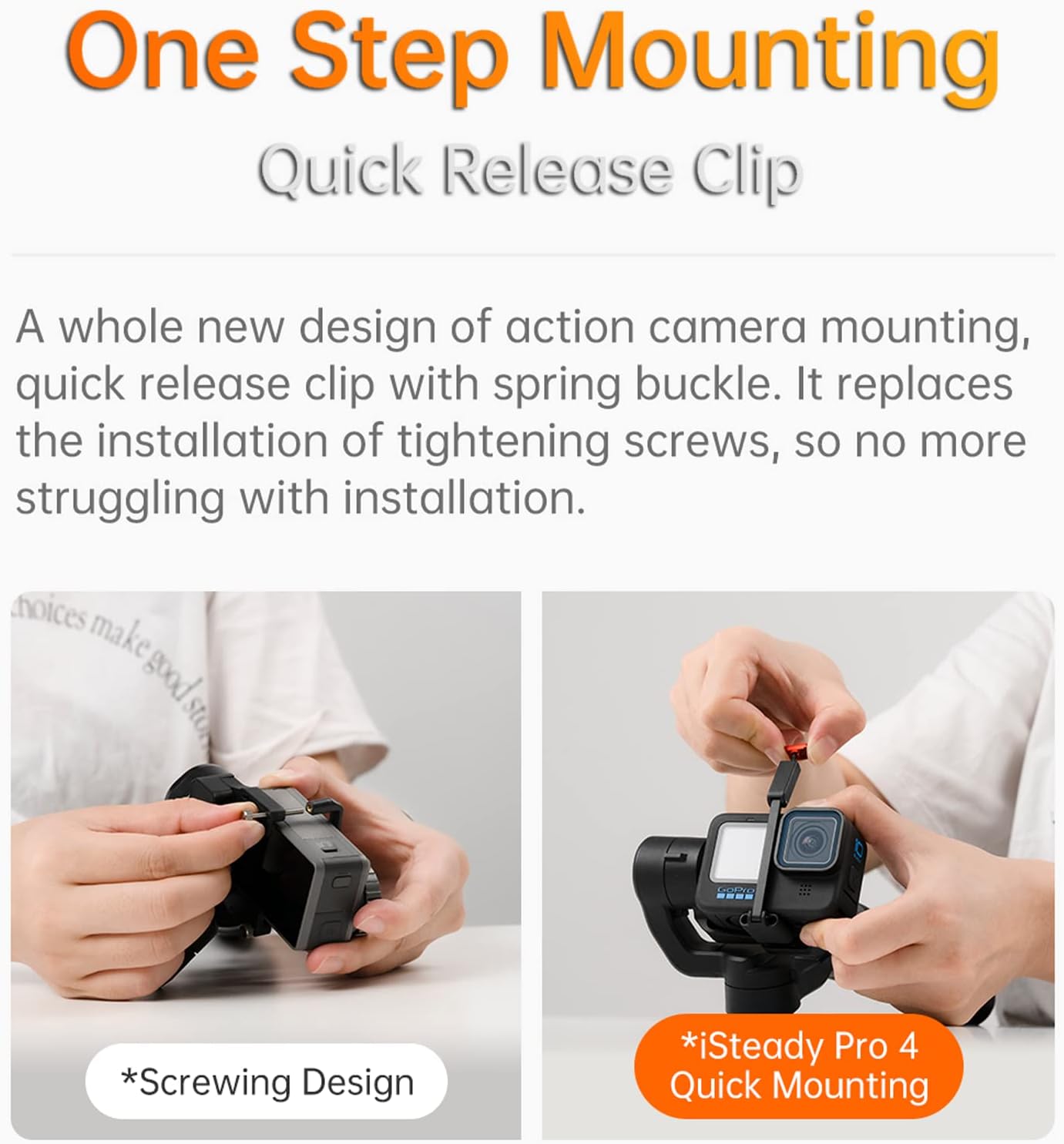
Image 5.1: Demonstrating the quick and easy one-step mounting process using the spring buckle clip for an action camera.
5.3 Balancing the Camera
While the 3-axis stabilization system is robust, proper balancing improves performance and battery life.
- With the camera mounted and the gimbal powered off, adjust the camera's position within the mount until it remains level without motor assistance.
- Ensure the camera is not pressing against any part of the gimbal.
5.4 Powering On/Off
- Power On: Press and hold the power button for 3 seconds.
- Power Off: Press and hold the power button for 3 seconds.
5.5 Connecting to the Hohem Gimbal App
- Download the "Hohem Gimbal" app from your device's app store.
- Enable Bluetooth on your smartphone.
- Open the Hohem Gimbal app and follow the on-screen instructions to connect to your iSteady Pro 4.
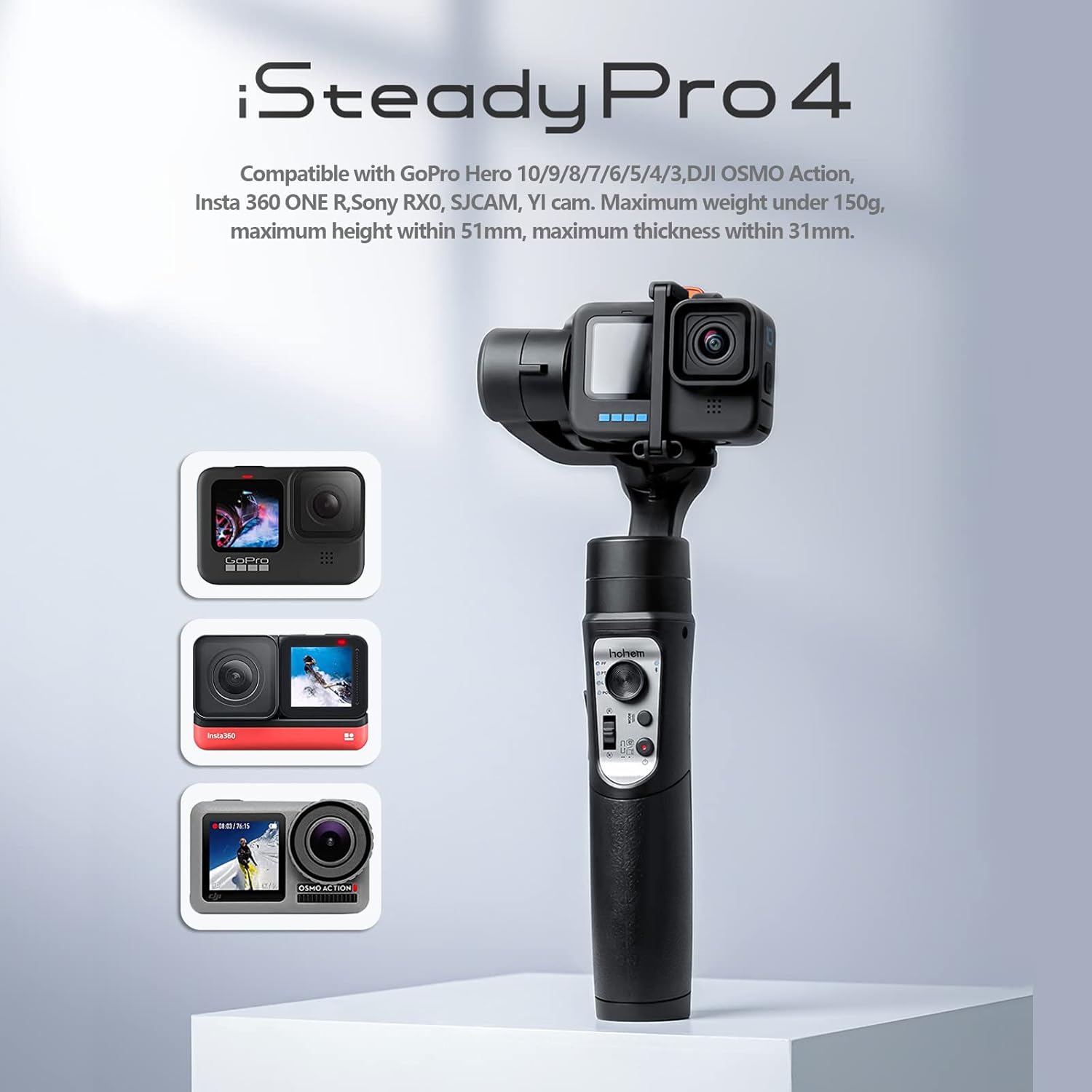
Image 5.2: The iSteady Pro 4 gimbal demonstrating its compatibility with different action camera models, including GoPro, Insta360, and DJI Osmo Action.
6. Operating Instructions
6.1 Gimbal Modes
The iSteady Pro 4 offers several operating modes:
- Pan Follow (PF): The camera pans left/right following your hand movements, while tilt and roll axes are locked.
- Pan & Tilt Follow (PTF): The camera pans left/right and tilts up/down following your hand movements, while the roll axis is locked.
- All Lock (AL): All three axes are locked, keeping the camera pointing in one direction.
- POV (Point of View): All three axes follow your hand movements, providing a first-person perspective.
- 600° Inception Mode: Rotates the camera 360° along the roll axis for dynamic, spinning shots. Activated via the app.
- Sport Mode: Provides faster motor response for quick movements and transitions.
6.2 Controls
- Joystick: Controls pan and tilt movements of the camera.
- Mode Button: Single press to cycle through gimbal modes.
- Shutter Button: Press once to take a photo, press twice to start/stop video recording (requires camera connection).
- Trigger Button (Rear): Press and hold to enter Sport Mode. Double-press to re-center the gimbal.

Image 6.1: Visual representation of iSteady 5.0 technology and available shooting modes including POV, Sport, and Pan 600° Rotation (Inception Mode).
6.3 Using the Hohem Gimbal App
The app provides advanced control and features:
- Remote Control: Control gimbal movements and camera functions from your smartphone.
- Parameter Adjustment: Fine-tune motor strength, follow speed, and dead zone settings.
- Calibration: Calibrate the gimbal if it's not level.
- Firmware Update: Keep your gimbal updated with the latest features and improvements.
- Motion Time-lapse: Set custom paths for time-lapse videos.

Image 6.2: The gimbal set up for a stable motion time-lapse, capturing a city skyline transition from day to night.
6.4 Official Product Video
Video 6.1: An official product video from LookingSky (manufacturer) showcasing the features and capabilities of the Hohem iSteady Pro 4 gimbal, including quick mounting, compatibility, stabilization, splash-proof design, and various shooting modes like Inception and Motion Time-lapse.
For more video tutorials and tips, visit the official YouTube channel: pro4.youtube.hohem.com
7. Maintenance
- Cleaning: Wipe the gimbal with a soft, dry cloth. Do not use harsh chemicals or solvents.
- Storage: Store the gimbal in its carrying case in a cool, dry place away from direct sunlight.
- Battery Care: For long-term storage, charge the battery to approximately 50-60% every three months to prolong its lifespan.
- Avoid Impact: Protect the gimbal from drops or strong impacts, which can damage the motors and internal components.
8. Troubleshooting
- Gimbal Not Powering On: Ensure the battery is charged. Connect to a charger and check LED indicators.
- Camera Not Stabilizing Properly: Verify the camera is correctly balanced in the mount. Perform a gimbal calibration via the Hohem Gimbal app.
- Bluetooth Connection Issues: Ensure Bluetooth is enabled on your phone and the gimbal is powered on. Restart both devices and try connecting again. Update the app and gimbal firmware.
- Motors Vibrating or Making Noise: This often indicates improper balancing or an obstruction. Ensure the camera is balanced and nothing is blocking the motor arms. If the issue persists, recalibrate the gimbal.
- Camera Not Responding to Shutter Button: Ensure the correct control cable is connected between the gimbal and the action camera, and that the camera is compatible with the gimbal's control features.
9. Specifications
| Product Dimensions | 12 x 5 x 2 inches |
| Item Weight | 12.9 ounces (365 Grams) |
| Item Model Number | hohem isteady pro4 |
| Batteries | 1 Lithium Polymer battery (included) |
| Manufacturer | LookingSky |
| Color | Black |
| Compatible Devices | GoPro Hero 11/10/9/8/7/6/5, DJI OSMO Action, Insta360 ONE R, Sony RX0, SJCAM, YI cam |
| Folded Size | 20 inches (L) x 3 inches (W) x 3 inches (H) |
| UPC | 770264367323 |
10. Warranty and Support
For warranty information, please refer to the documentation provided with your purchase or contact the retailer. For product support, technical assistance, or to explore other hohem products, please visit the official hohem store on Amazon:


