
Shot Navi Crest
Shot Navi Crest Golf GPS Watch User Manual
Model: Crest
1. Introduction
This manual provides detailed instructions for the setup, operation, and maintenance of your Shot Navi Crest Golf GPS Watch. Please read this manual thoroughly before using the device to ensure proper functionality and to maximize your golfing experience.

Image 1.1: The Shot Navi Crest Golf GPS Watch, showing a golf course layout with distances to the green and hazards.
The Shot Navi Crest is a wristwatch-type GPS golf navigation device designed to assist golfers with accurate distance measurements and comprehensive course information. It features a durable plastic construction and a clear 1.2-inch display.
2. Package Contents
Verify that all items are present in the package:
- Shot Navi Crest Main Unit
- Charging Cable
- Instruction Manual (this document) and Warranty Card
3. Setup
3.1 Initial Charging
Before first use, fully charge the device. Connect the charging cable to the Shot Navi Crest and a USB power source. The device has a built-in battery with an approximate life of 8 hours during active use.
3.2 Power On/Off
To power on, press and hold the main button (typically the central button on the right side) until the screen illuminates. To power off, press and hold the same button until a power-off prompt appears, then confirm.
3.3 Course Data Download (for Overseas Courses)
The device supports 59,315 courses across 122 countries and regions. Domestic course layouts are typically pre-loaded. For overseas courses, data download and updates may be required. Refer to the Shot Navi official website for instructions on downloading and updating course data via Bluetooth connectivity.
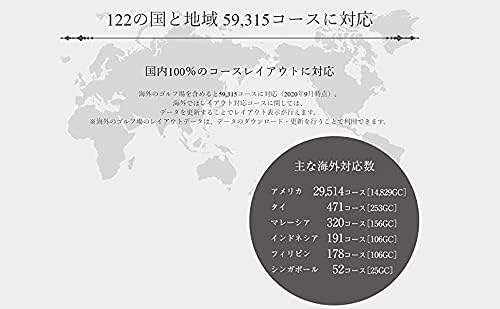
Image 3.1: Illustration of Shot Navi's extensive course coverage across various countries and regions.
Major overseas course support includes:
- America: 29,514 courses
- Thailand: 471 courses
- Malaysia: 320 courses
- Indonesia: 191 courses
- Philippines: 178 courses
- Singapore: 52 courses
4. Operating Instructions
4.1 Quick Start Golf Navigation
From the watch screen, press and hold the main button (right-center button) to automatically search for golf courses and initiate golf navigation. This allows for one-button navigation startup.

Image 4.1: Demonstrates pressing the right-center button to quickly start golf navigation.
If you need to select a specific mode or perform a manual search, use the button operations as prompted on the screen.
4.2 Auto Measure Function
The Shot Navi Crest features an "Auto Measure" function that automatically detects your swing and measures shot distances. This function automatically records the distance of your shots.
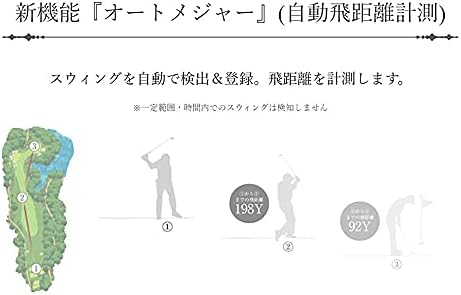
Image 4.2: Visual representation of the Auto Measure function, showing automatic detection of swing and calculation of shot distance.
Note: Swings within a certain range or time period may not be detected.
4.3 Displaying Elevation Difference Maps
On the FW (Fairway) navigation screen or during play information flyover, you can view elevation difference maps. These maps show the elevation from your current position to the green and to the center of the fairway, as well as from the fairway center to the green.

Image 4.3: Examples of elevation difference maps, showing current position to green and fairway center to green views.
4.4 Screen Visibility in Sunlight
The Shot Navi Crest utilizes an MIP (Memory-in-Pixel) color reflective LCD, which provides high visibility outdoors, even in direct sunlight. Unlike backlit or organic EL displays, it reflects ambient light to produce a clear and vibrant display.

Image 4.4: The Shot Navi Crest displaying clear course information under bright sunlight conditions.
5. Maintenance
- Cleaning: Wipe the device with a soft, dry cloth. For stubborn dirt, use a slightly damp cloth and then dry thoroughly. Avoid using abrasive cleaners or solvents.
- Water Resistance: The device is waterproof. However, avoid prolonged submersion or exposure to high-pressure water jets. Ensure the charging port is dry before charging.
- Storage: Store the device in a cool, dry place away from direct sunlight and extreme temperatures.
- Battery Care: To prolong battery life, avoid fully discharging the battery frequently. Charge the device regularly, even if not in use for extended periods.
6. Troubleshooting
| Problem | Possible Cause | Solution |
|---|---|---|
| Device does not power on. | Low battery. | Charge the device fully. |
| GPS signal not acquired. | Obstructed view of the sky; device indoors. | Move to an open outdoor area with a clear view of the sky. Wait a few minutes for signal acquisition. |
| Incorrect distances displayed. | Outdated course data; GPS inaccuracy. | Ensure course data is updated. Allow the device to acquire a strong GPS signal. |
| Auto Measure not detecting swings. | Swing too short or within a short time frame; sensor obstruction. | Ensure full swings are made. Check for any obstructions around the device. |
| Screen difficult to read in bright conditions. | Not applicable for MIP display, but ensure screen is clean. | The MIP display is designed for high visibility in sunlight. Ensure the screen is clean and free from smudges. |
7. Specifications
| Model Name: | Crest |
| Product Type: | Wristwatch-type GPS Golf Navigation Device |
| Material: | Plastic |
| Color: | Black x Silver |
| Screen Size: | 1.2 inches |
| Display Type: | MIP Color Reflective LCD |
| Connectivity: | Bluetooth |
| Water Resistance: | Yes |
| Battery Life (GPS mode): | Approx. 8 hours |
| Dimensions: | 11.9 x 9.1 x 8.2 cm (package); 64 g (device weight) |
| Course Coverage: | 59,315 courses in 122 countries/regions (as of Sept 2020) |
| Included Components: | Main unit, charging cable, instruction manual/warranty card |
8. Warranty and Support
This product comes with a manufacturer's warranty. Please refer to the included warranty card for details regarding warranty period, terms, and conditions. Keep your proof of purchase for warranty claims.
For technical support, product inquiries, or service requests, please contact Shot Navi customer service. Contact information can be found on the official Shot Navi website or on the warranty card.
Important: The charging cable is a critical component. Handle it with care to prevent damage, as issues with the charging cable have been noted in user feedback. Replacement charging cables may be available for purchase from authorized retailers or the Shot Navi website.
Related documentsCrest


Ask a question about this manual
Ask about setup, troubleshooting, compatibility, parts, safety, or missing instructions. Manuals+ will review the question and use this page’s manual context to help answer it.