
A-Tech TravelMate TX520-G2-MG
A-Tech 4GB DDR4 2400MHz SODIMM RAM Instruction Manual
For Acer TravelMate TX520-G2-MG
Model: TravelMate TX520-G2-MG | Brand: A-Tech
1. Introduction
This manual provides detailed instructions for the installation, operation, and maintenance of your A-Tech 4GB DDR4 2400MHz PC4-19200 SODIMM RAM module. This memory module is specifically designed for compatibility with the Acer TravelMate TX520-G2-MG laptop, enhancing its performance and multitasking capabilities.
A-Tech memory modules are rigorously tested to ensure dependable and reliable performance, providing a seamless upgrade experience for your system.
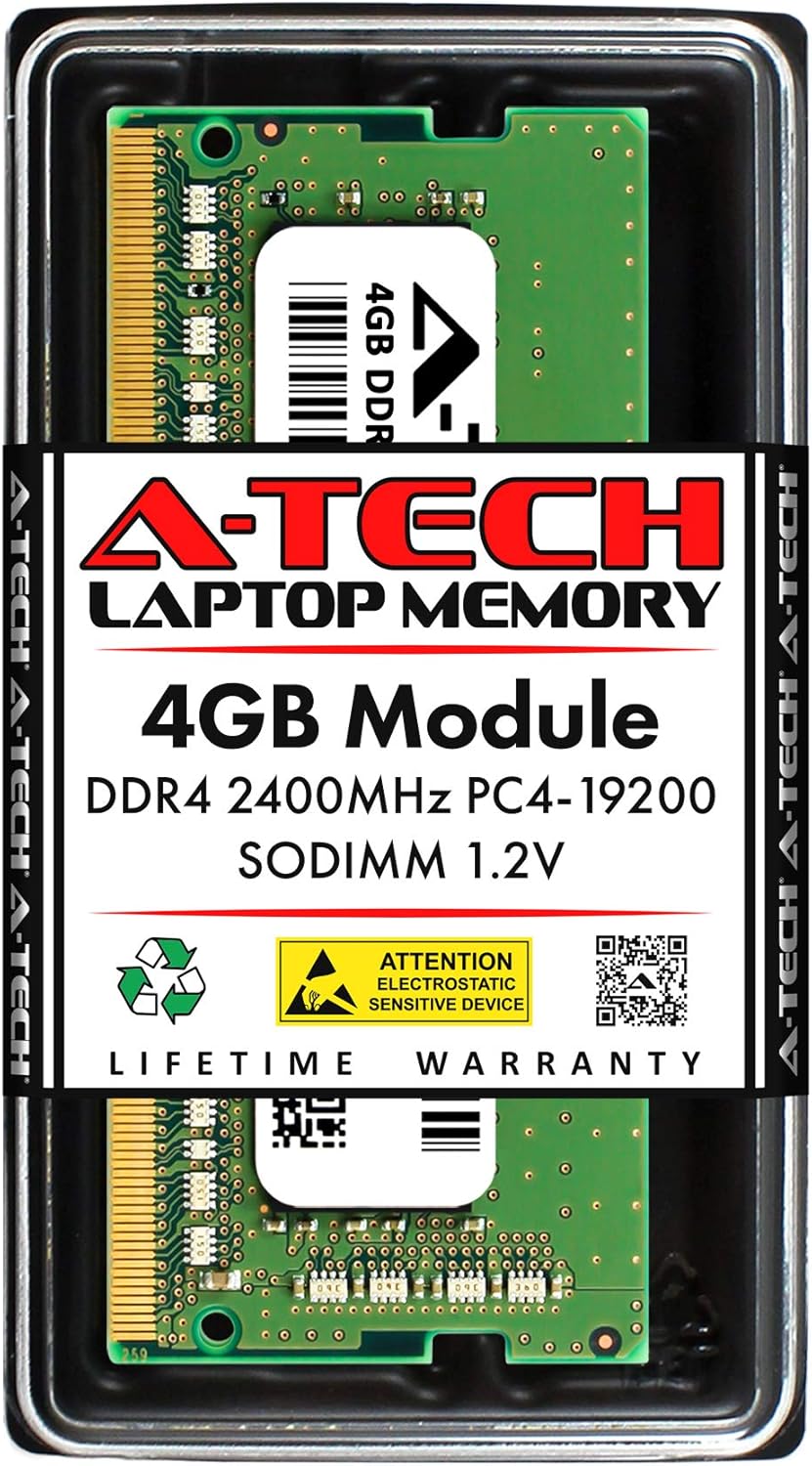
The A-Tech 4GB DDR4 SODIMM RAM module is presented in its protective retail packaging. For more information, scan the QR code or visit atechmemory.com/pages/qr.

This image conveys the reliability of A-Tech memory, emphasizing that all modules undergo extensive quality control testing to ensure dependable performance.
2. Safety Precautions
Before handling any computer components, please observe the following safety guidelines:
- Electrostatic Discharge (ESD) Protection: Static electricity can damage electronic components. Always ground yourself before touching the RAM module or internal computer parts. Use an anti-static wrist strap if available, or touch a grounded metal object (like an unpainted metal part of your computer chassis) before and during the installation process.
- Power Off: Ensure your laptop is completely powered off and unplugged from the AC adapter. Remove the battery before opening the chassis.
- Handle with Care: Hold the RAM module by its edges, avoiding contact with the gold connector pins or the integrated circuits.
- Refer to Laptop Manual: Always consult your Acer TravelMate TX520-G2-MG's official service manual for specific instructions on opening the laptop and accessing memory slots.
3. Installation Guide
Follow these steps to install your A-Tech 4GB DDR4 SODIMM RAM module:
- Prepare Your Laptop:
- Shut down your Acer TravelMate TX520-G2-MG completely.
- Disconnect the AC adapter and remove the battery.
- Discharge any residual power by holding the power button for 10-15 seconds.
- Place the laptop on a clean, flat, and static-free surface.
- Access Memory Slots:
- Carefully open the laptop chassis to access the memory slots. Refer to your laptop's service manual for precise instructions on how to do this, as procedures vary by model.
- Install the RAM Module:
- Locate an available SODIMM slot. If replacing an existing module, gently push the metal clips outward to release it, then pull it out at an angle.
- Align the notch on the A-Tech RAM module with the notch in the SODIMM slot.
- Insert the module firmly into the slot at a 45-degree angle.
- Push down on the module until the metal clips on both sides snap into place, securing the module horizontally.
- Reassemble and Test:
- Carefully reassemble your laptop, ensuring all screws and covers are properly secured.
- Reinsert the battery and reconnect the AC adapter.
- Power on your laptop. The system should automatically detect the new memory. You can verify the installed RAM in your operating system's system information or BIOS/UEFI settings.

A detailed view of the A-Tech 4GB DDR4 PC4-19200 2400MHz 1.2V SODIMM memory module, showing its components and label.
4. System Operation and Benefits
Once installed, your A-Tech 4GB DDR4 2400MHz SODIMM RAM module will immediately begin to enhance your Acer TravelMate TX520-G2-MG's performance. RAM (Random Access Memory) is crucial for your computer's speed and efficiency, especially when running multiple applications or handling large files.
- Boosted Performance: Experience faster application loading times and smoother overall system responsiveness.
- Enhanced Multitasking: With increased memory, your laptop can handle more programs simultaneously without slowing down, allowing you to switch between tasks with ease.
- Improved Efficiency: The 2400MHz speed ensures data is processed quickly, contributing to a more efficient computing experience.

An image depicting a laptop with a rocket launching from its screen, representing the significant performance upgrade and reduced bottlenecks achieved by installing A-Tech memory.

This image illustrates the A-Tech 4GB DDR4 SODIMM RAM module, emphasizing its 2400MHz speed and its ability to boost system performance. Learn more at atechmemory.com.

A user is shown easily managing multiple tasks on a laptop, demonstrating the improved multitasking capabilities provided by upgrading with A-Tech memory.
5. Care and Maintenance
RAM modules generally require minimal maintenance once installed. However, proper handling and care are essential to ensure their longevity and optimal performance:
- Clean Environment: Ensure your laptop operates in a clean, dust-free environment to prevent dust buildup on components, which can affect cooling and performance.
- Proper Handling: If you ever need to remove or reinstall the RAM, always follow the ESD precautions outlined in the Safety Precautions section. Avoid touching the gold contacts.
- Storage: If storing a RAM module, keep it in an anti-static bag and in a cool, dry place away from direct sunlight and extreme temperatures.
- System Updates: Keep your operating system and drivers updated. While not directly related to RAM hardware, software optimization can ensure your system utilizes memory efficiently.
6. Troubleshooting
If you encounter issues after installing your A-Tech RAM module, consider the following troubleshooting steps:
- System Does Not Boot / Black Screen:
- Ensure the RAM module is seated correctly. Remove and reinsert it, making sure the clips snap into place.
- Verify that the laptop's battery is properly connected and the AC adapter is plugged in.
- If you installed multiple modules, try booting with only one module at a time to identify a potentially faulty module or slot.
- Incorrect RAM Amount Detected:
- Check your system's BIOS/UEFI settings or operating system's system information to confirm the detected RAM.
- If the amount is incorrect, try reseating the module. If the issue persists, ensure your laptop's BIOS is up to date, as older BIOS versions might not fully support newer memory modules.
- System Instability / Blue Screens:
- This could indicate a faulty module or improper installation. Try reseating the module.
- Run a memory diagnostic tool (e.g., Windows Memory Diagnostic) to check for errors.
- Compatibility Issues:
- While this module is designed for the Acer TravelMate TX520-G2-MG, always double-check your laptop's specifications to ensure it supports DDR4 SODIMM memory at 2400MHz.
If these steps do not resolve your issue, please contact A-Tech Customer Support for further assistance.
7. Product Specifications
| Feature | Detail |
|---|---|
| Brand | A-Tech |
| Module Capacity | 4GB |
| Memory Type | DDR4 SODIMM |
| Pin Count | 260-Pin |
| Speed | 2400MHz (PC4-19200 / PC4-2400T) |
| Voltage | 1.2V |
| Error Correction | NON-ECC Unbuffered |
| Compatibility | Acer TravelMate TX520-G2-MG |
| Product Dimensions | 2.74 x 1.18 x 0.15 inches (69.60 x 30 x 3.81 mm) |
| ASIN | B0B9293835 |

A technical diagram detailing the physical dimensions (length, width, height) of the A-Tech DDR4 SODIMM memory module. More information is available at atechmemory.com.

A user interacting with a laptop, highlighting that A-Tech memory is designed for easy installation into a wide range of DDR4 capable Laptop, Notebook, and All-in-One (AIO) computers. Note: Not compatible with Desktop PC/Computers.
8. Warranty Information
A-Tech stands behind the quality and reliability of its products. This A-Tech 4GB DDR4 SODIMM RAM module is backed by a Limited Lifetime Warranty.
This warranty covers defects in materials and workmanship for the lifetime of the product. For specific terms, conditions, and to initiate a warranty claim, please refer to the official A-Tech website or contact customer support.

The A-Tech Limited Lifetime Warranty badge, signifying the product's long-term reliability and manufacturer support.
9. Customer Support
Should you require assistance with installation, troubleshooting, or have any questions regarding your A-Tech memory module, our dedicated Tech Support Team is available to help before and after your purchase.
For support, please visit the official A-Tech website or contact us through the details provided on your purchase documentation.
- Online Support: Visit atechmemory.com for FAQs, product information, and support resources.
- Contact: Refer to your product packaging or the A-Tech website for direct contact methods (phone, email).
Related documentsTravelMate TX520-G2-MG


Ask a question about this manual
Ask about setup, troubleshooting, compatibility, parts, safety, or missing instructions. Manuals+ will review the question and use this page’s manual context to help answer it.