
1. Introduction
This user manual provides essential information and step-by-step instructions for installing and utilizing your A-Tech 16GB (2x8GB) DDR3 RAM kit. This memory upgrade is specifically designed to be compatible with the Acer Aspire X1430 desktop computer, enhancing its performance, speeding up loading times, and improving overall system responsiveness for handling higher workloads and multitasking.
2. Product Overview and Specifications
The A-Tech 16GB DDR3 RAM kit consists of two 8GB modules, engineered for reliable performance and compatibility with your Acer Aspire X1430 system. Below are the detailed specifications:
| Specification | Detail |
|---|---|
| Memory Size | 16 GB Kit (2 x 8 GB Modules) |
| Memory Type | DDR3 |
| Form Factor | DIMM (240 Pin) |
| Speed | 1333 MHz (PC3-10600 / PC3-10600U) |
| ECC Type | Non-ECC UDIMM (Unbuffered DIMM) |
| Rank | 2Rx8 - Dual Rank x8 |
| Voltage | 1.5V |
| Physical Dimensions | 5.25 x 1.18 x 0.15 inches |

Image 1: A-Tech 16GB DDR3 RAM Kit in its packaging. This shows the two 8GB modules securely housed.

Image 2: Dimensional drawing of an A-Tech DDR3 RAM module, indicating its length (133.35mm / 5.25in) and height (30mm / 1.18in).
3. Safety Precautions
Before beginning the installation process, please observe the following safety guidelines to prevent damage to your computer components or personal injury:
- Power Off: Always ensure your computer is completely powered off and unplugged from the wall outlet before opening the case.
- Static Discharge: Static electricity can damage electronic components. Ground yourself by touching a metal part of the computer chassis before handling the RAM modules. Consider using an anti-static wrist strap.
- Handle with Care: Hold the RAM modules by their edges, avoiding contact with the gold connectors or the chips on the module.
- Consult System Manual: Refer to your Acer Aspire X1430's official user manual for specific instructions on opening the case and locating memory slots.
4. Installation Guide
Follow these steps to install your new A-Tech DDR3 RAM modules:
- Prepare Your System: Ensure your computer is powered off and unplugged. Disconnect all peripherals (monitor, keyboard, mouse, etc.).
- Open the Computer Case: Carefully open your Acer Aspire X1430's computer case. Consult your system's manual for specific instructions on how to do this.
- Locate Memory Slots: Identify the DIMM slots on your motherboard. Your Acer Aspire X1430 typically has two or four memory slots. Note the existing RAM configuration if you are replacing modules.
- Remove Existing RAM (if applicable): If you are replacing existing RAM, gently push the small clips on both ends of the DIMM slot outwards. The module should pop up slightly, allowing you to carefully pull it out.
- Install New RAM: Align the notch on the A-Tech DDR3 RAM module with the key in the DIMM slot. This ensures correct orientation.

Image 3: Two A-Tech 8GB DDR3 RAM modules, ready for installation. Note the gold connectors and the notch for proper alignment.
- Secure the Module: With the module aligned, press down firmly and evenly on both ends of the RAM module until the clips on the side snap into place, securing the module. Do not force it.
- Install Second Module: Repeat the process for the second 8GB RAM module in the appropriate slot. For optimal performance, install modules in matching slots (often indicated by color or numbering) to enable dual-channel memory mode. Refer to your Acer Aspire X1430 manual for specific dual-channel configuration.
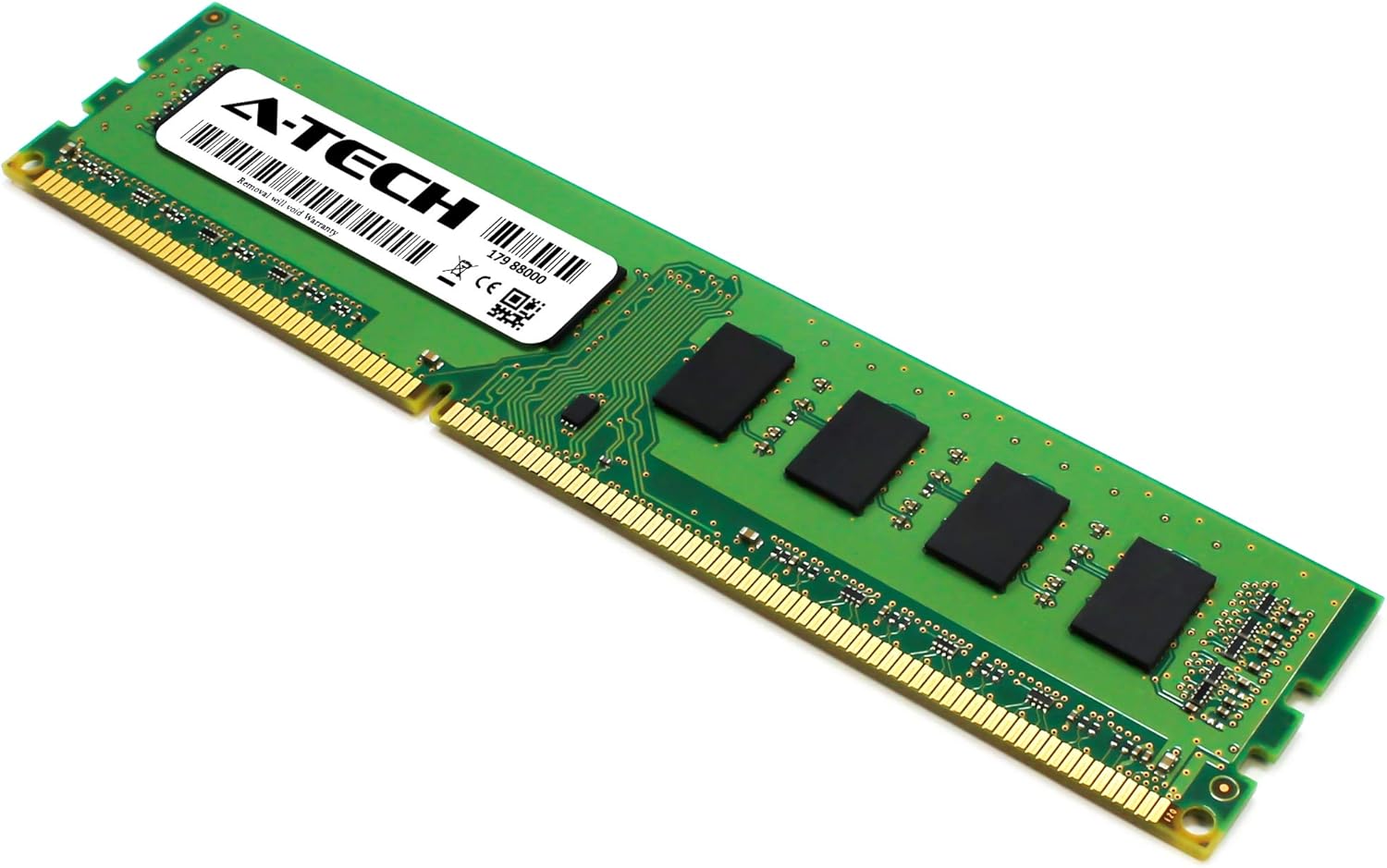
Image 4: A single A-Tech 8GB DDR3 RAM module, showing the detailed circuitry and label.
- Close Case and Reconnect: Once both modules are securely installed, close the computer case, reconnect all peripherals, and plug the power cord back in.
- Power On: Turn on your computer. The system should automatically detect the new memory. You can verify the installed RAM in your operating system's system information or BIOS/UEFI settings.
For additional guidance or to verify compatibility, you may visit the A-Tech QR support page: https://atechmemory.com/pages/qr
5. Operation
Once installed, your A-Tech DDR3 RAM modules operate automatically. The operating system will recognize the increased memory capacity, allowing for improved multitasking, faster application loading, and smoother overall system performance. No specific user interaction is required for the RAM to function after successful installation.
6. Maintenance
RAM modules generally require minimal maintenance. To ensure their longevity and optimal performance, consider the following:
- Keep System Clean: Regularly clean the interior of your computer case to prevent dust buildup, which can lead to overheating and affect component performance.
- Ensure Proper Airflow: Make sure your computer's cooling fans are unobstructed and functioning correctly to maintain appropriate operating temperatures.
- Avoid Physical Damage: Handle RAM modules carefully if they need to be removed or reinstalled. Avoid bending or applying excessive force.
7. Troubleshooting
If you encounter issues after installing your new RAM, refer to the following common troubleshooting steps:
- System Does Not Boot:
- Ensure RAM modules are fully seated in their slots and the clips are locked.
- Verify that the modules are installed in the correct slots according to your motherboard's manual (especially for dual-channel configurations).
- Try installing one module at a time to identify a potentially faulty module or slot.
- Incorrect RAM Capacity Detected:
- Check your system's BIOS/UEFI settings to ensure the memory is recognized correctly.
- Ensure your operating system is 64-bit to fully utilize 16GB of RAM.
- Confirm that your Acer Aspire X1430 supports 8GB modules per slot and the total 16GB capacity.
- System Instability or Blue Screens:
- Run a memory diagnostic tool (e.g., Windows Memory Diagnostic) to check for errors.
- Ensure your system's BIOS is up to date.
If problems persist, contact A-Tech Technical Support for assistance.
8. Warranty and Support
A-Tech stands behind the quality and reliability of its memory products. Your A-Tech 16GB DDR3 RAM kit is covered by a Limited Lifetime Warranty.

Image 5: A-Tech Limited Lifetime Warranty logo, signifying product assurance.
For any questions, technical assistance, or warranty claims, our US-based Technical Support Team is available to help you before, during, and after your purchase. You can find more information and contact details on the official A-Tech website: https://atechmemory.com/

