
1. Introduction
This manual provides essential information for the proper use and maintenance of your MSI Katana GF66 Gaming Laptop. Please read this manual thoroughly before operating your device to ensure optimal performance and longevity.
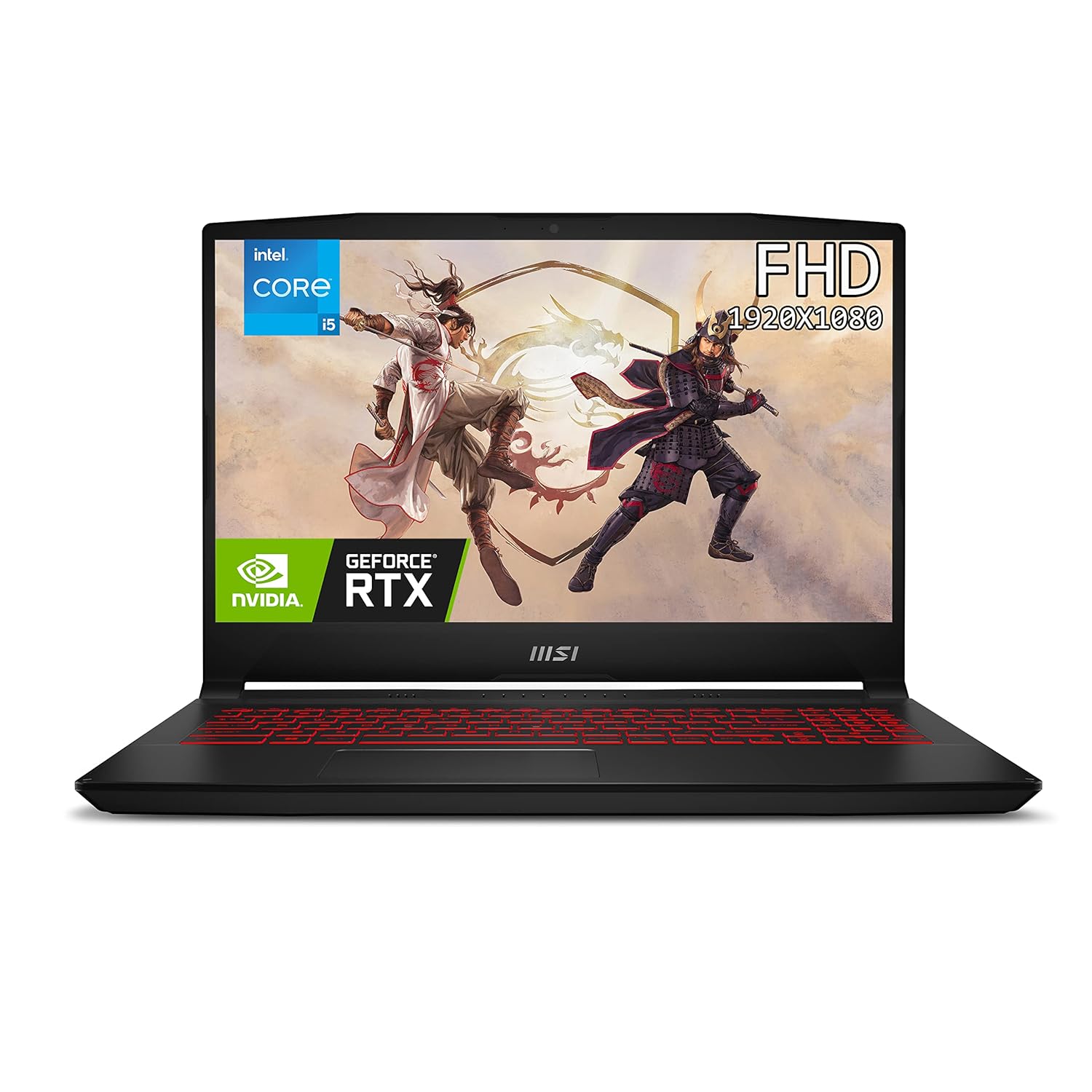
Figure 1.1: Front view of the MSI Katana GF66 Gaming Laptop, showcasing its sleek design and display.

Figure 1.2: Overview of the MSI Katana GF66, highlighting its CPU, Graphics, Memory, Storage, and Operating System.

Figure 1.3: Key features of the MSI Katana GF66, including Intel processor, NVIDIA RTX graphics, 144Hz IPS display, red backlit keyboard, and NVMe SSD.
2. Setup
2.1 Unboxing and Initial Inspection
Carefully remove the laptop and all accessories from the packaging. Verify that all components listed in the 'What's in the Box' section are present and undamaged. The package should include the laptop and its charger.
2.2 Connecting Power
- Connect the AC adapter to the power jack on the laptop.
- Plug the power cord into an electrical outlet.
- The battery will begin charging automatically. It is recommended to fully charge the battery before first use.
2.3 First Boot
Press the power button located on the laptop to turn it on. The laptop comes pre-loaded with Windows 11 Home. Follow the on-screen instructions to complete the initial setup of the operating system, including language selection, network connection, and user account creation.
3. Operating Your Laptop
3.1 Keyboard and Touchpad
The MSI Katana GF66 features a red backlit gaming keyboard. You can adjust the backlight intensity and modes through the pre-installed MSI Center software. The touchpad supports multi-touch gestures for enhanced navigation.
3.2 Display Features
Your laptop is equipped with a 40CM FHD (1920x1080) 144Hz IPS-Level display, providing smooth visuals for gaming and multimedia. Ensure your display drivers are up to date for optimal performance.

Figure 3.1: The 144Hz IPS-Level Thin-Bezel Gaming Display of the MSI Katana GF66, offering high refresh rates for fluid visuals.
3.3 Port Overview
The laptop provides a variety of ports for connectivity. Refer to the diagram below for port locations and types:

Figure 3.2: Diagram illustrating the various ports on the MSI Katana GF66, including USB Type-C, USB Type-A, HDMI, and RJ45 Ethernet.
- USB 3.2 Gen1 Type-C: 1 port for high-speed data transfer and display output.
- USB 3.2 Gen1 Type-A: 2 ports for connecting peripherals.
- USB 2.0 Type-A: 1 port for general USB devices.
- HDMI (4K @ 60Hz): 1 port for connecting external displays.
- RJ45: 1 port for wired network connection.
- Audio Combo Jack: For headphones and microphone.
4. Maintenance
4.1 Cleaning Your Laptop
Regular cleaning helps maintain your laptop's appearance and performance.
- Use a soft, lint-free cloth dampened with water or a screen cleaner to clean the display.
- Use compressed air to clear dust from keyboard keys and ventilation grilles.
- Wipe the chassis with a soft, slightly damp cloth. Avoid harsh chemicals.
4.2 Software Updates
Keep your operating system, drivers (especially graphics drivers), and MSI software (like MSI Center) updated to ensure system stability, security, and optimal performance.
4.3 Battery Care
To prolong battery life:
- Avoid fully discharging the battery frequently.
- Store the laptop in a cool, dry place if not used for extended periods.
- Calibrate the battery periodically as recommended by MSI.
5. Troubleshooting
If you encounter issues with your MSI Katana GF66, consider the following basic troubleshooting steps:
- No Power: Ensure the AC adapter is securely connected to both the laptop and a working power outlet. Check if the power indicator light is on.
- Display Issues: If the screen is blank, try connecting an external monitor to verify if the issue is with the laptop's display or graphics output. Ensure display drivers are installed correctly.
- Performance Slowdown: Check for background applications consuming resources. Ensure sufficient free storage space. Run a virus scan.
- Connectivity Problems: For Wi-Fi or Ethernet issues, check network cable connections or Wi-Fi settings. Restart your router.
For more complex issues or persistent problems, please refer to the MSI support website or contact MSI customer service.
6. Specifications
Detailed technical specifications for the MSI Katana GF66 12UC-636IN Gaming Laptop:
| Feature | Specification |
|---|---|
| Model Name | Katana GF66 12UC-636IN |
| Processor | 12th Generation Intel Core i5-12450H (Up To 4.40GHz) |
| Operating System | Windows 11 Home |
| Display | 40CM FHD (1920x1080), 144Hz 45% NTSC IPS-Level |
| Graphics | NVIDIA GeForce RTX 3050 GDDR6 4GB |
| Memory | 8GB DDR4 3200MHz RAM (expandable to 64 GB) |
| Storage | 512GB NVMe PCIe Gen4x4 SSD |
| Keyboard | Backlight Keyboard (Single-Color, Red) |
| Camera | HD type (30fps@720p) |
| Audio | Headphones, Speakers |
| Ports | 1x Type-C USB3.2 Gen1, 2x Type-A USB3.2 Gen1, 1x Type-A USB2.0, 1x RJ45, 1x (4K @ 60Hz) HDMI |
| Wireless Communication | Bluetooth |
| Battery | 1 Lithium Polymer (53 Watt Hours) |
| Dimensions (LxWxH) | 35.9 x 25.9 x 2.5 cm |
| Weight | 2.25 kg |

Figure 6.1: Physical dimensions of the MSI Katana GF66 Gaming Laptop.
7. Warranty and Support
7.1 Warranty Information
This genuine MSI laptop comes with a 2-year Carry-in & On-site warranty from MSI. This warranty covers manufacturing defects. It does not cover physical damage, burn damage, or liquid damage.
For more detailed warranty terms and conditions, please visit the official MSI India Website.
7.2 Technical Support
For any technical queries, product-related issues, or support requests, please contact MSI customer service directly. You can find contact information on the MSI official website.


