
FONOBO ECR-48K
FONOBO Electronic Cash Register User Manual
Model: ECR-48K
Brand: FONOBO
1. Introduction
This manual provides comprehensive instructions for the setup, operation, and maintenance of the FONOBO Electronic Cash Register, model ECR-48K. This device is designed for various retail and catering environments, including supermarkets, shopping malls, and restaurants. It features an integrated receipt and journal printer, a customer-facing digital LED display, and a 48-key elevated keypad for efficient transaction processing.

Figure 1: FONOBO Electronic Cash Register in a retail environment, showcasing its design and customer display.
2. Package Contents
Before proceeding with the setup, please verify that all items listed below are present in your package:
- FONOBO Electronic Cash Register Unit
- Power Adapter (8V3A)
- USB Data Cable
- Receipt Paper Roll
- Keys for Cash Drawer
- User Manual (this document)
- Driver CD (for PC software)

Figure 2: Included accessories with the FONOBO Electronic Cash Register, including power supply, USB cable, receipt paper, and keys.
3. Setup Instructions
3.1 Unpacking and Placement
- Carefully remove the cash register and all accessories from the packaging.
- Place the unit on a stable, flat surface. Ensure adequate ventilation around the device.
- Avoid placing the unit in direct sunlight, near heat sources, or in areas with excessive dust or moisture.
3.2 Power Connection
- Locate the power input port on the rear of the cash register.
- Connect the provided 8V3A power adapter to the cash register.
- Plug the power adapter into a standard electrical outlet.
- Turn on the power switch, usually located on the side or rear of the unit. The display should illuminate.
3.3 Loading Receipt Paper
- Open the printer cover, typically located on the top of the unit.
- Insert the receipt paper roll (58mm width) into the compartment, ensuring the paper feeds correctly from the bottom and the leading edge extends slightly past the printer mechanism.
- Close the printer cover securely.
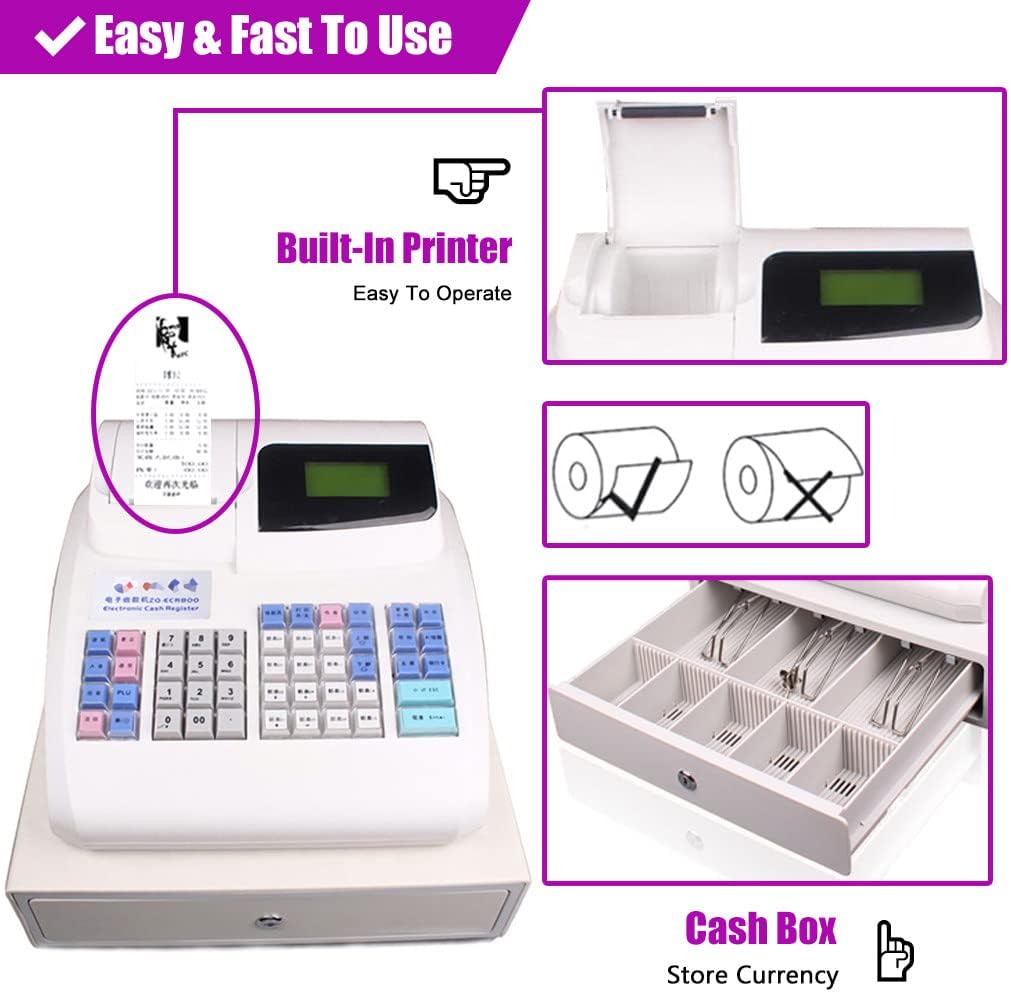
Figure 3: Detail of the built-in thermal printer and the cash drawer, illustrating paper loading and cash organization.
3.4 Connecting Peripherals
The cash register features two RS232 interface ports for connecting external devices.
- Barcode Reader: Connect an external barcode reader to one of the RS232 ports to enable quick product scanning.
- Computer Connection: Use the USB data cable or an RS232 connection to link the cash register to a PC for data management and configuration using the provided software.
4. Operation
The FONOBO ECR-48K offers a range of functions for daily sales operations. The 48-key elevated keypad and LCD display facilitate user interaction.

Figure 4: Detailed view of the color-coded keypad and the LED user display, showing time and date.
4.1 Basic Sales Transaction
- Enter Item Price: Use the numeric keypad to enter the price of an item.
- Select Department: Press the corresponding department key (e.g., "Dept 1", "Dept 2").
- Add More Items: Repeat steps 1 and 2 for additional items.
- Total: Press the "Total" key to calculate the sum.
- Receive Payment: Enter the amount received from the customer.
- Complete Transaction: Press the "Cash" or appropriate payment method key. The cash drawer will open, and a receipt will print.
4.2 Payment Methods
The cash register supports seven payment methods:
- Cash
- Bookkeeping
- Check
- Credit Card 1
- Credit Card 2
- Foreign Currency 1
- Foreign Currency 2
Select the appropriate key on the keypad to finalize the transaction with the chosen payment method.
4.3 Barcode Scanning
If an external barcode reader is connected, simply scan the product's barcode. The item's price and details (if programmed) will automatically be entered into the transaction.
4.4 Advanced Functions
- Price Change: Allows modification of item prices during a transaction. Refer to the detailed programming guide for specific key sequences.
- Holding Bill: Temporarily suspends a transaction to serve another customer.
- Refund: Processes returns and issues refunds.
- Restaurant Functions: Supports specific features for catering, such as dishes with taste options and meal set selling functions.
5. Reporting Functions
The FONOBO ECR-48K provides powerful reporting capabilities to analyze sales data and manage inventory. Reports can be generated for any time period and include various formats:
- PTD Report: Period-to-Date report for sales summary.
- Stock Report: Current inventory levels.
- Shortage Report: Identifies items with low stock.
- Configuration Report: Details of the current system settings.
Consult the programming guide for instructions on accessing and printing specific reports.
6. Maintenance
6.1 Cleaning
- Regularly wipe the exterior of the cash register with a soft, damp cloth.
- Avoid using abrasive cleaners or solvents, as these can damage the surface.
- Keep the keypad clean and free of debris to ensure proper key function. The keypad is designed to be oil-proof, water-proof, and dust-proof.
- Periodically clean the printer area to prevent paper jams and ensure clear printing.
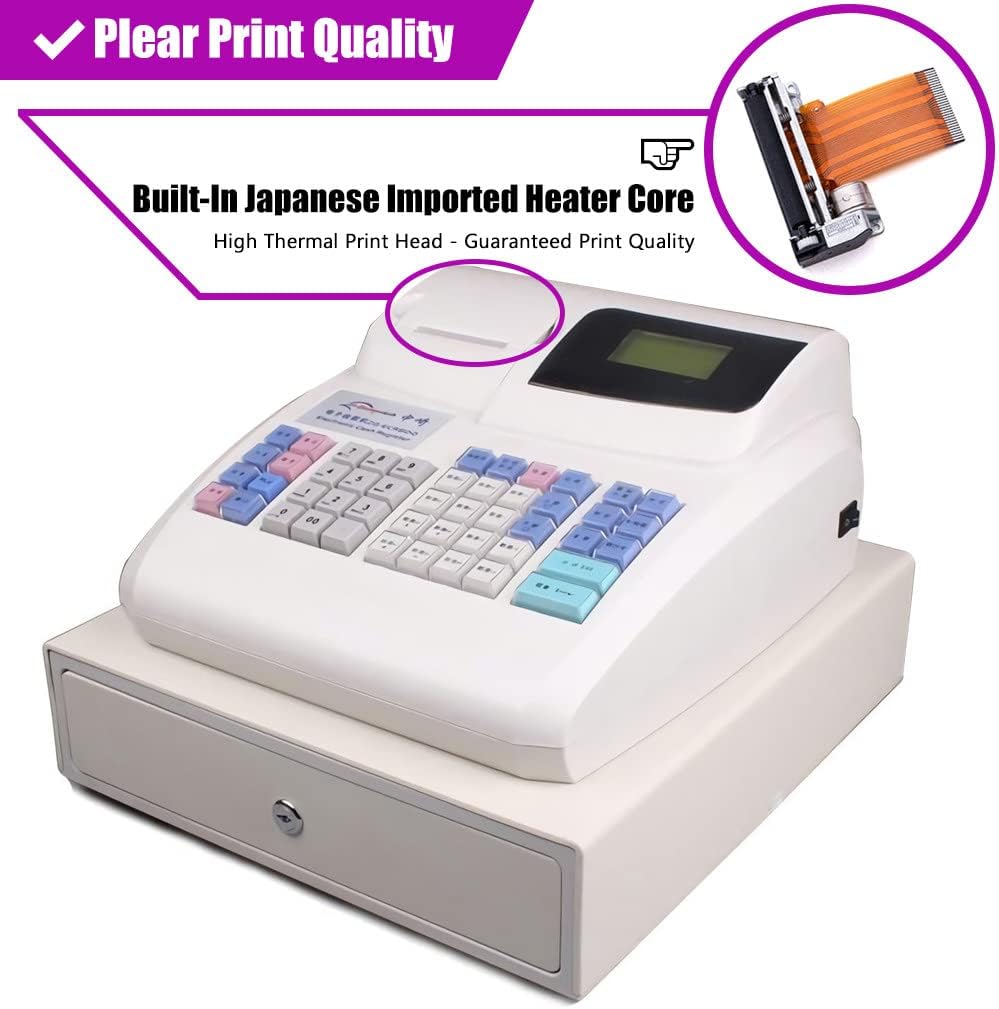
Figure 5: View of the built-in Japanese imported heater core, which is the thermal print head, emphasizing print quality.
6.2 Paper Replacement
When the receipt paper roll is depleted, replace it following the instructions in Section 3.3. Always use thermal paper rolls of 58mm width for optimal performance.
7. Troubleshooting
This section addresses common issues you might encounter with your FONOBO Electronic Cash Register.
| Problem | Possible Cause | Solution |
|---|---|---|
| Unit does not power on | Power cable disconnected; Power outlet malfunction; Unit power switch off. | Check power cable connection; Try a different outlet; Ensure power switch is in the 'ON' position. |
| Printer not printing or printing blank | No paper; Paper loaded incorrectly; Thermal paper loaded upside down; Printer head dirty. | Load new paper roll; Re-load paper correctly; Ensure thermal side faces the print head; Clean printer head as per maintenance section. |
| Cash drawer not opening | Transaction not completed; Drawer jammed; Key not used correctly. | Complete the transaction; Check for obstructions in the drawer; Use the provided key to manually open if necessary. |
| Display not working | Power issue; Display cable loose (internal). | Check power connection; If problem persists, contact customer support. |
8. Specifications
| Feature | Detail |
|---|---|
| CPU | Nkplp2220 Arm7 |
| Operator Display | 128x64cm LCD |
| Customer Display | 6 Digital LED |
| Keyboard | 48 Keys, Elevated |
| Departments | 42 |
| Printer Head | 1-station Thermal, 57*50 (Japanese Imported Heater Core) |
| Printing Speed | 60mm/s Max |
| Paper Width | 58mm |
| Interfaces | 2x RS232 (for barcode reader, thermal printer, or computer), USB (customized USD or U-disk accepted) |
| Material | Plastic |
| Color | White (This specific model) |
| Dimensions (L x W x H) | 13.7 x 11.8 x 6 inches (35 x 30 x 15 cm) |
| Item Weight | 9.9 pounds |
| Voltage | 12V |
| Power Supply | Switch Power |
| Stock Management | Yes |
| Profit Analysis | Yes |
| Memory Billing | Yes |
9. Warranty and Support
FONOBO is committed to customer satisfaction. If you encounter any issues or have questions regarding your Electronic Cash Register, please contact our support team.
- Contact Method: Please reach out via Amazon email or the official FONOBO website.
- Support Availability: Our support team is available 24 hours a day to assist you.
For information on specific warranty terms and conditions, please refer to the documentation included with your purchase or contact customer support directly.
Ask a question about this manual
Ask about setup, troubleshooting, compatibility, parts, safety, or missing instructions. Manuals+ will review the question and use this page’s manual context to help answer it.