Introduction
The MINIEYE-C2L is an advanced intelligent dash cam designed to enhance driving safety and provide reliable accident evidence. It features a dual camera system with up to 4K front recording and 1080P rear recording, a 170° wide-angle lens, built-in GPS for speed and location tracking, and Wi-Fi connectivity for seamless control via a companion app. This manual provides detailed instructions for setting up, operating, and maintaining your dash cam.
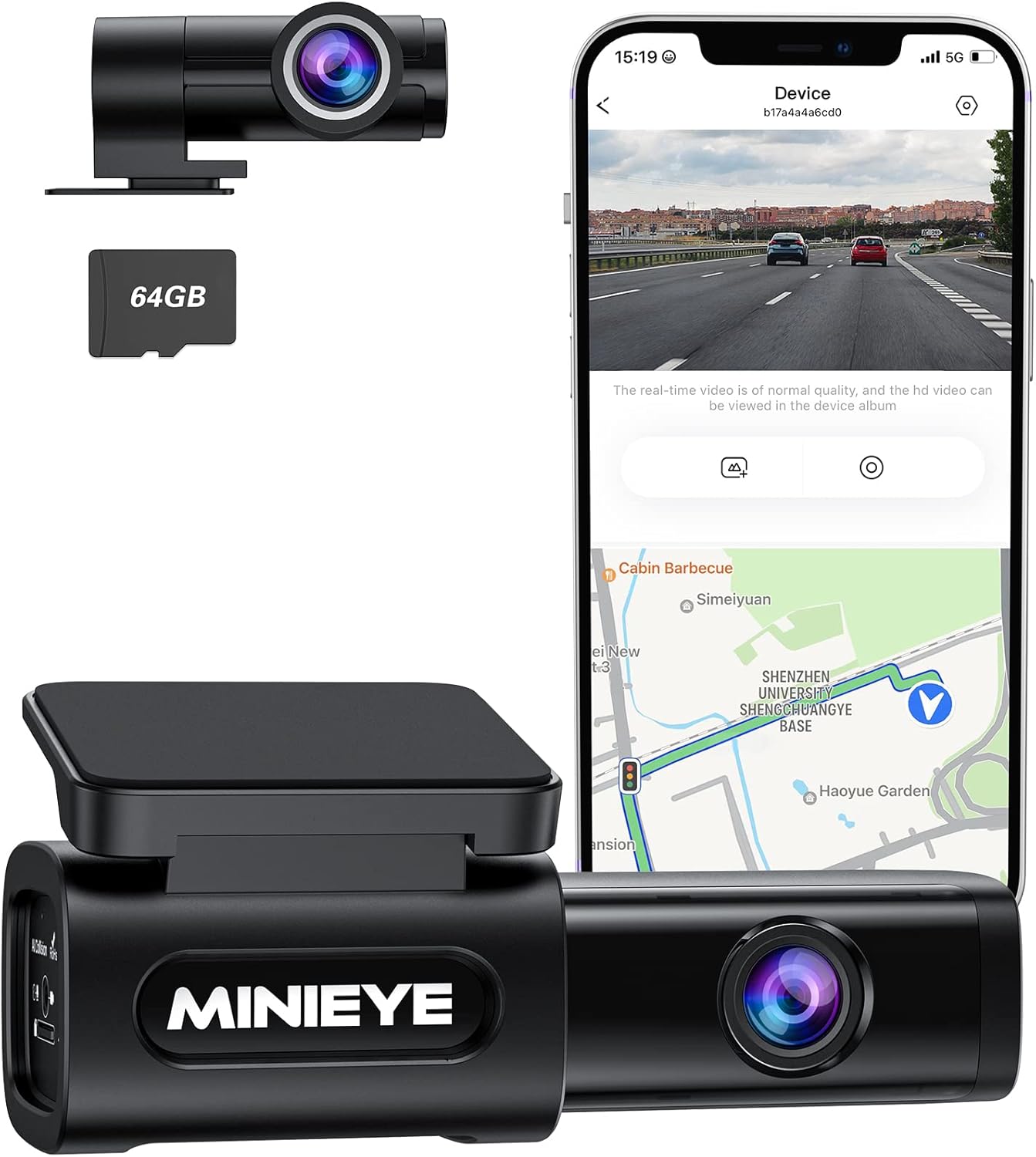
Figure 1: The MINIEYE-C2L Dash Cam, showing the front camera unit, a 64GB microSD card, and a smartphone displaying the live view and map interface.
Package Contents
Verify that all items listed below are present in your package:
- C2L Dash Cam (Front Unit)
- Rear Camera
- Power Cable
- Rear Camera Cable
- Free 64GB TF Card (MicroSD Card)
- Crowbar (for cable tucking)
- Electrostatic Sticker
- 3M Sticky Tapes
Setup Guide
1. Inserting the MicroSD Card
Before installation, ensure the provided 64GB TF card is inserted into the main dash cam unit. The card slot is typically located on the side of the front camera.
2. Mounting the Front Dash Cam
Choose a discreet location on your windshield, ideally behind or near the rearview mirror, that does not obstruct your view. Clean the area thoroughly before applying the electrostatic sticker and then the 3M sticky tape to secure the dash cam.

Figure 2: The MINIEYE-C2L Dash Cam installed on a car windshield, illustrating its compact design and key features such as dual camera, wide angle, ADAS, app control, voice control, GPS, WiFi, and parking monitor.
3. Connecting Power and Rear Camera
Connect the power cable to the front dash cam and plug the other end into your vehicle's 12V power outlet (cigarette lighter socket). Use the provided rear camera cable to connect the rear camera to the main unit. Route all cables neatly along the edges of your windshield and interior using the crowbar tool to tuck them under trim panels for a clean installation.

Figure 3: The MINIEYE-C2L Dash Cam connected and a smartphone displaying the companion app, highlighting built-in 4G WiFi and GPS features for configuration, real-time video preview, playback, download, sharing, speed/location tracking, and over-the-air updates.
4. App Installation and Connection
Download the MINIEYE companion app from the App Store (iOS) or Google Play Store (Android 5.0/iOS 10 and above). Once installed, connect your smartphone to the dash cam via Wi-Fi. The Wi-Fi password can be found in the instruction manual. This allows you to preview live footage, adjust settings, and download recordings.

Figure 4: Screenshots of the MINIEYE app interface, demonstrating features like firmware updates, video download progress, and detailed anti-collision settings for customization.
Operating Instructions
Recording Modes
The MINIEYE-C2L offers flexible recording options:
- 4K without ADAS: Provides the highest resolution video for maximum detail.
- 2K with ADAS: Balances high-resolution recording with active driver assistance features.
- 1080P with ADAS: Standard resolution with full ADAS functionality.
The dash cam automatically begins recording when your vehicle starts. Videos are saved to the 64GB TF card. When the card is full, older footage will be overwritten by new recordings (loop recording).

Figure 5: An exploded view of the MINIEYE-C2L Dash Cam's lens assembly, highlighting its F1.5 ultra-large aperture and 6-glass lens for clear 4K resolution recordings, especially in low-light conditions, supported by WDR technology.
Advanced Driver Assistance System (ADAS)
The ADAS technology provides real-time voice alerts to warn you of potential road hazards. This system includes:
- Forward Collision Warning (FCW): Alerts if you are approaching a vehicle too quickly.
- Urban Forward Collision Warning (UFCW): Specific alerts for urban driving conditions.
- Headway Monitoring Warning (HMW): Monitors the distance to the vehicle in front.
- Forward Vehicle Start Alert (FVSA): Notifies you when the vehicle ahead starts moving after a stop.

Figure 6: The MINIEYE-C2L Dash Cam's AI Collision Avoidance system in action, showing voice alerts for maintaining a safe distance and indicating when the car in front has started, enhancing driving safety.

Figure 7: Visual representations of the Advanced Driver Assistance System (ADAS) warnings, including Forward Collision Warning, Urban Forward Collision Warning, Headway Monitoring Warning, and Forward Vehicle Start Alert, demonstrating how the system detects and alerts drivers to potential hazards.
Parking Mode
The parking mode feature monitors your vehicle when parked. It requires a separate MINIEYE Hardwire Kit (sold separately) to function continuously. When activated, it can notify you of events via the MINIEYE app, providing enhanced security.

Figure 8: An illustration depicting the parking monitor feature, showing a 170-degree wide view of a parked car and its surroundings, indicating the dash cam's ability to monitor the vehicle while stationary.
Maintenance
MicroSD Card Management
Regularly check the status of your microSD card. While the dash cam supports loop recording, it is recommended to periodically back up important footage to a computer or cloud storage. Format the microSD card every few months to maintain optimal performance and prevent data corruption.
Cleaning the Lenses
Use a soft, lint-free cloth to gently clean the front and rear camera lenses. Avoid abrasive materials or harsh chemicals that could scratch the lens surface.
Firmware Updates
Keep your dash cam's firmware updated via the MINIEYE app. Regular updates ensure optimal performance, introduce new features, and address any potential bugs.
Troubleshooting
| Problem | Possible Cause | Solution |
|---|---|---|
| Dash cam not powering on. | Loose power connection; vehicle's 12V outlet not active. | Check power cable connection. Ensure vehicle ignition is on or 12V outlet is powered. Test outlet with another device. |
| Recording issues (e.g., not recording, corrupted files). | MicroSD card full or corrupted; incorrect card format. | Format the microSD card via the app or a computer. Replace the card if issues persist. Ensure it's a high-speed card. |
| Wi-Fi connection issues with app. | Incorrect Wi-Fi password; phone too far from dash cam. | Verify Wi-Fi password (check manual). Ensure phone is close to the dash cam. Restart both devices. |
| ADAS alerts are too frequent or not accurate. | Sensitivity settings too high; camera not properly aligned. | Adjust ADAS sensitivity settings in the app. Ensure the dash cam is mounted centrally and horizontally. |
Specifications
| Feature | Detail |
|---|---|
| Model Name | MINIEYE-C2L |
| Front Camera Resolution | Up to 4K (2160p) |
| Rear Camera Resolution | 1080P |
| Wide Angle Lens | 170° |
| Aperture | F1.5 |
| Connectivity | Wi-Fi |
| GPS | Built-in GPS (for time, speed, coordinates) |
| Storage | Supports MicroSD card (64GB included) |
| Special Features | ADAS, APP Control, OTA Update, G-sensor, WDR, 24H Parking Monitor (requires hardwire kit) |
| Power Source | Vehicle 12V power outlet |
| Dimensions | 9.06 x 5.91 x 2.36 inches |
| Weight | 1.28 pounds |
Warranty and Support
The MINIEYE-C2L Dash Cam comes with an 18-month extended warranty. For technical support, warranty claims, or any inquiries, please refer to the official Spedal website or contact their dedicated customer support team. You can also find additional resources and FAQs within the MINIEYE companion app.
For further assistance, please visit the Spedal Store on Amazon or consult the User Guide (PDF) and Installation Manual (PDF) available online.


