
1. Product Overview
The CHICIRIS Smart Home Infrared Blaster is a universal remote controller designed to integrate your traditional infrared-controlled devices into a smart home ecosystem. It allows you to control appliances such as air conditioners and televisions remotely via a smartphone application, enhancing convenience and smart living.

Image 1.1: The CHICIRIS Smart Home Infrared Blaster device.
Key Features:
- APP Remote Control: Wirelessly control your infrared devices like air conditioners and TVs using the Tuya application on your mobile phone.
- Infrared Learning Function: Add remote controls by learning IR signals through the APP's custom button feature, including a DIY learning function for code copying.
- Device Sharing: Share control of home infrared devices with family members for a collaborative smart home experience.
- DIY Functionality: Supports manual addition of controllers for enhanced stability and customization.
- Battery Powered: Operates on 2 AAA batteries (not included), offering flexibility in placement without power cord limitations.

Image 1.2: The Infrared Blaster can control a variety of infrared equipment, supporting over 5000 cloud devices.
2. Setup Instructions
2.1. Power Supply
The device is powered by two AAA batteries. Ensure batteries are inserted with correct polarity.
- Open the battery compartment cover, typically located on the bottom or side of the device.
- Insert two AAA batteries, observing the positive (+) and negative (-) markings.
- Close the battery compartment cover securely.

Image 2.1: The device uses 2 AAA batteries for power, offering flexible placement.
2.2. App Installation and Device Pairing
To control the Infrared Blaster, you need to install the Tuya Smart app on your smartphone.
- Download the "Tuya Smart" app from your smartphone's app store (Google Play Store for Android or Apple App Store for iOS).
- Register or log in to your Tuya Smart account.
- Ensure your smartphone is connected to a 2.4GHz Wi-Fi network.
- Open the Tuya Smart app and tap the "+" icon to add a new device.
- Select "Infrared Remote Control" or a similar category.
- Follow the on-screen instructions in the app to put the Infrared Blaster into pairing mode and complete the connection. This usually involves a reset button or a specific power-on sequence.
3. Operation
3.1. Controlling Devices via App
Once paired, you can control your infrared devices through the Tuya Smart app.
- Open the Tuya Smart app and select your Infrared Blaster device.
- Add the specific infrared device you wish to control (e.g., TV, air conditioner) by selecting its brand and model from the app's database.
- If your device is not listed, use the Infrared Learning Function (see section 3.2).
- Use the virtual remote interface in the app to send commands to your devices.
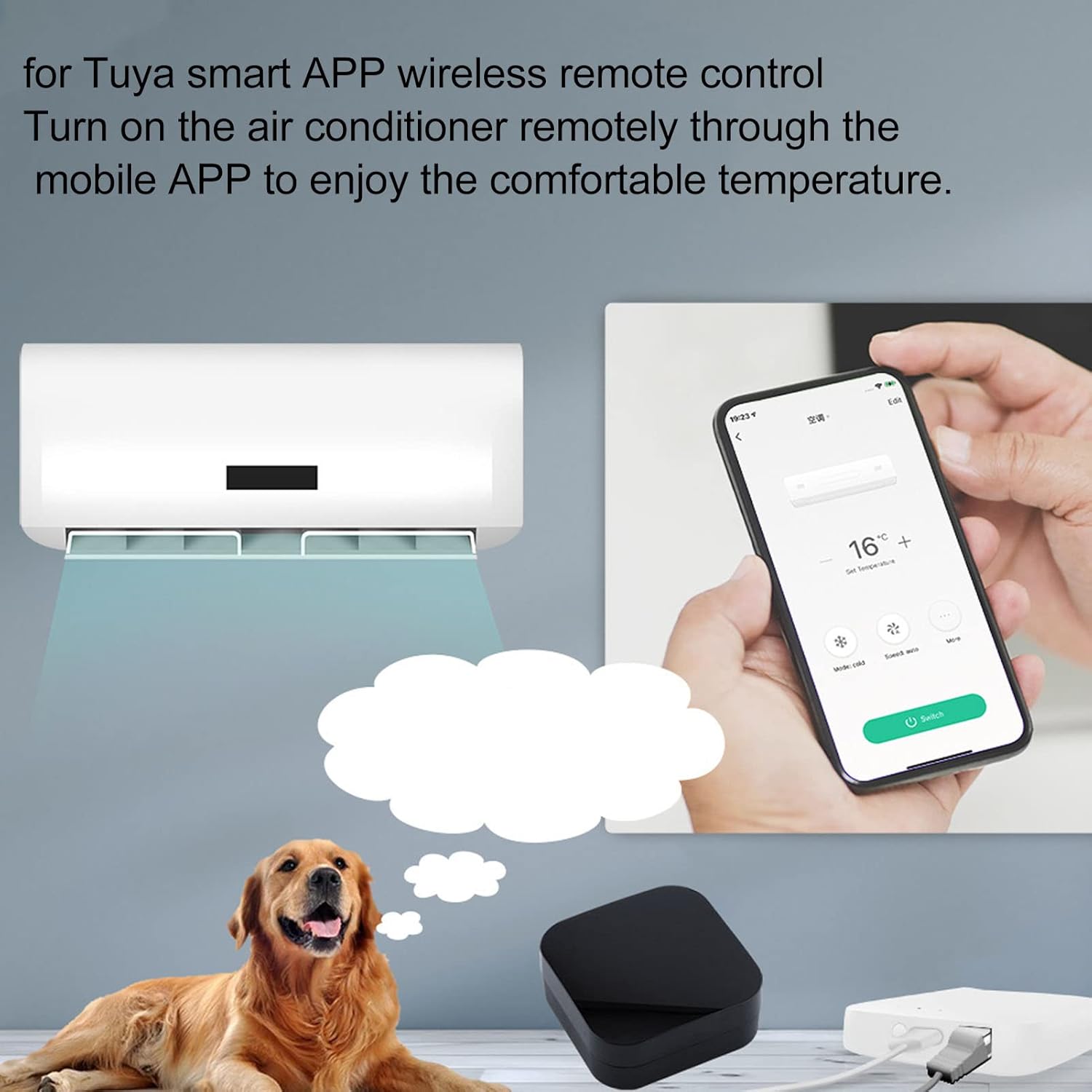
Image 3.1: Control your air conditioner remotely via the Tuya Smart app.
3.2. Infrared Learning Function (DIY)
The DIY function allows the Infrared Blaster to learn commands from your existing remote controls.
- In the Tuya Smart app, navigate to the Infrared Blaster device and select the "DIY" or "Infrared Learning" option.
- Choose to add a custom button or a new remote.
- When prompted, point your original remote control towards the Infrared Blaster (typically within 1-3 cm) and press the desired button.
- The app will confirm if the signal has been successfully learned. Repeat for all necessary buttons.
- Save the learned remote configuration.

Image 3.2: The DIY function in the app allows for manual addition of controllers, enhancing stability.
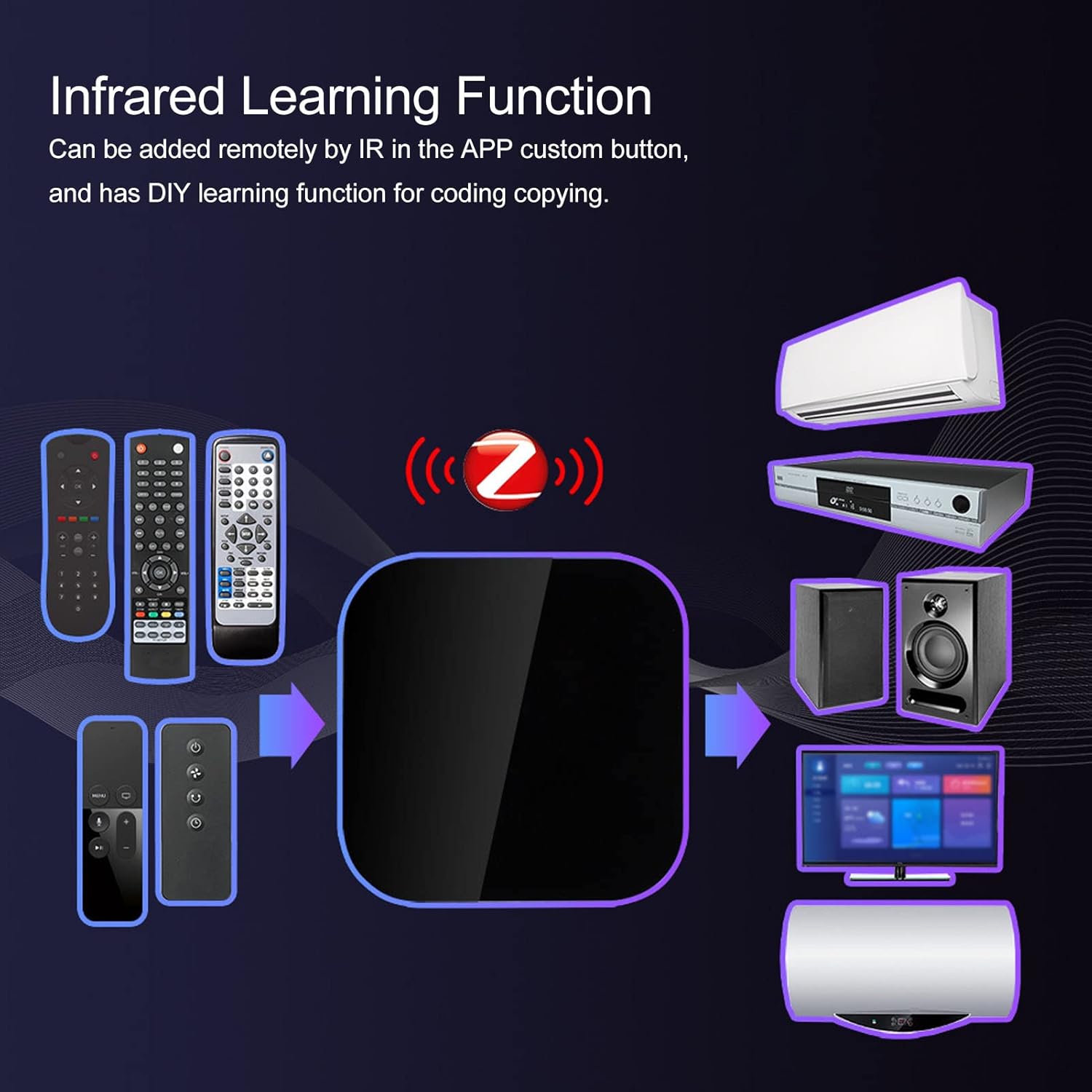
Image 3.3: The Infrared Learning Function allows copying codes from existing remotes.
3.3. Device Sharing
You can share control of your smart infrared devices with other family members through the Tuya Smart app's sharing feature.
- In the Tuya Smart app, go to the device settings for your Infrared Blaster.
- Look for a "Share Device" or "Add Member" option.
- Invite family members by entering their Tuya Smart account details.
- They will receive an invitation and, upon acceptance, can control the shared devices.
4. Maintenance
- Cleaning: Wipe the device with a soft, dry cloth. Do not use liquid cleaners or abrasive materials.
- Battery Replacement: Replace AAA batteries when the device's indicator light suggests low power or when control becomes unreliable.
- Placement: Ensure the device is placed in a central location with a clear line of sight to the infrared-controlled appliances for optimal performance. Avoid placing it behind obstacles or in direct sunlight.
- Firmware Updates: Periodically check the Tuya Smart app for any available firmware updates for the Infrared Blaster to ensure optimal performance and security.
5. Troubleshooting
| Problem | Possible Cause | Solution |
|---|---|---|
| Device not powering on. | Batteries are dead or incorrectly inserted. | Replace batteries with new AAA batteries, ensuring correct polarity. |
| Cannot pair with the Tuya Smart app. | Incorrect Wi-Fi network (not 2.4GHz), device not in pairing mode, or network interference. |
|
| Infrared Blaster does not control appliances (e.g., TV, AC). |
|
|
| "Unfortunately does not recognize any remote" (from user review). | The device's IR learning function may not be compatible with all remote control frequencies or protocols, or the learning process was unsuccessful. |
|
6. Specifications

Image 6.1: Dimensions of the CHICIRIS Smart Home Infrared Blaster: 68mm x 68mm x 27mm (2.7in x 2.7in x 1.1in).
| Feature | Detail |
|---|---|
| Brand | CHICIRIS |
| Model Number | CHICIRISichpom8urd7789 |
| Connectivity Technology | Infrared |
| Compatible Devices | Air Conditioner, Smartphone, Television |
| Maximum Range | 8 Meters |
| Power Source | 2 x AAA Batteries (not included) |
| Special Features | Portable, Wireless, Stable |
| Number of Buttons | 2 (likely referring to physical buttons on the device, e.g., reset) |
| Smart Home Compatibility | Compatible with Tuya for Zigbee smart home systems |
| Country of Origin | China |
7. Warranty and Support
Specific warranty information for the CHICIRIS Smart Home Infrared Blaster is not provided in the product details. Please refer to your purchase documentation or contact the retailer for warranty terms.
For technical support or further assistance, please contact CHICIRIS customer service or refer to the support section within the Tuya Smart application.