
1. Introduction
The Kinivo 8K HDMI Switch SW-840BN allows you to connect up to four HDMI source devices to a single HDMI display. This device supports advanced video and audio technologies, including 8K 60Hz, 4K 120Hz, HDR10+, Dolby Vision, and Dolby Atmos, ensuring a high-quality viewing and listening experience. It is designed to simplify your home entertainment setup by eliminating the need to constantly swap HDMI cables between devices.
2. Package Contents
- Kinivo 8K HDMI Switch SW-840BN
- Power Adapter
- IR Remote Control
- User Manual
3. Product Overview
The Kinivo SW-840BN features four HDMI input ports and one HDMI output port, along with a power input and control buttons. Its compact design and robust construction ensure reliable performance.
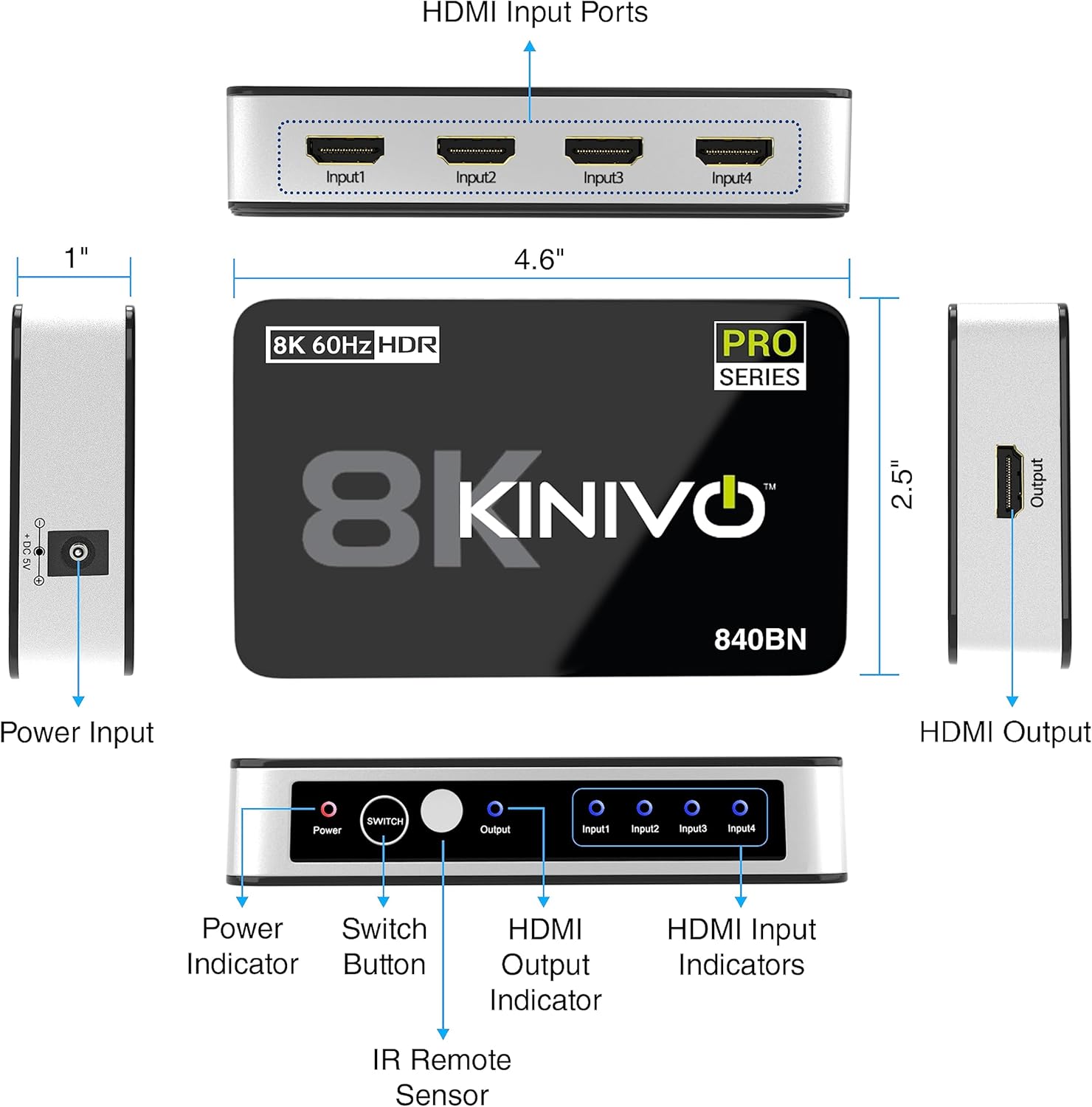
Detailed diagram of the Kinivo 8K HDMI Switch SW-840BN, showing all ports (Power Input, HDMI Input Ports 1-4, HDMI Output), buttons (Power, Switch), and indicators (Power, Output, Input 1-4), along with product dimensions.
Key Components:
- HDMI Input Ports (1-4): Connect your source devices (e.g., gaming consoles, Blu-ray players, streaming devices).
- HDMI Output Port: Connects to your display (e.g., HDTV, monitor, projector).
- Power Input (DC 5V): Connect the included power adapter.
- Power Button: Turns the device on or off.
- Switch Button: Manually cycles through input sources.
- IR Remote Sensor: Receives signals from the remote control.
- LED Indicators: Show power status and active input source.
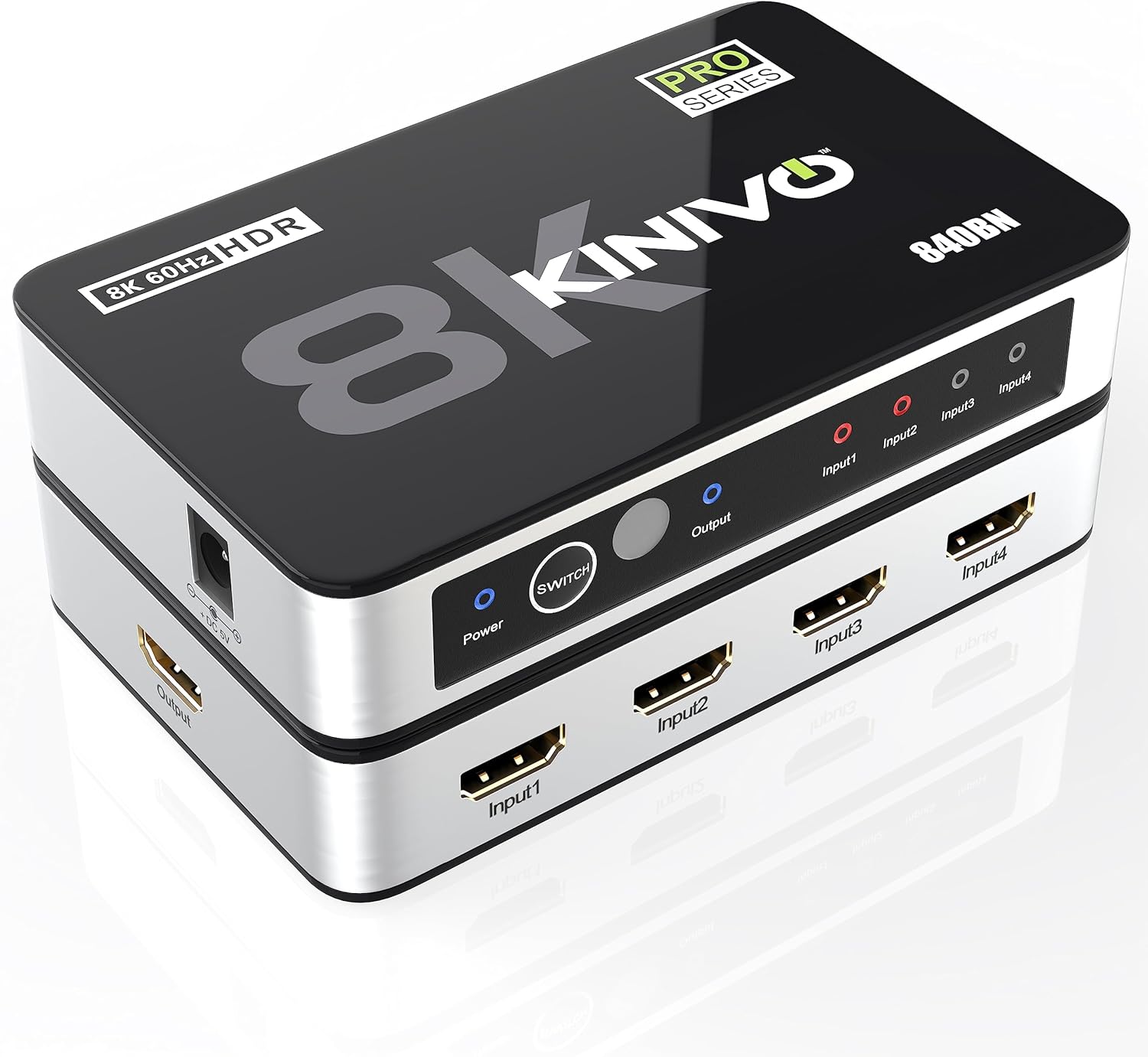
Kinivo 8K HDMI Switch SW-840BN, top-down angled view showing inputs, output, power button, and indicator lights.
4. Setup Instructions
- Connect Source Devices: Plug your HDMI source devices (e.g., PS5, Xbox, Apple TV, Blu-ray player) into the HDMI Input ports (Input1, Input2, Input3, Input4) on the Kinivo switch using high-quality HDMI 2.1 cables.
- Connect to Display: Connect the HDMI Output port of the Kinivo switch to an HDMI input on your display (HDTV, monitor, projector) using a high-quality HDMI 2.1 cable.
- Connect Power: Plug the included power adapter into the DC 5V power input on the switch, then connect it to a power outlet. The Power LED indicator will illuminate.
- Power On: Press the Power button on the switch or use the remote control to turn on the device.

Diagram showing the connection of a PlayStation 5, Xbox Series X, and Apple TV to the Kinivo 8K HDMI Switch, which then connects to a television display.
5. Operating Instructions
Switching Input Sources:
- Manual Switching: Press the 'Switch' button on the front panel of the Kinivo device to cycle through the connected HDMI input sources. The corresponding input LED will light up.
- Remote Control Switching: Use the included IR remote control to directly select an input source (Input 1, Input 2, Input 3, Input 4) or to cycle through them. Ensure the remote is pointed towards the IR sensor on the switch.
- Automatic Switching: The Kinivo switch supports automatic input detection. When a new device is powered on or starts sending an HDMI signal, the switch may automatically switch to that input. Note: Not all devices support auto-switching (e.g., Apple TV, Fire TV, Xbox One, PS5, Roku). Manual or remote switching may be required for these devices.

Image depicting two methods of switching inputs on the Kinivo 8K HDMI Switch: manual switching via the device button and remote control switching, with a family enjoying content on a TV.
6. Features and Capabilities
- 8K 60Hz and 4K 120Hz Support: Experience ultra-high-definition video with smooth motion.
- 48Gbps Bandwidth: High-speed data transmission for uncompressed video and audio.
- HDR10+ and Dolby Vision: Enhanced contrast and color depth for a more realistic picture.
- Dolby Atmos: Immersive audio experience.
- HDCP 2.3: Ensures compatibility with protected content.
- Superior Construction: Features 24K gold-plated connectors for optimal signal transfer and an aluminum alloy shell for efficient heat dissipation and durability.

Visual comparison of 4K 30Hz, 4K 60Hz, and 8K 60Hz resolutions, illustrating the enhanced clarity of 8K with a vibrant underwater scene.

Exploded view of the Kinivo 8K HDMI Switch SW-840BN, highlighting its internal components: powerful IC chip, aluminum alloy shell for heat dissipation, and 24K gold-plated connectors.
7. Compatibility
The Kinivo 8K HDMI Switch is broadly compatible with a variety of HDMI-enabled devices.
Compatible Input Devices:
- Gaming Consoles (e.g., PS5, Xbox Series X/S, Nintendo Switch 2)
- Streaming Devices (e.g., Apple TV, Fire TV, Roku)
- Blu-ray Players, DVD Players
- Laptops, Desktop PCs
- Set-top Boxes
Compatible Output Devices:
- HDTVs
- Monitors
- Projectors

Compatibility chart for the Kinivo 8K HDMI Switch, listing various input devices like laptops, TV boxes, streaming devices, game consoles, desktops, and output devices such as HDTVs, monitors, and projectors.
8. Specifications
| Feature | Specification |
|---|---|
| Model Number | SW-840BN |
| HDMI Ports | 4 Inputs, 1 Output |
| Data Throughput | 48 Gbps |
| Resolution Support | 8K 60Hz, 4K 120Hz |
| HDR Support | HDR10+, Dolby Vision |
| Audio Support | Dolby Atmos, Dolby Digital, Dolby TrueHD, DTSHD |
| HDCP Version | 2.3 |
| Product Dimensions | 3.23 x 3.98 x 5.79 inches |
| Item Weight | 7.1 ounces |
| Power Input | DC 5V |
| Color | Black |

Comparison table of Kinivo HDMI switch models (840BN, 360BNT, 550BN/350BN) detailing HDMI ports, data throughput, resolution, audio output, and support for Dolby Vision, HDR, HDCP. Below the table, a visual comparison of 8K 60Hz and 4K 60Hz gaming visuals.
9. Troubleshooting
- No Picture/Signal:
- Ensure all HDMI cables are securely connected to both the switch and your devices/display.
- Verify the power adapter is correctly connected and the switch is powered on.
- Try selecting the input source manually using the switch button or remote control.
- Test with different HDMI cables, especially high-quality HDMI 2.1 certified cables for 8K/4K 120Hz content.
- Bypass the switch and connect the source directly to the display to confirm the source and display are working correctly.
- Flickering or Intermittent Signal:
- This often indicates a cable issue. Replace HDMI cables with shorter, higher-quality ones, especially for 8K/4K 120Hz signals.
- Ensure the power adapter is providing stable power to the switch.
- Reduce the resolution or refresh rate of the source device temporarily to see if the issue persists.
- No Audio:
- Check audio settings on your source device and display to ensure correct output.
- Verify that the HDMI cables support audio transmission.
- Auto-Switching Not Working:
- As noted, some devices (e.g., Apple TV, Xbox, PS5) may not trigger auto-switching. Use manual or remote control switching for these devices.
- Ensure the source device is fully powered off when not in use to allow auto-switching to other active inputs.
10. Maintenance
- Keep the device in a cool, dry place away from direct sunlight and heat sources.
- Clean the device with a soft, dry cloth. Do not use liquid cleaners or aerosols.
- Avoid blocking ventilation openings to ensure proper heat dissipation.
- Do not attempt to disassemble or repair the device yourself. Refer to qualified service personnel.
11. Warranty and Support
Kinivo offers a two-year warranty for the SW-840BN HDMI Switch. Additionally, lifetime US-based customer support is available to assist with any questions or issues you may encounter.
For technical support or warranty claims, please visit the official Kinivo website or contact their customer service department.