
1. Introduction
This manual provides essential instructions for setting up, operating, and maintaining your FANGOR Portable Monitor P18. Please read this guide thoroughly before using the product to ensure proper functionality and longevity.

Image 1.1: FANGOR Portable Monitor P18
2. Package Contents
Verify that all items are present in the package:
- FANGOR Portable Monitor P18
- Protective Cover/Stand
- USB-C to USB-C Cable (for power and video)
- Mini-HDMI to HDMI Cable (for video)
- USB-A to USB-C Cable (for power)
- Power Adapter (Wall Charger)
3. Product Features
- Display: 15.6-inch Full HD (1920x1080) IPS panel with 178° wide viewing angle.
- Design: Ultra-slim (0.27 inches) and lightweight (1.35 lbs) for portability.
- Audio: Integrated dual speakers for audio output.
- Versatility: Supports both landscape and portrait display modes.
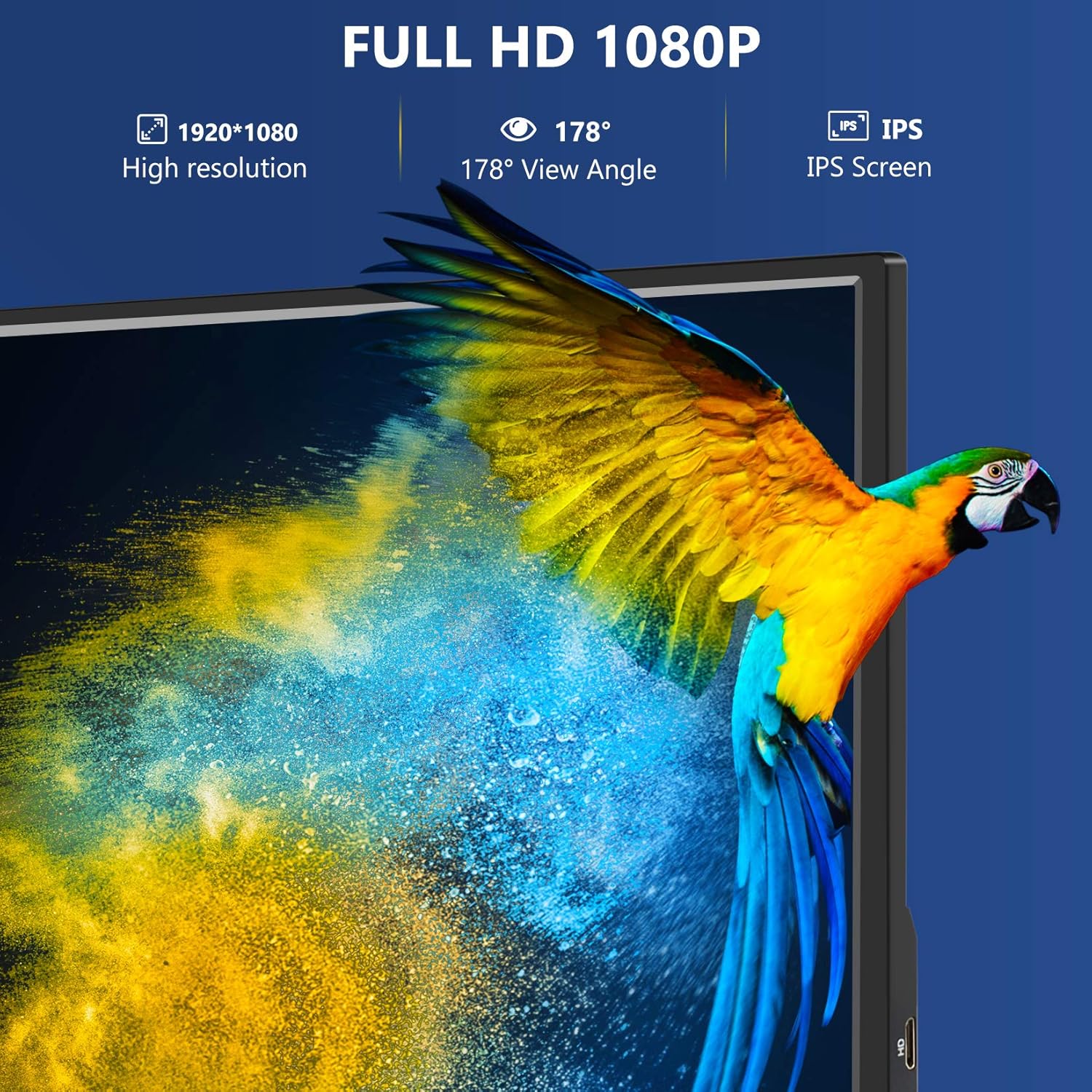
Image 3.1: Display Features (Full HD 1080P, 178° View Angle, IPS Screen)

Image 3.2: Integrated Audio Capabilities
4. Physical Components
Familiarize yourself with the monitor's ports and buttons:
- Mini-HDMI Port: For video input from devices supporting HDMI.
- USB-C Ports (2): One for power and video input (DisplayPort Alt Mode), another primarily for power.
- Micro-USB Port: For connecting peripherals or power.
- 3.5mm Audio Jack: For connecting external headphones or speakers.
- Power Button/Menu Control: Used to power on/off the monitor and navigate the On-Screen Display (OSD) menu.

Image 4.1: Monitor Side Profile and Ports
5. Setup and Connection
The FANGOR Portable Monitor P18 offers flexible connectivity options. Ensure the monitor receives sufficient power for optimal performance.
5.1 Connecting to a Laptop/PC
Option 1: Single USB-C Cable (Full-featured USB-C port required)
- Connect one end of the USB-C to USB-C cable to a full-featured USB-C port on your laptop/PC (which supports DisplayPort Alt Mode and power delivery).
- Connect the other end of the USB-C to USB-C cable to one of the USB-C ports on the monitor.
- The monitor should automatically detect the signal and power on.

Image 5.1: Laptop Connection Diagram (USB-C)
Option 2: HDMI and USB-C for Power
- Connect one end of the Mini-HDMI to HDMI cable to the HDMI port on your laptop/PC.
- Connect the Mini-HDMI end of the cable to the Mini-HDMI port on the monitor.
- Connect the USB-A to USB-C cable to a USB-A port on your laptop/PC or the provided power adapter.
- Connect the USB-C end of this cable to one of the USB-C ports on the monitor for power.
5.2 Connecting to a Smartphone/Tablet
Option 1: USB-C (Full-featured USB-C port required on device)
- Connect one end of the USB-C to USB-C cable to your smartphone/tablet.
- Connect the other end of the USB-C to USB-C cable to one of the USB-C ports on the monitor.
- Ensure your device supports DisplayPort Alt Mode for video output.

Image 5.2: Smartphone Connection via USB-C

Image 5.3: USB-C to USB-C Connection Diagram
Option 2: iOS Devices (Requires adapter, not included)
- Connect your iPhone/iPad to a Lightning to HDMI adapter.
- Connect the HDMI output of the adapter to the Mini-HDMI port on the monitor using the Mini-HDMI to HDMI cable.
- Ensure the adapter and monitor are powered using their respective power cables.

Image 5.4: iOS Device Connection Diagram
5.3 Connecting to Gaming Consoles (PS3/PS4, Xbox One, Nintendo Switch)
- Connect the HDMI output of your gaming console to the Mini-HDMI port on the monitor using the Mini-HDMI to HDMI cable.
- Connect the monitor to a power source using the USB-A to USB-C cable and power adapter.
- For Nintendo Switch, ensure it is in TV mode or use a dock that supports video output.

Image 5.5: Gaming Console Compatibility

Image 5.6: Gaming Console Connection Diagram
6. Operating the Monitor
6.1 Power On/Off
Press and hold the Power button (often integrated with the menu control) for a few seconds to turn the monitor on or off.
6.2 On-Screen Display (OSD) Menu
Briefly press the Power/Menu button to access the OSD menu. Use the button to navigate through options like brightness, contrast, color settings, and input source. Press and hold to confirm selections or exit the menu.
6.3 Portrait Mode
The monitor supports portrait orientation. Simply rotate the monitor to your desired vertical position. Your connected device may require display settings adjustment to match the orientation.

Image 6.1: Monitor in Portrait Mode

Image 6.2: Portrait Mode for Infographics
7. Maintenance
To ensure the longevity and optimal performance of your monitor, follow these maintenance guidelines:
- Cleaning: Use a soft, lint-free cloth to gently wipe the screen. For stubborn smudges, lightly dampen the cloth with water or a screen-cleaning solution. Avoid harsh chemicals or abrasive materials.
- Storage: When not in use, store the monitor in its protective cover in a cool, dry place away from direct sunlight and extreme temperatures.
- Handling: Avoid dropping the monitor or subjecting it to strong impacts. Do not place heavy objects on top of it.
8. Troubleshooting
If you encounter issues with your FANGOR Portable Monitor, refer to the following common problems and solutions:
- No Signal:
- Ensure all cables (USB-C, HDMI) are securely connected to both the monitor and the source device.
- Verify that the source device is powered on and configured to output video.
- Check if the monitor is receiving adequate power. Try connecting the monitor to an external power adapter.
- Select the correct input source via the OSD menu.
- No Power:
- Confirm the power cable is properly connected to the monitor and a working power outlet or USB port.
- Try a different USB-C cable or power adapter.
- Ensure the power button is pressed and held for a few seconds to turn on the monitor.
- Flickering Screen/Unstable Display:
- Ensure the monitor is receiving sufficient power. Connect it to the wall adapter if using only a single USB-C cable from a device.
- Try a different cable or port.
- Reduce the display resolution or refresh rate on your source device.
- No Audio:
- Check the volume settings on both the monitor and the source device.
- Ensure the correct audio output is selected on your source device.
- If using headphones, ensure they are properly plugged into the 3.5mm audio jack.
9. Specifications
| Feature | Specification |
|---|---|
| Screen Size | 15.6 Inches |
| Resolution | FHD 1080p (1920x1080) |
| Panel Type | IPS |
| Viewing Angle | 178° |
| Image Contrast Ratio | 1000:1 |
| Screen Surface | Glossy |
| Item Weight | 1.35 pounds |
| Package Dimensions | 15.98 x 10.94 x 2.52 inches |
| Connectivity | Mini-HDMI, USB-C (x2), Micro-USB, 3.5mm Audio Jack |
10. Warranty and Support
For warranty information and technical support, please refer to the documentation included with your purchase or visit the official FANGOR website. Keep your purchase receipt as proof of purchase for warranty claims.