
OBO HANDS V70MT+IDT-HD
OBO HANDS 7'' TFT LCD Wired Video Intercom System (Model V70MT+IDT-HD) User Manual
Model: V70MT+IDT-HD
1. Product Overview
The OBO HANDS 7'' TFT LCD Wired Video Intercom System provides secure and convenient communication for your home or office. This system includes a 7-inch indoor monitor with WiFi connectivity and a 1080P HD outdoor camera featuring motion detection and night vision. It supports two-way audio and integration with the Tuya smart application for remote access and control.

Image: Overview of the OBO HANDS 7-inch TFT LCD Wired Video Intercom System, showing the indoor monitor and outdoor unit with key features highlighted such as Tuya APP support, 1080P resolution, touch screen, visual intercom, remote monitor, remote unlock, motion detect, leave comments, micro TF card support, waterproof design, day & night vision, and RFID card unlock.
2. Package Contents
Before installation, please verify that all items listed below are present in your package:
- 7-inch TFT LCD Indoor Monitor
- 1080P HD Outdoor Camera Unit
- Power Adapter
- Mounting Bracket for Indoor Monitor
- Mounting Screws and Wall Plugs
- Wired Connection Cables (Ethernet cable, power cable, signal cables)
- RFID Cards/Key Fobs (for unlocking)
- User Manual

Image: Visual representation of the package contents, including the outdoor unit, indoor monitor, mounting bracket, power adapter, cables, RFID key fobs, and user manual.
3. Setup and Installation
3.1 Component Identification
Familiarize yourself with the indoor and outdoor units and their respective ports and indicators.

Image: Detailed diagram showing the components of the indoor monitor (TFT-LCD 7-inch display, microphone, red power status indicator, green movement detection status indicator, blue WiFi status indicator, network cable port, speaker, unlock signal output NO/NC port, DC15V 1.2A power supply) and the outdoor unit (rain cover, infrared night vision lamp, HD camera, speaker, call button, card zone, microphone, wiring port, network port).
3.2 Wiring Instructions
The system uses a wired connection for stability. The indoor monitor supports WiFi for network connectivity, but the primary connection between the indoor monitor and the doorbell is wired. This ensures stable operation and allows for extended distances.
- Connect the outdoor unit to the indoor monitor using the provided 4-wire cable.
- Connect the power supply to the indoor monitor.
- For network connectivity, connect an Ethernet cable from your router to the indoor monitor's network port, or use the WiFi connection feature.
- If integrating with an electronic control lock, connect the lock to the indoor monitor's unlock signal output ports (NO/NC).

Image: A wiring diagram illustrating the connection between the indoor monitor, outdoor unit, power supply, and an optional electronic control lock. It shows the 2.4G Wi-Fi connection to a router and mobile phone/tablet.

Image: A more comprehensive wiring diagram for a complete access control system, showing connections for the indoor monitor, outdoor camera, power supply (DC12V), electronic control lock, electric strike lock, and door exit button.
3.3 Tuya App Connection
To connect your system to the Tuya app for remote access and control, follow these steps:
- Ensure the indoor monitor and outdoor unit are powered on and connected.
- On the indoor monitor, navigate to Setting → Network setting → AP Mode.
- Click Back, then confirm Restart System. The system will restart.
- Open the Tuya app on your mobile phone.
- Tap Add Device, then select Security & Video System → Smart Camera (Wi-Fi).
- Select Wi-Fi Mode (or AP Mode if prompted) and proceed to the next step.
- Enter your current WiFi password and click Next.
- Go to your phone's WiFi settings and connect to the hotspot generated by the indoor unit (e.g., "SmartLife-xxxx").
- Return to the Tuya app and click Next. The app will automatically search for and connect to the device.
- Once connected, the blue indicator light on the indoor unit will become solid, indicating a successful connection. Click Finish in the app.
Video: This video demonstrates the step-by-step process of connecting the OBO HANDS video intercom system to the Tuya smart application, including initial setup, system restart, and WiFi pairing procedures.
4. Operating Instructions
4.1 Indoor Unit and Door Unit Operation
The system allows for seamless interaction between the outdoor doorbell unit and the indoor monitor, as well as your mobile phone.
- Receiving Calls: When a visitor presses the call button on the outdoor unit, the indoor monitor will display the visitor's video feed, and your mobile phone (via the Tuya app) will receive a push notification. You can then choose to answer or suspend the call.
- Monitoring: On the indoor monitor, select the Monitoring option and choose the desired door unit (e.g., Door1) to view the live feed from the outdoor camera.
- Unlocking: During a call or while monitoring, you can unlock the connected electronic lock directly from the indoor monitor by pressing the unlock icon.
- Volume Control: Adjust the intercom's sound volume directly from the indoor monitor's interface.

Image: A person pressing the doorbell, with the indoor monitor displaying the visitor and a mobile phone showing the Tuya app interface for remote interaction.

Image: Icon representing the two-way communication feature, allowing users to speak with visitors.
4.2 Multiple Unlocking Methods
The system offers flexible options for unlocking your door:
- Indoor Monitor Button: Press the dedicated unlock button on the indoor monitor.
- Tuya Smart App: Remotely unlock the door using the Tuya app on your smartphone from anywhere.
- RFID Cards: Use the provided RFID cards or key fobs by scanning them on the outdoor unit's card reader.
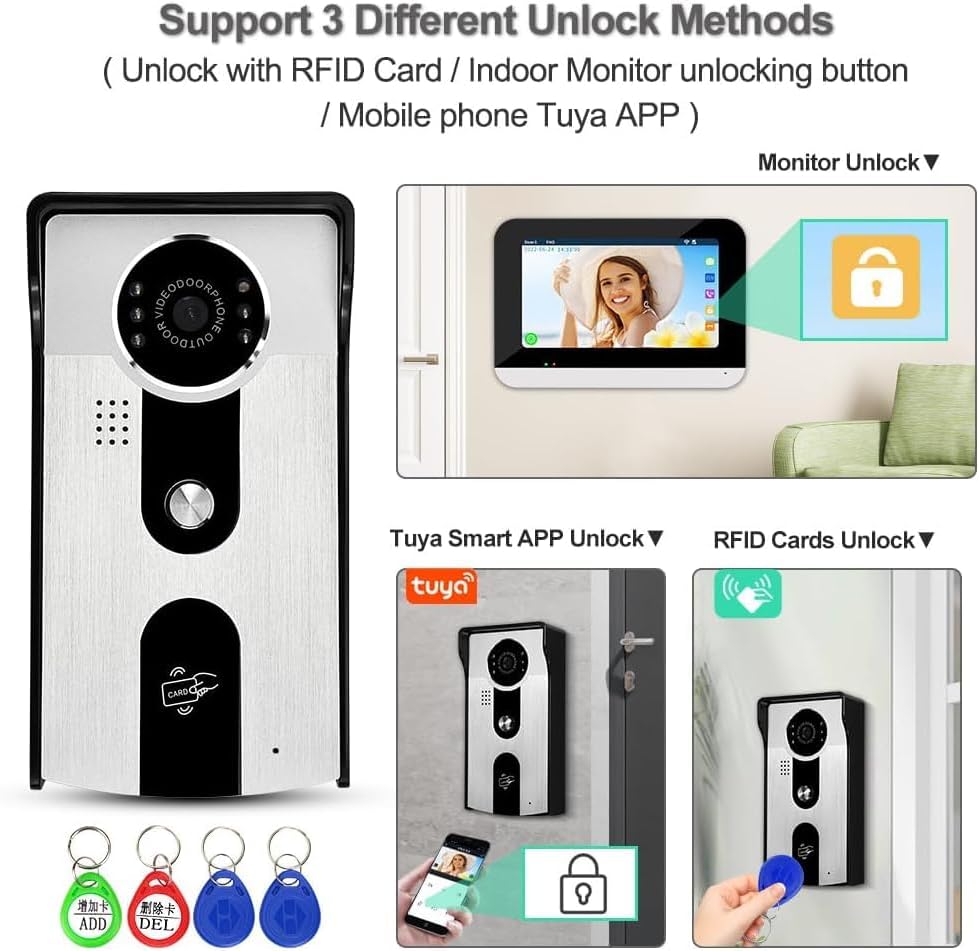
Image: Illustration of the three unlock methods: using the indoor monitor button, the Tuya Smart App on a mobile phone, and RFID cards scanned at the outdoor unit.
4.3 Motion Detection and Recording
The outdoor camera is equipped with motion detection capabilities to enhance security.
- Automatic Recording: When motion is detected, the system can automatically record videos or capture snapshot pictures.
- Notifications: You will receive push notifications on your mobile phone via the Tuya app when motion is detected.
- Storage: Data is stored on a Micro TF card inserted into the indoor monitor. Visitor records can be viewed at any time.

Image: Depiction of the motion detection feature, showing a person approaching the doorbell, the indoor monitor displaying the view, and a mobile phone receiving a motion detection alert. The camera has a 120° horizontal viewing angle.

Image: Icon representing the motion detection feature.

Image: Illustration showing the indoor monitor with a Micro TF card slot, indicating that visitor records and other data are stored on the TF card for later review.
4.4 Night Vision
The outdoor camera provides clear visibility even in low-light conditions.
- IR-Cut Switch: With a built-in intelligent IR-Cut switch and 5 IR lights, the camera automatically switches between day and night mode based on light changes.
- High-Quality Images: This ensures high-quality images and clear recognition of visitors even at night.

Image: Split view showing the outdoor camera's performance in both daylight and night vision, demonstrating clear visibility in dark conditions with a 120° view angle.

Image: The outdoor unit is shown with an IP55 waterproof rating and night vision capabilities, suitable for various weather conditions.
5. Maintenance
Regular maintenance ensures optimal performance and longevity of your video intercom system.
- Cleaning: Gently wipe the indoor monitor screen and outdoor camera lens with a soft, dry cloth. Avoid abrasive cleaners or solvents.
- Cable Inspection: Periodically check all wired connections for any signs of wear, damage, or loose connections.
- Software Updates: Check the Tuya app or indoor monitor settings for available firmware updates to ensure the system has the latest features and security enhancements.
- Environmental Protection: While the outdoor unit is IP55 waterproof, avoid direct exposure to extreme weather conditions if possible to prolong its lifespan.
6. Troubleshooting
If you encounter issues with your system, refer to the following common troubleshooting steps:
- No Power: Ensure all power cables are securely connected and the power adapter is plugged into a working outlet. Check for any tripped circuit breakers.
- No Video/Audio: Verify all wired connections between the outdoor unit and indoor monitor are correct and secure. If using WiFi, ensure a stable network connection.
- Tuya App Connection Issues:
- Ensure your phone is connected to a 2.4GHz WiFi network (5GHz is not supported).
- Restart the indoor monitor system (Settings → Network setting → AP Mode → Back → Restart System).
- Repeat the Tuya app connection steps as detailed in Section 3.3.
- If AP mode cannot be switched, perform a factory reset (Settings → About → Factory settings) and then repeat the connection steps.
- Motion Detection Not Working: Check the sensitivity settings in the indoor monitor or Tuya app. Ensure the camera lens is clean and unobstructed.
- Door Unlocking Failure: Verify the electronic lock is correctly wired to the indoor monitor. Check the lock's power supply and functionality independently.
7. Specifications
| Feature | Detail |
|---|---|
| Brand | OBO HANDS |
| Model Number | V70MT+IDT-HD |
| Connectivity Technology | Wired, Wireless (Wi-Fi) |
| Special Features | Motion Sensor, Night Vision |
| Indoor/Outdoor Usage | Indoor, Outdoor |
| Compatible Devices | Smartphone (via Tuya App) |
| Controller Type | Iris |
| Mount Type | Wall Mount |
| Alert Type | Motion Only |
| Waterproof Rating (Outdoor Unit) | IP54 |
| Wireless Technology | Wi-Fi (2.4GHz) |
| Number of Channels | 2 |
| Video Capture Format | MPEG-4 |
| Item Dimensions | 7.48 x 1.18 x 4.72 inches |
| Item Weight | 1.32 Kilograms |
| Wattage | 10 watts |
| Video Capture Resolution | 1080p |
| Effective Video Resolution | 1080 Pixels |
| Night Vision | Night Color |
8. Warranty and Support
For product support, technical assistance, or warranty inquiries, please contact OBO HANDS customer service.
- Customer Support: For questions or issues, you can reach our team via Whatsapp: +86 177 2255 8183. Support is available Monday-Sunday, 24/7.
- Quality Assurance: Our security products undergo rigorous quality testing, including FCC, CE, UL, and real-world performance checks, ensuring reliability, durability, and compliance with industry standards.
Ask a question about this manual
Ask about setup, troubleshooting, compatibility, parts, safety, or missing instructions. Manuals+ will review the question and use this page’s manual context to help answer it.