
Introduction
This manual provides instructions for setting up, operating, and maintaining your YOCUNKER B087 3 Mode Bluetooth Wireless Keyboard and Mouse Set. This set offers versatile connectivity with support for 2.4G wireless and two Bluetooth connections, allowing simultaneous use with up to three devices. The keyboard features a rechargeable battery and a power-saving mode, while the mouse operates on a single AA battery.
Package Contents
Please verify that all items are present in the package:
- Wireless Keyboard
- Wireless Mouse
- USB Receiver (stored at the bottom of the keyboard)
- USB Charging Cable (for keyboard)
- User Manual

Image: The YOCUNKER B087 keyboard and mouse set, showing the keyboard, mouse, USB receiver, charging cable, and user manual.
Setup Instructions
1. Mouse Battery Installation
- Remove the battery cover from the bottom of the mouse.
- Insert one AA battery (not included) into the battery compartment, ensuring correct polarity.
- Replace the battery cover.
2. 2.4G Wireless Mode Connection
This mode uses the included USB receiver for connection.
- Locate the USB receiver, which is stored at the bottom of the keyboard.
- Plug the USB receiver into an available USB port on your computer or device.
- For the mouse: Slide the power switch on the bottom of the mouse to the 2.4G position (right side). The mouse will automatically connect.
- For the keyboard: Turn on the power switch located in the upper right corner of the keyboard (slide to the left). The indicator light will flash blue. The keyboard will enter 2.4G mode (default F1 mode) and connect automatically.
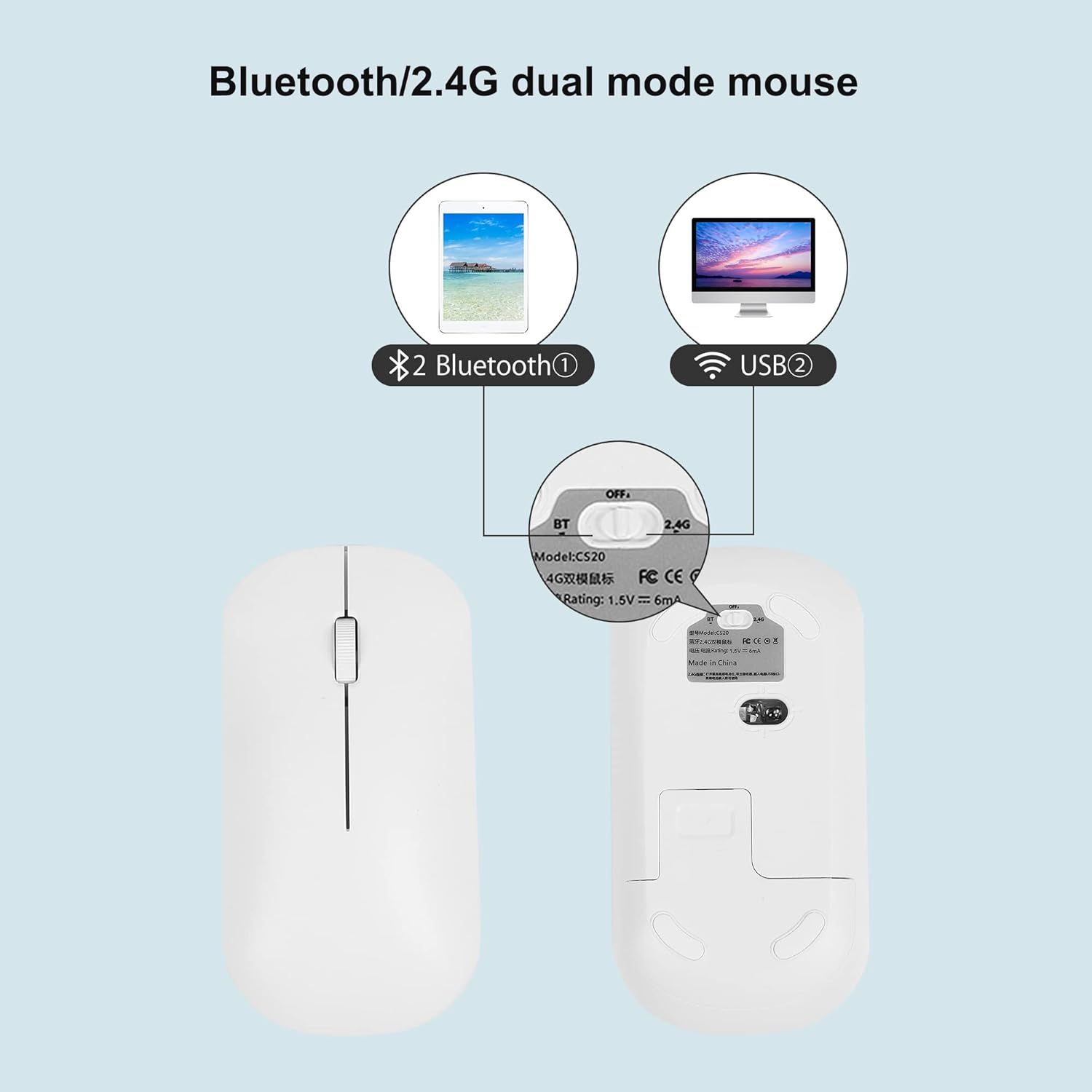
Image: The bottom of the mouse with its mode switch and the keyboard's USB receiver slot.
3. Bluetooth Mode Connection (F2/F3)
This mode allows connection to two separate Bluetooth devices.
For the Mouse:
- Slide the power switch on the bottom of the mouse to the Bluetooth position (left side). The indicator light will flash blue continuously, indicating pairing mode.
- On your device (computer, tablet, smartphone), enable Bluetooth and search for nearby devices.
- Select "BT5.2 Mouse" from the list of available devices to connect.
For the Keyboard:
- Turn on the power switch in the upper right corner of the keyboard.
- Press and hold the F2 or F3 button for approximately 3 seconds. The Bluetooth indicator light will flash blue continuously, indicating pairing mode for the selected channel.
- On your device, enable Bluetooth and search for nearby devices.
- Select "Qian Ye Keyboard" from the list of available devices to connect.

Image: The keyboard showing the F1, F2, and F3 keys used for switching between connected devices.
Operating Instructions
1. Switching Between Connected Devices
The keyboard can connect to up to three devices (one 2.4G, two Bluetooth). To switch:
- Press the F1 button to switch to the 2.4G wireless connection.
- Press the F2 button to switch to the first Bluetooth connection.
- Press the F3 button to switch to the second Bluetooth connection.
2. System Language Switching
To switch input languages on your connected device using the keyboard:
- For Windows: Press Alt + Shift
- For iOS: Press Ctrl + Space
- For Android: Press Shift + Space
3. Keyboard Charging and Power Saving
The keyboard has a built-in 180mAh lithium battery.
- Charging: Connect the keyboard to a USB power source using the provided USB charging cable. A full charge takes approximately 2 hours.
- Power Saving Mode: The keyboard will automatically enter sleep mode after 10 minutes of inactivity. To reactivate, press any key and wait approximately 3 seconds.
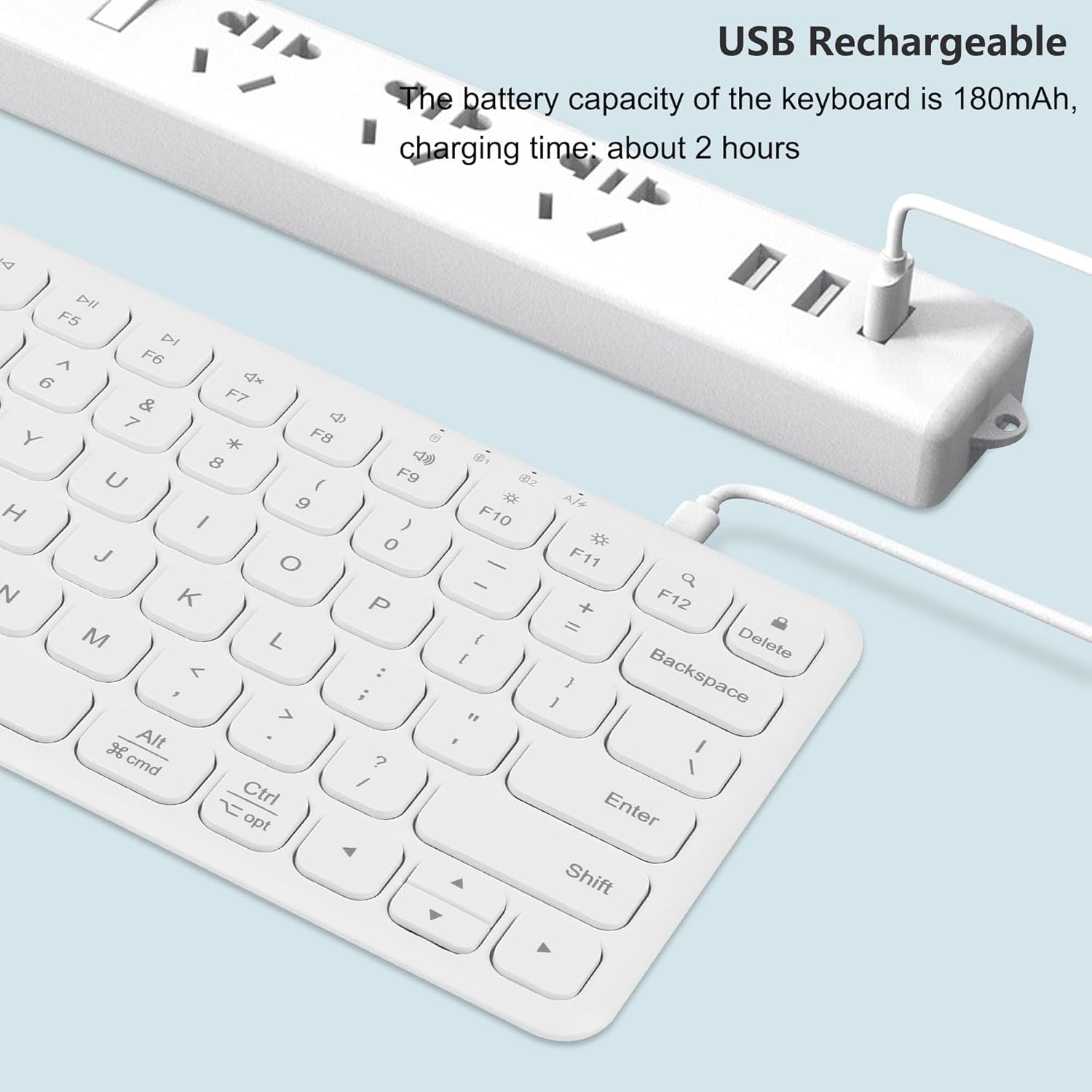
Image: The keyboard being charged via a USB cable connected to a power outlet.
Maintenance
- Keep the keyboard and mouse clean by wiping with a soft, dry cloth.
- Avoid exposing the devices to extreme temperatures, humidity, or direct sunlight.
- Do not disassemble the devices, as this may void the warranty and cause damage.
- Ensure the mouse battery is replaced when performance degrades.
Troubleshooting
- Device not connecting: Ensure the power switches on both the keyboard and mouse are turned on and set to the correct mode (2.4G or Bluetooth). For Bluetooth, ensure the device is in pairing mode and your host device's Bluetooth is enabled.
- Intermittent connection: Check for interference from other wireless devices. Ensure the USB receiver is securely plugged in for 2.4G mode. For Bluetooth, try re-pairing the device.
- Keyboard not responding: Check the keyboard's battery level and charge if necessary. If in power-saving mode, press any key to wake it up.
- Mouse not responding: Replace the AA battery in the mouse. Ensure the mouse is set to the correct connection mode.
- Lag or delay: Ensure the devices are within range of your computer/device. Reduce obstacles between the devices and the receiver/Bluetooth antenna.
Specifications
| Feature | Detail |
|---|---|
| Model Number | B087 |
| Connectivity Technology | Bluetooth + 2.4G Wireless |
| Keyboard Battery | 180mAh Lithium Polymer (rechargeable, included) |
| Mouse Battery | 1 x AA battery (not included) |
| Keyboard Dimensions | 298mm x 132mm x 20mm (11.73 x 5.19 x 0.79 inches) |
| Mouse Dimensions | 113mm x 60mm x 38mm (4.44 x 2.36 x 1.49 inches) |
| Item Weight | 15.6 ounces (combined) |
| Compatible Devices | PC, Laptop, MacBook, Tablet (Windows, iOS, Android) |
| Special Features | Ergonomic design, Rechargeable keyboard, Silent click (keyboard & mouse) |

Image: Dimensions of the keyboard and mouse.
Warranty and Support
For warranty information or technical support, please refer to the contact details provided with your purchase documentation or visit the official YOCUNKER website. Please retain your proof of purchase for any warranty claims.