
Sawgmore H618
Sawgmore Android 12.0 TV Box User Manual
Model: H618
1. Introduction
Thank you for choosing the Sawgmore Android 12.0 TV Box. This device is designed to transform your television into a smart entertainment hub, offering access to a vast array of applications, streaming services, and multimedia content. Featuring the latest Android 12.0 operating system and a powerful H618 quad-core chip, this TV box delivers a faster, stronger, and more efficient user experience with enhanced compatibility and an immersive viewing environment.
Please read this manual thoroughly before using the product to ensure proper operation and to maximize your enjoyment of its features.
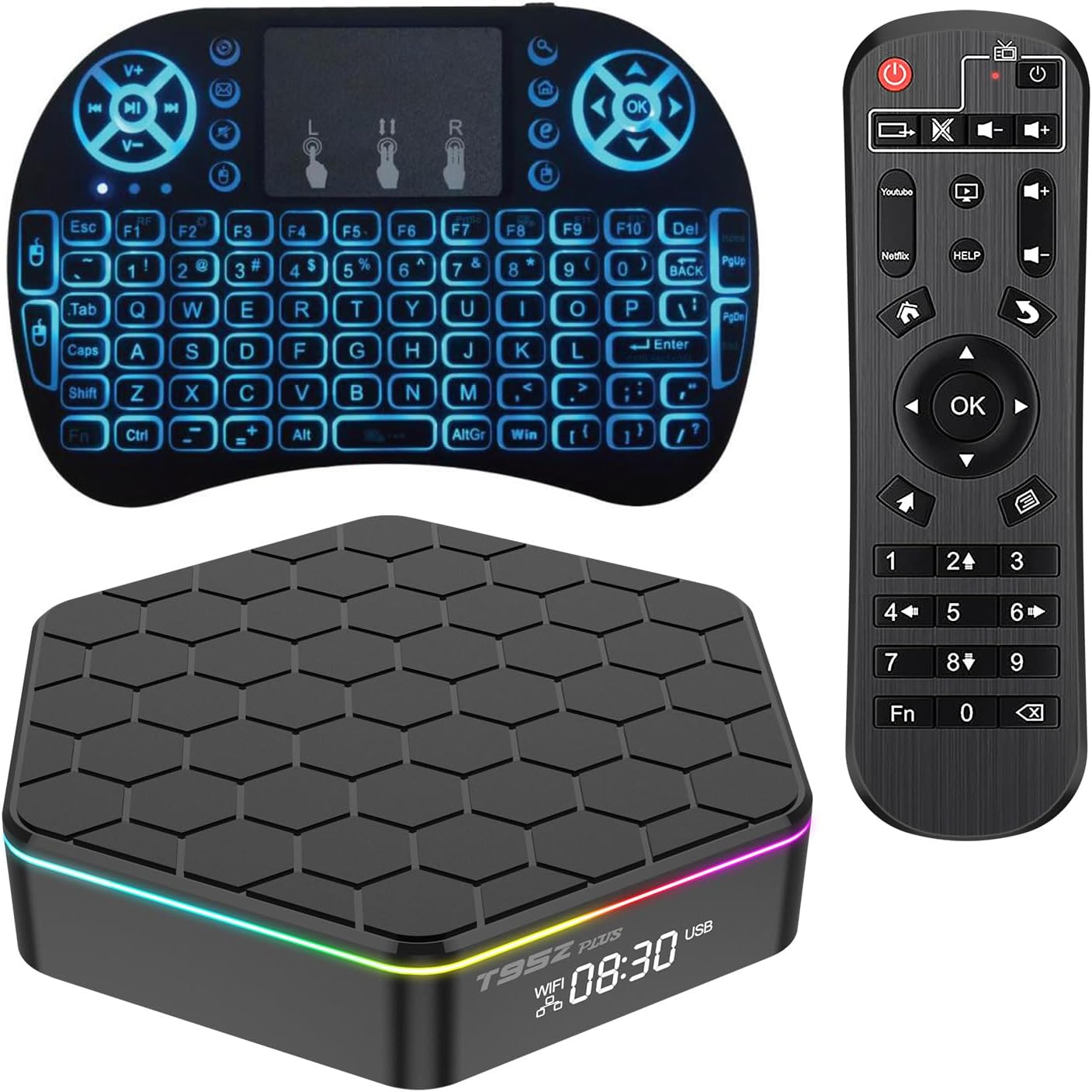
Figure 1: Sawgmore Android TV Box, including the main unit, remote control, and a mini keyboard.
2. Setup Guide
Follow these steps to set up your Android TV Box for the first time.
2.1 Connecting the Device
- Connect to TV: Use the provided HD Cable to connect the TV Box's HDMI port to an available HDMI input on your television.
- Connect to Power: Plug the Power Adapter into the DC 5V/2A input port on the TV Box, then plug the adapter into a wall outlet.
- Network Connection (Optional):
- Wired: Connect an Ethernet cable from your router to the LAN port on the TV Box for a stable wired connection.
- Wireless: The device supports 2.4G/5.0G Dual WiFi. You will configure this after initial boot-up.
- Connect USB Devices (Optional): Insert USB drives, external keyboards, or mice into the available USB 2.0 ports.
- Insert TF Card (Optional): If desired, insert a TF card into the card reader slot for expanded storage.

Figure 2: Rear and side view of the TV Box with labeled ports for connection.
2.2 Initial Boot-up and Basic Settings
- Power On: Once all connections are made, the TV Box should power on automatically. If not, press the power button on the remote control.
- Select Input: On your TV, select the correct HDMI input source corresponding to where you connected the TV Box.
- Language Selection: Follow the on-screen prompts to select your preferred language (e.g., English).
- Network Configuration:
- If using Wi-Fi, select your network from the list, enter the password, and connect. The device supports Wi-Fi 6 for faster transmission speeds.
- If using a wired connection, it should connect automatically.
- Time and Date: Set the correct time zone and date.
- Google Account: Sign in with your Google account to access the Google Play Store and other Google services.
3. Operation
This section details the general operation of your Sawgmore Android TV Box.
3.1 User Interface and Navigation
The TV Box runs on Android 12.0, offering an intuitive interface. Use the provided remote control or an external mouse/keyboard to navigate.
- Remote Control: Use the directional pad to move between icons, the OK button to select, and the Back button to return to the previous screen.
- Home Screen: Displays frequently used apps, settings, and system information.
- App Drawer: Access all installed applications.

Figure 3: The Android 12 interface provides a modern and rounded UI.
3.2 Installing and Using Applications
Access thousands of Android applications through the Google Play Store.
- Open Play Store: Navigate to and open the "Play Store" application from the home screen or app drawer.
- Search for Apps: Use the search function to find desired applications (e.g., Netflix, YouTube, Hulu).
- Install: Select an app and click "Install." The app will download and install automatically.
- Launch: Once installed, the app icon will appear on your home screen or in the app drawer. Select it to launch.
3.3 Multimedia Playback
The TV Box supports various media formats and resolutions up to 6K.
- Video Playback: Supports 6K H.265 Hardware Video Decode and 6K Output. Enjoy high-definition content with HDR10 for rich and realistic colors.
- Audio Playback: Compatible with MP3, WAV, AAC, and other popular audio formats.
- Image Viewing: Supports HD JPEG, BMP, GIF, PNG, TIFF.
- 3D Playback: Supports hardware 3D graphics acceleration for immersive 3D content.

Figure 4: Experience 6K video decoding with HDR10 for enhanced visual quality.
3.4 Connectivity Features
- Dual-Band Wi-Fi (2.4G/5.0G): Provides stable and fast wireless connectivity. Supports Wi-Fi 6 for improved performance.
- Bluetooth 5.0: Connect wireless headphones, game controllers, and other Bluetooth-enabled accessories.
- Screen Mirroring: Share content from your mobile device or tablet directly to your TV screen.

Figure 5: Dual-band Wi-Fi and Bluetooth 5.0 enable versatile connectivity.

Figure 6: Screen mirroring allows sharing content from mobile devices to your TV.
4. Maintenance
Proper maintenance ensures the longevity and optimal performance of your TV Box.
- Cleaning: Use a soft, dry cloth to clean the exterior of the device. Do not use liquid cleaners or aerosols.
- Ventilation: Ensure the TV Box is placed in a well-ventilated area to prevent overheating. Do not block ventilation openings.
- Software Updates: Periodically check for system updates in the settings menu to ensure you have the latest features and security patches.
- Power Cycle: If the device becomes unresponsive, disconnect the power adapter for a few seconds and then reconnect it to perform a power cycle.
- Avoid Extreme Conditions: Do not expose the device to extreme temperatures, humidity, or direct sunlight.
5. Troubleshooting
This section addresses common issues you might encounter and their solutions.
| Problem | Possible Cause | Solution |
|---|---|---|
| No power/Device not turning on. | Power adapter not connected properly; power outlet issue. | Ensure power adapter is securely connected to the device and a working power outlet. Try a different outlet. |
| No signal on TV screen. | Incorrect HDMI input selected; loose HDMI cable. | Verify the TV is on the correct HDMI input. Check HDMI cable connection at both ends. Try a different HDMI port or cable. |
| Wi-Fi connection issues. | Incorrect password; router issues; signal interference. | Re-enter Wi-Fi password carefully. Restart your router. Move the TV Box closer to the router or use a wired Ethernet connection. |
| Apps freezing or slow performance. | Too many apps running; low storage; outdated software. | Close background apps. Clear app caches in settings. Check for system updates. Consider a factory reset if issues persist (backup data first). |
| Remote control not working. | Low batteries; line of sight blocked; pairing issue. | Replace batteries. Ensure no obstructions between remote and TV Box. Re-pair the remote if it's a Bluetooth remote (refer to device settings). |
6. Specifications
| Feature | Detail |
|---|---|
| Operating System | Android 12.0 |
| CPU | H618 Quad core cortex-A53 frequency: 1.5G |
| GPU | G31 MP2 |
| RAM | 4GB SDRAM |
| Storage (FLASH) | 32GB |
| Wi-Fi | 2.4G / 5.0GHz Dual WIFI (Wi-Fi 6 supported) |
| Bluetooth | BT 5.0 |
| Ethernet | Standard 10/100M RJ-45 |
| Video Output | HD 2.0 up to 6K Output with HDR, CEC and HDCP 2.2, 6K @ 30fps max resolution output |
| USB Host | 2*USB2.0 |
| Card Reader | SD/SDHC/MMC cards |
| Power Supply | DC 5V/2A |
| Dimensions | Approx. 4 x 4 x 1 inches |
| Weight | Approx. 12.3 ounces (350 Grams) |
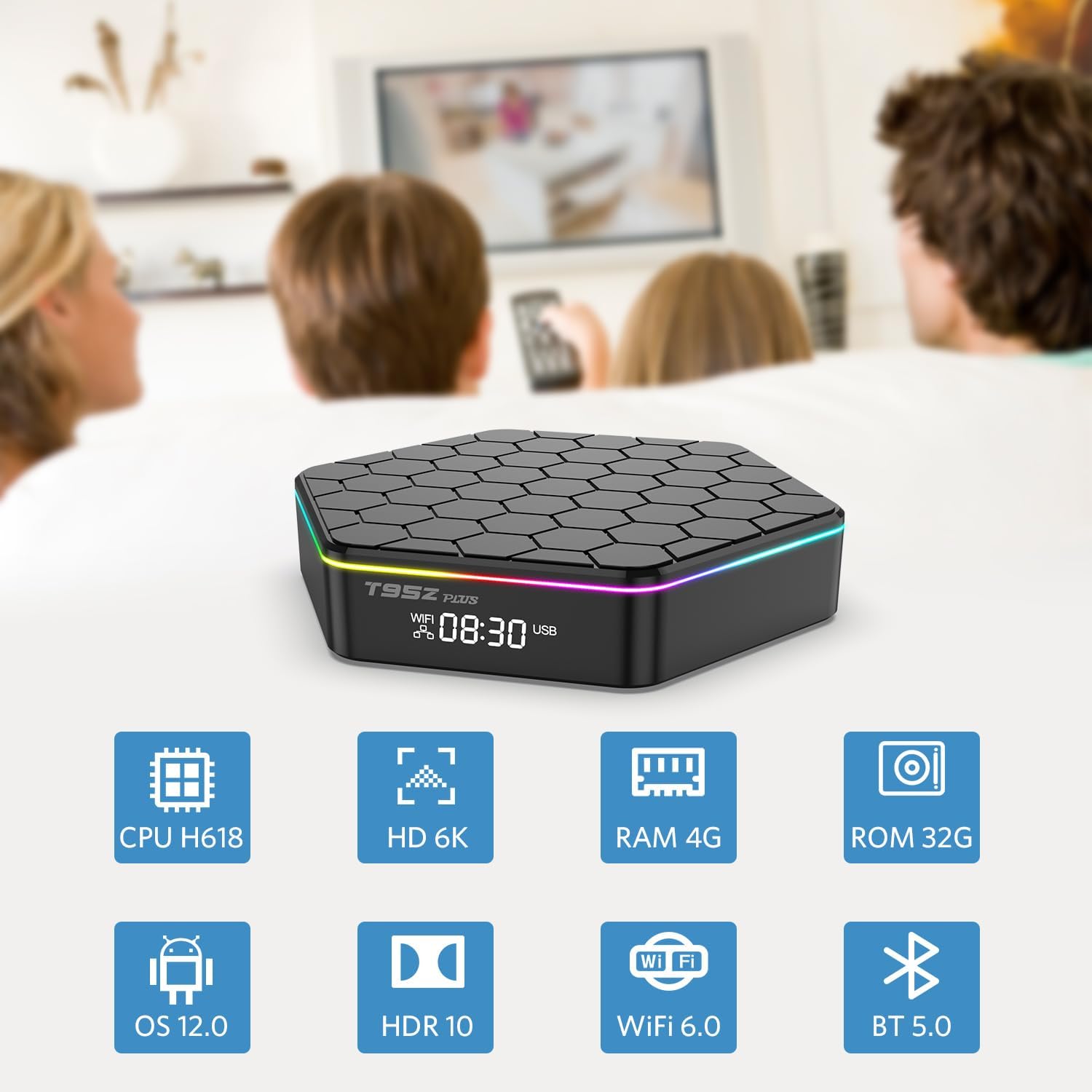
Figure 7: Overview of the TV Box's core features and specifications.

Figure 8: The powerful ALLWINNER H618 Quad-core CPU.
7. What's in the Box
The package includes the following items:
- 1 x Android TV Box 12.0
- 1 x Power Adapter
- 1 x Remote Control
- 1 x HD Cable
- 1 x User Manual (this document)
8. Warranty and Support
For any product inquiries, technical support, or warranty information, please refer to the seller's contact information or visit the official Sawgmore store on Amazon.
Online Support: Visit the Sawgmore Store on Amazon
Please retain your purchase receipt for warranty claims.
Ask a question about this manual
Ask about setup, troubleshooting, compatibility, parts, safety, or missing instructions. Manuals+ will review the question and use this page’s manual context to help answer it.