
1. Introduction
Thank you for choosing the Bontempi Wireless Acoustic Trolley Box Model 49 1090. This device is designed to provide high-quality audio entertainment with versatile connectivity options and dynamic lighting effects. Please read this manual carefully before using the product to ensure proper operation and to maximize its lifespan. Keep this manual for future reference.
Package Contents:
- Bontempi Wireless Acoustic Trolley Box (Model 49 1090)
- 2 Wireless Microphones
- Remote Control
- USB Type-C Charging Cable
- User Manual
2. Safety Instructions
To prevent damage to the product or injury to yourself and others, observe the following safety precautions:
- Do not expose the device to rain, moisture, or extreme temperatures.
- Do not open the casing. Refer all servicing to qualified personnel.
- Keep the device away from heat sources such as radiators, stoves, or other heat-producing appliances.
- Use only the provided USB Type-C charging cable.
- Ensure proper ventilation; do not block any ventilation openings.
- Dispose of batteries and electronic components responsibly according to local regulations.
- Avoid listening at high volume levels for extended periods to prevent hearing damage.
Battery Safety:
- The device contains a Lithium Ion battery. Do not attempt to replace it yourself.
- Do not expose the battery to direct sunlight or high temperatures.
- If the battery leaks, avoid contact with skin and eyes. Seek medical attention if contact occurs.
3. Product Overview
The Bontempi Wireless Acoustic Trolley Box is a portable speaker system featuring a retractable handle and wheels for easy transport. It includes two wireless microphones and dynamic RGB lighting for an enhanced audio-visual experience. The control panel provides comprehensive adjustments for sound and playback.
Main Unit and Components:
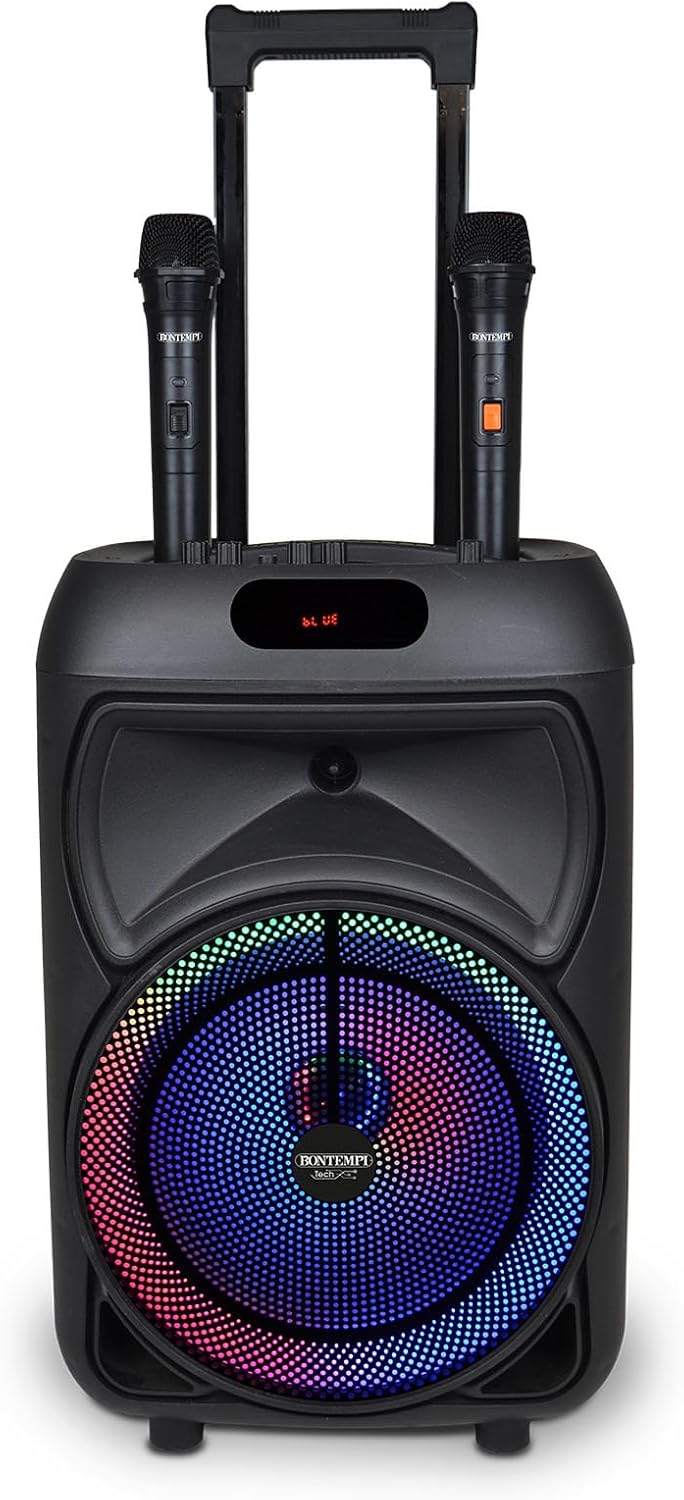
Figure 3.1: Front view of the speaker with microphones and active RGB lighting.

Figure 3.2: Angled view highlighting the trolley design and portability.

Figure 3.3: Side view with the retractable handle extended.

Figure 3.4: Top view of the control panel.
Control Panel Functions:
- MIC.VOL: Adjusts the volume of the microphones.
- ECHO: Controls the echo effect for the microphones.
- MIC.IN: Input jack for an additional wired microphone (if applicable).
- BASS: Adjusts the low-frequency audio output.
- TREBLE: Adjusts the high-frequency audio output.
- POWER VOLUME: Main volume control for the speaker and power on/off.
- USB Port: For USB flash drive playback.
- TF Card Slot: For Micro SD card playback.
- AUX Input: For connecting external audio devices via a 3.5mm cable.
- MODE Button: Switches between input modes (Bluetooth, USB, TF, AUX, Radio).
- PREV/NEXT Buttons: Skips tracks or tunes radio stations.
- PLAY/PAUSE Button: Plays or pauses audio playback.
- REC Button: Initiates voice recording (requires USB/TF storage).
- MIC PRIORITY Button: Lowers music volume when microphone is in use.
- RGB Light Button: Activates or changes RGB lighting effects.
- Display: Shows current mode, track number, or radio frequency.
- USB Type-C Port: For charging the internal lithium battery.
4. Setup
4.1 Initial Charging
- Before first use, fully charge the speaker's internal lithium battery.
- Connect the provided USB Type-C charging cable to the USB Type-C port on the speaker.
- Connect the other end of the cable to a compatible USB power adapter (not included) or a computer USB port.
- The charging indicator (if present) will illuminate during charging and turn off or change color when fully charged.
4.2 Microphone Setup
The wireless microphones are typically pre-paired. Ensure they have power:
- Open the battery compartment of each wireless microphone.
- Insert the required batteries (e.g., AA or AAA, not specified but common for wireless mics) according to the polarity markings.
- Turn on the microphones using their respective power switches.
4.3 Powering On/Off
- To power on the speaker, rotate the POWER VOLUME knob clockwise until you hear a click and the display illuminates.
- To power off, rotate the POWER VOLUME knob counter-clockwise until you hear a click and the display turns off.
5. Operating Instructions
5.1 Wireless (Bluetooth) Connection
- Power on the speaker. The display will show 'BLUE' or 'BT' indicating Bluetooth mode, or press the MODE button until Bluetooth mode is selected.
- On your smartphone, tablet, or PC, enable Bluetooth and search for available devices.
- Select 'Bontempi 49 1090' (or similar name) from the list of devices.
- Once paired, the speaker will emit a confirmation sound, and the display will indicate a successful connection.
5.2 USB/Micro SD Playback
- Insert a USB flash drive into the USB Port or a Micro SD card into the TF Card Slot.
- The speaker will automatically switch to USB or TF mode and begin playing audio files. If not, press the MODE button to select the correct input.
- Use the PREV, PLAY/PAUSE, and NEXT buttons to control playback.
5.3 AUX Input
- Connect an external audio device (e.g., MP3 player) to the AUX Input using a 3.5mm audio cable (not included).
- Press the MODE button to select AUX input.
- Control playback from your connected device.
5.4 Radio Function
- Press the MODE button to select Radio mode (FM).
- Press and hold the PLAY/PAUSE button to automatically scan and save available radio stations.
- Use the PREV and NEXT buttons to navigate through saved stations.
5.5 Microphone Usage
- Ensure wireless microphones are powered on.
- Adjust microphone volume using the MIC.VOL knob.
- Apply echo effect using the ECHO knob.
- Press the MIC PRIORITY button to automatically lower background music when speaking into the microphone. Press again to deactivate.
- To record your voice (with music or independently), insert a USB drive or Micro SD card and press the REC button. Press again to stop recording.
5.6 TWS (True Wireless Stereo) Function
The TWS function allows you to connect two Bontempi Wireless Acoustic Trolley Boxes (Model 49 1090) for a stereo sound experience.
- Ensure both speakers are powered on and in Bluetooth mode, but not connected to any device.
- On one speaker (this will be the master), press and hold the MODE button (or a dedicated TWS button if present, refer to specific product markings) for a few seconds until you hear a pairing tone.
- The two speakers will automatically connect to each other.
- Once connected, pair your Bluetooth device to the master speaker as described in section 5.1. Audio will now play in stereo through both speakers.
5.7 RGB Lighting
- Press the RGB Light Button to activate the dynamic lighting effects.
- Press the button again to cycle through different light modes or to turn off the lighting.
5.8 Remote Control
The included remote control provides convenient access to most functions. Point the remote control towards the speaker's display area. Functions typically include power, mode selection, volume, track control, EQ presets, and microphone adjustments.
6. Maintenance
6.1 Cleaning
- Always power off and unplug the speaker before cleaning.
- Use a soft, dry cloth to wipe the exterior surfaces.
- Do not use abrasive cleaners, waxes, or solvents.
- Avoid getting moisture into any openings.
6.2 Storage
- Store the speaker in a cool, dry place away from direct sunlight and extreme temperatures.
- If storing for an extended period, charge the battery every 3-6 months to maintain its health.
7. Troubleshooting
| Problem | Possible Cause | Solution |
|---|---|---|
| No power | Battery discharged; Power knob off | Charge the speaker; Rotate POWER VOLUME knob clockwise to turn on. |
| No sound | Volume too low; Incorrect input mode; Device not connected | Increase POWER VOLUME; Press MODE to select correct input; Ensure Bluetooth device is paired or AUX cable is connected. |
| Microphone not working | Microphone off; Batteries low/incorrectly inserted; MIC.VOL too low | Turn on microphone; Replace/reinsert batteries; Increase MIC.VOL. |
| Bluetooth pairing issues | Speaker not in pairing mode; Device too far; Interference | Ensure speaker is in Bluetooth mode; Move device closer; Turn off other Bluetooth devices. |
| TWS connection failure | Speakers not in TWS pairing mode; Already connected to another device | Ensure both speakers are in Bluetooth mode and not connected to any device before initiating TWS pairing. |
8. Specifications
| Feature | Detail |
|---|---|
| Brand | Bontempi |
| Model Number | 49 1090 |
| Product Dimensions (L x W x H) | 48 x 29 x 24 cm |
| Item Weight | 4.5 kg |
| Battery Type | Rechargeable Lithium Ion |
| Connectivity | Wireless (Bluetooth), USB, Micro SD, AUX |
| Microphones | 2 Wireless Microphones |
| Special Features | RGB Lighting, Remote Control, Display, TWS Function, Radio, Echo Effect, Microphone Volume, Equalizer, Voice Recording, Microphone Priority, USB Type-C Charging Port |
| UPC | 047663368559 |
9. Warranty and Support
This Bontempi product is covered by a manufacturer's warranty. For specific warranty terms and conditions, please refer to the warranty card included with your purchase or visit the official Bontempi website. For technical support, troubleshooting assistance, or spare parts, please contact Bontempi customer service through their official channels.
Please retain your proof of purchase for warranty claims.
