
RisoPhy 5d44d6c0-fc4a-4a15-ad79-ecaf2cad55a5
RisoPhy Wireless Mechanical Keyboard User Manual
Model: RisoPhy 104-Key Triple Mode Mechanical Keyboard
Introduction
This manual provides detailed instructions for the setup, operation, and maintenance of your RisoPhy Wireless Mechanical Keyboard. Please read this manual thoroughly before using the product to ensure proper functionality and longevity.
Package Contents
Verify that all items listed below are present in your package:
- 1 x RisoPhy Wireless Mechanical Keyboard
- 1 x 2.4GHz USB Receiver
- 1 x USB-C to USB-A Cable
- 1 x Keycap Puller
- 1 x User Manual (this document)

Image: The package contents, showing the keyboard, USB-C cable, 2.4GHz receiver, and keycap puller.
Product Overview
The RisoPhy Wireless Mechanical Keyboard features a 104-key layout with RGB backlighting and Red mechanical switches. It supports three connection modes for versatile use across various devices.

Image: A full view of the RisoPhy 104-key mechanical keyboard, highlighting its layout and RGB lighting. Two red mechanical switches are displayed separately.
Setup
Charging the Keyboard
Before initial use, fully charge the keyboard using the provided USB-C cable. Connect the USB-C end to the keyboard's port and the USB-A end to a powered USB port on your computer or a wall adapter. The charging indicator will show the charging status.
Connection Modes
The keyboard supports three connection modes: 2.4GHz Wireless, Bluetooth, and Wired USB-C. You can switch between these modes using the switch located on the back of the keyboard or specific key combinations.
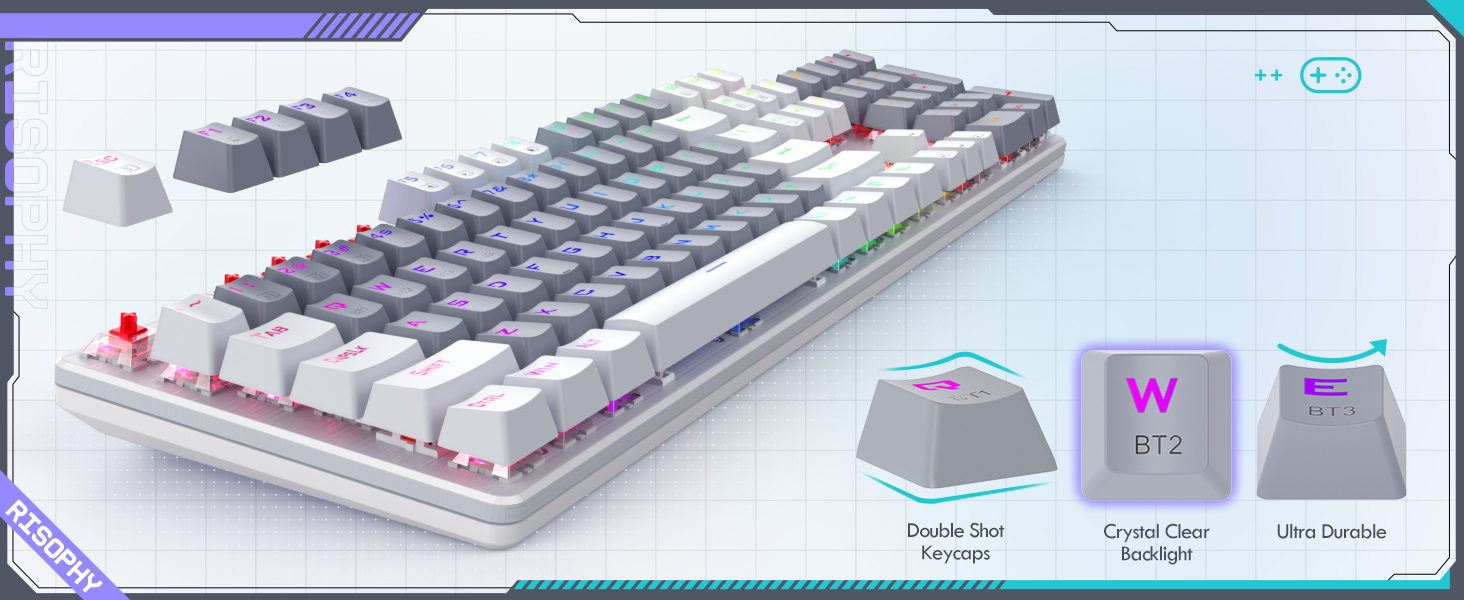
Image: The rear of the keyboard, illustrating the 2.4G receiver storage and USB-C port.
1. 2.4GHz Wireless Mode
- Locate the 2.4GHz USB receiver in the keyboard's storage slot or in the package.
- Plug the receiver into an available USB port on your computer.
- Turn on the keyboard and ensure it is in 2.4GHz mode (often indicated by a specific LED or switch position). The keyboard should connect automatically.
2. Bluetooth Mode (BT1, BT2, BT3)
The keyboard can connect to up to three Bluetooth devices simultaneously.
- Turn on the keyboard and switch it to Bluetooth mode.
- Press and hold FN + Q (for BT1), FN + W (for BT2), or FN + E (for BT3) for 3-5 seconds until the corresponding key's backlight flashes rapidly. This indicates pairing mode.
- On your device (PC, laptop, tablet, phone), enable Bluetooth and search for new devices.
- Select "RisoPhy Keyboard" (or similar name) from the list of available devices to pair.
- Once paired, the key's backlight will stop flashing and remain steadily lit.
- To switch between paired Bluetooth devices, press FN + Q/W/E briefly.
3. Wired USB-C Mode
- Connect the USB-C cable to the keyboard's port.
- Connect the USB-A end of the cable to an available USB port on your computer.
- The keyboard will automatically switch to wired mode and function as a standard USB keyboard. This mode also charges the keyboard's internal battery.

Image: The keyboard connected to multiple devices, demonstrating its versatility across PC, laptop, and tablet.
Operating Instructions
RGB Backlight Control
The keyboard features 20 RGB backlight modes, 16.8 million color options, and 5 brightness levels.
- Switch Backlight Mode: Press FN + INS to cycle through 20 different RGB lighting effects.
- Switch Backlight Color: Press FN + DEL to change the color within certain lighting modes.
- Increase Brightness: Press FN + ↑ (Up Arrow) to increase backlight brightness (5 levels).
- Decrease Brightness: Press FN + ↓ (Down Arrow) to decrease backlight brightness (5 levels).
- Speed Up Effect: Press FN + → (Right Arrow) to increase the speed of dynamic lighting effects.
- Slow Down Effect: Press FN + ← (Left Arrow) to decrease the speed of dynamic lighting effects.
- Turn On/Off Backlight: Press FN + PRTSC to toggle the backlight on or off.

Image: The keyboard's function keys and FN key, illustrating the controls for RGB backlighting.
Customizing Lighting Modes
The keyboard allows for custom lighting profiles.
- Press FN + 1~5 to enter one of the 5 custom lighting modes.
- In a custom mode, press FN + Home to begin customizing the light. The indicator will flash.
- Press individual keys to set their desired color.
- After customization, press FN + Home again to save the settings.
Programmable Keys and Macros
All 104 keys can be reassigned, and macros can be created using the dedicated driver software. The keyboard also features N-Key Rollover for accurate simultaneous key presses.

Image: The software interface for customizing keyboard settings, including backlighting and macros.
Multimedia Functions
Access multimedia controls using the FN key in combination with the F1-F12 keys:
| Key Combination | Function |
|---|---|
| FN + F1 | My Computer |
| FN + F2 | Home Page |
| FN + F3 | Calculator |
| FN + F4 | Media Player |
| FN + F5 | Previous Song |
| FN + F6 | Next Song |
| FN + F7 | Play/Pause |
| FN + F8 | Stop Playing |
| FN + F9 | Mute |
| FN + F10 | Volume Down |
| FN + F11 | Volume Up |
| FN + F12 |
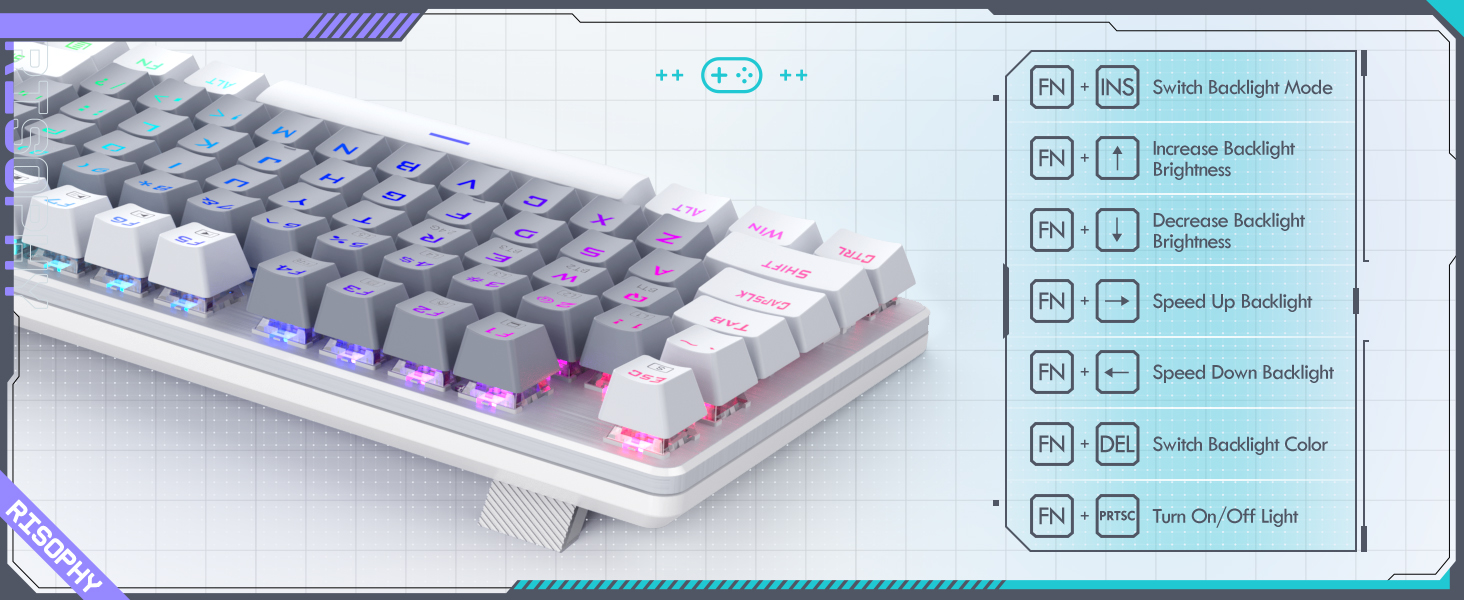
Image: A visual guide to the multimedia functions accessible via the FN key combinations.
Maintenance
Cleaning the Keyboard
To maintain optimal performance and appearance, regularly clean your keyboard:
- Disconnect the keyboard from all power sources and devices.
- Use a soft, lint-free cloth slightly dampened with water or a mild cleaning solution to wipe the keycaps and chassis.
- For dust and debris between keys, use compressed air.
- Avoid harsh chemicals or abrasive materials.
Keycap and Switch Replacement
The included keycap puller allows for easy removal and replacement of keycaps. This is useful for deep cleaning or customizing keycaps.
- Gently attach the keycap puller to the keycap you wish to remove.
- Pull upwards with steady, even pressure until the keycap detaches from the switch.
- To replace, align the keycap with the switch stem and press down firmly until it clicks into place.
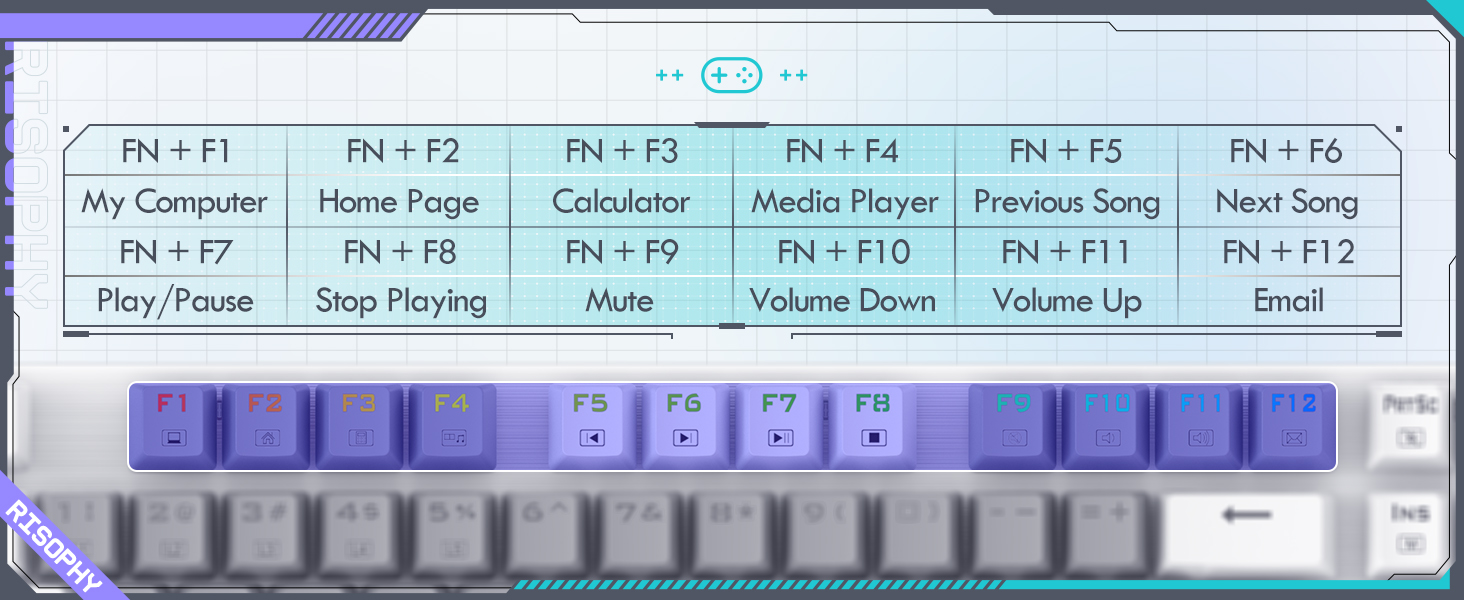
Image: Demonstrating the removal of keycaps and switches using the provided keycap puller tool.
Troubleshooting
- Keyboard not responding: Ensure the keyboard is charged. Check the connection mode (2.4G, Bluetooth, or Wired) and ensure it matches your device's connection. For 2.4G, ensure the receiver is properly plugged in. For Bluetooth, re-pair the device. For wired, ensure the USB-C cable is securely connected.
- Bluetooth connection issues: Ensure the keyboard is in pairing mode (FN + Q/W/E flashing). Remove the keyboard from your device's Bluetooth list and attempt to re-pair. Ensure your device's Bluetooth is enabled and drivers are up to date.
- Keys not registering or double-typing: This can sometimes be resolved by cleaning under the keycaps. Use the keycap puller to remove the affected keycap and clean around the switch with compressed air. Ensure the keyboard firmware is up to date if applicable (check RisoPhy support website).
- Backlight not working: Ensure the backlight is not turned off (FN + PRTSC). Check brightness levels (FN + ↑/↓).
- Lag or delay in wireless mode: Ensure the keyboard is close to the receiver/device. Avoid interference from other wireless devices.
Specifications
| Feature | Detail |
|---|---|
| Model Number | 5d44d6c0-fc4a-4a15-ad79-ecaf2cad55a5 |
| Connectivity | 2.4GHz Wireless, Bluetooth 5.0, USB-C Wired |
| Key Count | 104 Keys |
| Switch Type | Mechanical Red Switches |
| Keycap Material | PBT Bicolor Keycaps |
| Backlighting | RGB (20 modes, 16.8M colors, 5 brightness levels) |
| N-Key Rollover | Supported |
| Compatible Devices | Laptop, PC, Tablet |
| Dimensions | 17.72 x 5.91 x 2.2 inches |
| Weight | 2.01 pounds |
| Manufacturer | RisoPhy |
Warranty and Support
For warranty information and technical support, please refer to the RisoPhy official website or contact their customer service. Keep your purchase receipt for warranty claims.
Related documents5d44d6c0-fc4a-4a15-ad79-ecaf2cad55a5


Ask a question about this manual
Ask about setup, troubleshooting, compatibility, parts, safety, or missing instructions. Manuals+ will review the question and use this page’s manual context to help answer it.