
ZMUIPNG ZM026
ZMUIPNG 14-in-1 USB-C Docking Station User Manual
Model: ZM026
Product Overview
The ZMUIPNG 14-in-1 USB-C Docking Station is a versatile and powerful solution designed to expand the connectivity of your USB-C enabled laptop or device. It transforms a single USB-C port into a comprehensive workstation, supporting dual 4K HDMI displays, a DisplayPort, Gigabit Ethernet, multiple USB data ports, power delivery, and card readers.

Image: The ZMUIPNG 14-in-1 USB-C Docking Station, showcasing its compact design and multiple ports with connected cables.
Key Features:
- 14-in-1 Connectivity: Extends one USB-C port to Dual Monitor 4K HDMI, DisplayPort, Gigabit Ethernet, 2 USB 3.0 ports, 2 USB 2.0 ports, USB-C Power Charging Port (max 100W), 2 USB-C Data Transfer ports (5Gbps), SD/Micro SD card readers, and a 3.5mm Mic/Audio jack.
- Dual/Triple Monitor Support: Easily achieve dual-monitor (2x HDMI 4K) or triple-monitor (2x HDMI + 1x DisplayPort 1080P) display setups for enhanced productivity.
- Super Speed Data Transfer: Features 2 USB 3.0 ports and 1 USB-C data port with transfer speeds up to 5Gbps, allowing rapid file transfers. 2 USB 2.0 ports are ideal for connecting keyboard and mouse without lag.
- Gigabit Ethernet: Provides stable and ultra-fast 10/100/1000BASE-T LAN network connection, eliminating Wi-Fi instability.
- 100W Power Delivery: Supports charging your laptop at up to 100W while connecting multiple peripherals. (Note: Power cord is not included).
- SD/TF Card Reader: Conveniently browse photos and transfer data from SD and Micro SD cards at speeds up to 104MB/s.
- 3.5mm Audio & Mic Port: Connect your wired headset for audio output and microphone input.
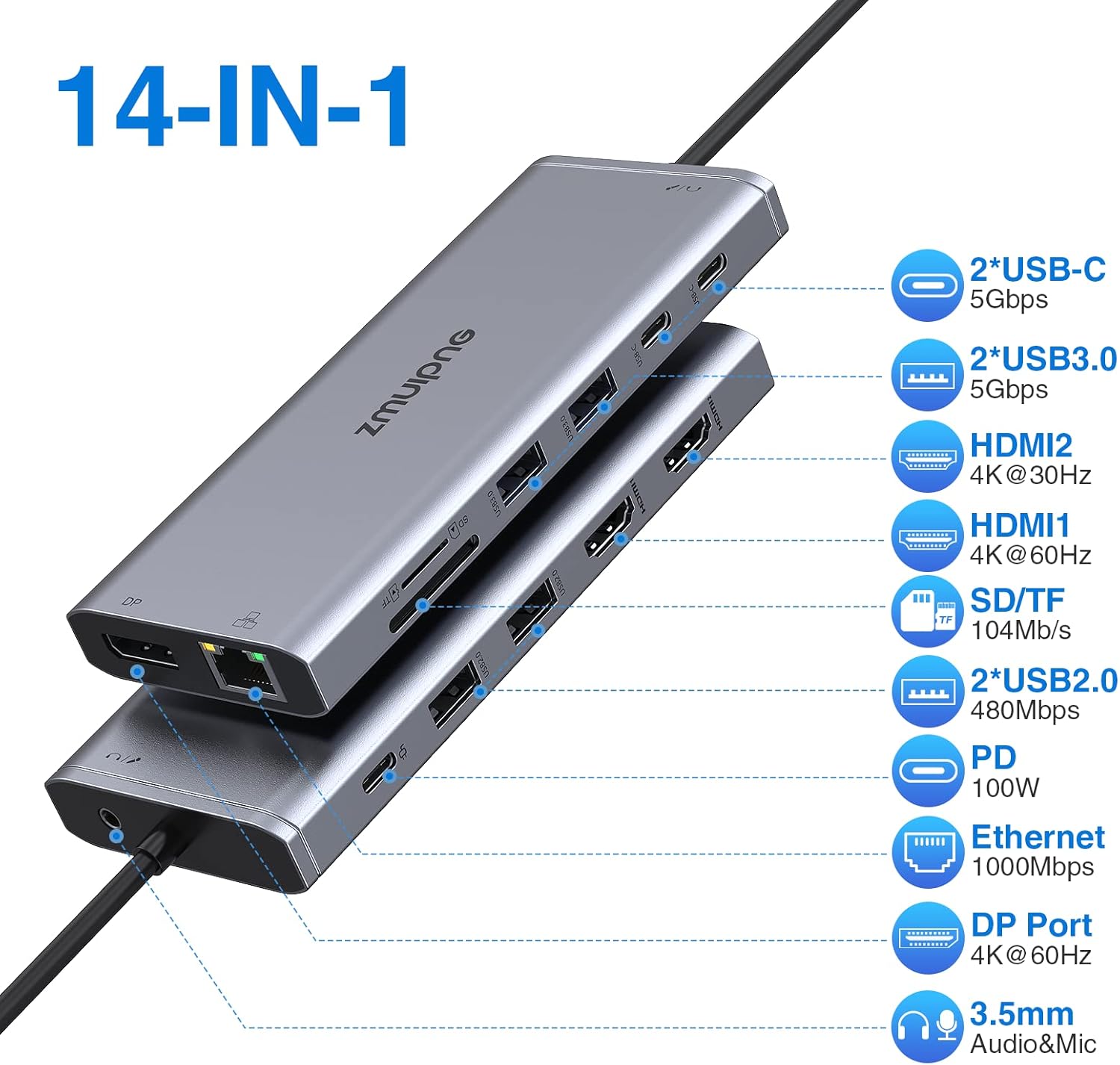
Image: Detailed diagram illustrating the 14 available ports and their respective functions and speeds.
Setup Guide
Follow these steps to set up your ZMUIPNG 14-in-1 USB-C Docking Station:
- Connect to Power (Optional but Recommended): If your laptop requires charging via the docking station, connect your laptop's USB-C power adapter (up to 100W) to the PD (Power Delivery) port on the docking station. (Note: Power cord is not included with the docking station.)
- Connect to Laptop: Plug the integrated USB-C cable from the docking station into a fully functional USB-C port on your laptop. For dual/triple monitor functionality, ensure your laptop's USB-C port supports video output (DisplayPort Alternate Mode).
- Connect Displays:
- For Dual Monitors: Connect your HDMI monitors to the HDMI1 (4K@60Hz) and HDMI2 (4K@30Hz) ports.
- For Triple Monitors (Windows): Connect your HDMI monitors to HDMI1 and HDMI2, and your DisplayPort monitor to the DP (1080P@60Hz) port.
- For Triple Monitors (Mac OS): Connect your HDMI monitors to HDMI1 and HDMI2, and your DisplayPort monitor to the DP port. Note that for Mac OS, HDMI2 and DP will mirror HDMI1.
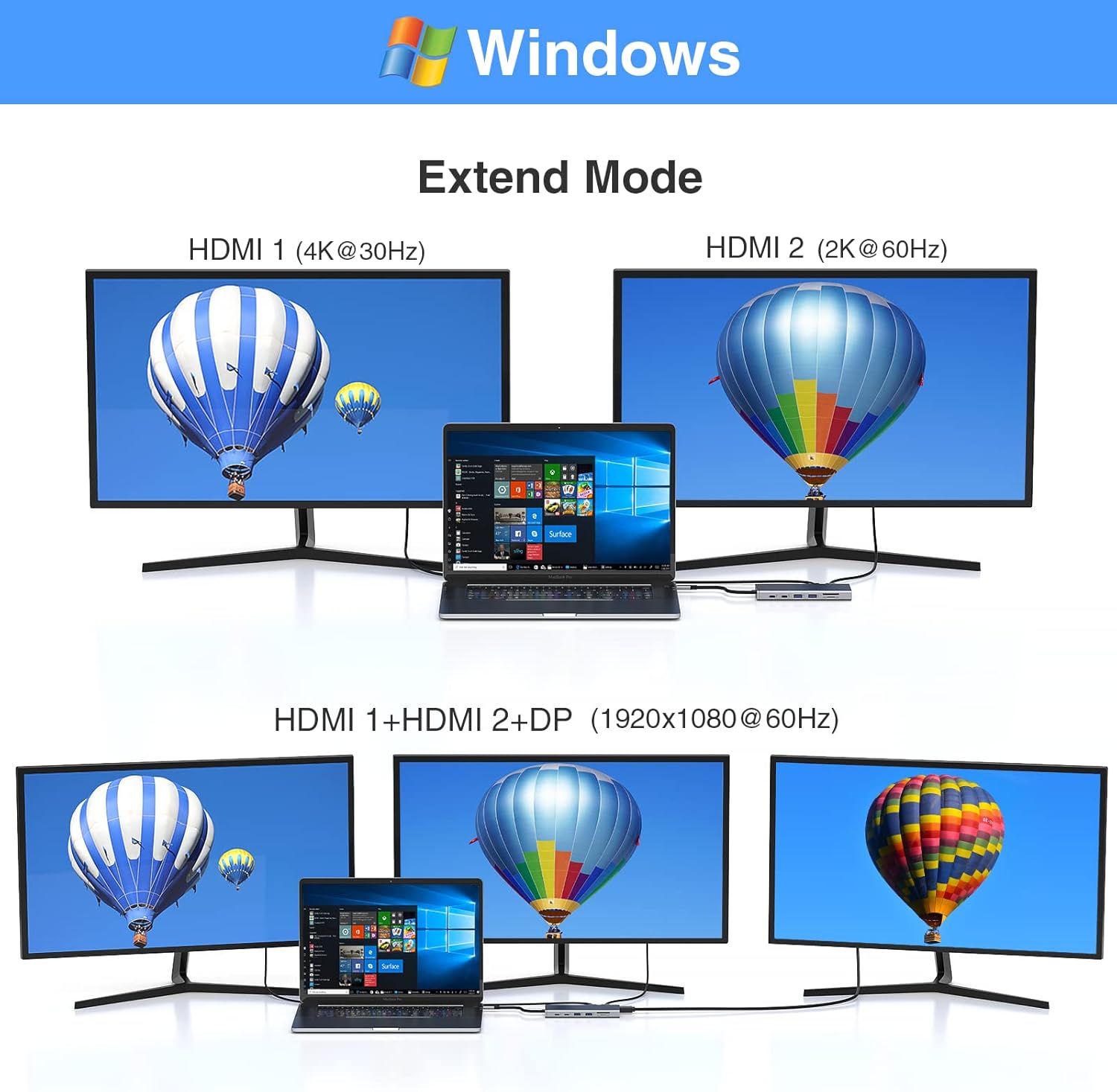
Image: Illustration of a Windows laptop connected to multiple external displays using the docking station, demonstrating extended desktop modes.
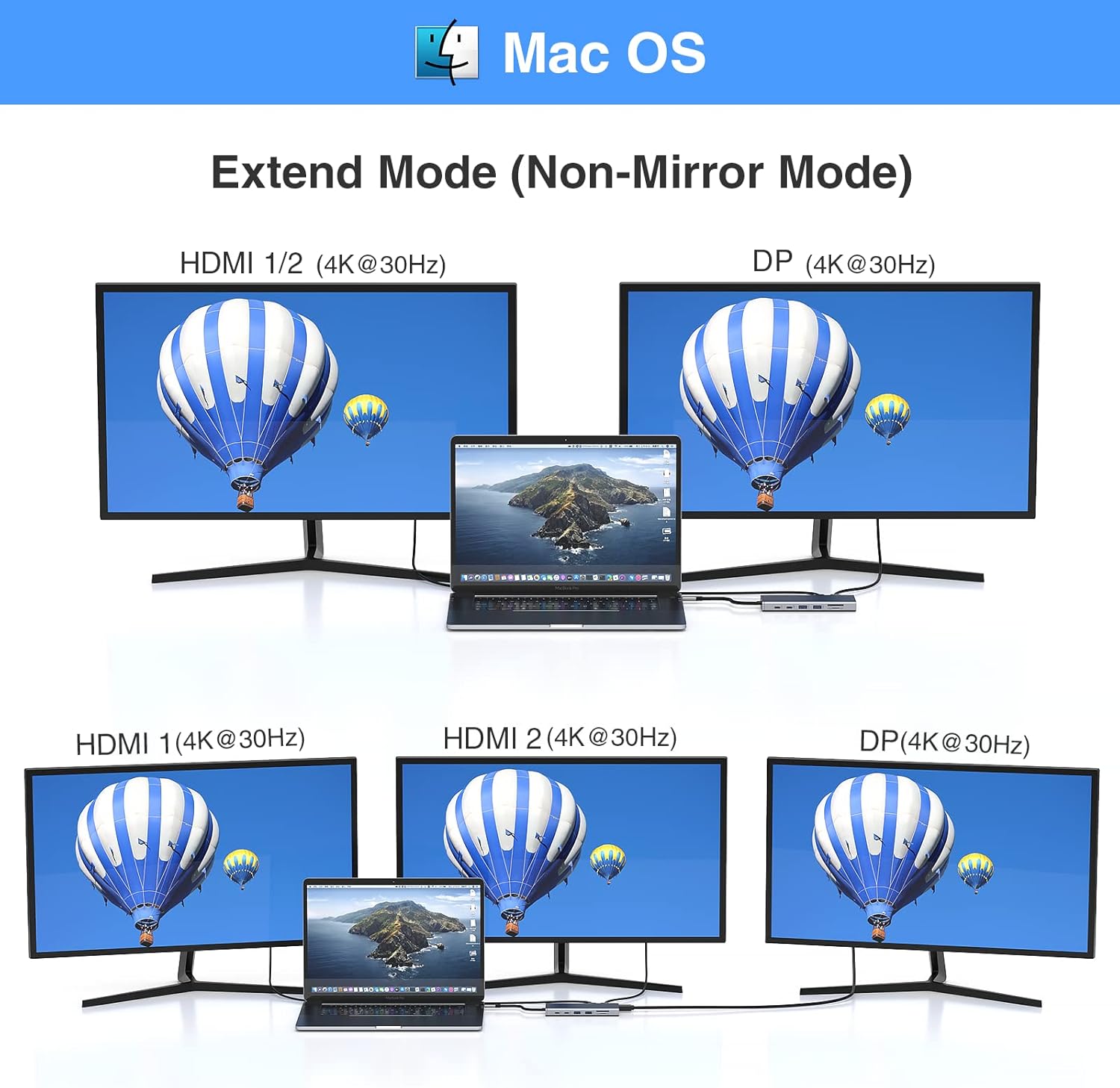
Image: Illustration of a Mac OS laptop connected to multiple external displays via the docking station, showing non-mirroring and mirroring modes.
- Connect Peripherals: Plug your USB devices (keyboard, mouse, external hard drives, USB flash drives) into the available USB 3.0 and USB 2.0 ports.
- Connect to Network: For a stable wired internet connection, connect an Ethernet cable to the Gigabit Ethernet port on the docking station.
- Connect Audio Devices: Plug your wired headset or speakers into the 3.5mm Audio & Mic port.
- Insert Memory Cards: If needed, insert your SD or Micro SD cards into the corresponding slots for data transfer.
Video: An official product video demonstrating the features and connectivity of the ZMUIPNG USB-C Docking Station, including port overview and multi-display setup.
Operating Instructions
Display Configuration:
After connecting your monitors, you may need to configure your display settings in your operating system (Windows or Mac OS) to extend or mirror your desktop. Refer to your operating system's display settings for detailed instructions.
- Windows: Right-click on the desktop, select 'Display settings'. You can then arrange your displays, choose 'Extend these displays' or 'Duplicate these displays', and adjust resolution.
- Mac OS: Go to 'System Settings' (or 'System Preferences'), then 'Displays'. You can arrange displays, select 'Use as Extended Display' or 'Mirror Displays', and adjust resolution.
Data Transfer:
The USB 3.0 and USB-C data ports support high-speed data transfer. Simply plug in your compatible storage devices. The SD/TF card slots will appear as removable drives on your computer once a card is inserted.
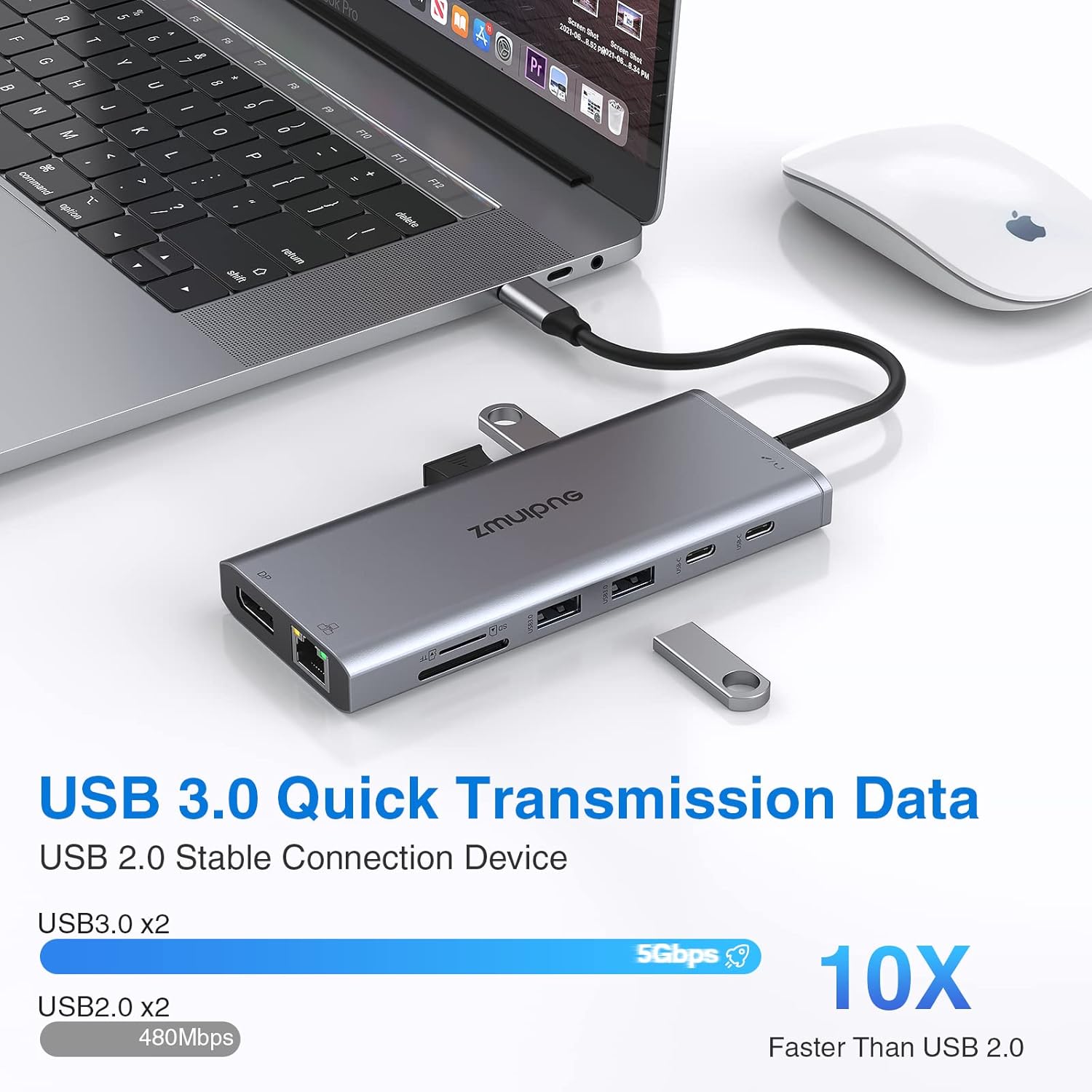
Image: Visual representation of USB 3.0 (5Gbps) and USB 2.0 (480Mbps) data transfer capabilities.
Power Delivery:
When a compatible USB-C power adapter is connected to the PD port, the docking station will pass through power to charge your connected laptop. Ensure your power adapter is sufficient for your laptop's power requirements.

Image: Diagram illustrating the 100W Power Delivery input to the docking station and 87W output to a connected laptop, alongside Gigabit Ethernet.
Maintenance
To ensure the longevity and optimal performance of your ZMUIPNG Docking Station, follow these maintenance guidelines:
- Keep Clean: Regularly wipe the surface of the docking station with a soft, dry cloth. Avoid using liquid cleaners or aerosols.
- Avoid Overheating: Ensure the docking station is placed in a well-ventilated area. Do not cover it or place it in enclosed spaces that could restrict airflow.
- Handle with Care: Avoid dropping or subjecting the device to strong impacts.
- Proper Disconnection: Always safely eject any connected storage devices from your computer before unplugging them from the docking station.
- Cable Management: Keep cables organized and untangled to prevent damage to the ports or cables themselves.
Troubleshooting
If you encounter issues with your docking station, refer to the following common problems and solutions:
| Problem | Possible Solution |
|---|---|
| No display output / Monitors not detected |
|
| USB devices not recognized |
|
| Slow charging or no charging |
|
| Ethernet connection issues |
|
| Audio issues (buzzing/no sound) |
|
Specifications
| Feature | Detail |
|---|---|
| Model Number | ZM026 |
| Product Dimensions | 2.56 x 5.31 x 0.59 inches |
| Item Weight | 2.82 ounces |
| HDMI Ports | 2 (HDMI1: 4K@60Hz, HDMI2: 4K@30Hz) |
| DisplayPort (DP) | 1 (1080P@60Hz) |
| USB 3.0 Ports | 2 (5Gbps data transfer) |
| USB 2.0 Ports | 2 (480Mbps data transfer) |
| USB-C Data Transfer Ports | 2 (5Gbps data transfer) |
| USB-C Power Delivery (PD) | 1 (Max 100W input, 87W output to laptop) |
| Ethernet Port | 1 (Gigabit 10/100/1000BASE-T) |
| Card Readers | SD and Micro SD (up to 104MB/s) |
| Audio Port | 3.5mm Audio & Mic |
| Compatible Devices | Dell XPS 13/15/17, Dell Precision 5510, Dell Vostro 5515, Dell Latitude E7470/5290 2-in-1/5285/5480/7280/3520/5300/5410, Surface Pro 7/X, Surface Go, Surface Book 2, Surface Laptop 3, HP Spectre x2/x360, HP ZBook 15 G3, HP ZBook Firefly 15 G7, Lenovo Thinkpad Yoga 900/920/720/730/C930/C940/C740/C730, Huawei MateBook X/MateBook X Pro, Switch Alpha 12, Chromebook Plus, Google Chromebook Pixel Book. |
Related documentsZM026


Ask a question about this manual
Ask about setup, troubleshooting, compatibility, parts, safety, or missing instructions. Manuals+ will review the question and use this page’s manual context to help answer it.