
1. Introduction
This manual provides detailed instructions for the Yoidesu Type Cover Bluetooth Keyboard with Trackpad. This ultra-slim, portable keyboard is designed to enhance the functionality of your Microsoft Surface Go 3, Go 2, or Go tablet, transforming it into a versatile laptop experience. Please read this manual thoroughly before use to ensure proper operation and to maximize your product experience.
2. Product Overview
The Yoidesu Type Cover features a built-in trackpad, scissor-switch keys, and a magnetic attachment system. It is designed for portability and efficiency.
Key Features:
- Rechargeable Battery: Built-in lithium battery, charges via USB-C. Offers approximately 150 hours of continuous use after a 3-hour charge.
- Auto-Sleep Energy Saving: Automatically enters sleep mode after 10 minutes of inactivity to conserve power.
- Adjustable Angles: Sturdy magnetic folding design allows for multiple viewing and typing angles.
- Wireless Connectivity: Bluetooth 5.0 provides a stable connection with a range of up to 33 feet.
- Integrated Trackpad: Enables precise navigation and control without needing an external mouse.
- Scissor Switch Keys: Ergonomic design with comfortable, responsive keys for a pleasant typing experience.
- Magnetic Mounting: Quick and easy attachment and removal to your Surface Go tablet.
- Slim and Lightweight: Constructed from durable ABS material for easy portability.
- Backlit Keys: Provides visibility in low-light conditions.
Product Components:
The package includes the Yoidesu Type Cover Bluetooth Keyboard with Trackpad and a USB-C charging cable.
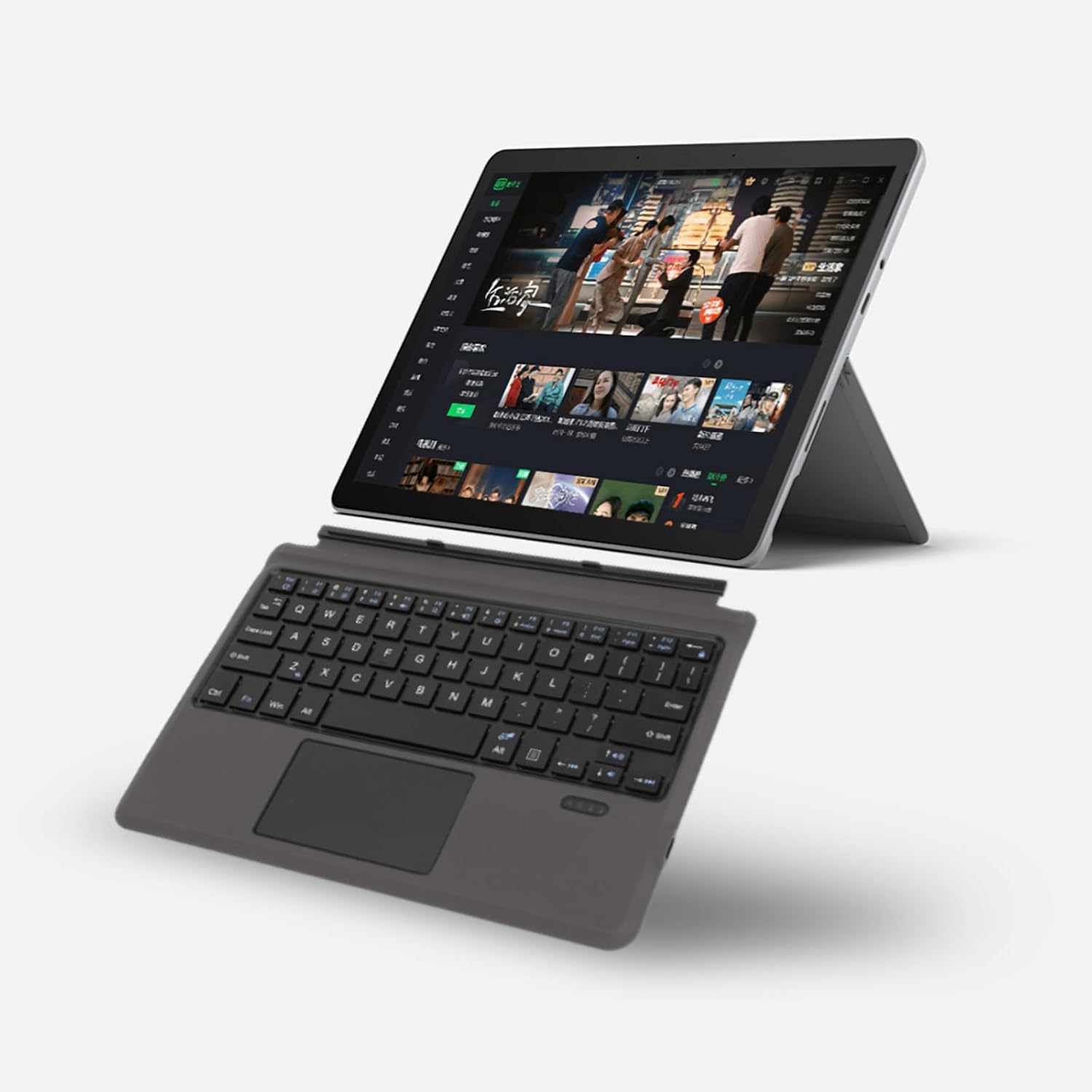
Image: Yoidesu Type Cover Keyboard attached to a Microsoft Surface Go tablet, displaying a media streaming interface, illustrating the product in use.

Image: An overview highlighting the key features of the Yoidesu Type Cover Keyboard, such as Bluetooth 5.0 connectivity, comfortable scissor-switch keys, intelligent power saving, magnetic design for easy attachment, and its ultra-thin profile.
3. Setup
3.1 Charging the Keyboard
- Locate the USB-C charging port on the keyboard.
- Connect the provided USB-C cable to the keyboard and the other end to a USB power adapter (not included) or a computer's USB port.
- The charging indicator light will illuminate during charging and turn off when fully charged. A full charge typically takes about 3 hours.
3.2 Bluetooth Pairing
- Ensure the keyboard is sufficiently charged.
- Turn on the keyboard by sliding the power switch (usually located on the side or top edge). The Bluetooth indicator light will start blinking, indicating it's in pairing mode.
- On your Microsoft Surface Go tablet, go to Settings > Devices > Bluetooth & other devices.
- Ensure Bluetooth is turned On.
- Click Add Bluetooth or other device, then select Bluetooth.
- Your tablet will search for nearby Bluetooth devices. Select "Yoidesu Keyboard" or a similar name from the list of available devices.
- Follow any on-screen prompts to complete the pairing process. Once paired, the Bluetooth indicator light on the keyboard will stop blinking and remain solid or turn off.

Image: The Yoidesu Type Cover Keyboard positioned beside a Microsoft Surface Go tablet, which is displaying the Windows desktop interface, ready for connection.
4. Operating Instructions
4.1 Attaching the Keyboard
The keyboard features a magnetic mounting design for easy attachment to your Microsoft Surface Go tablet.
- Align the magnetic connector on the keyboard with the corresponding port on the bottom edge of your Surface Go tablet.
- The magnets will automatically snap the keyboard into place, creating a secure connection.

Image: A visual representation demonstrating how the Yoidesu Type Cover Keyboard magnetically connects to the Microsoft Surface Go tablet, ensuring a secure and instant attachment.
4.2 Using the Keyboard
The keyboard provides a full QWERTY layout with responsive scissor-switch keys for comfortable typing.

Image: A detailed view of the Yoidesu Type Cover Keyboard's keys, emphasizing the 'Chocolate Keys' design and the underlying scissor-switch mechanism, which contributes to a comfortable and responsive typing experience.
4.3 Using the Trackpad
The integrated trackpad supports multi-touch gestures, similar to a laptop trackpad.
- Single Finger Tap: Left-click.
- Two Finger Tap: Right-click.
- Two Finger Scroll: Scroll up or down.
- Pinch to Zoom: Zoom in or out.
4.4 Adjusting Viewing Angles
The keyboard's design allows for multiple stable viewing angles.
- Once the keyboard is attached, adjust the kickstand of your Surface Go tablet.
- The magnetic connection of the keyboard will provide stability at various angles, allowing you to find the most comfortable position for typing or viewing.

Image: A Microsoft Surface Go tablet, equipped with the Yoidesu Type Cover Keyboard, is depicted from various side profiles, showcasing its multi-angle adjustment capability for optimal viewing and typing.
4.5 Backlit Keys
The keyboard features backlit keys for improved visibility in dim environments.
- To turn on/off or adjust the backlight brightness, use the dedicated function keys (refer to the keyboard's function key row for specific icons, typically Fn + Fx keys).

Image: A person's hand is shown typing on the Yoidesu Type Cover Keyboard, which has its blue backlighting illuminated, demonstrating its functionality in a dimly lit environment.
5. Maintenance
5.1 Cleaning
- To clean the keyboard surface, gently wipe with a soft, damp, lint-free cloth.
- Avoid using harsh chemicals, abrasive cleaners, or excessive moisture.
- For cleaning between keys, use compressed air to remove dust and debris.
5.2 Storage
- When not in use, store the keyboard in a cool, dry place away from direct sunlight and extreme temperatures.
- Ensure the keyboard is powered off during long periods of storage to preserve battery life.
6. Troubleshooting
6.1 Keyboard Not Connecting/Pairing
- Check Power: Ensure the keyboard is turned on and has sufficient battery charge. Recharge if necessary.
- Bluetooth On: Verify that Bluetooth is enabled on your Microsoft Surface Go tablet.
- Re-pair: Go to your tablet's Bluetooth settings, forget the keyboard if it's listed, and then attempt to pair it again.
- Distance: Ensure the keyboard is within the Bluetooth range (approx. 33 feet) of your tablet.
- Interference: Move away from other wireless devices that might cause interference.
6.2 Keys or Trackpad Unresponsive
- Restart: Turn the keyboard off and then on again.
- Recharge: Low battery can affect performance. Charge the keyboard fully.
- Re-pair: Disconnect and re-pair the Bluetooth connection.
- Clean: Ensure there is no debris or obstruction under the keys or on the trackpad surface.
6.3 Auto-Sleep Function
The keyboard is designed to enter sleep mode after 10 minutes of inactivity to save power.

Image: A Microsoft Surface Go tablet with the Yoidesu Type Cover Keyboard attached, demonstrating the auto-sleep energy-saving feature where the keyboard powers down after a period of inactivity.
- To wake the keyboard, simply press any key or tap the trackpad. It will reconnect automatically to your paired device.
7. Specifications
| Feature | Detail |
|---|---|
| Model Number | Yoidesugm3e9qhztd8079 |
| Connectivity | Bluetooth 5.0 |
| Compatible Devices | Microsoft Surface Go, Surface Go 2, Surface Go 3 |
| Keyboard Layout | QWERTY |
| Special Features | Ergonomic, Rechargeable, Trackpad, Backlit Keys |
| Power Source | Battery Powered (Built-in Lithium Battery) |
| Charging Time | Approx. 3 hours |
| Continuous Use Time | Approx. 150 hours |
| Auto-Sleep | After 10 minutes of inactivity |
| Material | Acrylonitrile Butadiene Styrene (ABS), Poly |
| Item Weight | 11.3 ounces (approx. 320 grams) |
| Package Dimensions | 11.85 x 8.31 x 0.79 inches |
8. Warranty and Support
For warranty information and customer support, please refer to the documentation provided at the time of purchase or contact Yoidesu customer service through the retailer where the product was acquired. Keep your proof of purchase for warranty claims.