
1. Introduction
Thank you for choosing the EXTEL 720321 Wave 2 Wireless Connected Videophone. This device offers a secure and convenient way to manage access to your home, featuring a 7-inch color monitor, a wireless outdoor unit with a long range of up to 350 meters in open field, and smartphone connectivity. It includes full HD video quality, night vision, and internal recording capabilities.

Image 1.1: The EXTEL Wave 2 Videophone system, showing the indoor monitor and the outdoor street plate.

Image 1.2: The product packaging for the EXTEL Wave 2 Videophone, highlighting its features and eco-friendly design.
2. Setup and Installation
The EXTEL Wave 2 videophone is designed for simple and quick wireless installation between the indoor monitor and the outdoor street plate. Ensure all components are present before beginning installation.
2.1 Package Contents
- 1 x 7-inch Wireless Color Monitor with touch keys and Wi-Fi connection
- 1 x Outdoor Street Plate
- 1 x AC Adapter for monitor power supply
- 1 x Rechargeable Battery for outdoor street plate power supply
- 1 x 8GB MicroSD Card for the monitor
- 1 x Screw Kit for mounting
- 1 x Wall Mount Bracket for monitor
2.2 Outdoor Street Plate Installation
- Choose a suitable location for the outdoor street plate, typically near your entrance, at a height of 1.5 to 1.6 meters from the ground.
- The street plate can be installed either flush-mounted or surface-mounted. Refer to the included mounting template for precise drilling.
- Insert the rechargeable battery into the outdoor street plate. The battery provides approximately 6 months of autonomy depending on usage. It recharges using a 5V microUSB phone charger (not supplied).
- Secure the street plate to the wall using the provided screw kit.
2.3 Indoor Monitor Installation
- Mount the monitor wall bracket in a convenient indoor location, ensuring it is within the wireless range of the outdoor unit (up to 350m in open field).
- Connect the AC adapter to the monitor and plug it into a power outlet.
- Insert the 8GB MicroSD card into the designated slot on the monitor. This card is used for recording visitor photos and videos.
- Attach the monitor to its wall bracket. The monitor also features a rear stand for desktop placement.
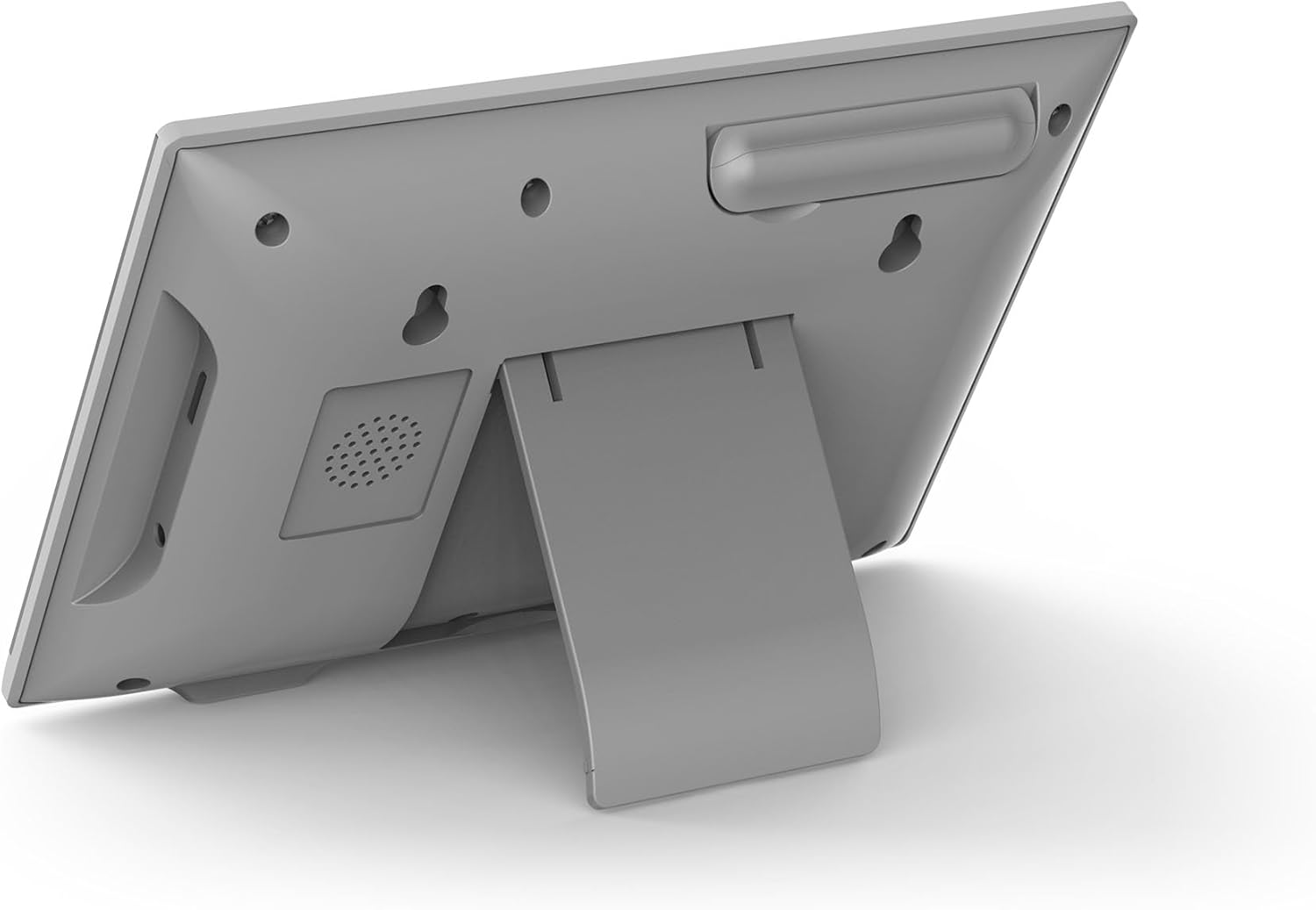
Image 2.1: Rear view of the EXTEL Wave 2 monitor, showing the integrated stand for flexible placement.
2.4 Wireless and Wi-Fi Connection
- The monitor and outdoor street plate will automatically attempt to establish a wireless connection upon power-up.
- For smartphone connectivity, download the Extel Connect application from your device's app store (available on App Store and Google Play).
- The monitor supports dual-band Wi-Fi (2.4GHz and 5GHz) for compatibility with various internet routers. Follow the in-app instructions to connect the monitor to your home Wi-Fi network.

Image 2.2: Diagram illustrating the EXTEL Wave 2 system components, dimensions, wireless range (350m), and Wi-Fi connectivity options.
3. Operating Instructions
Once installed, the EXTEL Wave 2 videophone offers several functions for enhanced home security and convenience.
3.1 Answering Visitors
- Via Indoor Monitor: When a visitor presses the call button on the outdoor unit, the indoor monitor will ring and display the visitor's image. Press the answer button on the monitor to communicate.
- Via Smartphone App: If connected to Wi-Fi, you will receive a notification on your smartphone via the Extel Connect app. You can see, speak to, and open the door/gate for visitors from anywhere.
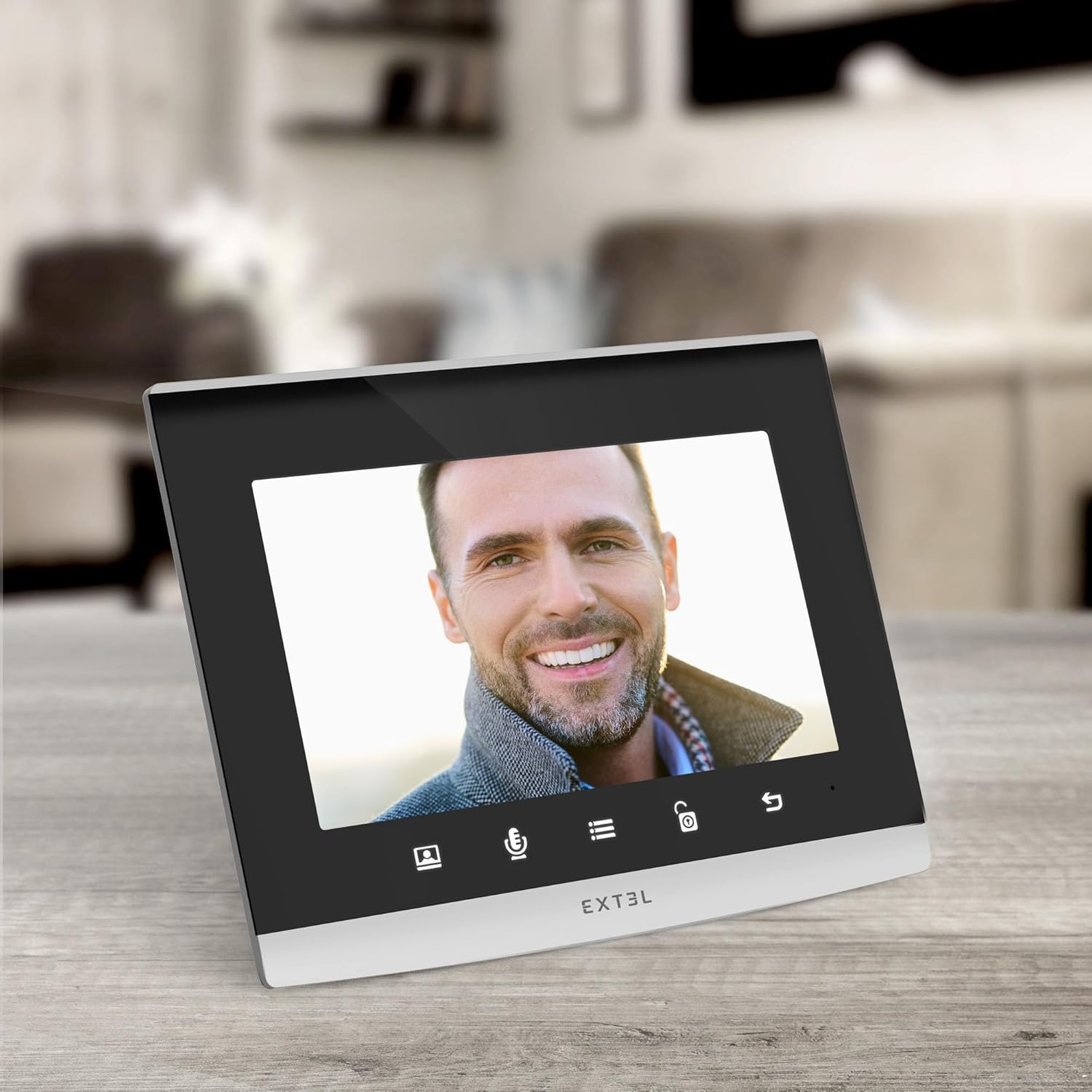
Image 3.1: The EXTEL Wave 2 indoor monitor displaying a visitor's face, ready for interaction.

Image 3.2: The Extel Connect smartphone application interface, showing a live view of a visitor and controls for communication and access.
3.2 Door/Gate Control
The system allows you to remotely control an electric lock or gate. Use the dedicated button on the indoor monitor or within the Extel Connect app to open access for your visitors.
3.3 Monitoring Function
Activate the monitoring function from your indoor monitor or smartphone app to view your entrance at any time, even without a visitor pressing the call button. This allows for easy surveillance of your property.
3.4 Night Vision
The outdoor street plate is equipped with infrared LEDs for clear night vision, ensuring you can identify visitors even in low-light conditions.
3.5 Video and Photo Recording
The included 8GB MicroSD card enables internal recording of photos and videos of visitors who present themselves in your absence. You can review these recordings later on the indoor monitor.
4. Maintenance
Proper maintenance ensures the longevity and optimal performance of your EXTEL Wave 2 videophone.
4.1 Cleaning
- Wipe the indoor monitor and outdoor street plate with a soft, damp cloth.
- Do not use abrasive cleaners or solvents, as these can damage the surfaces.
- Ensure the camera lens on the outdoor unit is clean for clear video quality.
4.2 Battery Recharging
The outdoor street plate's rechargeable battery offers approximately 6 months of autonomy. When the battery level is low, recharge it using a standard 5V microUSB phone charger (not included). The outdoor unit is moisture-resistant, but avoid direct exposure to heavy rain or prolonged submersion.
4.3 MicroSD Card Management
Periodically review and manage the recordings on your 8GB MicroSD card. Delete old or unnecessary files to ensure continuous recording capacity.
5. Troubleshooting
This section addresses common issues you might encounter with your EXTEL Wave 2 videophone.
5.1 No Connection to Smartphone App
- Ensure your indoor monitor is connected to your home Wi-Fi network (2.4GHz or 5GHz).
- Verify that your smartphone has an active internet connection.
- Check if the Extel Connect app is updated to the latest version.
- Restart both your smartphone and the indoor monitor.
- If issues persist, try re-pairing the monitor with the app by following the in-app instructions.
5.2 Poor Wireless Range or Signal
- While the system boasts a 350m open-field range, obstacles like thick walls, metal structures, or other wireless devices can significantly reduce this.
- Try repositioning the indoor monitor closer to the outdoor street plate.
- Ensure there are no major obstructions directly between the two units.
5.3 Video Latency or Lag
- A slight delay between the outdoor unit and the indoor monitor or smartphone app can occur due to wireless signal strength or network congestion.
- Improve Wi-Fi signal strength for the indoor monitor if using the app.
- Ensure the outdoor unit battery is adequately charged.
5.4 Outdoor Unit Not Powering On
- Check if the rechargeable battery is correctly inserted and fully charged.
- If the battery is old, it may need replacement.
6. Specifications
| Model Name | Wave 2 |
| Model Number | 720321 |
| Brand | EXTEL |
| Connectivity Technology | Wireless (350m open field), Wi-Fi (2.4GHz & 5GHz) |
| Special Feature | Night Vision |
| Indoor/Outdoor Use | Outdoor (Street Plate), Indoor (Monitor) |
| Color | Black |
| Product Dimensions (L x W x H) | 31.5 x 9 x 21 cm |
| Item Weight | 1.1 Kilograms |
| Water Resistance Level | Moisture Resistant |
| Recommended Uses | Outdoor Security |
| Included Components | Monitor, Street Plate, AC Adapter, Rechargeable Battery, 8GB MicroSD Card, Screw Kit, Wall Mount Bracket |
7. Warranty and Support
7.1 Spare Parts Availability
Spare parts for the EXTEL 720321 Wave 2 Videophone are available for 3 years from the date of purchase.
7.2 Technical Support
For technical assistance, troubleshooting beyond this manual, or warranty claims, please contact EXTEL customer support. Refer to the contact information provided in your product packaging or visit the official EXTEL website for the most up-to-date support details.
