
VAXEE NP-01
ZYGEN NP-01 (Full Matte) (White) User Manual
Model: NP-01 | Brand: VAXEE
Introduction
Thank you for choosing the VAXEE ZYGEN NP-01 (Full Matte) White gaming mouse. This manual provides essential information for setting up, operating, maintaining, and troubleshooting your new device. The ZYGEN NP-01 is designed for esports, featuring a unique shape that extends from the fingertips to the wrist for stable operation, a flat model, and an asymmetrical design.
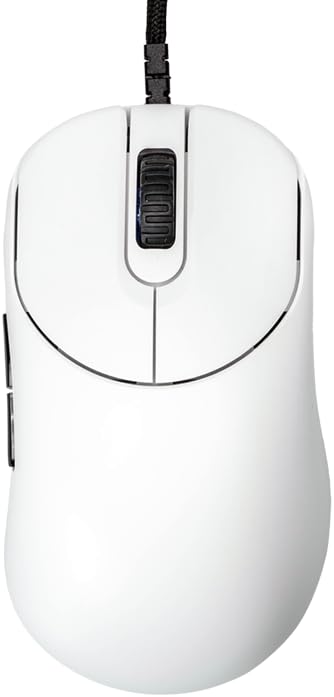
Image: Top view of the ZYGEN NP-01 Full Matte White gaming mouse. This image shows the mouse from directly above, highlighting its ergonomic shape, the scroll wheel, and the main left and right click buttons. The white matte finish is visible.
Setup
The ZYGEN NP-01 mouse is designed for plug-and-play functionality, requiring no additional drivers for basic operation.
- Unpack the Mouse: Carefully remove the ZYGEN NP-01 mouse from its packaging.
- Connect to Computer: Insert the USB connector of the mouse cable into an available USB port on your computer. The mouse supports USB 2.0 and USB 3.0 ports.
- System Recognition: Your operating system should automatically detect and install the necessary generic drivers. This process usually takes a few seconds.
- Test Functionality: Once connected, move the mouse to confirm cursor movement on your screen. Click the left and right buttons, and scroll the wheel to ensure all basic functions are working.

Image: Angled front-left view of the ZYGEN NP-01 mouse. This image shows the mouse from an angle, highlighting the braided USB cable connected to the front, the main click buttons, and the scroll wheel. The "ZYGEN" logo is visible on the side.
Operating Instructions
The ZYGEN NP-01 mouse features multiple buttons and adjustable settings to enhance your gaming and computing experience.
Button Functions
- Left Click Button: Primary action button.
- Right Click Button: Secondary action button, often for context menus.
- Scroll Wheel: Used for vertical scrolling. Also functions as a middle click button.
- Side Buttons (2): Located on the left side of the mouse, typically used for forward/backward navigation in web browsers or customizable in games.

Image: Left side view of the ZYGEN NP-01 mouse. This image clearly displays the two programmable side buttons located on the left side of the mouse, along with the "ZYGEN" branding.
DPI Adjustment
The ZYGEN NP-01 allows for on-the-fly DPI (Dots Per Inch) adjustment, controlling cursor sensitivity. The available DPI settings are:
- 400 DPI
- 800 DPI
- 1600 DPI
- 3200 DPI
To change DPI, locate the DPI button, usually on the bottom of the mouse. Pressing this button cycles through the available DPI settings. An indicator light (if present) may change color to indicate the current DPI level.
Polling Rate Adjustment
The polling rate determines how often the mouse reports its position to the computer. Higher polling rates result in smoother and more responsive tracking. The ZYGEN NP-01 supports the following polling rates:
- 125 Hz
- 500 Hz
- 1000 Hz
Refer to the bottom of the mouse for the polling rate switch or button. Adjust as needed for your preference and game requirements.

Image: Bottom view of the ZYGEN NP-01 mouse. This image displays the underside of the mouse, where the optical sensor, DPI switch, and polling rate switch are located. The mouse feet are also visible.
Click Response Speed
The click response speed can be adjusted for optimal performance. The available settings are:
- 2 ms
- 4 ms
- 8 ms
Consult the product's official website or included quick start guide for specific instructions on adjusting the click response speed, as this may involve a combination of button presses.
Maintenance
Proper maintenance ensures the longevity and optimal performance of your ZYGEN NP-01 mouse.
- Cleaning: Use a soft, dry, lint-free cloth to wipe the surface of the mouse. For stubborn dirt, slightly dampen the cloth with water or a mild electronics cleaner. Avoid using harsh chemicals, abrasive materials, or excessive moisture.
- Sensor Care: Keep the optical sensor on the bottom of the mouse clean and free from dust or debris. Use a cotton swab or compressed air to gently clear any obstructions.
- Cable Management: Avoid sharp bends or excessive pulling on the paracord cable to prevent damage. Store the mouse in a way that does not put strain on the cable.
- Storage: When not in use for extended periods, store the mouse in a clean, dry environment away from direct sunlight and extreme temperatures.
Troubleshooting
If you encounter issues with your ZYGEN NP-01 mouse, refer to the following common troubleshooting steps:
| Problem | Possible Cause | Solution |
|---|---|---|
| Mouse not responding | Loose USB connection, faulty USB port, system driver issue. |
|
| Cursor movement is erratic or jumpy | Dirty optical sensor, unsuitable mouse pad surface, high DPI setting. |
|
| Buttons not clicking or double-clicking unexpectedly | Dust/debris under button, switch wear, software conflict. |
|
Specifications
Detailed technical specifications for the VAXEE ZYGEN NP-01 (Full Matte) White gaming mouse:
| Model Name | NP-01 |
| Color | White (Full Matte) |
| Dimensions (L x W x H) | 12 x 5.9 x 3.9 cm (4.72 x 2.32 x 1.54 inches) |
| Weight | 75 g (2.65 oz) |
| Sensor | PMW3389 Optical Sensor |
| Switches | HUANO 60g |
| Buttons | 5 (Left, Right, Scroll Click, 2 Side Buttons) |
| DPI Settings | 400 / 800 / 1600 / 3200 |
| Polling Rate | 125 / 500 / 1000 Hz |
| Click Response Speed | 2 / 4 / 8 ms |
| Scroll Wheel | Optical, 24 steps |
| Mouse Feet Thickness | 0.6 mm |
| Cable Type | Paracord, 2 meters (6.6 feet) |
| Interface | USB 2.0 / 3.0 |
| Compatible OS | PC (Windows, macOS, Linux compatible) |

Image: Diagram illustrating key specifications of the ZYGEN NP-01 mouse, including weight, sensor type, switch type, optical wheel details, number of buttons, mouse feet thickness, driverless feature, polling rates, click response speeds, DPI settings, and cable length/type.
Warranty and Support
VAXEE products are manufactured to high quality standards. For specific warranty terms and conditions, please refer to the warranty card included with your product or visit the official VAXEE website.
For technical support, product inquiries, or warranty claims, please contact VAXEE customer service through their official website or the contact information provided in your product packaging.
Official VAXEE Website: www.vaxee.co
Related documentsNP-01


Ask a question about this manual
Ask about setup, troubleshooting, compatibility, parts, safety, or missing instructions. Manuals+ will review the question and use this page’s manual context to help answer it.