
Introduction
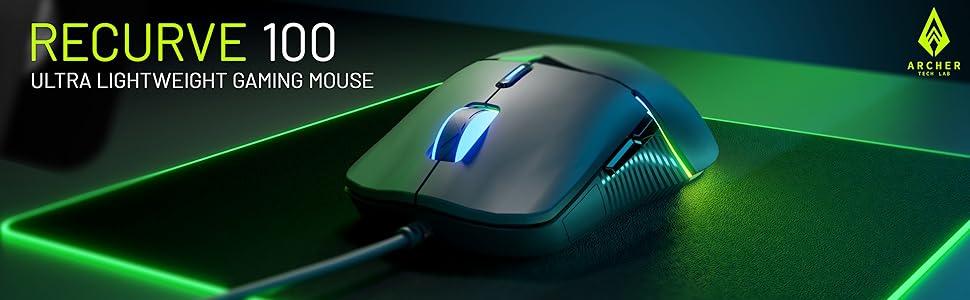
Welcome to the user manual for your Archer Tech Lab Recurve 100 Wired Gaming Mouse. This guide provides instructions for setup, operation, maintenance, and troubleshooting to ensure optimal performance and enhance your gaming experience.
Package Contents
Please verify that all items are present in your package:
- 1 x Archer Tech Lab Recurve 100 Wired Gaming Mouse
- 1 x User Manual
Product Features
The Archer Tech Lab Recurve 100 is engineered for gaming with the following key features:
- Ultra-lightweight design: Weighs only 69g for swift and effortless movements.
- Gaming-grade sensor: Provides precise and reliable tracking.
- 6 responsive buttons: Includes dedicated DPI button for enhanced control.
- Adjustable DPI settings: Up to 3600 DPI for customizable sensitivity.
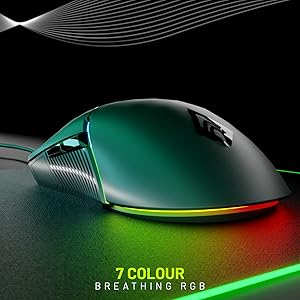
- 7-color RGB lighting: Dynamic lighting to personalize your setup.
- Ergonomic and ambidextrous design: Ensures comfortable use for various grip styles.
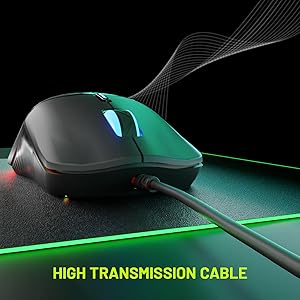
- High transmission cable: Designed for lag-free and responsive performance.

Setup Guide
Connecting Your Mouse
Follow these steps to connect your Archer Tech Lab Recurve 100 mouse to your computer:
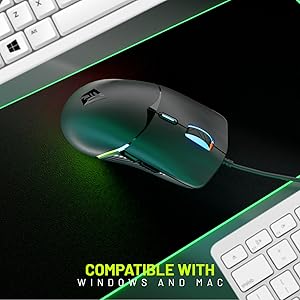
- Locate an available USB port on your computer (compatible with both PC and Mac).
- Insert the USB connector of the Recurve 100 mouse firmly into the USB port.
- The mouse will automatically install the necessary drivers. This process may take a few moments.
- Once the drivers are installed, the RGB lighting will activate, and the mouse will be ready for immediate use.
Operating Instructions
Button Functions
The Recurve 100 mouse features 6 responsive buttons with the following default functions:

- Left Click: Primary action button for selecting items and interacting with software.
- Right Click: Secondary action button, typically used to open context-sensitive menus.
- Scroll Wheel: Used for scrolling content vertically. Can also be pressed for a middle-click function.
- DPI Toggle Button: Cycles through the available DPI sensitivity settings.
- Forward Button: Navigates forward in web browsers or file explorers.
- Backward Button: Navigates backward in web browsers or file explorers.
DPI Adjustment
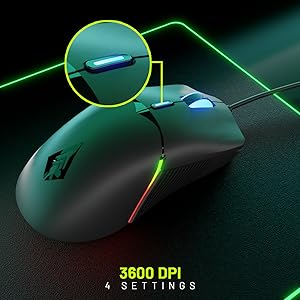
Adjust the mouse sensitivity (DPI) on the fly using the dedicated DPI button located behind the scroll wheel. Each press cycles through the following DPI levels:
- 1200 DPI
- 1800 DPI
- 2400 DPI
- 3600 DPI (Maximum)
RGB Lighting
The Recurve 100 features dynamic 7-color RGB lighting that enhances the aesthetic of your gaming setup. The lighting cycles automatically through various colors.
Ergonomic Design
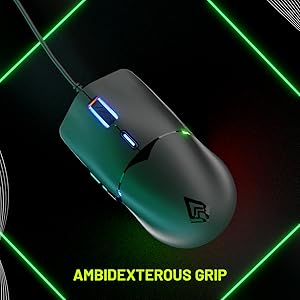
The Recurve 100 is designed with an ergonomic shape that provides a comfortable grip for both palm and claw grip styles. Its ambidextrous design ensures suitability for a wide range of users, reducing fatigue during extended use.
Maintenance
To ensure the longevity and optimal performance of your gaming mouse, follow these simple maintenance guidelines:
- Cleaning: Use a soft, dry cloth to wipe the surface of the mouse. For stubborn dirt, slightly dampen the cloth with water. Avoid using harsh chemicals or abrasive materials.
- Sensor Care: Keep the optical sensor on the underside of the mouse clean and free from dust or debris.
- Cable Management: Avoid sharp bends or excessive pulling on the USB cable to prevent damage and ensure consistent performance.
Troubleshooting
If you encounter any issues with your Archer Tech Lab Recurve 100 mouse, please refer to the following common solutions:
- Mouse Not Responding:
- Ensure the USB cable is securely connected to your computer's USB port.
- Try connecting the mouse to a different USB port on your computer.
- Test the mouse on another computer to determine if the issue is with the mouse or your computer's USB port.
- Restart your computer.
- Cursor Movement is Erratic or Inaccurate:
- Clean the optical sensor on the bottom of the mouse with a soft, dry cloth to remove any dust or debris.
- Ensure you are using the mouse on a suitable surface, such as a mouse pad. Avoid highly reflective, transparent, or uneven surfaces.
- Adjust the DPI setting using the DPI toggle button to find a sensitivity that suits your needs.
- RGB Lighting Not Working:
- Ensure the mouse is properly connected to the computer's USB port.
- If the mouse functions but the RGB lighting does not, try reconnecting the mouse. The RGB lighting is plug-and-play and does not require additional software.
Technical Specifications
Detailed specifications for the Archer Tech Lab Recurve 100 Wired Gaming Mouse:
| Feature | Specification |
|---|---|
| Brand | Archer Tech Lab |
| Model Name | RECURVE100 |
| Connectivity | Wired USB |
| DPI Settings | 1200 / 1800 / 2400 / 3600 DPI |
| Buttons | 6 (Left, Right, Scroll, DPI, Forward, Backward) |
| Weight | 69 grams |
| RGB Lighting | 7-Color Unique RGB |
| Sensor Type | Gaming Grade Optical Sensor |
| Hand Orientation | Ambidextrous |
| Compatible OS | Windows, Mac |
| Dimensions (L x W) | 12.5 cm x 6.5 cm |
| Material | Plastic |

Warranty and Support
Warranty Information
The Archer Tech Lab Recurve 100 Wired Gaming Mouse comes with a 6-month warranty from the date of purchase. This warranty covers manufacturing defects under normal use. Please retain your proof of purchase for any warranty claims.
Customer Support
For any technical assistance, troubleshooting, or warranty inquiries, please contact:
- Manufacturer: ARCHER TECH LAB, CHINA
- Importer: Iris Tech, G-1/ G-2, Dharam Complex, Phase-1, Opp. Sapna Bar, Anjur Mankoli Road, Bhiwandi-421302
- Contact: Refer to your purchase documentation or the official Archer Tech Lab website for the most current contact details and support options.