
Introduction
Thank you for choosing the VssoPlor Foldable Bluetooth Keyboard with Touchpad. This portable keyboard offers dual connectivity modes (Bluetooth and USB wired) and a built-in touchpad, designed for convenience and productivity across various devices. This manual provides detailed instructions for setup, operation, maintenance, and troubleshooting to ensure optimal use of your device.
What's in the Box
- Foldable Keyboard
- USB A to Micro USB Cable
- User Manual
Product Overview
Familiarize yourself with the keyboard's components and connection points.

Image: Detailed view of the keyboard's side, highlighting the Power Switch, Charging/USB wired mode port, Bluetooth Connect button, Anti-slip Silicone pads, and the Right and Left buttons of the touchpad.
- Power Switch: Located on the side to turn the keyboard on or off.
- Charging/USB Wired Mode Port: Micro USB port for charging and wired connection.
- Bluetooth Connect Button: Used to initiate Bluetooth pairing.
- Anti-slip Silicone: Pads on the bottom for stability.
- Touchpad: Integrated touchpad with distinct Left and Right click areas.
Setup
1. Charging the Keyboard
Before first use, fully charge the keyboard. Connect the provided Micro USB cable to the charging port on the keyboard and the other end to a USB power source. A 2-hour charge provides approximately 20 days of usage (2 hours per day) for the keyboard, or a full week with continuous touchpad use.
2. Powering On/Off
Slide the Power Switch to the 'ON' position to turn on the keyboard. Slide it to 'OFF' to power down the device.
3. Connecting via Bluetooth
- Ensure the keyboard is charged and powered on.
- Press the 'Bluetooth Connect' button (refer to Product Overview image) to put the keyboard into pairing mode. The Bluetooth indicator light will flash.
- On your device (smartphone, tablet, laptop), enable Bluetooth and search for available devices.
- Select 'VssoPlor Keyboard' or a similar name from the list of found devices.
- Follow any on-screen prompts to complete the pairing process. The indicator light will stop flashing once connected.

Image: Illustrates the keyboard's compatibility with various devices including laptops, iOS systems, tablets, and Android phones. It also indicates incompatibility with computer sticks. Note that the touchpad function is not available in iOS systems.

Image: Demonstrates the dual connection capabilities of the keyboard, allowing connection via Bluetooth to devices like tablets and phones, and via USB to laptops or other compatible devices. The wired mode takes priority if both are connected simultaneously.
4. Connecting via Wired USB
- Ensure the keyboard is charged and powered on.
- Connect the Micro USB end of the provided cable to the keyboard's charging port.
- Connect the USB-A end of the cable to an available USB port on your computer or device.
- The device will automatically recognize the keyboard. Note that if both Bluetooth and wired connections are active, the wired connection will take priority.
Operating Instructions
1. Folding and Unfolding
The keyboard features a tri-folding design for portability. Gently unfold the keyboard until it lies flat and locks into position for use. To fold, reverse the process, ensuring the sections align correctly. Magnets keep the keyboard securely shut when folded.

Image: Displays the keyboard's dimensions when fully unfolded (11.89 inches / 30.2 cm length, 3.82 inches / 9.7 cm width) and when folded (5.98 inches / 15.2 cm length, 0.71 inches / 1.8 cm height), emphasizing its compact and portable design.
2. Typing
The keyboard features scissor-switch keys designed for quiet and comfortable typing. The layout is standard for efficient input.
3. Touchpad Usage
The integrated touchpad allows for mouse-like navigation. It supports standard gestures for cursor control. The touchpad includes distinct left and right click areas for precise input.

Image: Close-up of the keyboard's touchpad, highlighting the dedicated left and right click buttons for improved navigation and control. A note indicates that the touchpad cannot be used with iOS systems.
Important Note: The touchpad function is not compatible with iOS devices (e.g., iPhones, iPads). For iOS devices, only the keyboard input will function.
4. Function Keys
The keyboard includes function keys (F1-F12) and media control keys. These keys often require pressing the Fn key simultaneously with the desired function key to activate their secondary functions (e.g., volume control, playback). Refer to the keycap legends for specific functions.
Maintenance
1. Cleaning
To clean the keyboard, gently wipe the surfaces with a soft, dry, or slightly damp cloth. Avoid using harsh chemicals, abrasive cleaners, or excessive moisture, as these can damage the device. Ensure the keyboard is powered off before cleaning.
2. Battery Care
To prolong battery life, avoid fully discharging the keyboard frequently. Recharge the battery when the low battery indicator appears. If storing the keyboard for an extended period, charge it to about 50% and store it in a cool, dry place.
3. Storage
When not in use, fold the keyboard to protect the keys and touchpad. The aircraft-grade aluminum construction provides excellent stiffness and durability, resisting bumps. The magnetic closure helps prevent dust from entering and protects the keyboard from scratches when stored in a bag.
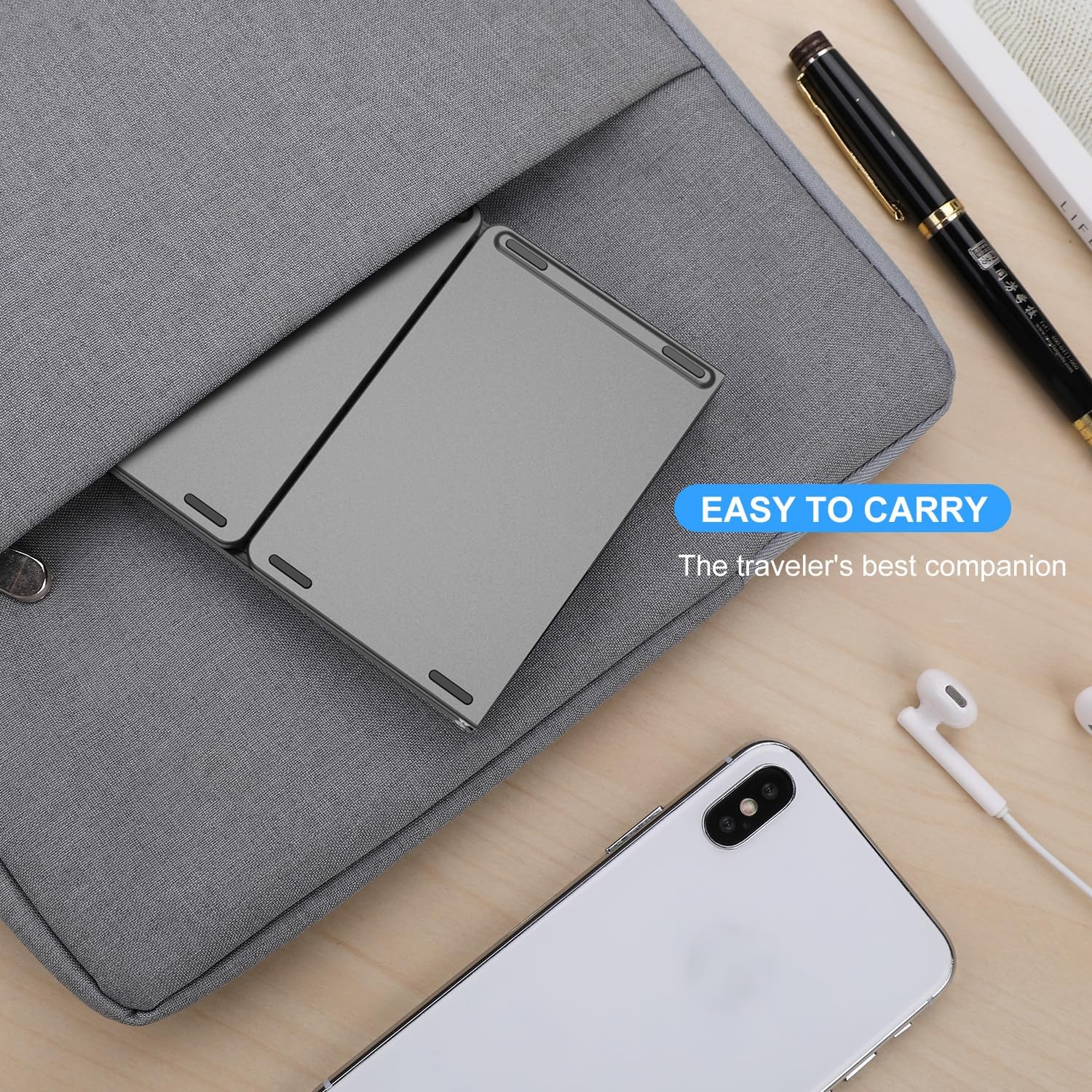
Image: Shows the folded keyboard being placed into a bag alongside other travel essentials, illustrating its compact size and ease of portability for users on the go.
Troubleshooting
1. Keyboard Not Connecting via Bluetooth
- Ensure the keyboard is powered on and fully charged.
- Make sure Bluetooth is enabled on your device.
- Press the 'Bluetooth Connect' button on the keyboard to enter pairing mode.
- If previously paired, try unpairing the keyboard from your device's Bluetooth settings and then re-pairing.
- Restart both the keyboard and your device.
2. Keyboard Not Responding via Wired USB
- Ensure the USB cable is securely connected to both the keyboard and your device.
- Try using a different USB port on your device.
- Test with a different Micro USB cable to rule out cable issues.
- Confirm the keyboard is powered on.
3. Touchpad Not Working
- For iOS devices: The touchpad function is not supported on iOS. This is normal operation.
- Ensure the keyboard is powered on and properly connected.
- If using with a device like a Steam Deck, check the device's mouse settings and increase sensitivity if needed, as the touchpad might be recognized as a mouse.
- Restart the keyboard and the connected device.
4. Keys Not Responding or Typing Incorrectly
- Ensure the keyboard is fully charged.
- Check for any debris or obstructions under the keys.
- If connected via Bluetooth, try re-pairing. If wired, try reconnecting the cable.
- Ensure the keyboard is fully unfolded and locked into position.
Specifications
| Brand | VssoPlor |
| Product Dimensions (Unfolded) | 11.89 x 3.82 x 0.71 inches (30.2 x 9.7 x 1.8 cm) |
| Item Weight | 9.5 ounces (269 grams) |
| Connectivity Technology | Bluetooth 3.0, Micro USB |
| Keyboard Description | Wireless, Foldable |
| Compatible Devices | Laptop, PC, Smartphone, Tablet (Android, Windows, macOS, iPadOS) |
| Special Features | Foldable, Hotkeys and Media Keys, Integrated Trackpad |
| Material | Aircraft-grade Aluminum |
| Battery Life | Approx. 20 days (2 hours/day keyboard use), 1 week (continuous touchpad use) |
Warranty and Support
VssoPlor products are designed for reliability and performance. For warranty information or technical support, please refer to the contact details provided with your purchase documentation or visit the official VssoPlor website. Please retain your proof of purchase for warranty claims.