
1. Introduction
This manual provides essential information for setting up, operating, and maintaining your ONN 43-Inch 4K UHD Smart LED TV, Model 100012584. Please read these instructions carefully before using your television to ensure proper function and safety.
2. Important Safety Information
Always follow basic safety precautions when using this television to reduce the risk of fire, electric shock, and injury.
- Do not expose this apparatus to rain or moisture.
- Do not block any ventilation openings.
- Do not place the TV on an unstable cart, stand, tripod, bracket, or table.
- Refer all servicing to qualified service personnel.
- Unplug the TV during lightning storms or when unused for long periods.
3. What's Included
Verify that all components are present in the packaging:
- ONN 43-Inch 4K UHD Smart LED TV
- Remote Control (with batteries)
- TV Stand (2 pieces)
- Stand Screws
- Power Cord
- Quick Start Guide
- Optical-out cable
4. Setup Guide
4.1 Attaching the TV Stand
If you are not wall-mounting the TV, attach the included stand feet:
- Carefully place the TV face-down on a soft, clean surface to prevent screen damage.
- Align each stand foot with the corresponding screw holes on the bottom of the TV.
- Secure each foot with the provided screws.
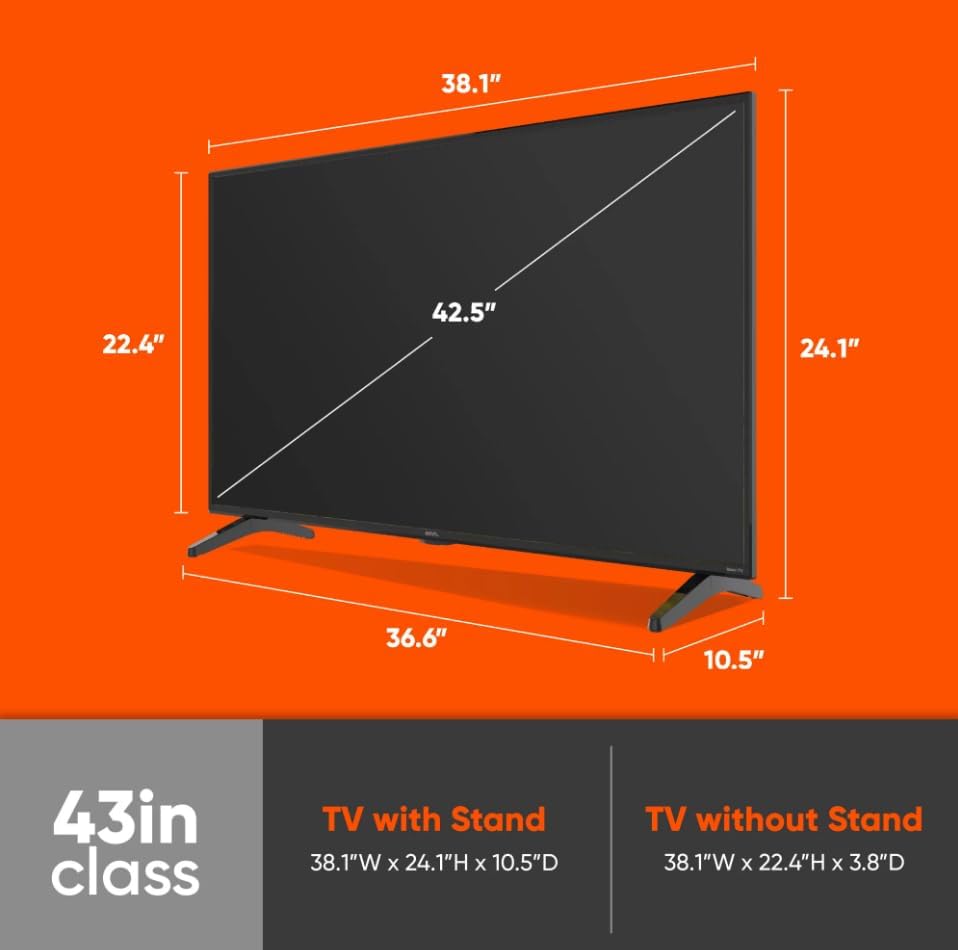
Image: Rear view of the ONN 43-inch TV illustrating the dimensions and the points for attaching the stand feet. The image shows the TV with and without the stand, providing measurements for both configurations.
4.2 Connecting Devices
Connect your external devices such as cable boxes, game consoles, or Blu-ray players to the TV's input ports.
- HDMI Ports (x3): For high-definition audio and video.
- USB Port (x1): For media playback from USB drives.
- Composite Input (x1): For older devices (yellow, white, red cables).
- Optical Audio Out (x1): For connecting to soundbars or home theater systems.
- Coaxial/Cable Input (x1): For antenna or cable TV connection.
- LAN Port (x1): For wired internet connection.
- Headphone Jack (x1): For private listening.
4.3 Powering On and Initial Setup
- Connect the power cord to the TV and then to a power outlet.
- Press the power button on the TV or remote control.
- Follow the on-screen instructions to complete the initial setup, including language selection, network connection (Wi-Fi or Ethernet), and channel scanning.
- The Roku TV interface will guide you through linking your Roku account and adding streaming channels.

Image: The main home screen of the ONN Roku TV, displaying options like "Home," "What to Watch," and icons for popular streaming services such as Netflix, Disney+, Apple TV, Peacock, Roku Channel, and Paramount+.
5. Operating Your TV
5.1 Roku TV Interface Navigation
Use the provided remote control to navigate the Roku TV interface. The home screen provides access to all your streaming channels, input selections, and settings.
- Arrow Buttons: Navigate menus and select items.
- OK Button: Confirm selections.
- Home Button: Return to the Roku TV home screen.
- Back Button: Go back to the previous screen.
- Star (*) Button: Access options for selected items.
5.2 Streaming Content
Your ONN Roku TV offers access to thousands of streaming channels. Select an app from the home screen to begin watching movies, TV shows, news, and more.

Image: A graphic promoting 4K UHD resolution, featuring vibrant, detailed feathers to demonstrate the lifelike color, texture, and detail provided by 4K UHD technology.

Image: A graphic highlighting HDR10 High Dynamic Range technology. The image shows a colorful town scene split into two halves, one labeled "HDR10" with rich colors and contrast, and the other "Standard Dynamic Range" appearing less vibrant.
5.3 Roku Mobile App
Download the free Roku mobile app for iOS or Android to control your TV, use voice search, enjoy private listening with headphones, or cast photos and videos from your phone.

Image: Three screenshots of the Roku mobile app on smartphones, demonstrating its remote control functionality, search interface, and voice control feature.
5.4 Voice Assistants and Smart Home Integration
Your TV is compatible with popular voice assistants and smart home platforms, allowing for hands-free control.
- Apple Home / Apple AirPlay: Stream content and control your TV using Apple devices.
- Amazon Alexa: Integrate with Alexa-enabled devices for voice commands.
- Google Home: Control your TV using Google Assistant.

Image: A graphic displaying logos for Apple AirPlay, Apple Home, Amazon Alexa, and Google Home, indicating compatibility with these voice assistants and smart home ecosystems.
5.5 Audio Features
Experience clear and immersive sound with Dolby Audio technology.

Image: A powerful image of a roaring lion, overlaid with the Dolby Audio and ONN logos, emphasizing the crystal-clear sound experience provided by the TV.
6. Maintenance
6.1 Cleaning Your TV
- Always unplug the TV before cleaning.
- Use a soft, lint-free cloth to gently wipe the screen and cabinet.
- For stubborn marks, lightly dampen the cloth with water or a mild, non-abrasive screen cleaner.
- Do not use harsh chemicals or abrasive materials.
6.2 Software Updates
Your ONN Roku TV automatically receives software updates over the internet. Ensure your TV is connected to a network to receive the latest features and improvements.
7. Troubleshooting
| Problem | Possible Solution |
|---|---|
| No power | Check if the power cord is securely connected to the TV and the power outlet. Try a different outlet. |
| No picture, but sound is present | Ensure the correct input source is selected. Check cable connections to external devices. |
| No sound, but picture is present | Check volume levels. Ensure Mute is not activated. Verify audio cable connections. |
| Remote control not working | Replace batteries. Ensure there are no obstructions between the remote and the TV's IR sensor. |
| Cannot connect to Wi-Fi | Check your Wi-Fi password. Restart your router and modem. Ensure the TV is within range of your Wi-Fi network. |
| Picture quality issues (e.g., poor color) | Adjust picture settings in the TV menu. Ensure the input source is providing a high-quality signal. |
8. Specifications
| Feature | Detail |
|---|---|
| Brand | ONN |
| Model Number | 100012584 |
| Screen Size | 43 Inches |
| Display Technology | LED |
| Resolution | 4K (2160p) Ultra HD |
| Refresh Rate | 60 Hz |
| Aspect Ratio | 16:9 |
| Connectivity Technology | Wireless (Wi-Fi), Ethernet |
| Special Features | Roku Smart TV, Mobile App Control, Works with Alexa & Google Assistant, HDR10, Dolby Audio |
| Ports | 3 HDMI, 1 USB, 1 Composite, 1 Optical-out, 1 Coaxial/Cable, 1 LAN, Headphone |
| VESA Mount Compatible | 200 x 200 mm |
| Product Dimensions (with stand) | 38.1"W x 24.1"H x 10.5"D |
| Product Dimensions (without stand) | 38.1"W x 22.4"H x 3.8"D |
| Item Weight | 20.9 pounds |
| Voltage | 120 Volts |
9. Warranty and Support
This product is sold as "Renewed" by Amazon Renewed. Please refer to the Amazon Renewed program terms and conditions for specific warranty details and return policies. Typically, Amazon Renewed products come with a 90-day Amazon Renewed Guarantee.
For technical support or warranty claims, please contact the seller "Exclusive Bulbs" or Amazon Renewed customer service directly.
Online resources and FAQs may also be available on the ONN or Roku support websites.


