Introduction
Thank you for choosing the Earto iPad Keyboard Case. This manual provides detailed instructions for setting up, operating, and maintaining your new keyboard case. Please read this manual thoroughly before use to ensure optimal performance and longevity of your device.
Compatibility
This keyboard case is designed to be compatible with the following iPad models:
- iPad 9th Generation (2021): Models A2603, A2604, A2605
- iPad 8th Generation (2020): Models A2270, A2428, A2429
- iPad 7th Generation (2019): Models A2197, A2200, A2198
- iPad Air 3rd Generation (2019): Models A2152, A2153, A2154
- iPad Pro 10.5 (2017): Models A1701, A1709, A1852
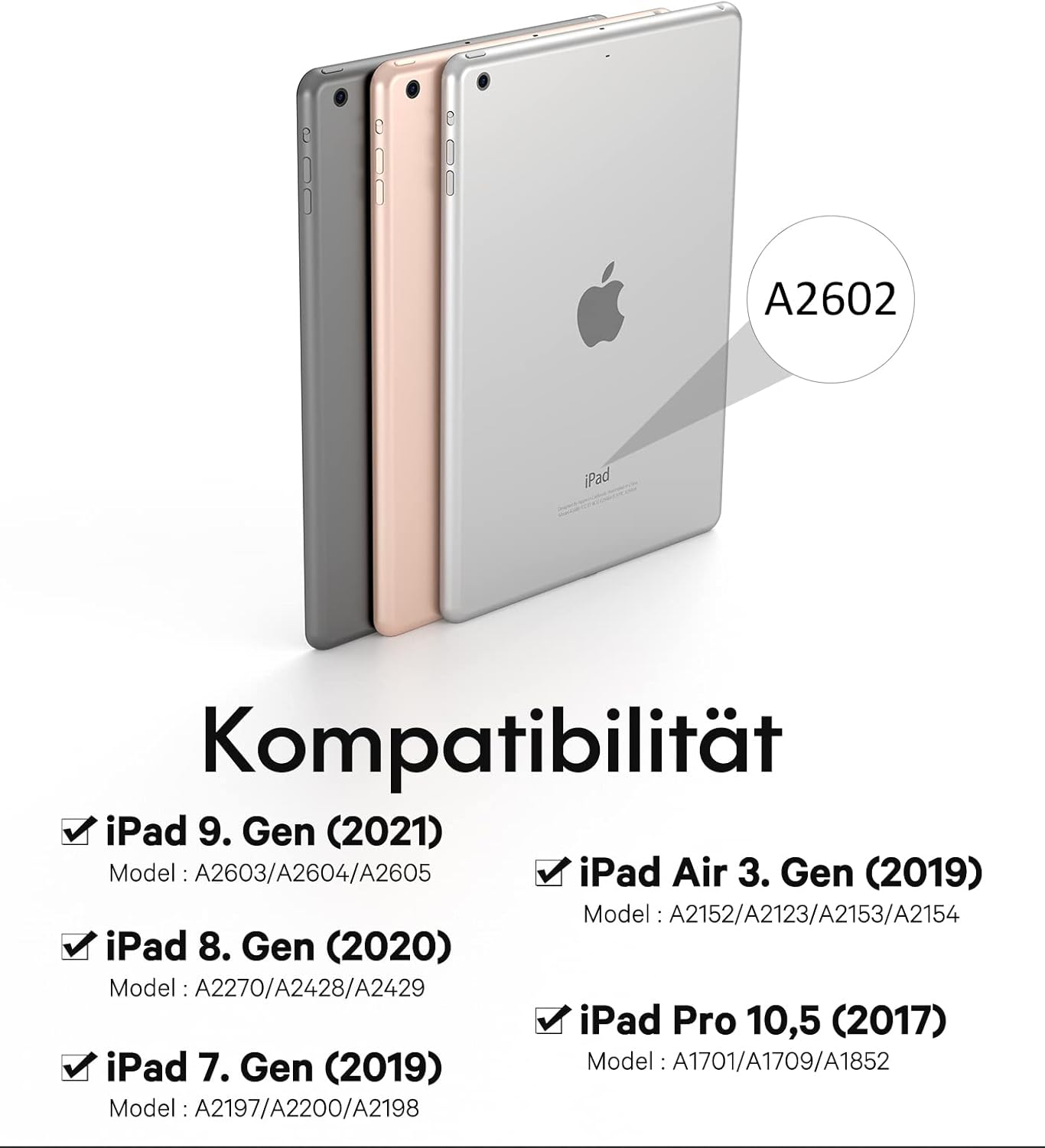
This image illustrates the compatible iPad models and their specific model numbers for easy identification.
Package Contents
Please check the package for the following items:
- Earto iPad Slim Case (10.2/10.5 inch)
- Wireless Keyboard with Trackpad
- USB-C Charging Cable
- User Manual
Product Overview
The Earto iPad Keyboard Case combines a protective cover with a versatile wireless keyboard and trackpad, enhancing your iPad's functionality.

A complete view of the Earto iPad Keyboard Case with an iPad and Apple Pencil in place, highlighting its integrated design.
Key Features:
- Removable Magnetic Keyboard: The keyboard attaches magnetically to the case, allowing for flexible use. It can be detached when not needed.
- Integrated Trackpad: Provides precise navigation and gesture support for an enhanced user experience.
- Adjustable Viewing Angles: The case offers three distinct viewing angles (100°, 120°, 130°) for comfortable typing, viewing, or drawing.
- Apple Pencil Holder: A dedicated slot keeps your Apple Pencil secure and easily accessible.
- Precise Cutouts: Ensures full access to all iPad ports, buttons, sensors, speakers, microphones, and cameras.

This image shows a close-up of the integrated Apple Pencil holder, designed for secure storage.

This image illustrates the magnetic attachment of the keyboard, allowing for easy removal and reattachment.

This image demonstrates the three available viewing angles (100°, 120°, 130°) for versatile use.
Setup
1. Charging the Keyboard
Before first use, fully charge the keyboard. Connect the provided USB-C charging cable to the keyboard's charging port and a power source (e.g., computer USB port or USB wall adapter).

This image shows the USB-C charging port on the keyboard, ready for connection to a power source.
2. Bluetooth Pairing
Follow these steps to connect your keyboard to your iPad via Bluetooth:
- Turn on the power switch of the keyboard. The Bluetooth indicator light will flash.
- Press the Fn key simultaneously with either the Q (for BT1) or W (for BT2) key to enter pairing mode. The indicator light will flash rapidly.
- On your iPad, go to Settings > Bluetooth and turn Bluetooth on.
- Locate "Bluetooth Keyboard" in the list of available devices and tap to connect.
- Once connected, the Bluetooth indicator light on the keyboard will turn off.

This image provides a visual guide for activating Bluetooth and connecting the keyboard to your iPad.
3. Inserting the iPad
Gently place your iPad into the protective case, ensuring all edges are securely fitted and the precise cutouts align with your iPad's ports and buttons.
Operating Instructions
1. Keyboard Functions
The keyboard features a QWERTZ layout and includes dedicated function keys for quick access to iPad features.
- Multimedia Keys: Control volume, playback, and other media functions directly from the keyboard.
- Shortcut Keys: Access common iPad functions like Home, Search, and Lock with a single press.

This image highlights the row of multimedia and shortcut keys available on the keyboard for quick access to iPad functions.
2. Trackpad Usage
The integrated trackpad allows for precise cursor control and supports multi-touch gestures, similar to a laptop. To enable or disable the trackpad, press the Fn + Spacebar keys simultaneously.

This image demonstrates the use of the precise click-trackpad for navigation and interaction with the iPad.

This image shows the keyboard's internal mechanism and highlights the 'Fn + Spacebar' key combination used to activate or deactivate the trackpad.
3. Adjusting Viewing Angles
The case offers three stable viewing angles to suit your activity:
- 100° Angle: Ideal for typing and productivity.
- 120° Angle: Suitable for general use and browsing.
- 130° Angle: Best for media consumption and presentations.
4. Switching Bluetooth Channels
The keyboard supports two Bluetooth channels (BT1 and BT2), allowing you to quickly switch between two paired devices. To switch channels, press Fn + Q for BT1 or Fn + W for BT2.

This image demonstrates the ability to switch between two Bluetooth channels (BT1 and BT2) to connect to different devices.
Maintenance
Cleaning
To clean the keyboard and case, use a soft, lint-free cloth. For stubborn dirt, slightly dampen the cloth with water or a mild, non-abrasive cleaner. Avoid excessive moisture and do not spray cleaners directly onto the keyboard.
Storage
When not in use for extended periods, store the keyboard case in a cool, dry place. Ensure the keyboard is turned off to conserve battery life.
Troubleshooting
- Keyboard not connecting: Ensure the keyboard is charged and powered on. Turn off and on your iPad's Bluetooth, then try pairing again. Make sure no other devices are interfering with the Bluetooth signal.
- Keys not responding: Check if the keyboard is properly connected via Bluetooth. If the battery is low, charge the keyboard.
- Trackpad not working: Ensure the trackpad is enabled by pressing Fn + Spacebar. Check Bluetooth connection.
- Lag or delayed input: Ensure the keyboard is fully charged. Move closer to your iPad to minimize potential signal interference.
Specifications
| Feature | Detail |
|---|---|
| Brand | Earto |
| Color | Black |
| Connectivity Technology | Bluetooth |
| Keyboard Layout | QWERTZ |
| Special Features | Ergonomic, Trackpad, Shortcut keys, Multimedia keys |
| Compatible Devices | iPad 7th/8th/9th Gen, iPad Air 3, iPad Pro 10.5 (2017) |
| Battery Composition | Lithium-ion |
| Charging Port | USB-C |
| Material | Plastic, Rubber, Silicone |
| Product Dimensions | 25.5L x 21W x 2.5H cm |
Warranty and Support
For warranty information and customer support, please refer to the product packaging or contact Earto customer service through their official website. Details regarding spare parts availability and software updates are not provided in this manual; please check the manufacturer's resources for the latest information.


