
YOOHOO 3568
YOOHOO 17.9" Portable DVD Player with 15.6" HD Swivel Screen (Model 3568) User Manual
Model: 3568 | Brand: YOOHOO
Introduction
This manual provides detailed instructions for the operation and maintenance of your YOOHOO 17.9" Portable DVD Player with a 15.6" HD Swivel Screen. Please read this manual thoroughly before using the device to ensure proper function and longevity.
Package Contents
Verify that all items are present in the package:
- 1 x YOOHOO Portable DVD Player
- 1 x Power Adapter (DC Adapter)
- 1 x Car Charger
- 1 x Remote Control (Batteries not included)
- 1 x RCA AV Cable
- 1 x User Manual (this document)

Figure 1: Included Accessories. The image displays the portable DVD player alongside its remote control, power adapter, car charger, and RCA AV cable.
Product Overview
The YOOHOO Portable DVD Player features a large 15.6-inch HD screen with a resolution of 1280x800P, designed for an enhanced viewing experience. The screen can swivel 180° and rotate 270°, allowing for flexible viewing angles.

Figure 2: Multiple Input Interfaces. This image highlights the various ports available on the device for connectivity.
Key Features:
- 15.6" HD Swivel Screen: 1280x800P resolution, 180° flip, 270° rotation.
- Long Battery Life: Built-in 5000mAh rechargeable battery provides up to 6 hours of playback.
- Region-Free Playback: Compatible with DVDs from all regions.
- Multiple Format Support: Plays DVD, CD-R(RW), DVD-R(+R), DVD-RW(+RW), CVD(SVCD), VCD(DVCD), CD, USB, and SD Card (video formats under 720*576, AVI recommended). Does not support Blu-ray discs.
- High-Volume Speakers: Two built-in speakers for clear audio.
- Last Memory Function: Resumes playback from where you left off.
- AV In/Out Port: Connects to a TV or other display for a larger screen experience.
Setup
1. Charging the Battery
Before first use, fully charge the portable DVD player. The built-in 5000mAh lithium battery provides approximately 6 hours of playback on a full charge.
- Using the Power Adapter: Connect the DC adapter to the "DC IN" port on the player and plug it into a standard wall outlet.
- Using the Car Charger: Connect the car charger to the "DC IN" port on the player and plug it into your vehicle's cigarette lighter socket.
The charging indicator light will typically show red while charging and turn green when fully charged.

Figure 3: Battery and Charging Options. This image highlights the 6-hour battery life and the included charging accessories.
2. Inserting Remote Control Batteries
The remote control requires 2 AAA batteries (not included). Open the battery compartment on the back of the remote and insert the batteries, observing the correct polarity.
3. Powering On/Off
Slide the "OFF/ON" switch located on the side of the player to the "ON" position to power on the device. Slide it to "OFF" to power off.
Operating Instructions
1. Inserting a Disc
- Gently open the disc cover.
- Place the DVD or CD onto the spindle with the label side facing up.
- Press down lightly on the center of the disc until it clicks into place.
- Close the disc cover. The player will automatically begin reading the disc.
Note: This player is region-free and supports various disc formats including DVD, CD-R(RW), DVD-R(+R), DVD-RW(+RW), CVD(SVCD), VCD(DVCD), and CD. Blu-ray discs are not supported.
2. Using USB/SD Card
Insert a USB flash drive or SD card (up to 32GB) into the respective port. The player will detect the media and display a menu for file selection. Supported video formats include those under 720*576 resolution (AVI format is recommended).
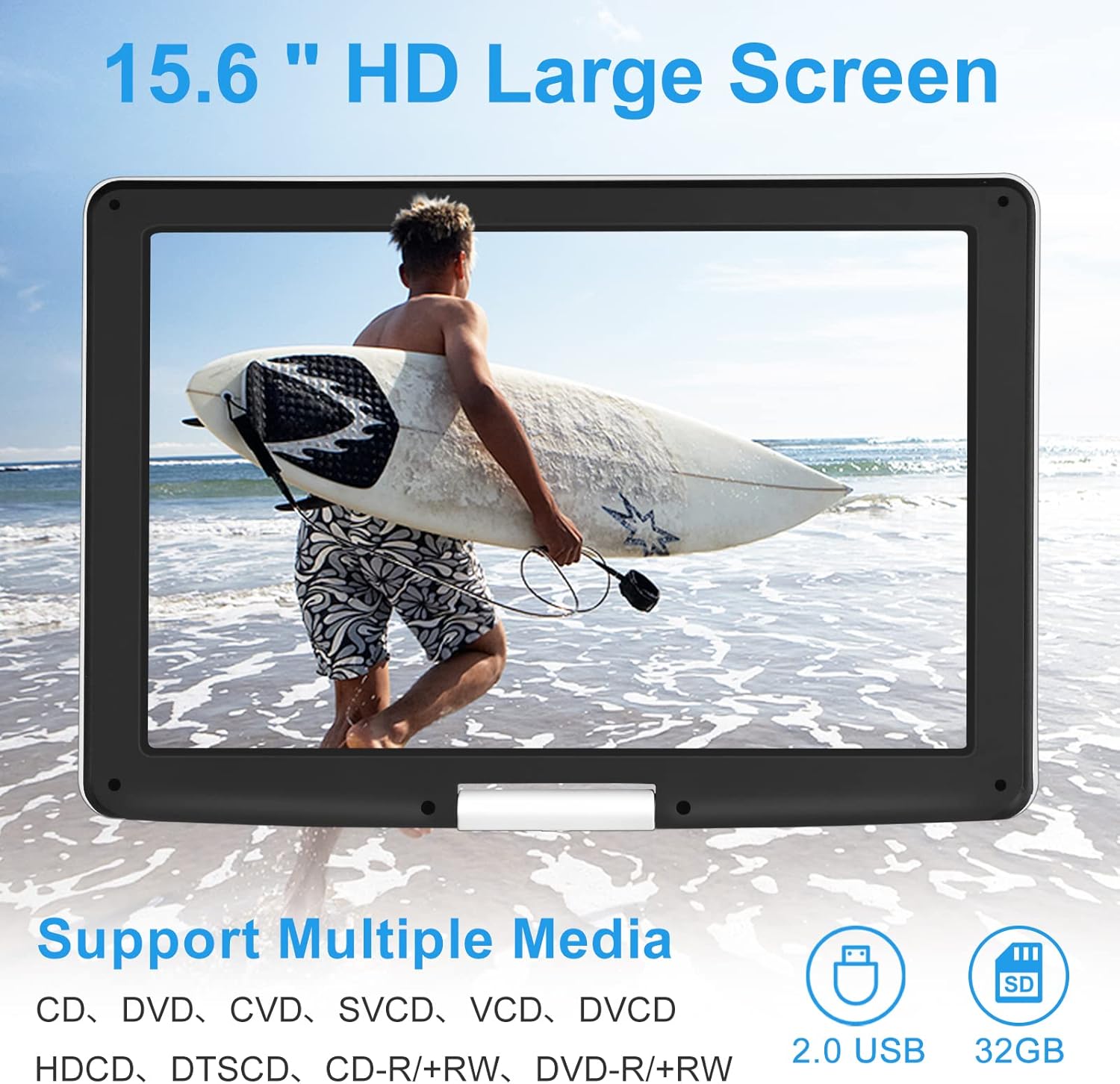
Figure 4: Media Support. This image illustrates the player's compatibility with various media types, including USB and SD cards.
3. Adjusting the Screen
The 15.6-inch screen can be adjusted for optimal viewing:
- Swivel: The screen can swivel 180° horizontally.
- Rotation: The screen can rotate 270° vertically.
This flexibility allows you to find the most comfortable viewing angle or fold the screen flat against the player for tablet-like use.

Figure 5: 180° Swivel. The screen can be turned horizontally.

Figure 6: 270° Rotation. The screen can be tilted vertically.
4. Last Memory Function
The player features a "Last Memory" function. If the device is turned off during playback, it will automatically resume from the last watched point when powered on again.

Figure 7: Last Memory Feature. The player remembers your last playback position.
5. Audio Output
- Built-in Speakers: The player has two high-volume speakers for direct audio output.
- Headphone Jack: Connect headphones to the 3.5mm headphone jack for private listening.
- External Speakers: Connect external speakers via the headphone jack or AV Out port for enhanced audio.

Figure 8: Built-in Speakers. The player features two integrated speakers for audio playback.
6. Connecting to a TV (Sync Screen)
Use the included RCA AV cable to connect the portable DVD player to a television or larger display. This allows you to share your viewing experience on a bigger screen.
- Connect one end of the RCA AV cable to the "AV OUT" port on the portable DVD player.
- Connect the other end of the RCA AV cable to the corresponding "AV IN" ports on your television (typically red, white, and yellow jacks).
- Select the correct AV input source on your television.

Figure 9: Sync Screen to TV. Connect the player to a television for a larger display.
Maintenance
- Cleaning the Screen: Use a soft, lint-free cloth to gently wipe the screen. Do not use abrasive cleaners or solvents.
- Cleaning the Disc Lens: If disc playback issues occur, use a specialized DVD lens cleaning disc to clean the laser lens.
- General Cleaning: Wipe the exterior of the player with a soft, dry cloth. Avoid moisture entering any ports.
- Storage: Store the player in a cool, dry place away from direct sunlight and extreme temperatures when not in use.
- Battery Care: To prolong battery life, avoid fully discharging the battery frequently. Charge it regularly, even if not in use for extended periods.
Troubleshooting
| Problem | Possible Cause | Solution |
|---|---|---|
| Player does not power on. | Battery is discharged; Power adapter/car charger not connected or faulty. | Charge the battery. Ensure power connections are secure and functional. |
| No disc playback. | Disc inserted incorrectly; Disc is dirty or scratched; Disc format not supported; Laser lens is dirty. | Reinsert disc correctly. Clean or replace disc. Ensure disc is not Blu-ray. Use a lens cleaning disc. |
| No sound or low volume. | Volume too low; Headphones connected; External speakers not connected properly. | Increase volume. Disconnect headphones if using speakers. Check external speaker connections. |
| No picture when connected to TV. | AV cable not connected correctly; Incorrect TV input selected. | Ensure AV cable is securely connected to both player and TV. Select the correct AV input on your TV. |
| USB/SD card not recognized. | Card/drive inserted incorrectly; Incompatible format; Card/drive capacity too large (over 32GB). | Reinsert card/drive. Ensure files are in supported formats (e.g., AVI for video). Use a card/drive within the 32GB limit. |
Specifications
| Brand | YOOHOO |
| Model Number | 3568 |
| Screen Size | 15.6 Inches (17.9 inch diagonal overall) |
| Display Type | LCD |
| Screen Resolution | 1280 x 800P |
| Swivel/Rotation | 180° Swivel, 270° Rotation |
| Battery Capacity | 5000mAh Lithium Polymer |
| Battery Life | Up to 6 hours |
| Supported Media Types | CD, DVD, CVD, SVCD, VCD, DVCD, HDCD, DTSCD, CD-R/+RW, DVD-R/+RW, USB, SD Card (Does not support Blu-ray) |
| USB/SD Card Support | Up to 32GB, Video formats under 720*576 (AVI recommended) |
| Product Dimensions | 16.3 x 13.3 x 3.05 inches |
| Item Weight | 5.66 pounds |
Warranty and Support
YOOHOO provides a 1-year warranty for this portable DVD player. For any questions, technical assistance, or warranty claims, please contact YOOHOO customer service.
The YOOHOO team is available 24 hours a day, 7 days a week to provide professional customer service. All your problems will be assisted in the first instance.
Please refer to your purchase documentation or the official YOOHOO website for the most current contact information.
Ask a question about this manual
Ask about setup, troubleshooting, compatibility, parts, safety, or missing instructions. Manuals+ will review the question and use this page’s manual context to help answer it.