
Introduction
The Keychron C2 is a full-size (104-key) wired mechanical keyboard designed for both Mac and Windows operating systems. It features durable Red mechanical switches and retro-colored ABS keycaps, providing a comfortable and responsive typing experience. This manual provides essential information for setting up, operating, maintaining, and troubleshooting your Keychron C2 keyboard.

Image: The Keychron C2 Full Size Wired Mechanical Keyboard connected to a computer setup.
Package Contents
Ensure all items are present in the package:
- Keychron C2 Full Size Wired Mechanical Keyboard
- USB-C to USB-A Cable
- Keycap Puller
- Extra Keycaps for Mac and Windows operating systems
Setup
- Connect the Keyboard: Plug the USB-C end of the provided cable into the keyboard's USB-C port and the USB-A end into an available USB port on your computer. The keyboard is a wired-only device and does not require batteries.
- Select Operating System Mode: Locate the operating system switch on the back or side of the keyboard. Slide the switch to the appropriate position for your computer (Mac or Windows). This ensures correct function key mapping.
- Adjust Keyboard Angle: The keyboard features 2-level adjustable feet. Flip out the feet on the underside of the keyboard to achieve your preferred typing angle for ergonomic comfort.
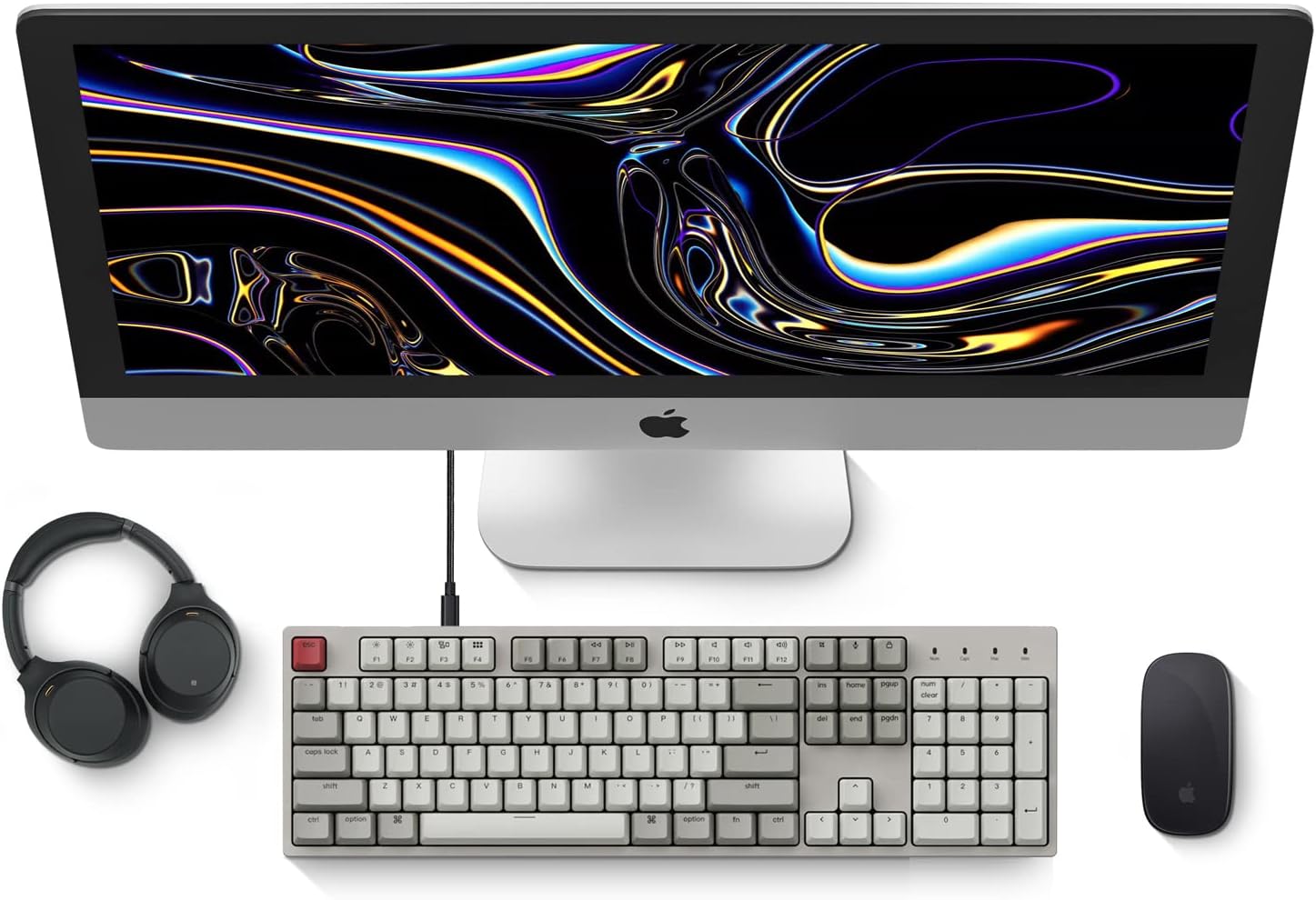
Image: Diagram showing compatibility with Mac and Windows operating systems.

Image: Side view of the Keychron C2 keyboard illustrating the adjustable feet for angle customization.
Operating Instructions
Basic Functions
- Typing: The keyboard features a standard 104-key full-size layout.
- Multimedia Keys: The top row of function keys (F1-F12) includes multimedia controls. These functions are optimized for Mac but are also compatible with Windows.
- Siri/Cortana Key: A dedicated key is provided for activating Siri (on Mac) or Cortana (on Windows).
Keycap Replacement
The Keychron C2 comes with extra keycaps for both Mac and Windows layouts. To replace keycaps:
- Use the provided keycap puller to gently remove the desired keycap by hooking it onto the keycap and pulling upwards.
- Align the new keycap with the switch stem and press down firmly until it clicks into place.

Image: Close-up view of the Keychron Red mechanical switches beneath removed keycaps.
Maintenance
- Cleaning: Regularly clean your keyboard to prevent dust and debris buildup. Use a soft brush or compressed air to remove particles between keycaps. For surface cleaning, use a slightly damp, lint-free cloth. Avoid harsh chemicals.
- Keycap Care: While durable, avoid excessive force when removing or installing keycaps to prevent damage to the keycap stems or switches.
- Cable Management: Ensure the USB-C cable is not bent sharply or placed under heavy objects to prolong its lifespan.

Image: Close-up of the ABS keycaps on the Keychron C2 keyboard.
Troubleshooting
- Keyboard Not Responding:
- Check the USB-C cable connection at both the keyboard and the computer. Ensure it is securely plugged in.
- Try connecting the keyboard to a different USB port on your computer.
- Verify that the operating system switch on the keyboard is set correctly (Mac/Windows).
- Restart your computer.
- Specific Keys Not Working:
- Carefully remove the non-functional keycap using the keycap puller. Inspect the mechanical switch for any visible damage or debris.
- Clean around the switch with compressed air.
- Re-seat the keycap firmly.
- Incorrect Key Output:
- Ensure the operating system switch is set to the correct mode for your computer.
- Check your computer's keyboard settings to ensure the correct layout is selected.
Specifications
| Feature | Detail |
|---|---|
| Brand | Keychron |
| Model Name | Keychron C2 |
| Model Number | HS-C2K1Z |
| Connectivity Technology | USB-C (Wired) |
| Compatible Devices | Laptop, PC |
| Compatible Operating System Family | MacOS, Windows |
| Number of Keys | 104 |
| Switch Type | Linear (Red Switch) |
| Keycap Material | ABS (Acrylonitrile Butadiene Styrene) |
| Keyboard Layout | QWERTY |
| Special Feature | Backlit (Single Color) |
| Item Weight | 5390 Grams |
| Power Source | Corded Electric |
Warranty and Support
For warranty information, technical support, or further assistance, please visit the official Keychron website or contact Keychron customer service. Details regarding product registration and specific warranty terms can be found through official Keychron channels.


