
ZOOAOXO M900
ZOOAOXO 64GB MP3 Player User Manual
Model: M900
Introduction
Thank you for choosing the ZOOAOXO M900 64GB MP3 Player. This portable music player features a 2.4-inch full touch screen, Bluetooth 5.2 connectivity, built-in HD speakers, and supports various functions including E-Book reading, alarm clock, FM radio, and voice recording. This manual provides detailed instructions to help you get the most out of your device.

Image: Front and back view of the ZOOAOXO M900 MP3 Player, showcasing its sleek design and compact size.
Safety Information
- Do not expose the device to extreme temperatures, direct sunlight, or high humidity.
- Avoid dropping or subjecting the device to strong impacts.
- Do not disassemble or attempt to repair the device yourself. Contact customer support for assistance.
- Keep the device away from water and other liquids.
- Use only the provided or recommended charging accessories.
- Prolonged listening at high volume levels may cause hearing damage.
Package Contents
Please check the package for the following items:
- ZOOAOXO M900 MP3 Player
- 64GB MicroSD Card (pre-installed or included separately)
- USB Charging Cable
- Wired Headphones
- USB Card Reader
- User Manual (this document)

Image: The ZOOAOXO M900 MP3 Player alongside its included 64GB MicroSD card, USB card reader, and wired headphones.
Product Overview
Familiarize yourself with the various parts of your MP3 player.
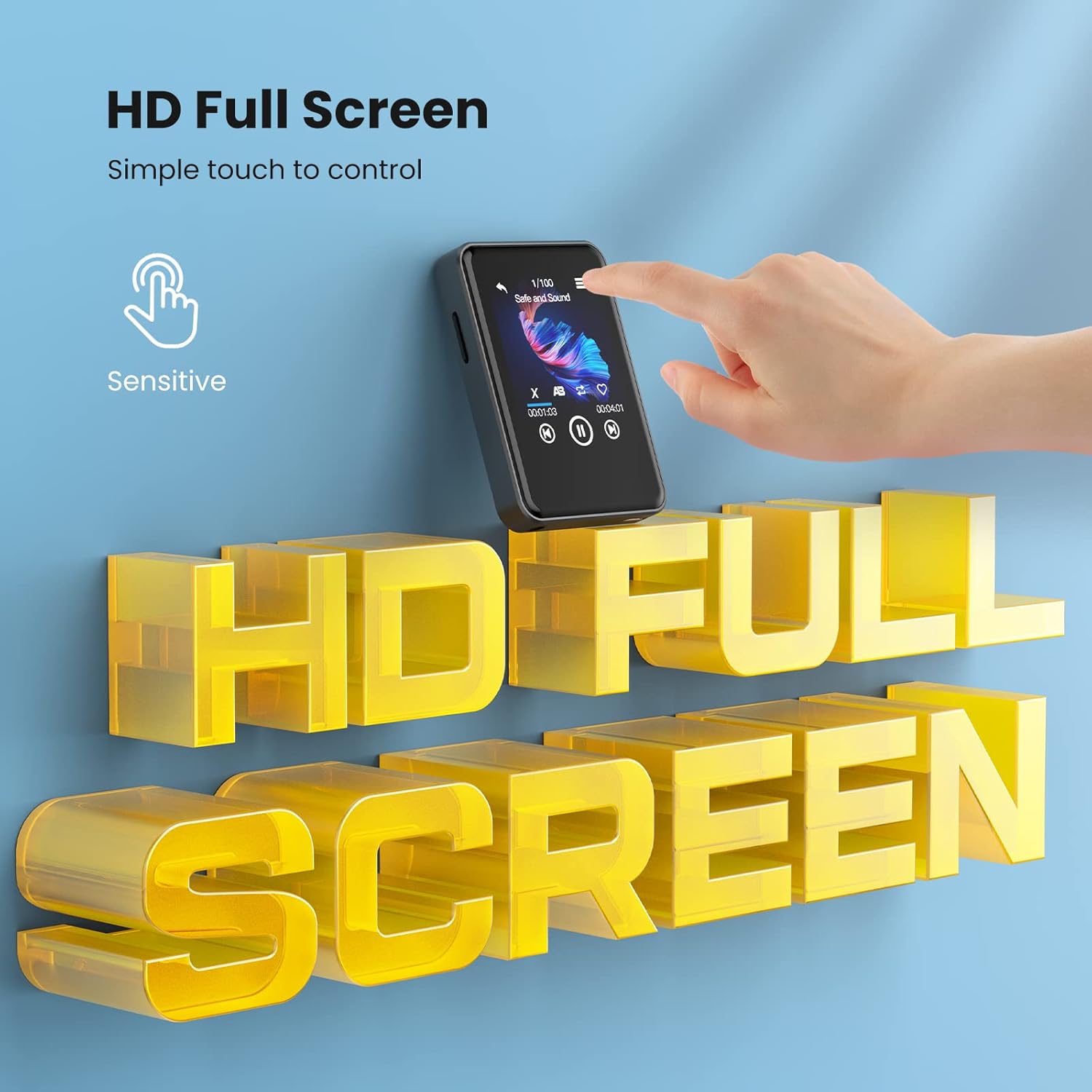
Image: A close-up view of the MP3 player's 2.4-inch HD full touch screen, highlighting its sensitive touch control.
Key Components:
- 2.4-inch Full Touch Screen: For navigation and interaction.
- Power Button: Located on the side, used for turning the device on/off and screen lock.
- Volume Buttons: Adjust audio output.
- MicroSD Card Slot: For memory expansion (64GB card included).
- USB-C Port: For charging and data transfer.
- 3.5mm Headphone Jack: For wired audio output.
- Built-in Speaker: For audio playback without headphones.
Setup
1. Charging the Device
Before first use, fully charge the MP3 player. Connect the provided USB charging cable to the device's USB-C port and the other end to a USB power adapter (not included) or a computer's USB port. The charging indicator will show the charging status.
2. Inserting the MicroSD Card
The device comes with a 64GB MicroSD card. If it's not already inserted, gently push the MicroSD card into the card slot until it clicks into place. To remove, push the card again until it springs out.
3. Transferring Music and Files
- Connect the MP3 player to your computer using the USB cable.
- The device will appear as a removable disk on your computer.
- Drag and drop your music files (MP3, WMA, WAV, APE, FLAC, etc.), e-books (TXT), and image files (JPG, BMP, GIF) into the appropriate folders on the device's MicroSD card.
- Alternatively, you can use the included USB card reader to directly transfer files to the MicroSD card. Insert the MicroSD card into the card reader, then plug the reader into your computer.
- Safely eject the device from your computer before disconnecting the USB cable.

Image: The MP3 player positioned near a turntable, emphasizing its superior HiFi sound quality and compatibility with APE, FLAC, MP3, WMA, and WAV audio formats.
Operating Instructions
1. Power On/Off
- Power On: Press and hold the Power button until the screen lights up.
- Power Off: Press and hold the Power button, then select "Power Off" on the screen.
- Screen Lock/Unlock: Briefly press the Power button to turn the screen on/off or lock/unlock it.
2. Touch Screen Navigation
The 2.4-inch full touch screen allows for intuitive control. Swipe left/right or up/down to navigate through menus and options. Tap icons to select functions or confirm actions.
3. Music Playback
- From the main menu, tap the "Music" icon.
- Browse your music by Artist, Album, Songs, or Folders.
- Tap a song to start playback.
- Use the on-screen controls for Play/Pause, Next/Previous Track, and Volume adjustment.
4. Bluetooth Connection
The MP3 player features Bluetooth 5.2 for wireless audio streaming to compatible headphones or speakers.
- From the main menu, tap the "Bluetooth" icon.
- Turn on Bluetooth. The device will automatically scan for nearby Bluetooth devices.
- Select your desired Bluetooth device from the list to pair.
- Once connected, audio will play through the paired device.

Image: A man running outdoors while listening to music with Bluetooth headphones, demonstrating the enhanced connectivity and stability of Bluetooth 5.2.
5. Built-in Speaker
The MP3 player includes a built-in HD speaker, allowing you to listen to music without headphones. To use the speaker, ensure no headphones are plugged into the 3.5mm jack.

Image: A child and an adult dancing in a living room, enjoying music played through the MP3 player's built-in speaker.
6. E-Book Function
Read TXT format e-books directly on your device.
- From the main menu, tap the "E-Book" icon.
- Select the e-book you wish to read.
- Use the touch screen to scroll through pages.

Image: The MP3 player screen showing various images, indicating its capability as a multifunctional e-book reader with customizable reading backgrounds.
7. Alarm Clock
Set alarms to wake you up or remind you of important events.
- From the main menu, tap the "Clock" icon.
- Select "Alarm" and set your desired time, repeat options, and alarm sound.
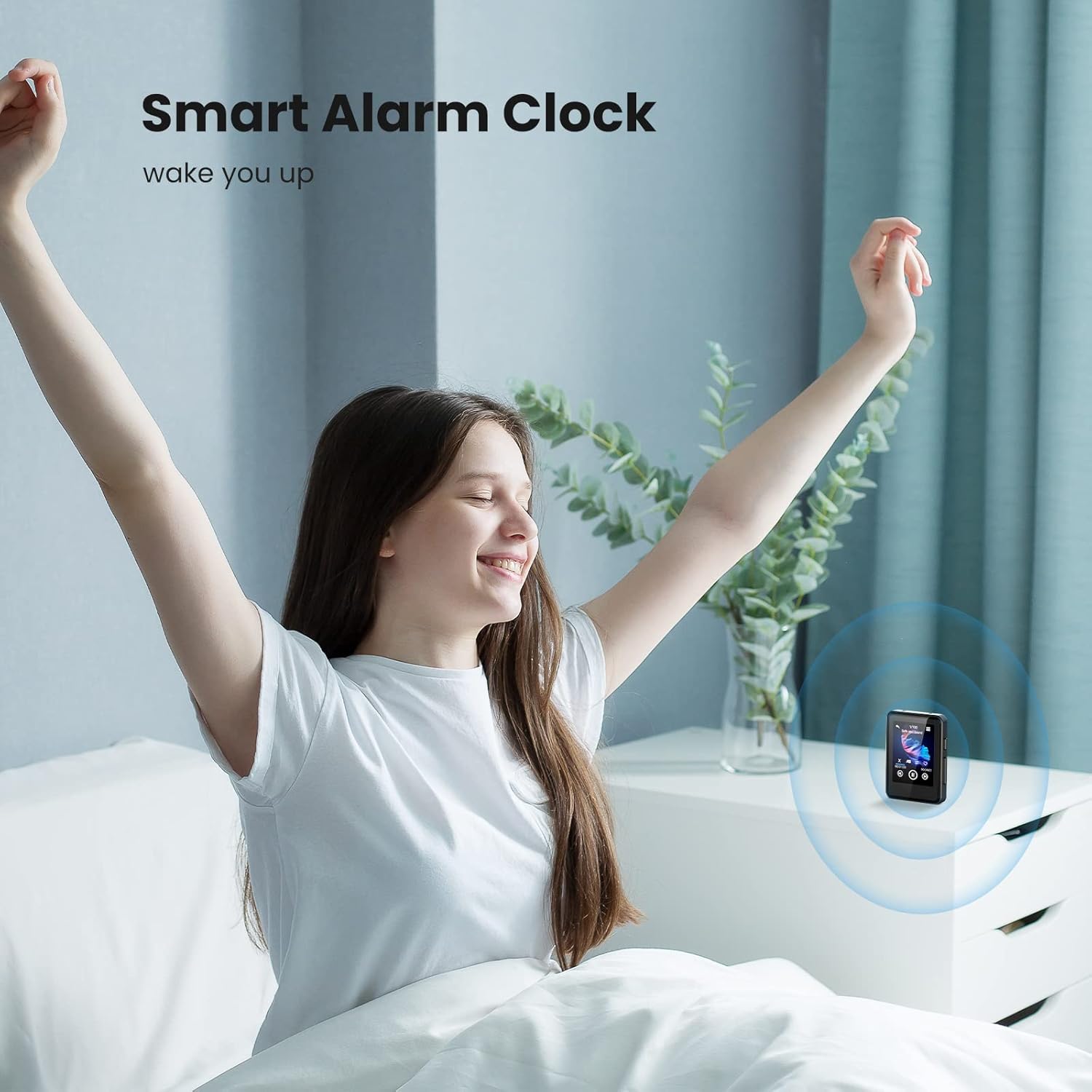
Image: A woman stretching in bed as the MP3 player, placed on a nightstand, functions as a smart alarm clock.
8. FM Radio
Listen to your favorite FM radio stations. Note: Wired headphones must be connected to act as an antenna for the FM radio function.
- Connect wired headphones to the 3.5mm jack.
- From the main menu, tap the "Radio" icon.
- Scan for available stations or manually tune to a frequency.

Image: A man jogging outdoors, using the MP3 player to listen to FM radio, with a graphic overlay showing the FM frequency range (87.50MHz~108.00MHz).
9. Voice Recorder
Record audio notes or lectures using the built-in microphone.
- From the main menu, tap the "Recorder" icon.
- Tap the record button to start recording.
- Tap the stop button to end and save the recording.

Image: Two scenarios illustrating the simple recording function: a child and an adult using the MP3 player for learning, and individuals in a business meeting utilizing it as a practical voice recorder.
10. Viewing Pictures
View your stored image files.
- From the main menu, tap the "Pictures" icon.
- Browse and select images to view.

Image: The MP3 player screen showing a grid of icons representing its various functions: Music, Recorder, Radio, E-book, Clock, Bluetooth, Pictures, and Folder.
Maintenance
- Cleaning: Use a soft, dry cloth to clean the device. Do not use liquid cleaners or aerosols.
- Battery Care: To prolong battery life, avoid fully discharging the battery frequently. Charge the device regularly, even if not in use for extended periods.
- Storage: Store the device in a cool, dry place away from direct sunlight and extreme temperatures.
Troubleshooting
| Problem | Possible Solution |
|---|---|
| Device does not power on. | Ensure the device is charged. Connect to a power source and try again. If unresponsive, perform a hard reset (refer to specific device reset instructions if available, otherwise hold power button for 10-15 seconds). |
| Cannot transfer files to the device. | Check USB cable connection. Ensure the device is recognized by the computer. Try a different USB port or cable. Ensure the MicroSD card is properly inserted. |
| Bluetooth connection issues. | Ensure Bluetooth is enabled on both devices. Place devices closer together. Unpair and re-pair the devices. Restart both the MP3 player and the Bluetooth audio device. |
| No sound from FM radio. | Ensure wired headphones are plugged in, as they act as the antenna. |
| Screen is unresponsive. | Restart the device. If the issue persists, contact customer support. |
Specifications
| Feature | Detail |
|---|---|
| Model Name | M900 |
| Screen Size | 2.4 Inches |
| Display Technology | LCD |
| Memory Storage Capacity | 64 GB (MicroSD card) |
| Connectivity Technology | Bluetooth 5.2 |
| Special Features | Full Touch Screen, Built-In Speaker, E-Book, Alarm Clock, Radio, Voice Recorder |
| Battery | 1 Lithium Polymer battery (included) |
| Product Dimensions | 0.39 x 2.36 x 3.15 inches |
| Item Weight | 5.3 ounces |
| Manufacturer | ZOOAOXO |
Warranty and Support
ZOOAOXO products come with a standard warranty. For detailed warranty information, please refer to the warranty card included in your package or visit the official ZOOAOXO website. If you encounter any issues or have questions regarding your MP3 player, please contact our customer support team for assistance.
You can typically find contact information on the product packaging, the official brand website, or through your purchase platform.
Related documentsM900


Ask a question about this manual
Ask about setup, troubleshooting, compatibility, parts, safety, or missing instructions. Manuals+ will review the question and use this page’s manual context to help answer it.