
1. Product Overview
The Otovoda B-T47 is a high-performance dual dash camera system designed to record both the road ahead and the vehicle's interior. It features 4K front recording (when used alone) or 2K front and 1080P interior recording (in dual mode), integrated Wi-Fi for app control, optional GPS logging, Super Night Vision, G-Sensor, and Parking Monitor functionalities. This manual provides detailed instructions to help you get the most out of your device.

Image: The Otovoda B-T47 Dual Dash Cam, showcasing its compact design and the accompanying mobile application interface for remote control and viewing.
2. Package Contents
- Otovoda B-T47 Dual Dash CAM
- Car Charger
- Suction Cup Mount
- GPS Module (optional, included in package)
- User Manual
3. Setup and Installation
3.1 Inserting the Micro SD Card
Before first use, insert a high-speed Micro SD card (Class 10 or higher, up to 256GB, not included) into the designated slot on the dash cam. Ensure the card is inserted correctly until it clicks into place. It is recommended to format the SD card in FAT32 mode on a computer first, then format it again within the dash cam settings after insertion.
3.2 Mounting the Dash Cam
- Clean the windshield area where you intend to mount the dash cam.
- Attach the suction cup mount to the dash cam.
- Press the suction cup firmly against the windshield and flip the lever to secure it. Position the camera to ensure a clear view of the road and the interior.
3.3 Connecting Power and GPS Module
Connect the car charger to the dash cam's power input and plug the other end into your vehicle's cigarette lighter socket. If using the optional GPS module, connect it to the designated port on the dash cam. The power cable is designed to be routed to the driver's side for a clean installation.
4. Operating Instructions
4.1 Power On/Off and Recording
The dash cam will automatically power on and begin recording when your vehicle's ignition is turned on. It will power off automatically when the ignition is turned off. Manual power on/off can be done via the power button.
4.2 Dual Camera Recording Modes
The camera supports various recording resolutions. When only the front camera is active, it can record up to 4K resolution. In dual recording mode, the front camera records at 2K and the interior camera records at 1080P, providing comprehensive coverage of both the road and the cabin.
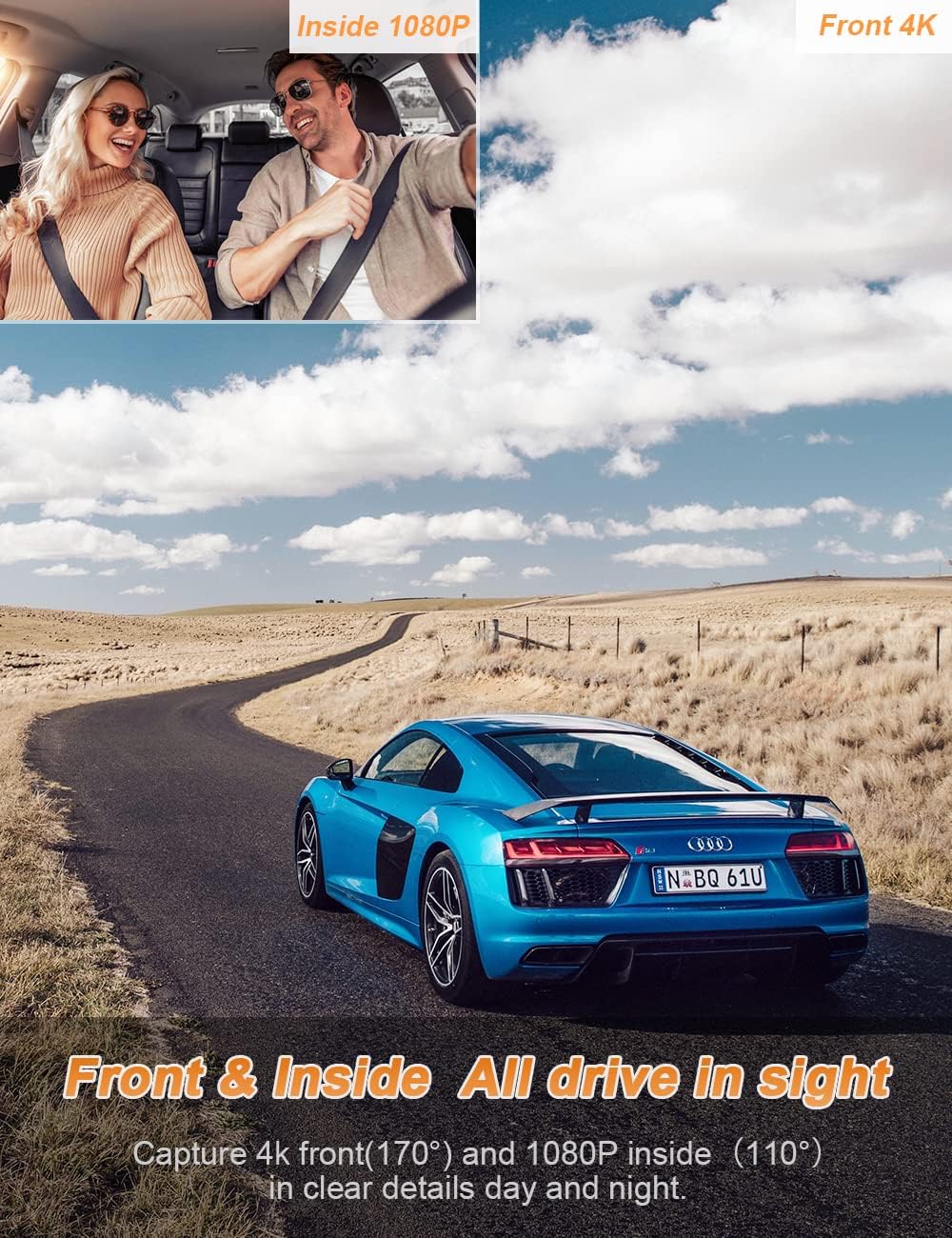
Image: Illustration of the dual recording capability, capturing both the front view in 4K and the interior view in 1080P for complete coverage.
4.3 Wi-Fi Control and App Connectivity
The dash cam features built-in Wi-Fi. Download the free "OKCAR" app (available for Android and iOS) to connect your smartphone to the dash cam. This allows for real-time video viewing, playback, downloading recorded videos, and sharing content directly from your phone.

Image: Demonstrates the Wi-Fi connectivity feature, allowing users to control the dash cam and manage recordings via a smartphone app.
4.4 GPS Data Recording
With the optional GPS module connected, the dash cam will accurately record your driving track and speed. You can view this GPS data along with your video recordings using the GXPlayer software on your computer or directly on your phone after downloading the video to your album.

Image: Illustrates the built-in GPS functionality, showing how driving routes and speed data can be viewed alongside video footage on a computer.
4.5 Super Night Vision
The Otovoda B-T47 is equipped with a high-specification sensor, a large F1.8 aperture, and a 6-crystal lens, enhanced by 4 IR LED lights for the interior camera. This combination ensures clear and faithful image capture even in low-light conditions, making it ideal for night driving and ride-sharing services.
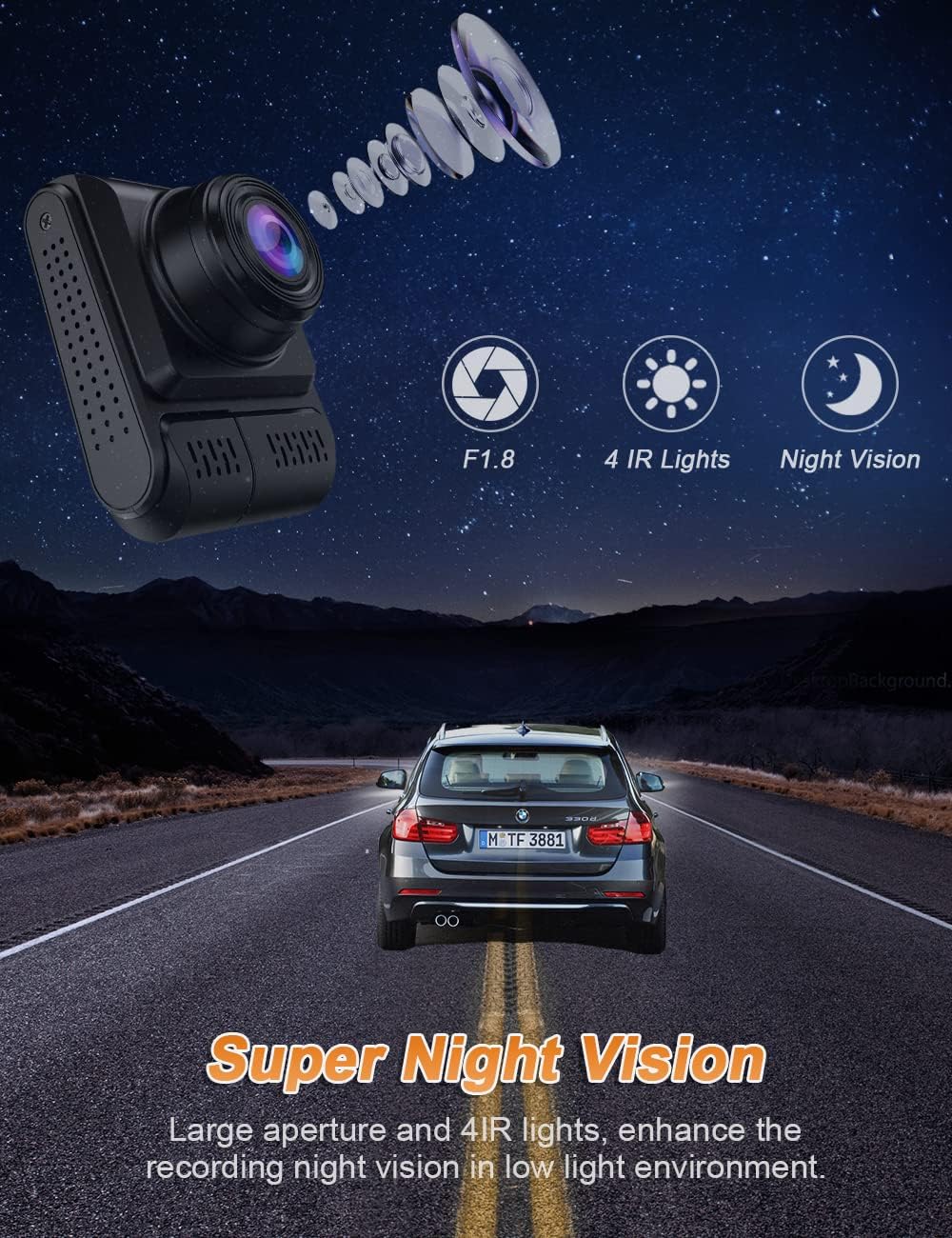
Image: Highlights the Super Night Vision capabilities of the dash cam, featuring a large F1.8 aperture and 4 IR lights for enhanced clarity in dark environments.
4.6 Loop Recording, G-Sensor, and Parking Monitor
- Loop Recording: The dash cam continuously records, automatically overwriting the oldest unlocked footage when the memory card is full. This ensures continuous recording without manual intervention.
- G-Sensor: A built-in G-sensor detects sudden impacts or collisions. When triggered, it automatically locks the current video segment to prevent it from being overwritten, serving as crucial accident evidence.
- Parking Monitor: With a hardwire kit (not included), the parking monitor function allows the dash cam to automatically turn on and record a protected video if it detects a collision or motion while your vehicle is parked, providing 24/7 security surveillance.

Image: Visual representation of key features: Loop Recording for continuous capture, G-Sensor for automatic video locking upon impact, and Parking Monitor for 24-hour vehicle security.
5. Maintenance
5.1 Micro SD Card Management
To ensure optimal performance and prevent data corruption, it is recommended to format the Micro SD card regularly (e.g., once a month) within the dash cam's settings. This will erase all data on the card, so back up any important videos before formatting.
5.2 Cleaning the Device
Gently wipe the camera lenses and the device body with a soft, dry, lint-free cloth. Do not use liquid cleaners or abrasive materials, as they may damage the lenses or casing.
6. Troubleshooting
- Dash cam does not power on: Ensure the car charger is properly connected and the vehicle's ignition is on. Check the fuse in your vehicle's cigarette lighter socket.
- "Card Error" or recording issues: Ensure you are using a high-speed (Class 10 or higher) Micro SD card. Format the SD card within the dash cam's settings. If the issue persists, try a different SD card.
- Wi-Fi connection issues: Ensure the dash cam's Wi-Fi is enabled. Restart both the dash cam and your smartphone. Make sure you are within close proximity to the dash cam.
- GPS not recording data: Ensure the GPS module is securely connected. Position the GPS module with a clear view of the sky, away from metallic obstructions.
- Poor night vision quality: Ensure the lenses are clean. Check if the interior IR lights are active in dark conditions.
7. Specifications
| Brand | Otovoda |
| Model Number | B-T47 |
| Color | Black |
| Screen Size | 2 inches |
| Connectivity Technology | Wi-Fi |
| Special Features | Real-time viewing, Wi-Fi, G-Sensor, Loop Recording, Parking Monitor, Super Night Vision |
| Compatible Devices | Smartphone |
| Battery Composition | Lithium-ion (included) |
| Video Recording Resolution | 4K (front only), 2K (front dual), 1080P (interior dual) |
| Field of View | 110 degrees |
| Item Weight | 378 Grams |
| Maximum Aperture | f/1.8 |
8. Customer Support
For any questions, technical assistance, or support regarding your Otovoda 4K Dual Dash CAM, please refer to the contact information provided with your product packaging or visit the official Otovoda website. Our customer service team is dedicated to providing timely and helpful assistance.

