
Introduction
This user manual provides detailed instructions for the installation, operation, and maintenance of your Linkind Smart Edison Bulbs. These tunable white Wi-Fi bulbs offer convenient control via app, voice, or the included remote, enhancing your home lighting experience.
Please read this manual thoroughly before use to ensure proper functionality and safety.
What's in the Box
- Linkind Smart Edison Bulbs (2x ST19/ST58)
- Remote Control (pre-paired)
- User Manual (this document)

Important Safety Information
- WARNING: Not for use with standard dimmer switches. Use only with the AiDot APP, voice control, or the provided remote control for dimming.
- Ensure power is OFF before installation or removal.
- Do not disassemble or modify the bulb.
- Suitable for indoor use only.
- Avoid exposure to water or excessive humidity.
- Operate within the specified voltage range (100-120V, 60Hz).
Setup Guide
1. Physical Installation
- Ensure the power to the light fixture is turned OFF at the switch before installing the bulb.
- Carefully screw the Linkind Smart Edison Bulb into a standard E26 light socket. Do not overtighten.
- Turn the power ON at the switch. The bulb should light up.

2. AiDot App Installation & Pairing
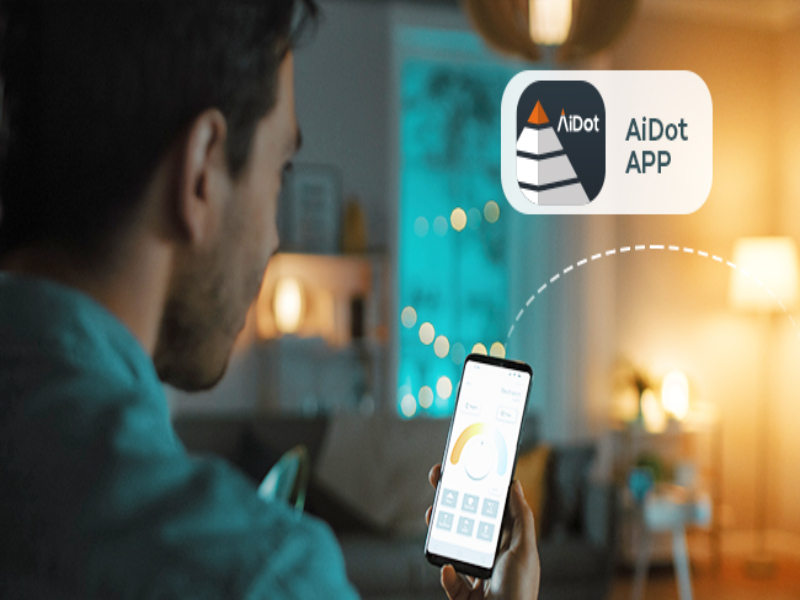
- Download the AiDot APP from the App Store (iOS) or Google Play Store (Android).
- Register or log in to your AiDot account.
- Ensure your mobile device is connected to a 2.4GHz Wi-Fi network. (5GHz networks are not supported for initial setup).
- In the AiDot APP, tap the "+" icon to add a new device.
- Select "Lighting & Control" then "Wi-Fi Light Bulb".
- Follow the on-screen instructions to put the bulb into pairing mode (usually by turning it off and on several times until it blinks).
- Confirm the bulb is blinking and proceed with the app's pairing process.
- Once detected, select your Wi-Fi network and enter the password.
- The bulb will connect to your Wi-Fi network. Once connected, you can rename the bulb and assign it to a room.

3. Remote Control Pairing (Pre-paired)
The included remote control is typically pre-paired with the bulbs. If re-pairing is needed, follow these steps:
- Ensure the bulb is powered on.
- Press the remote control button three times quickly to enter pairing mode. The bulb will blink once to confirm successful pairing.
Operating Instructions
1. Control via AiDot App
- On/Off: Tap the power icon next to the bulb in the app.
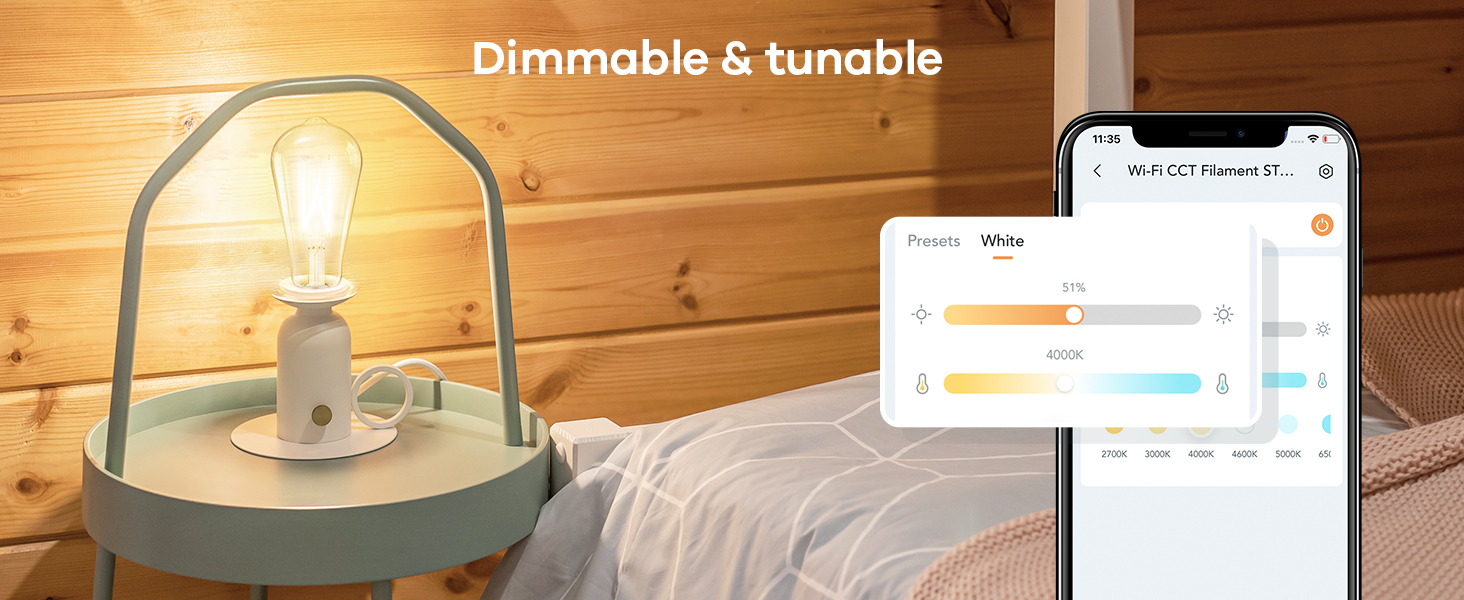
- Dimming: Adjust the brightness slider from 1% to 100%.
- Color Temperature: Change the white light from warm (2700K) to cool (6500K) using the color temperature slider.
- Time Schedule: Set schedules for automatic turning on/off at specific times.
- Group Control: Group multiple bulbs to control them simultaneously.
- Presets: Utilize pre-set lighting scenes or create your own.


2. Control via Remote Control
- Single Click: Turn the bulb ON or OFF.
- Double Click: Adjust the color temperature (cycles through warm, neutral, cool white).
- Long Press: Adjust brightness (dim or brighten continuously).

3. Voice Control (Alexa & Google Home)
Once integrated with Alexa or Google Home, you can control your bulbs using voice commands. Ensure your AiDot account is linked to your smart assistant app.
- "Alexa, turn on the [Room Name] lights."
- "Hey Google, dim the [Bulb Name] to 50%."
- "Alexa, set [Bulb Name] to warm white."
Maintenance
- Cleaning: Ensure the bulb is off and cool before cleaning. Wipe with a soft, dry cloth. Do not use liquid cleaners or abrasive materials.
- Storage: If storing the bulbs for an extended period, keep them in a cool, dry place away from direct sunlight.
- Firmware Updates: Periodically check the AiDot APP for firmware updates to ensure optimal performance and security.
Troubleshooting
Bulb Not Turning On
- Check if the light fixture switch is ON.
- Ensure the bulb is screwed in properly and securely.
- Verify power to the fixture by testing with another working bulb.
Bulb Not Connecting to Wi-Fi / App
- Ensure your Wi-Fi network is 2.4GHz. These bulbs do not support 5GHz Wi-Fi.
- Check your Wi-Fi signal strength at the bulb's location. Move the router closer if necessary.
- Confirm you entered the correct Wi-Fi password.
- Try resetting the bulb to factory settings (turn off/on 5 times rapidly) and re-attempt pairing.
- Ensure Bluetooth is enabled on your phone for initial discovery.
Remote Control Not Working
- Ensure the remote control is within the 98ft operating range of the bulb.
- Check the remote control's battery. Replace if necessary (1 Lithium Ion battery required).
- Re-pair the remote control with the bulb as described in the Setup section.
Flickering or Dimming Issues
- IMPORTANT: These bulbs are NOT compatible with traditional dimmer switches. Using them with a dimmer switch can cause flickering and damage. Ensure the fixture is controlled by a standard ON/OFF switch.
- Check for electrical interference from other appliances.
Specifications
| Feature | Detail |
|---|---|
| Brand | Linkind |
| Model | ST19 (ST58) |
| Light Type | LED |
| Wattage | 8 Watts |
| Incandescent Equivalent | 60 Watts |
| Brightness | 800 Lumens |
| Color Temperature | 2700K-6500K (Tunable White) |
| Dimmable | Yes (via App/Voice/Remote, NOT traditional dimmers) |
| Bulb Base | E26 |
| Voltage | 100-120 Volts, 60 Hertz |
| Connectivity | Wi-Fi (2.4GHz), Bluetooth |
| Controller Type | Google Assistant, Remote, Amazon Alexa, AiDot APP |
| Average Life | 25,000 Hours |
| Material | Glass |
| Indoor/Outdoor Usage | Indoor |
Warranty & Support
Linkind products come with a 1-Year Warranty from the date of purchase. This warranty covers defects in materials and workmanship under normal use.
For technical support, troubleshooting assistance, or warranty claims, please contact Linkind Customer Service:
- Phone: 1-877-770-5727
- Hours: Monday - Friday, 9 AM - 5 PM PST
- Online Support: Visit the Linkind Brand Store on Amazon for FAQs and additional resources.


